
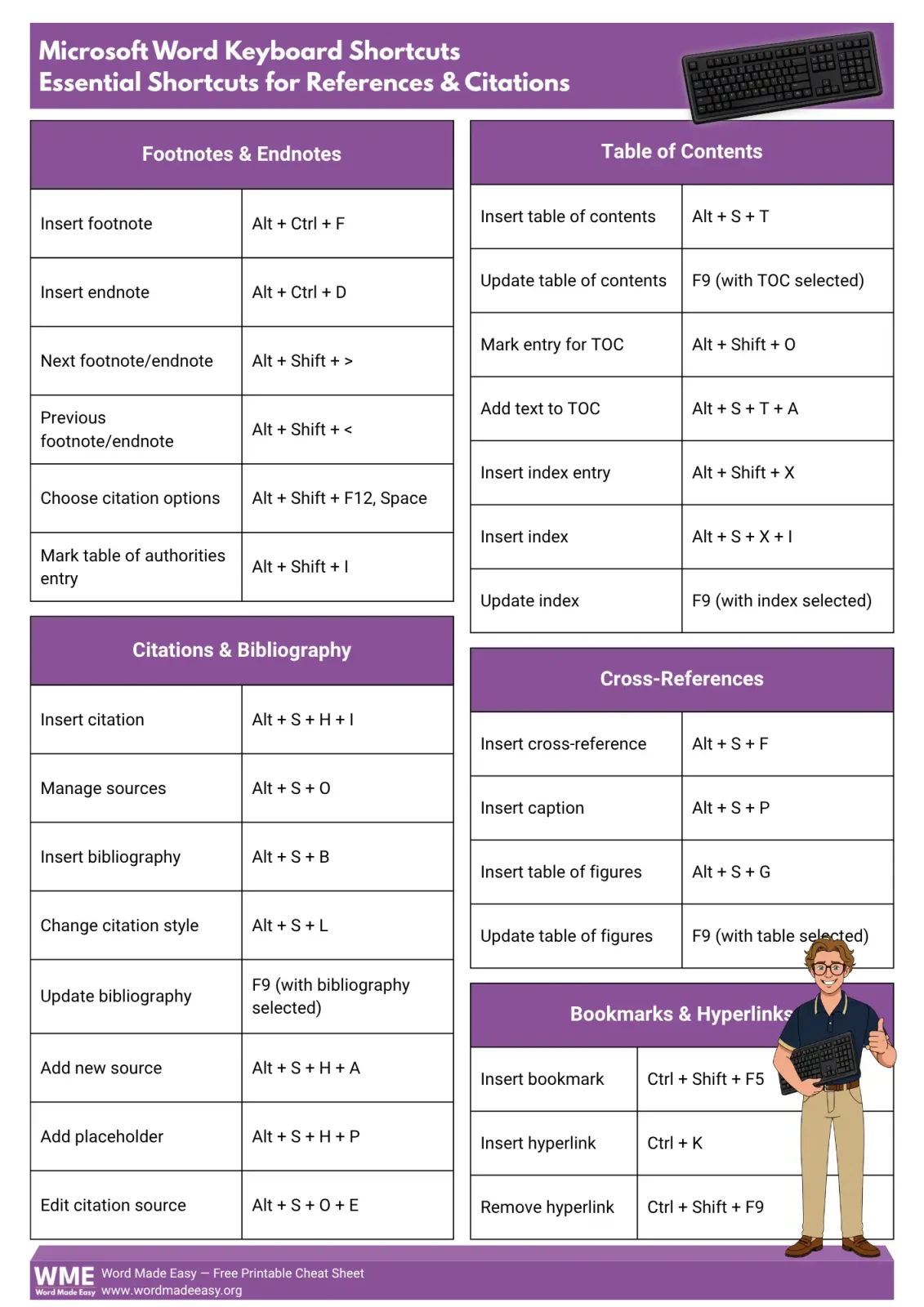
Reference shortcuts in Word help you insert notes, manage citations, build indexes and move through source-heavy documents without repeatedly searching the ribbon. This cheat sheet contains 28 shortcut/action entries from the supplied reference, grouped around the tasks used most often in academic and research documents.
Use the list as a working reference rather than something to memorise in one sitting. Start with the commands you use every day, then expand your keyboard workflow with the complete Word keyboard shortcuts cheat sheet.
Why Use Reference Shortcuts in Word?
Reference shortcuts in Word reduce the number of times you need to leave your text and hunt through the References tab. That matters in long papers, dissertations and reports where footnotes, citations, contents pages, indexes and cross-references appear throughout the document.
- Insert footnotes and endnotes without opening a menu.
- Open citation, source and bibliography commands from the keyboard.
- Build and update tables of contents, indexes and figures.
- Add cross-references, captions, bookmarks and hyperlinks.
- Move between notes and update generated fields without retyping them.
For a broader official command reference beyond this specialised sheet, see the official keyboard shortcuts documentation.
Shortcut Categories at a Glance
The 28 reference shortcuts in Word fall into five practical groups. Footnotes and citation tools are useful while writing, while contents, index, cross-reference and hyperlink commands become more valuable as a document grows.
| Category | Best For | Learn First |
|---|---|---|
| Footnotes & Endnotes | Notes and authorities | Alt + Ctrl + F |
| Citations & Bibliography | Sources and citation styles | Alt + S + H + I |
| Table of Contents & Index | Long-document navigation | F9 |
| Cross-References | Captions and linked references | Alt + S + F |
| Bookmarks & Hyperlinks | Internal and external navigation | Ctrl + K |
Footnotes & Endnotes Shortcuts
Footnotes and endnotes are a natural place to start with reference shortcuts in Word. This group also contains the source sheet’s citation-options command and the shortcut for marking a table of authorities entry.
- Alt + Ctrl + F — Insert a footnote.
- Alt + Ctrl + D — Insert an endnote.
- Alt + Shift + > — Move to the next footnote or endnote.
- Alt + Shift + < — Move to the previous footnote or endnote.
- Alt + Shift + F12, Space — Choose citation options.
- Alt + Shift + I — Mark a table of authorities entry.
👉 If you write with footnotes, learn Alt + Ctrl + F first. Add the next and previous note commands when you regularly review long documents.
Citations & Bibliography Shortcuts
Citation management is where reference shortcuts in Word can remove repeated ribbon navigation from research-heavy documents. The source sheet includes commands for inserting citations, managing sources, changing styles and working with the bibliography.
- Alt + S + H + I — Insert a citation.
- Alt + S + O — Manage sources.
- Alt + S + B — Insert a bibliography.
- Alt + S + L — Change the citation style.
- F9 — Update the bibliography when the bibliography is selected.
- Alt + S + H + A — Add a new source.
- Alt + S + H + P — Add a placeholder citation.
- Alt + S + O + E — Edit a citation source.
👉 Set up sources early in a large project. These reference shortcuts in Word then let you insert and update citation information without rebuilding source details repeatedly.
Table of Contents & Index Shortcuts
For long documents, reference shortcuts in Word also cover contents pages and indexes. These commands help you insert generated navigation, mark entries and refresh the finished fields when the document changes — for the full setup, see how to create a table of contents in Word.
- Alt + S + T — Insert a table of contents.
- F9 — Update the table of contents when the TOC is selected.
- Alt + Shift + O — Mark an entry for the table of contents.
- Alt + S + T + A — Add text to the table of contents.
- Alt + Shift + X — Insert an index entry.
- Alt + S + X + I — Insert an index.
- F9 — Update the index when the index is selected.
👉 Remember that F9 updates the selected generated field. Among these reference shortcuts in Word, it is the command to remember for refreshing selected generated reference content.
Cross-Reference Shortcuts
Cross-references are another useful part of reference shortcuts in Word. This group covers the command for inserting a cross-reference plus caption and table-of-figures tools used in reports, dissertations and illustrated documents.
- Alt + S + F — Insert a cross-reference.
- Alt + S + P — Insert a caption.
- Alt + S + G — Insert a table of figures.
- F9 — Update the table of figures when the table is selected.
👉 Use generated cross-references and captions when referenced material may move as the document changes. These reference shortcuts in Word help preserve the connection instead of relying on manually typed numbers.
Bookmarks & Hyperlinks Shortcuts
The final group of reference shortcuts in Word covers bookmarks and hyperlinks. These commands are useful when readers need to jump to another location or when your document links to an outside source.
- Ctrl + Shift + F5 — Insert a bookmark.
- Ctrl + K — Insert a hyperlink.
- Ctrl + Shift + F9 — Remove a hyperlink.
👉 Use Ctrl + K when adding links frequently. For the complete linking workflow, see how to insert a hyperlink in Word.
How to Memorise Reference Shortcuts Faster
Do not try to memorise all 28 reference shortcuts in Word in one session. Learn them by workflow so each command becomes attached to a task you already perform.
- Write footnotes often? Start with Alt + Ctrl + F.
- Manage many sources? Learn Insert Citation and Manage Sources together.
- Work with long reports? Add the table of contents and index commands next.
- Use figures? Learn the caption and table-of-figures commands as one group.
- Add links frequently? Memorise Ctrl + K before the less common bookmark commands.
Practise each shortcut in a real document for several days before adding another group. Reference shortcuts in Word are easier to remember when each one is tied to a task you actually perform.
Common Problems When Using Reference Shortcuts
The Shortcut Does Not Work
Some reference shortcuts in Word are direct key combinations, while others in the supplied sheet are ribbon KeyTip sequences. For a sequence, press the listed keys in order rather than pressing every key at the same time.
A Generated Reference Does Not Update
Select the bibliography, table of contents, index or table of figures before pressing F9. The source sheet assigns F9 to updating each of those generated items when that item is selected.
The Citation Style Is Wrong
Use the citation-style command before inserting large numbers of citations. Setting the required style early reduces unnecessary corrections later.
A Ribbon Sequence Behaves Differently
Long KeyTip sequences can depend on the ribbon interface represented in the supplied sheet. If a sequence behaves differently in your installation, use the corresponding command on the ribbon rather than guessing a replacement shortcut.
Pro Tips for Faster Reference Work
- Learn the footnote and endnote commands first if you write academic documents regularly.
- Keep source information organised from the beginning of a large project.
- Use F9 on selected generated fields instead of manually retyping generated information.
- Use bookmarks and cross-references for destinations that may move as the document develops.
- Combine reference shortcuts in Word with structured index entries — for the full process, see how to create an index in Word.
A small group of reference shortcuts in Word used every day is more useful than memorising all 28 and rarely using them. Build the habit first. Add breadth later.
FAQs
What are reference shortcuts in Word?
Reference shortcuts in Word are keyboard commands and ribbon KeyTip sequences used for footnotes, citations, bibliographies, contents pages, indexes, cross-references and hyperlinks. This cheat sheet contains 28 shortcut/action entries from the supplied reference.
What is the shortcut for inserting a footnote?
Press Alt + Ctrl + F to insert a footnote.
What is the shortcut for inserting an endnote?
Press Alt + Ctrl + D to insert an endnote.
How do I insert a citation from the keyboard?
The supplied reference lists Alt + S + H + I for inserting a citation.
How do I update a bibliography, contents page or index?
Select the generated item and press F9. The source sheet lists F9 for updating the selected bibliography, table of contents, index or table of figures.
What is the shortcut for inserting a hyperlink?
Press Ctrl + K to insert a hyperlink.
What is the shortcut for inserting an index entry?
Press Alt + Shift + X to insert an index entry.
How do I remove a hyperlink with the keyboard?
The supplied reference lists Ctrl + Shift + F9 for removing a hyperlink. For the menu workflow, see how to insert a hyperlink in Word.
Download the Free Cheat Sheet
Keep this printable reference beside your keyboard while you practise reference shortcuts in Word. The 28 entries are grouped into footnotes and endnotes, citations and bibliography, contents and indexes, cross-references, and bookmarks and hyperlinks.
Conclusion
Reference shortcuts in Word give you a faster way to handle notes, citations, contents pages, indexes, cross-references and links in source-heavy documents. Start with the commands that solve your most frequent task instead of trying to memorise all 28 immediately.
Keep the cheat sheet nearby and add one group at a time. When you need broader commands for writing, formatting and navigation, continue with the complete Word keyboard shortcuts reference.
Related Tutorials
- How to Create a Table of Contents in Word
- How to Insert a Hyperlink in Word
- How to Create an Index in Word
Word Tutorials
Recent Microsoft Word Tutorials
Browse the complete collection for help with formatting, layout, pages, tables, images, and document setup.
For Microsoft support documentation, visit the official Microsoft guidance.
Leave a Reply