
Track changes shortcuts in Word let you record edits, add comments and accept or reject revisions without hunting through the Review tab. One combination does most of the work: Ctrl + Shift + E switches tracking on and off. The rest of this set builds on the main Microsoft Word keyboard shortcuts cheat sheet, focused on reviewing documents.
In this guide, you’ll learn 24 Word-tested shortcuts grouped into Track Changes, Comments, Reviewing Pane and Markup Display, how KeyTip sequences work, and how to review a document from the keyboard. The free one-page PDF is ready to print straight away.
Download the Free PDF Cheat Sheet
This free one-page A4 PDF puts all 24 track changes and comments shortcuts on a single printable sheet, with clickable links back to the full guides. Print it, pin it beside your screen and glance at it during your next review.
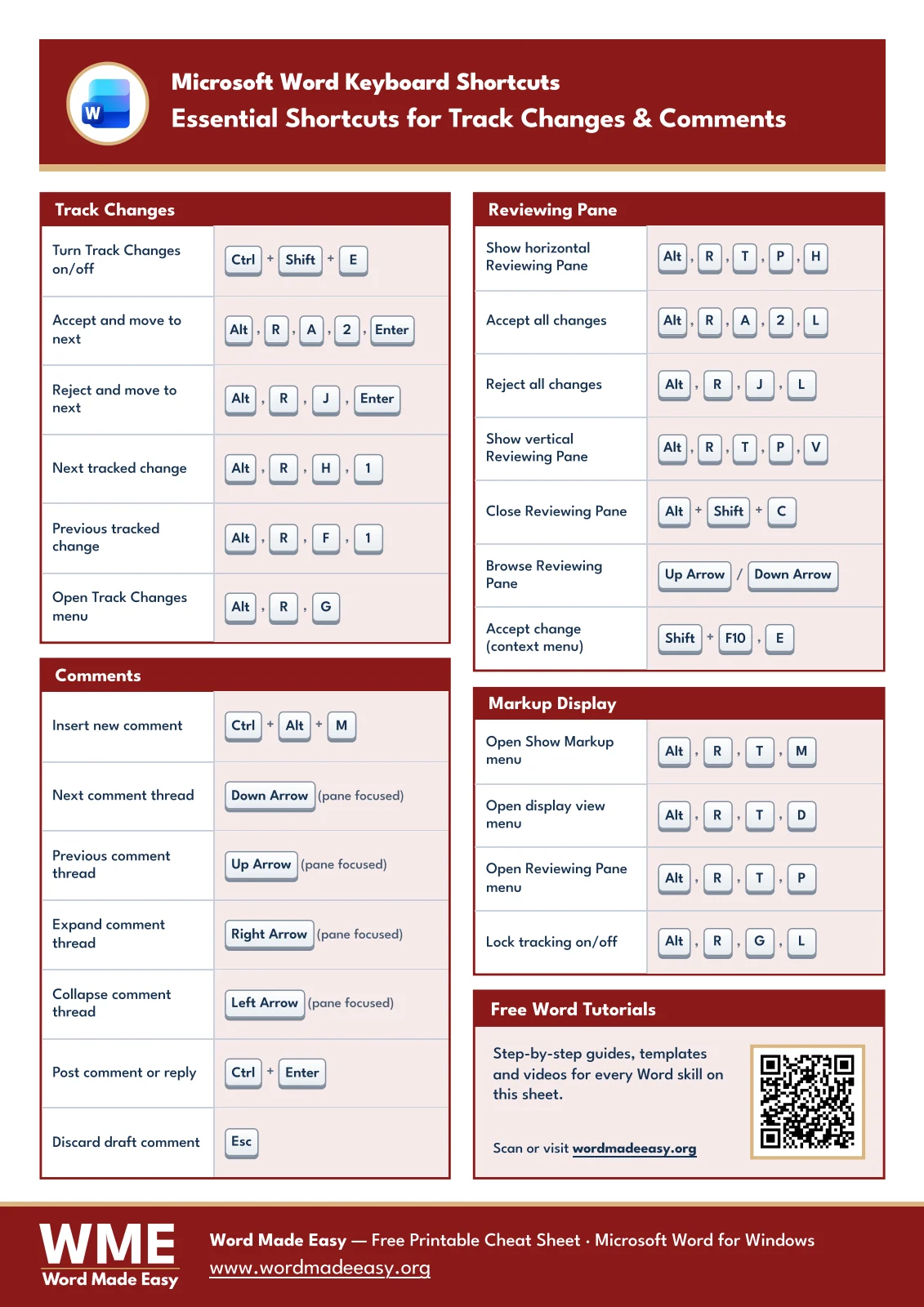
What These Track Changes Shortcuts Cover
Track Changes records insertions, deletions and formatting changes as markup, so the author can decide what stays. Comments are separate notes for questions and suggestions. Accepting a change does not resolve the comment beside it. The sheet covers both jobs, plus the panes and views you use to check them.
These shortcuts are most useful when you:
- Edit someone else’s report, essay or contract and need every change on record.
- Work through a reviewed document and accept or reject each edit in turn.
- Add, post and browse comment threads without reaching for the mouse.
- Switch markup views to read a clean version without losing the recorded revisions.
- Lock tracking so other reviewers cannot switch it off — and if your name appears wrongly on each edit, see how to change your username for Track Changes in Word.
How to Use KeyTip Shortcuts
Many track changes shortcuts in Word are ribbon KeyTips rather than held combinations. When keys are joined with a plus sign, such as Ctrl + Shift + E, hold them down together. When keys are separated by commas, such as Alt, R, G, press each key in turn: tap Alt, release it, then press R for the Review tab and G for the Track Changes menu.
Press Alt on its own and Word shows small letter badges on the ribbon. That is your map. The sequences on this sheet were tested in Word for Microsoft 365 on Windows. Older versions can use slightly different letters, so follow the badges on screen if a sequence stops early.
Track Changes Shortcuts in Word
These six shortcuts handle the core review loop: switch tracking on, jump between edits and decide on each one. Ctrl + Shift + E is the one to learn first.
| Action | Shortcut |
|---|---|
| Turn Track Changes on/off | Ctrl + Shift + E |
| Accept and move to next | Alt, R, A, 2, Enter |
| Reject and move to next | Alt, R, J, Enter |
| Next tracked change | Alt, R, H, 1 |
| Previous tracked change | Alt, R, F, 1 |
| Open Track Changes menu | Alt, R, G |
👉 Accept and Reject both move to the next change automatically, so you can clear a whole document one decision at a time.
Comments Shortcuts
Select the text you want to discuss and press Ctrl + Alt + M to open a new comment. Type your note, then press Ctrl + Enter to post it. The arrow-key shortcuts work once the Comments pane has focus — click inside the pane first.
| Action | Shortcut |
|---|---|
| Insert new comment | Ctrl + Alt + M |
| Next comment thread | Down Arrow (Comments pane focused) |
| Previous comment thread | Up Arrow (Comments pane focused) |
| Expand comment thread | Right Arrow (Comments pane focused) |
| Collapse comment thread | Left Arrow (Comments pane focused) |
| Post comment or reply | Ctrl + Enter |
| Discard draft comment | Esc |
👉 Changed your mind before posting? Esc discards the draft comment and returns you to the document.
Reviewing Pane Shortcuts
The Reviewing Pane lists every revision and comment in one place, with a running count. It is the safest way to check that nothing is hiding in a long document before you send it.
| Action | Shortcut |
|---|---|
| Show horizontal Reviewing Pane | Alt, R, T, P, H |
| Accept all changes | Alt, R, A, 2, L |
| Reject all changes | Alt, R, J, L |
| Show vertical Reviewing Pane | Alt, R, T, P, V |
| Close Reviewing Pane | Alt + Shift + C |
| Browse Reviewing Pane | Up Arrow / Down Arrow |
| Accept change (context menu) | Shift + F10, E |
👉 Alt + Shift + C only closes the pane. It does not accept changes or delete comments.
Markup Display Shortcuts
Markup display controls what you see, not what the file contains. No Markup shows a clean reading view, but every tracked revision is still there until you accept or reject it.
| Action | Shortcut |
|---|---|
| Open Show Markup menu | Alt, R, T, M |
| Open display view menu | Alt, R, T, D |
| Open Reviewing Pane menu | Alt, R, T, P |
| Lock tracking on/off | Alt, R, G, L |
👉 Lock Tracking asks for an optional password, so other reviewers cannot switch tracking off — for wider protection, see how to make a document read only in Word.
How to Review a Document With the Keyboard
Put the shortcuts together and a full review takes only a handful of keys:
- Press Ctrl + Shift + E to turn tracking on before you edit.
- Make your edits and add notes with Ctrl + Alt + M, posting each with Ctrl + Enter.
- When the document comes back, press Alt, R, H, 1 to jump to the first change.
- Press Alt, R, A, 2, Enter to accept it or Alt, R, J, Enter to reject it. Word moves to the next one.
- Open the Reviewing Pane with Alt, R, T, P, V to confirm nothing remains, then close it with Alt + Shift + C.
👉 The document is clean when the Reviewing Pane shows no revisions and no comments you meant to remove.
Pro Tips for Track Changes Shortcuts
- If Ctrl + Shift + E does nothing, check for a graphics-card overlay. Some, such as AMD Adrenalin, capture Ctrl + Shift combinations before Word sees them.
- Save a copy before using Accept All or Reject All. Both are permanent once the file is saved and closed.
- Switch to All Markup before a final check. Simple Markup can hide formatting changes.
- Use the Reviewing Pane count as your finishing line, not the look of the page.
- Run a final proofread once the markup is gone — and for the last pass, see how to check spelling and grammar in Word.
- Microsoft keeps a full list of keyboard shortcuts in Word if you need a command that is not on the sheet.
FAQs
What are the track changes shortcuts in Word?
Track changes shortcuts in Word are key combinations and ribbon KeyTips for reviewing documents. The most used are Ctrl + Shift + E to toggle tracking, Ctrl + Alt + M for a new comment and Alt + Shift + C to close the Reviewing Pane.
What is the shortcut to turn on Track Changes in Word?
Press Ctrl + Shift + E. The same shortcut turns tracking off again. Turning it off stops recording new edits but keeps the changes already recorded.
How do I accept all tracked changes with the keyboard?
Press Alt, R, A, 2, L, pressing each key in turn. To reject every change instead, press Alt, R, J, L. Save a copy first if you need the review history.
What is the shortcut to insert a comment in Word?
Select the text and press Ctrl + Alt + M. Type your note, then press Ctrl + Enter to post it, or Esc to discard the draft.
How do I move to the next tracked change?
Press Alt, R, H, 1 for the next change and Alt, R, F, 1 for the previous one. Both use the Next and Previous buttons on the Review tab.
Why does Ctrl + Shift + E not work in Word?
Another program is usually intercepting it. Graphics-card overlays such as AMD Adrenalin can capture Ctrl + Shift shortcuts, so disable or remap the overlay hotkey and try again.
Does No Markup remove tracked changes?
No. No Markup only hides the revisions on screen. They stay in the file until you accept or reject them.
Do these shortcuts work in Word for Mac?
No. The sheet is for Word on Windows. Word for Mac uses different shortcuts and has no Alt KeyTips, so check the Review tab menus on a Mac.
Conclusion
Track changes shortcuts in Word turn a slow, mouse-heavy review into a quick keyboard routine. Start with Ctrl + Shift + E and Ctrl + Alt + M, then add the Accept and Reject sequences once they feel natural.
Print the PDF, keep it beside your keyboard and use it on your next review. When you are ready for another set, move on to reference shortcuts in Word for citations, footnotes and captions.
Related Tutorials
- Microsoft Word Keyboard Shortcuts Cheat Sheet (Free PDF)
- How to Change your Username for Track Changes in Word: 2 Methods
- Word Styles and Headings Shortcuts: 28 Keys (Quick Guide)
Word Tutorials
Recent Microsoft Word Tutorials
Browse the complete collection for help with formatting, layout, pages, tables, images, and document setup.
For Microsoft support documentation, visit the official Microsoft guidance.
Leave a Reply