
Dissertation shortcuts in Word cut the slowest part of thesis writing: formatting the same headings, spacing and references over and over across 100 pages or more. They sit alongside the everyday keys in the Microsoft Word keyboard shortcuts cheat sheet, but every one here earns its place in a long academic document.
In this guide, you’ll learn 28 Windows shortcuts grouped into five tasks: headings and structure, spacing and indentation, references and contents, navigation and review, and page numbers and sections. You’ll also get a free printable PDF to keep beside you while you write.
Download the Free PDF Cheat Sheet
Grab the free one-page A4 printable PDF with all 28 shortcuts on it. Every link on the sheet is clickable, so it works on screen as well as pinned beside your desk.
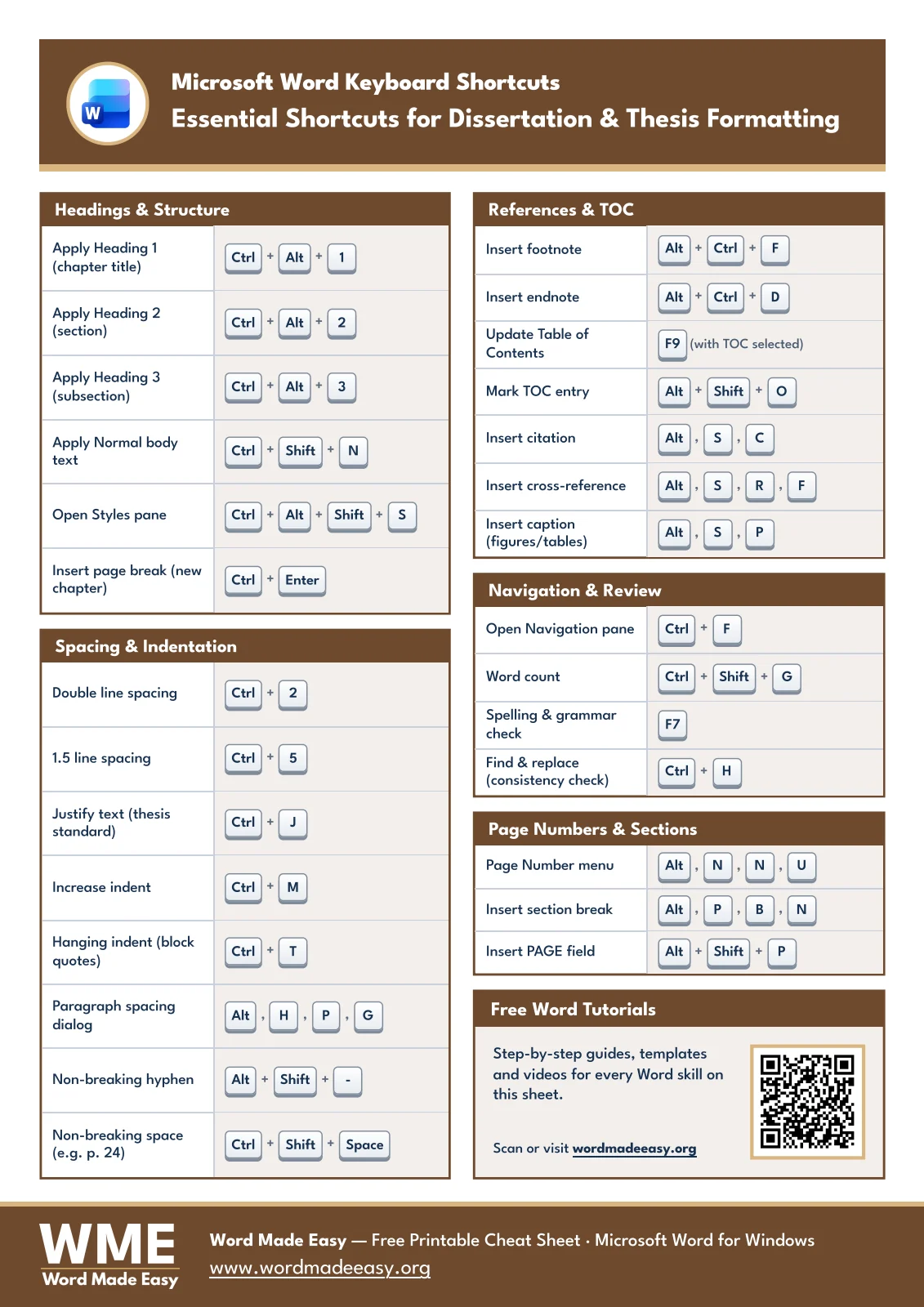
What This Dissertation Cheat Sheet Covers
A dissertation is long, structured and revised constantly. Chapters move. Sections grow. Your supervisor asks for double spacing a week before submission. Built-in heading styles, fields and section breaks are what keep the document stable through all of that, and dissertation shortcuts in Word are the fastest way to apply them.
The sheet is built for the thesis formatting jobs you repeat most:
- Applying chapter, section and subsection headings so the table of contents builds itself.
- Setting line spacing, justification and indents to match your university’s handbook.
- Adding footnotes, endnotes, citations, captions and cross-references without leaving the keyboard.
- Checking word count, spelling and consistency before each submission.
- Controlling page numbers and section breaks for front matter and main chapters.
One caution. Shortcuts apply formatting; they don’t decide it. Your institution sets the margins, spacing, referencing style and numbering scheme, so keep its guidance open and use these keys to carry it out.
How to Use KeyTip Sequences
The sheet uses two kinds of dissertation shortcuts in Word. Keys joined with a plus sign are held together, such as Ctrl + Alt + 1 for Heading 1. Keys separated by commas are ribbon KeyTips: press each key in turn, releasing it before the next. For example, Alt, S, C opens Insert Citation on the References tab.
- Press Alt on its own and Word shows a letter over every ribbon tab.
- Press the tab letter, then the command letter shown on the ribbon.
- Press Esc to step back a level if you hit the wrong key.
👉 Once you know the letters, KeyTips reach almost any ribbon command without the mouse. Microsoft keeps the full list in its keyboard shortcuts in Word reference.
Headings and Structure: Dissertation Shortcuts in Word
Start here. Built-in heading styles drive the Navigation pane, the table of contents and chapter numbering. Use Heading 1 for chapter titles, Heading 2 for sections and Heading 3 for subsections. Get this group right and the other dissertation shortcuts in Word have a solid structure to work on.
| Task | Shortcut |
|---|---|
| Apply Heading 1 (chapter title) | Ctrl + Alt + 1 |
| Apply Heading 2 (section) | Ctrl + Alt + 2 |
| Apply Heading 3 (subsection) | Ctrl + Alt + 3 |
| Apply Normal body text | Ctrl + Shift + N |
| Open Styles pane | Ctrl + Alt + Shift + S |
| Insert page break (new chapter) | Ctrl + Enter |
👉 Start every chapter with Ctrl + Enter rather than pressing Enter repeatedly. The next chapter stays on a fresh page however much the previous one grows.
Spacing and Indentation Shortcuts
Most handbooks specify double or 1.5 line spacing and justified body text. Select the paragraphs first, then apply the shortcut — for the full set of options, see the guide on double line spacing in Word. The non-breaking keys stop awkward line breaks inside references such as “p. 24” or hyphenated terms.
| Task | Shortcut |
|---|---|
| Double line spacing | Ctrl + 2 |
| 1.5 line spacing | Ctrl + 5 |
| Justify text (thesis standard) | Ctrl + J |
| Increase indent | Ctrl + M |
| Hanging indent (reference list entries) | Ctrl + T |
| Paragraph spacing dialog | Alt, H, P, G |
| Non-breaking hyphen | Alt + Shift + - |
| Non-breaking space (e.g. p. 24) | Ctrl + Shift + Space |
👉 Set spacing in the Normal style rather than paragraph by paragraph. One change then updates the whole thesis.
References and Table of Contents Shortcuts
Footnotes, citations, captions and cross-references are fields, so Word keeps their numbers in order as you edit. After moving material around, click inside your contents list and press F9 — and if you haven’t built one yet, follow the steps to create a table of contents in Word.
| Task | Shortcut |
|---|---|
| Insert footnote | Alt + Ctrl + F |
| Insert endnote | Alt + Ctrl + D |
| Update Table of Contents | F9 (with TOC selected) |
| Mark TOC entry | Alt + Shift + O |
| Insert citation | Alt, S, C |
| Insert cross-reference | Alt, S, R, F |
| Insert caption (figures/tables) | Alt, S, P |
👉 Caption every figure and table with Alt, S, P. You can then generate a list of figures and cross-reference “Figure 3.2” in the text without retyping a single number.
A long document needs fast movement and careful checking. The Navigation pane lists every heading, so you can jump between chapters or drag a section to a new position. Word Count keeps you inside the limit, and Find and Replace catches inconsistent spellings of key terms.
| Task | Shortcut |
|---|---|
| Open Navigation pane | Ctrl + F |
| Word count | Ctrl + Shift + G |
| Spelling & grammar check | F7 |
| Find & replace (consistency check) | Ctrl + H |
👉 Before each submission, run Ctrl + H on terms you may have spelled two ways, such as “organisation” and “organization”. Consistency is one of the first things examiners notice.
Page Numbers and Sections Shortcuts
Many theses number the front matter in Roman numerals and restart at 1 for Chapter 1. That needs a next-page section break between the two parts, then separate page number formats in each section. For the complete walkthrough, see how to insert different page numbers in Word.
| Task | Shortcut |
|---|---|
| Page Number menu | Alt, N, N, U |
| Insert section break | Alt, P, B, N |
| Insert PAGE field | Alt + Shift + P |
👉 From the Page Number menu, press F to open Format Page Numbers, where you choose Roman numerals or set the starting number for a section.
Pro Tips for Dissertation Formatting
These habits make dissertation shortcuts in Word far more reliable on a long document:
- Format with styles, never by hand. A heading made bold and large manually won’t appear in the table of contents.
- Update every field before you export: select all with Ctrl + A, press F9, then check headers and footers separately.
- On a laptop, function keys such as F7 and F9 may need Fn held down as well.
- If a Ctrl + Shift shortcut does nothing, a graphics-card overlay such as AMD Adrenalin may be intercepting it. Change or disable the overlay hotkey.
- Save a dated copy before large style or section changes. Undoing a broken section structure across 100 pages is slow.
- Open the exported PDF and check the front matter, chapter openings and final pages. That file is what your examiners read.
FAQs
How do I use dissertation shortcuts in Word?
Dissertation shortcuts in Word are used like any other: hold keys joined with a plus sign together, and press comma-separated KeyTips one after another. Start with Ctrl + Alt + 1 for chapter headings and Ctrl + 2 for double spacing.
What is the shortcut for double spacing a thesis in Word?
Select the text and press Ctrl + 2 for double spacing, or Ctrl + 5 for 1.5 spacing. Press Ctrl + 1 to return to single spacing.
How do I insert a footnote in a dissertation?
Place the cursor after the word or sentence and press Alt + Ctrl + F. Word adds the number and moves you to the bottom of the page; use Alt + Ctrl + D for an endnote instead.
How do I update the table of contents in my thesis?
Click inside the table of contents and press F9, then choose to update the entire table. Do this after every major edit so page numbers and headings stay accurate.
How do I make a hanging indent for my reference list?
Select the reference entries and press Ctrl + T; press Ctrl + Shift + T to remove it. For other methods, see the guide to create a hanging indent in Word.
How do I check the word count of my dissertation?
Press Ctrl + Shift + G to open Word Count. To count one chapter only, select it first and Word shows the count for the selection.
Do these thesis formatting shortcuts work on a Mac?
No, these are Windows shortcuts. Mac Word uses Cmd and Option in place of Ctrl and Alt for many commands, and ribbon KeyTips are not available on a Mac.
Conclusion
Dissertation shortcuts in Word pay off most when you pair them with styles and fields from day one. Apply headings with the keyboard, set spacing in the Normal style, and let Word number your footnotes, captions and pages.
Download the PDF, learn the five heading and spacing keys this week, and add the rest as you reach each chapter. When your bibliography is next, the reference shortcuts in Word guide covers citations and sources in depth.
Related Tutorials
- Word Styles and Headings Shortcuts: 28 Keys (Quick Guide)
- How to Insert Page Numbers in Word: 4 Easy Steps (Quick Guide)
- Add Definitions at the Bottom of a Page in Word: 2 Easy Ways
Word Tutorials
Recent Microsoft Word Tutorials
Browse the complete collection for help with formatting, layout, pages, tables, images, and document setup.
For Microsoft support documentation, visit the official Microsoft guidance.
Leave a Reply