
Word styles and headings shortcuts turn heading and document-structure work into a few key presses instead of repeated trips to the ribbon. This guide expands the printable sheet into a practical reference, with a link to create a table of contents in Word when you want the full walkthrough.
In this guide, you’ll learn 28 shortcut entries grouped into Styles, Table of Contents, Outline View, Style Formatting and Navigation Pane. The focus is applying styles and headings, so you can format a long document, move through its sections and keep formatting consistent. A free printable PDF cheat sheet is available in the download section near the top.
Download the Free PDF Cheat Sheet
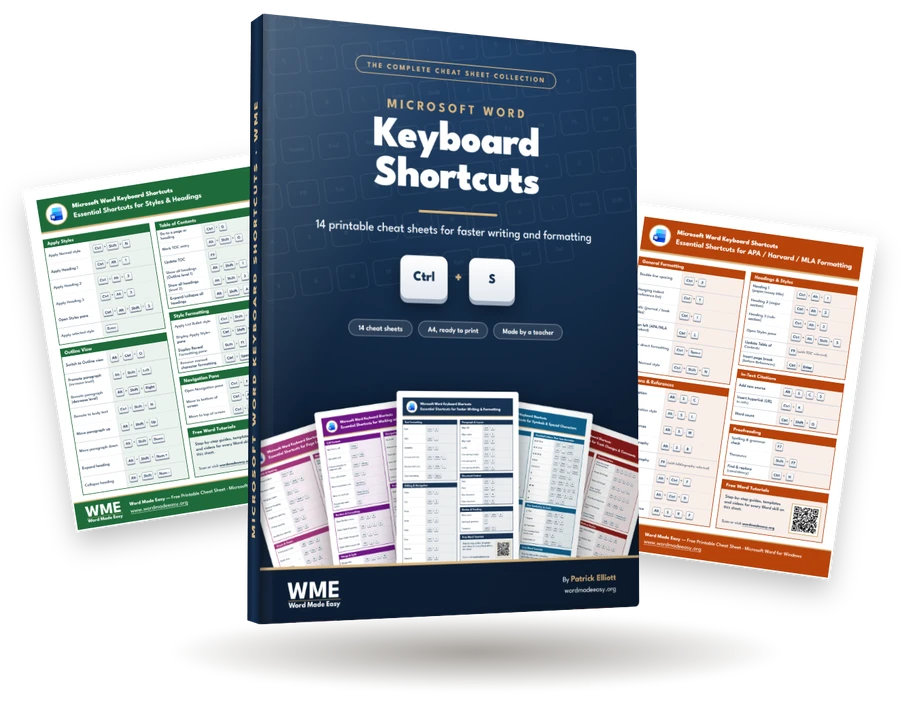
Download the Word styles and headings shortcuts cheat sheet as a free, one-page A4 printable PDF with clickable links. Print it and keep it beside your keyboard. Click the preview or the button below to open it.

Why Use Word Styles and Headings Shortcuts?
These shortcuts are most useful when the same command appears again and again. Applying a heading, moving through an outline or opening a navigation tool is faster from the keyboard, particularly in a long report or structured document.
- Apply Heading 1, Heading 2 or Heading 3 without opening the Styles gallery.
- Move paragraphs up, down, left or right in Outline View.
- Expand and collapse headings while reviewing document structure.
- Open the Navigation pane and jump between headings.
- Apply or clear formatting without breaking your writing flow.
How to Use Word Styles and Headings Shortcuts: Where to Start
The sheet groups these shortcuts by task, not alphabetically, so you can learn the set that matches what you’re doing. Start with the category closest to your current work — styles, contents, outlining, formatting or navigation — then add the next group once the first feels automatic.
Which Category Should You Use?
| Category | Best For | Learn First |
|---|---|---|
| Apply Styles | Assigning paragraph and heading styles | Ctrl + Alt + 1 |
| Table of Contents | Building and reviewing document navigation | Alt + Shift + O |
| Outline View | Reorganising document structure | Alt + Ctrl + O |
| Style Formatting | Managing and clearing formatting | Ctrl + Space |
| Navigation Pane | Jumping between headings | Ctrl + F |
Apply Styles Shortcuts
Start here if your main job is applying consistent styles and headings. These style shortcuts keep the built-in styles close at hand — useful when preparing a structured document or when you want to create automatic chapters in Word.
- Ctrl + Shift + N — Apply Normal style
- Ctrl + Alt + 1 — Apply Heading 1
- Ctrl + Alt + 2 — Apply Heading 2
- Ctrl + Alt + 3 — Apply Heading 3
- Ctrl + Alt + Shift + S — Open Styles pane
- Enter — Apply selected style
👉 Use Heading 1 for major sections and Heading 2 or Heading 3 for nested sections. That structure makes navigation and a table of contents far more useful.
Table of Contents Shortcuts
A table of contents depends on properly structured headings. This group pairs shortcuts for selecting, marking and updating a table of contents with commands for controlling which outline levels are visible — handy alongside page numbers in Word on long documents.
- Ctrl + G — Go to a page or heading
- Alt + Shift + O — Mark TOC entry
- F9 — Update TOC
- Ctrl + F — Open Navigation pane (search heading text)
- Alt + Shift + 1 — Show all headings at Outline level 1
- Alt + Shift + 2 — Show all headings at level 2
- Alt + Shift + A — Expand/collapse all headings
👉 Treat heading styles as the foundation. Built-in heading styles are what let headings support navigation and an automatic table of contents.
Outline View Shortcuts
Outline View is where these heading shortcuts become most powerful. Instead of cutting and pasting sections, you can promote, demote and move paragraphs as you refine a document’s hierarchy.
- Alt + Ctrl + O — Switch to Outline View
- Alt + Shift + Left — Promote paragraph (increase level)
- Alt + Shift + Right — Demote paragraph (decrease level)
- Ctrl + Shift + N — Demote to body text
- Alt + Shift + Up — Move paragraph up
- Alt + Shift + Down — Move paragraph down
- Alt + Shift + Num + — Expand heading (use the + key on the numeric keypad)
- Alt + Shift + Num - — Collapse heading (use the − key on the numeric keypad)
👉 Use Outline View before polishing wording. A weak hierarchy is much easier to spot when you can see the whole structure at a glance.
Style Formatting Shortcuts
The Style Formatting group helps when lists or existing formatting need a quick adjustment. These style shortcuts cover list styles, the Apply Styles and Reveal Formatting panes, and clearing direct character formatting.
- Ctrl + Shift + L — Apply List Bullet style
- Ctrl + Shift + S — Display Apply Styles pane
- Shift + F1 — Display Reveal Formatting pane
- Ctrl + Space — Remove manual character formatting
👉 Clearing formatting is useful when pasted text brings unwanted direct formatting. Apply the correct style afterwards rather than rebuilding the look by hand.
Use the Navigation pane when you need to jump through a long document without scrolling. These shortcuts make the pane and heading navigation part of your normal editing flow.
- Ctrl + F — Open Navigation pane
- Ctrl + Alt + Page Down — Move to bottom of screen
- Ctrl + Alt + Page Up — Move to top of screen
👉 If you rely on heading navigation, keep heading levels consistent. That makes the Navigation pane much easier to scan.
How to Memorise These Shortcuts Faster
Don’t learn all 28 at once. Build a small working set, then add another shortcut when the first group feels automatic. Repetition matters more than memorising a long list in one sitting.
- Start with Ctrl + Alt + 1, 2 and 3 for heading levels.
- Add Ctrl + F for quick navigation.
- Practise Outline View commands on a copy of a long document.
- Keep the printable sheet beside your keyboard until the most useful keys stick.
- Learn shortcuts by task group rather than alphabetically.
Common Problems When Using These Shortcuts
The Shortcut Doesn’t Work
First check that the document has focus and that you’re pressing the exact key combination shown on the sheet. Assignments can also be customised, so a command may behave differently if someone has changed its mapping.
You Are Using Word for the Web
The sheet is a Windows-focused desktop reference. The web app has its own shortcut list, and some commands or behaviours differ between the desktop and web versions.
A Heading Is Not Appearing in Navigation
Apply a built-in heading style instead of simply making the text bold or larger. Heading styles provide the structure that navigation and table-of-contents features rely on.
A Shortcut Has Been Reassigned
Open the keyboard customisation area and check the current assignment before changing anything. Reassigning a combination removes its previous command until you restore the original mapping.
Pro Tips for Faster Styles and Headings Work
- Keep the sheet visible while learning. The goal is recall, not constant searching.
- Apply heading shortcuts before you start detailed formatting.
- Use Outline View to restructure long documents before polishing individual paragraphs.
- Use Ctrl + Space when pasted text arrives with unwanted direct formatting.
- For broader document efficiency, pair these shortcuts with Format Painter in Word — it reuses an established look in one click.
FAQs
What are Word styles and headings shortcuts?
Word styles and headings shortcuts are key combinations that apply styles, headings and structure commands without choosing them from a menu or ribbon. This sheet covers styles, headings, outlines, formatting and navigation.
What is the shortcut for Heading 1 in Word?
The sheet lists Ctrl + Alt + 1 for Heading 1. Heading 2 and Heading 3 use the same pattern with the corresponding number keys.
What is the shortcut to apply the Normal style?
Press Ctrl + Shift + N to apply the Normal style. It’s the quickest way to reset a paragraph back to the base style.
What is the shortcut for Outline View in Word?
The sheet lists Alt + Ctrl + O. Use Outline View when you need to inspect or reorganise the hierarchy of a structured document.
How do I open the Navigation pane in Word?
Press Ctrl + F. You can then use the heading structure to move around a long document instead of scrolling page by page.
How do I update a table of contents in Word?
The sheet lists F9 for updating the table of contents. Use it after your headings or page structure change.
Can I customise these shortcuts?
Yes. Word lets you assign or remove shortcuts for commands, styles and other items through its keyboard customisation options.
Do these shortcuts work on Mac?
This sheet is a Windows-focused reference. Don’t assume a Mac equivalent; verify the shortcut in the version of Word you use before relying on it.
Conclusion
Word styles and headings shortcuts give you a faster way to apply styles, manage outlines, update document structure and move between sections. Start with the commands you use most, then build from there.
The sheet is grouped by task, so you don’t need to memorise everything at once. Practise the heading, Navigation pane and Outline View commands first — they pay off most on long documents.
Once those feel natural, continue with Word table shortcuts to speed up another part of your document workflow.
New to Word? This tutorial goes with Chapter 12 of the free Microsoft Word Beginners Hub: Shortcuts and next steps. It covers the basics step by step, with screenshots, short videos and practice files.
Related Tutorials
- How to Create a Table of Contents in Word
- How to Align Text in Word
- How to Remove Formatting Marks in Word
Word Tutorials
Recently Added on Word Made Easy
Browse the complete collection for help with formatting, layout, pages, tables, images, and document setup.
For Microsoft support documentation, visit the official Microsoft guidance.
Leave a Reply