Skip to content
Word Made Easy
Home Word Tutorials Word Templates Google Docs PowerPoint Tutorials YouTube Videos

Greek Letter Alt Codes in Word: 32 Easy Codes (Free PDF)

Keyboard Shortcut Cheat Sheets, Microsoft Word, Word Formatting Basics

Published 23 October 2026 · By Patrick Elliott

Greek letter alt codes let you type α, β, π, Σ and Ω in Word for maths, science and statistics without opening the Symbol dialog. This guide lists 25 Greek letters and 7 extra maths signs with the code for each one; for Greek letters inside a full formula, the equation editor is quicker — see how to insert equations in Word.

In this guide, you’ll learn the Alt + X code for each Greek letter, which Alt codes only work on PCs set to US English, and how to type Greek inside equations. Everything here works in Word for Windows in Microsoft 365, Word 2021, 2019 and 2016. Every code in this guide was typed and checked in Word for Microsoft 365.


Contents hide
1 Download the Free PDF Cheat Sheet
2 What This Greek Letters Cheat Sheet Covers
3 How to Use Alt + X in Word
4 How to Type an Alt Code in Word
5 Greek Lower Case Alt Codes
6 Greek Capital Letter Alt Codes
7 More Maths Sign Alt Codes
8 Common Problems and Fixes
9 Pro Tips for Greek Letter Alt Codes
10 FAQs
11 Conclusion
12 Related Tutorials
13 Word Tutorials

Download the Free PDF Cheat Sheet

All 32 Greek letter alt codes in this guide fit on a free one-page A4 printable PDF. Print it for maths and science lessons, or keep it open while you write.
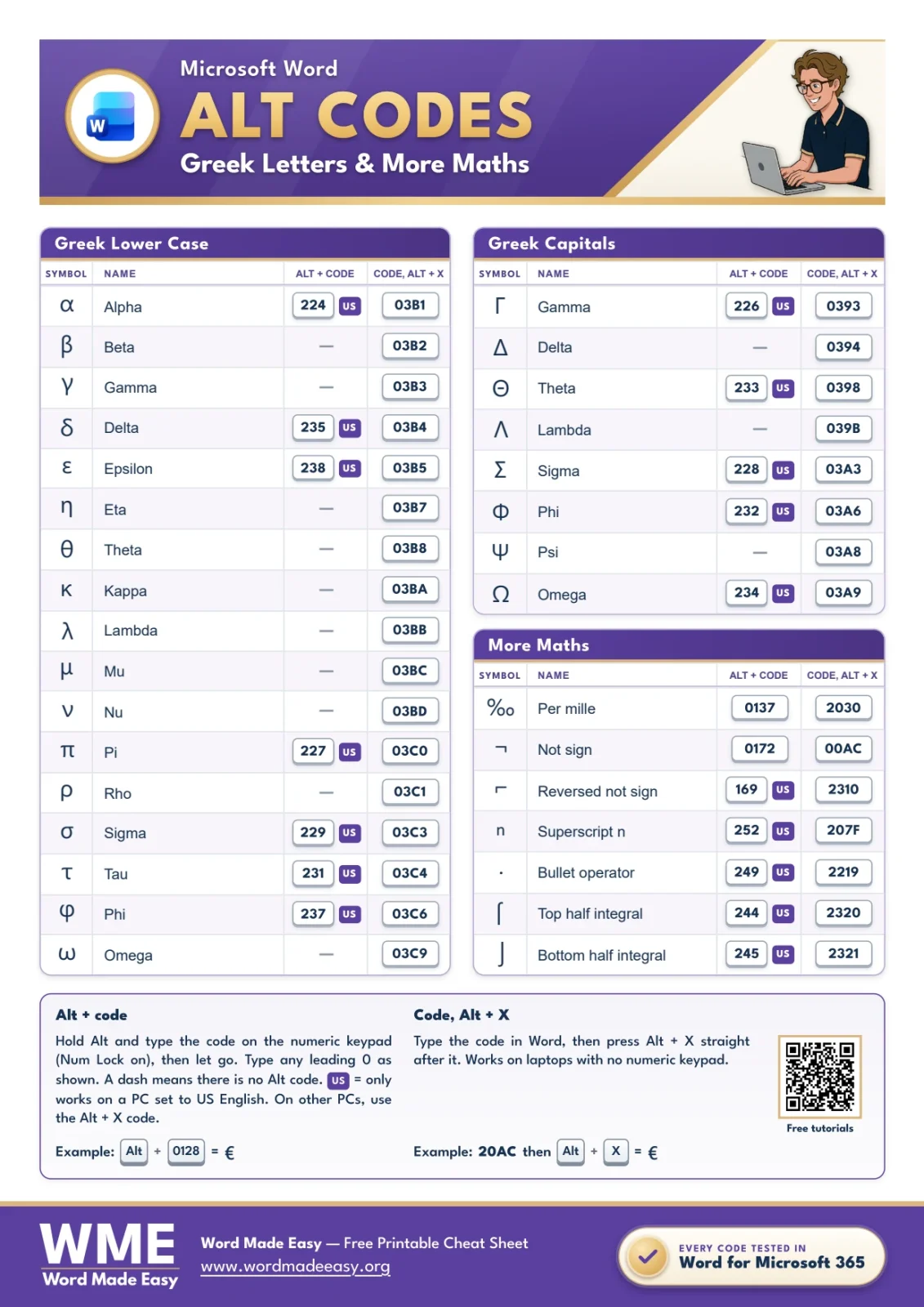
Greek letter alt codes cheat sheet for Microsoft Word listing alpha, beta, delta, pi, sigma, omega and more maths signs

Get the free PDF cheat sheet

Enter your email address to download the one-page printable PDF. You can also choose to receive occasional emails about new free Word Made Easy resources.

Choose your email preference

I agree that Word Made Easy may email me occasional updates about new free Word cheat sheets, templates and tutorials. I can unsubscribe at any time. Choose Download only if you do not want marketing emails.

Read the Privacy Policy for details about storage, retention and your rights.


What This Greek Letters Cheat Sheet Covers

The sheet covers the Greek letters used most in maths, physics, chemistry and statistics, in lower case and capitals, plus a few maths signs from the old DOS character set. Every symbol has an Alt + X code, which works on any PC. 17 of them also have an older Alt code that only works on PCs set to US English, so the sheet marks those codes US, and 2 have an Alt code that works everywhere.

It is most useful when you need to:

  • Label angles (θ), wavelengths (λ) and resistance (Ω) in science work.
  • Write statistics such as σ for standard deviation and Σ for a total.
  • Add π, α or β to maths worksheets and exam papers.
  • Name variables in formulas without opening the Symbol dialog.

How to Use Alt + X in Word

Alt + X is a Word feature that turns a Unicode code into its symbol. It works for every symbol on the sheet, including the ones with no Alt code, and it does not need a numeric keypad, so it is the method to use on a laptop.

Steps:

  1. Type the code from the Alt + X code column, for example 03B1.
  2. Leave the cursor straight after the code.
  3. Press Alt + X. The code changes to α.

👉 Press Alt + X again straight after the symbol to turn it back into its code. If the code sits right after other letters or numbers, add a space first, or Word may read them as part of the code.


How to Type an Alt Code in Word

An Alt code is a number you type on the numeric keypad while holding Alt. Word turns the number into the symbol the moment you let go. Type the digits exactly as shown, including any leading zero: Alt + 0128 gives €, while the same digits without the zero give a different character.

Steps:

  1. Click where you want the symbol.
  2. Make sure Num Lock is on (the keypad light is lit).
  3. Hold down Alt.
  4. Type the code on the numeric keypad, not the number row above the letters.
  5. Let go of Alt. The symbol appears.

👉 The symbol takes the font of the text around it, so it matches your document.

👉 Codes marked US English PCs only come from the older DOS character set. They type the symbol on a PC set to US English, but a different character on UK and most European PCs. If you are not sure, use the Alt + X code: it works on every PC.


Greek Lower Case Alt Codes

SymbolNameAlt codeAlt + X code
αAlphaAlt + 224 (US English PCs only)03B1 then Alt + X
βBeta—03B2 then Alt + X
γGamma—03B3 then Alt + X
δDeltaAlt + 235 (US English PCs only)03B4 then Alt + X
εEpsilonAlt + 238 (US English PCs only)03B5 then Alt + X
ηEta—03B7 then Alt + X
θTheta—03B8 then Alt + X
κKappa—03BA then Alt + X
λLambda—03BB then Alt + X
μMu—03BC then Alt + X
νNu—03BD then Alt + X
πPiAlt + 227 (US English PCs only)03C0 then Alt + X
ρRho—03C1 then Alt + X
σSigmaAlt + 229 (US English PCs only)03C3 then Alt + X
τTauAlt + 231 (US English PCs only)03C4 then Alt + X
φPhiAlt + 237 (US English PCs only)03C6 then Alt + X
ωOmega—03C9 then Alt + X

👉 μ (03BC) is the Greek letter mu. The micro sign µ on the maths sheet (Alt + 0181) looks the same but is a different character: use μ in Greek text and µ for units such as µm.


Greek Capital Letter Alt Codes

SymbolNameAlt codeAlt + X code
ΓGammaAlt + 226 (US English PCs only)0393 then Alt + X
ΔDelta—0394 then Alt + X
ΘThetaAlt + 233 (US English PCs only)0398 then Alt + X
ΛLambda—039B then Alt + X
ΣSigmaAlt + 228 (US English PCs only)03A3 then Alt + X
ΦPhiAlt + 232 (US English PCs only)03A6 then Alt + X
ΨPsi—03A8 then Alt + X
ΩOmegaAlt + 234 (US English PCs only)03A9 then Alt + X

👉 Σ (03A3) is the capital letter sigma. For the summation sign in maths, the math symbol alt codes sheet lists ∑ (2211), which is drawn larger.


More Maths Sign Alt Codes

SymbolNameAlt codeAlt + X code
‰Per milleAlt + 01372030 then Alt + X
¬Not signAlt + 017200AC then Alt + X
⌐Reversed not signAlt + 169 (US English PCs only)2310 then Alt + X
ⁿSuperscript nAlt + 252 (US English PCs only)207F then Alt + X
∙Bullet operatorAlt + 249 (US English PCs only)2219 then Alt + X
⌠Top half integralAlt + 244 (US English PCs only)2320 then Alt + X
⌡Bottom half integralAlt + 245 (US English PCs only)2321 then Alt + X

👉 ‰ (Alt + 0137) is the per mille sign, used for parts per thousand, such as a 5‰ salt solution.


Common Problems and Fixes

  • Nothing happens, or a different character appears: turn on Num Lock and use the numeric keypad. The number row above the letters does not work for Alt codes.
  • No numeric keypad: use the Alt + X code instead. It needs no keypad.
  • Alt + X changes the wrong text: put a space before the code so Word does not include the letters in front of it.
  • An empty box appears: the font has no picture for that symbol. Select it and pick a fuller font such as Aptos, Segoe UI or Arial — see how to change the font in Word.
  • A code marked US English PCs only types a different character: your PC uses the UK or European version of the old character set. Use the Alt + X code instead.

Pro Tips for Greek Letter Alt Codes

  • In the equation editor (Alt + =), type \alpha, \beta or \Omega and press Space to get α, β and Ω.
  • Greek letters take the font of the text around them; Cambria Math and Segoe UI draw them most clearly.
  • Use the Greek capital Δ (0394) for a letter and the increment sign ∆ (2206) for “change in”, as on the maths sheet.
  • Keep this sheet with the math symbol alt codes for complete maths and science notes.

FAQs

What is the Alt code for alpha α in Word?

Type 03B1 in Word and press Alt + X. On a PC set to US English, holding Alt and typing 224 on the numeric keypad also works.

How do I type pi π in Word?

Type 03C0 and press Alt + X. On a PC set to US English, Alt + 227 also gives π.

How do I type the omega sign Ω?

Type 03A9 and press Alt + X, or use Alt + 234 on a PC set to US English.

How do I type beta β?

Type 03B2 and press Alt + X. Beta has no Alt code: Alt + 225 gives the German ß, which looks similar but is a different letter.

Why do the US Alt codes give a different letter on my PC?

Those codes come from the old DOS character set, which differs between US and UK or European versions of Windows. Use the Alt + X code instead: it works on every PC.

Can I type Greek letters in an equation?

Yes. Press Alt + = to open the equation editor, type a backslash followed by the letter name, such as theta, then press Space.


Conclusion

Greek letter alt codes put α to Ω one keystroke away. Use the Alt + X code on any PC, and the US Alt codes only on a PC set to US English.

Download the free PDF, and for ±, √ and ≤, the companion guide to math symbol alt codes in Word works the same way. All eight sheets also come together in the free Word alt codes bundle.


Related Tutorials

  • Math Symbol Alt Codes in Word
  • How to Insert Equations in Word
  • Equation Shortcuts in Word

Word Tutorials

Recently Added on Word Made Easy

  • How to Mail Merge Letters in Word: Easy Step-by-Step Guide

    October 24, 2026
  • How to Use Mail Merge in Word: Send Personalised Emails

    October 24, 2026
  • How to Format APA in Word: Easy Step-by-Step Guide

    October 23, 2026

Browse the complete collection for help with formatting, layout, pages, tables, images, and document setup.

View all Word tutorials
Watch on YouTube

For Microsoft support documentation, visit the official Microsoft guidance.
Like this:

Like Loading…
alt codes free printable PDF Greek letters microsoft word Microsoft Word tutorial Word symbol shortcuts
←Free Microsoft Word Keyboard Shortcuts Bundle: 14 Cheat Sheets (PDF)
Heart Alt Code in Word, Plus Smileys and Shapes: 30 Codes (Free PDF)→

Comments

Leave a Reply Cancel reply

Meet the Author

Patrick Elliott standing outdoors holding his dog.

I’m Patrick Elliott, the creator of Word Made Easy. I’ve worked in schools for over 10 years and I’m now an Inclusion Lead in the UAE. I use Microsoft Word and PowerPoint every day for planning, documentation and classroom resources.

Every guide is tested step by step before publishing (usually in Microsoft 365), and every free template is one I made myself in Word. You’ll also find practical walkthroughs on my YouTube channel.

Browse

  • Word TutorialsStep-by-step guides for every feature
  • Word Beginners HubFree 12-chapter Word course
  • Word TemplatesFree, editable downloads
  • Word Shortcut Cheat SheetsFree printable PDFs
  • Google Docs TutorialsStep-by-step Docs guides
  • PowerPoint TutorialsClear, simple slide guides
  • YouTube VideosWatch the video walkthroughs

Watch on YouTube

Prefer to watch? Most guides have a short video walkthrough on the Word Made Easy channel.

  • 147videos
  • 1.88Mviews
  • 8,000+subscribers
Subscribe on YouTube

Recently Added

  • Free Class Timetable Templates for Word: 8 Class SchedulesOctober 24, 2026
  • Free Seating Chart Templates for Word: 8 Classroom Seating PlansOctober 24, 2026
  • Free All About Me Templates for Word: 8 Printable WorksheetsOctober 24, 2026
  • How to Mail Merge Letters in Word: Easy Step-by-Step GuideOctober 24, 2026
  • How to Use Mail Merge in Word: Send Personalised EmailsOctober 24, 2026
Word Made Easy

Free, step-by-step Microsoft Word tutorials, written and tested by teacher Patrick Elliott.

Subscribe on YouTube Follow on Facebook Follow on Pinterest

Explore

  • Home
  • Word Tutorials
  • Word Templates
  • Google Docs Tutorials
  • PowerPoint Tutorials
  • YouTube Videos

Microsoft Word

  • Page Layout & Sections
  • Tables, Images & Media
  • Formatting Basics
  • Productivity & Automation
  • Beginners Hub
  • Templates
  • Shortcut Cheat Sheets

Google Docs

  • Basics
  • Formatting
  • Page Layout
  • Tables & Images
  • Files & PDFs
  • Sharing & Signing
  • Writing & Research
  • Templates

About

  • About Me
  • Contact
Privacy Policy Cookie Policy Terms of Use
© 2012–2026 Word Made Easy. All rights reserved.
Manage your privacy

To provide the best experiences, we and our partners use technologies like cookies to store and/or access device information. Consenting to these technologies will allow us and our partners to process personal data such as browsing behavior or unique IDs on this site and show (non-) personalized ads. Not consenting or withdrawing consent, may adversely affect certain features and functions.

Click below to consent to the above or make granular choices. Your choices will be applied to this site only. You can change your settings at any time, including withdrawing your consent, by using the toggles on the Cookie Policy, or by clicking on the manage consent button at the bottom of the screen.

Functional Always active
The technical storage or access is strictly necessary for the legitimate purpose of enabling the use of a specific service explicitly requested by the subscriber or user, or for the sole purpose of carrying out the transmission of a communication over an electronic communications network.
Preferences
The technical storage or access is necessary for the legitimate purpose of storing preferences that are not requested by the subscriber or user.
Statistics
The technical storage or access that is used exclusively for statistical purposes. The technical storage or access that is used exclusively for anonymous statistical purposes. Without a subpoena, voluntary compliance on the part of your Internet Service Provider, or additional records from a third party, information stored or retrieved for this purpose alone cannot usually be used to identify you.
Marketing
The technical storage or access is required to create user profiles to send advertising, or to track the user on a website or across several websites for similar marketing purposes.
Statistics

Marketing

Features
Always active

Special features

Special purposes
Always active

  • Manage options
  • Manage services
  • Manage {vendor_count} vendors
  • Read more about these purposes
Manage options
  • {title}
  • {title}
  • {title}
Manage your privacy
To provide the best experiences, we use technologies like cookies to store and/or access device information. Consenting to these technologies will allow us to process data such as browsing behavior or unique IDs on this site. Not consenting or withdrawing consent, may adversely affect certain features and functions.
Functional Always active
The technical storage or access is strictly necessary for the legitimate purpose of enabling the use of a specific service explicitly requested by the subscriber or user, or for the sole purpose of carrying out the transmission of a communication over an electronic communications network.
Preferences
The technical storage or access is necessary for the legitimate purpose of storing preferences that are not requested by the subscriber or user.
Statistics
The technical storage or access that is used exclusively for statistical purposes. The technical storage or access that is used exclusively for anonymous statistical purposes. Without a subpoena, voluntary compliance on the part of your Internet Service Provider, or additional records from a third party, information stored or retrieved for this purpose alone cannot usually be used to identify you.
Marketing
The technical storage or access is required to create user profiles to send advertising, or to track the user on a website or across several websites for similar marketing purposes.
Statistics

Marketing

Features
Always active

Special features

Special purposes
Always active

  • Manage options
  • Manage services
  • Manage {vendor_count} vendors
  • Read more about these purposes
Manage options
  • {title}
  • {title}
  • {title}

Discover more from Word Made Easy

Subscribe now to keep reading and get access to the full archive.

Continue reading

Loading Comments...
%d

    Free download

    All 14 Word shortcut cheat sheets in one PDF

    Printable A4 sheets with a cover and contents page, made by a teacher. Enter your email and the bundle downloads straight away.

    Choose your email preference

    I agree that Word Made Easy may email me occasional updates about new free Word cheat sheets, templates and tutorials. I can unsubscribe at any time. Choose Download only if you do not want marketing emails. Privacy Policy