
Word for Mac formatting shortcuts go well beyond bold and italic. ⌘ Cmd + ⇧ Shift + K sets small caps, ⌘ Cmd + ⌥ Option + C copies formatting from one place to another, and ⌘ Cmd + T makes a hanging indent. This free cheat sheet lists 23 of them on one page.
The sheet is the second in the Word for Mac set. It picks up where the Word for Mac keyboard shortcuts cheat sheet leaves off, with character formatting, indents and spacing, breaks and special characters.
Download the Free PDF Cheat Sheet
This free cheat sheet groups the 23 Word for Mac formatting shortcuts into Character Formatting, Copy & Paste Formatting, Indents & Spacing, and Breaks & Special Characters. The ZIP file has a US Letter PDF and an A4 PDF.
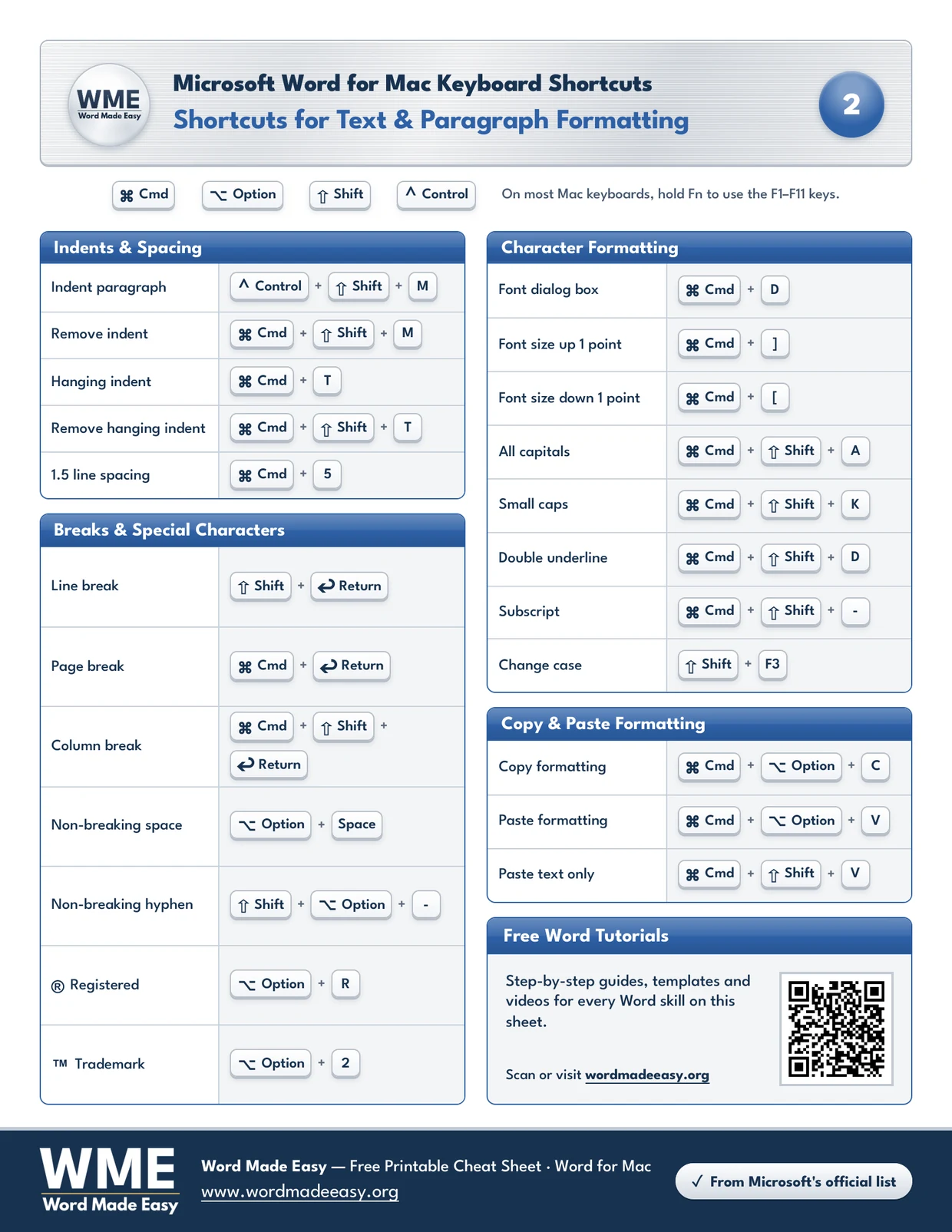
Formatting on a Mac Keyboard
Two keys behave differently from a Windows keyboard. The Mac ↩ Return key does the job of Enter, so the break shortcuts on this sheet all end in Return. And the Option key types symbols directly: ⌥ Option + R gives ® and ⌥ Option + 2 gives ™.
The square-bracket keys change the font size one point at a time: ⌘ Cmd + ] makes text bigger and ⌘ Cmd + [ makes it smaller. ⌘ Cmd + D opens the Font dialog box for anything that does not have a key of its own.
Character Formatting Shortcuts
Select the text, then press the keys. Press the same shortcut again to switch the formatting off.
| Action | Shortcut |
|---|---|
| Font dialog box | ⌘ Cmd + D |
| Font size up 1 point | ⌘ Cmd + ] |
| Font size down 1 point | ⌘ Cmd + [ |
| All capitals | ⌘ Cmd + ⇧ Shift + A |
| Small caps | ⌘ Cmd + ⇧ Shift + K |
| Double underline | ⌘ Cmd + ⇧ Shift + D |
| Subscript | ⌘ Cmd + ⇧ Shift + - |
| Change case | ⇧ Shift + F3 |
Copy and Paste Formatting Shortcuts
Select formatted text and press ⌘ Cmd + ⌥ Option + C, select the text you want to change, then press ⌘ Cmd + ⌥ Option + V. Paste text only drops the formatting of whatever you copied.
| Action | Shortcut |
|---|---|
| Copy formatting | ⌘ Cmd + ⌥ Option + C |
| Paste formatting | ⌘ Cmd + ⌥ Option + V |
| Paste text only | ⌘ Cmd + ⇧ Shift + V |
Indent and Spacing Shortcuts
A hanging indent keeps the first line at the margin and indents the rest, the layout used for reference lists and bibliographies.
| Action | Shortcut |
|---|---|
| Indent paragraph | ⌃ Control + ⇧ Shift + M |
| Remove indent | ⌘ Cmd + ⇧ Shift + M |
| Hanging indent | ⌘ Cmd + T |
| Remove hanging indent | ⌘ Cmd + ⇧ Shift + T |
| 1.5 line spacing | ⌘ Cmd + 5 |
Break and Special Character Shortcuts
A non-breaking space or hyphen keeps two words together at the end of a line, which suits names, dates and figures with units.
| Action | Shortcut |
|---|---|
| Line break | ⇧ Shift + ↩ Return |
| Page break | ⌘ Cmd + ↩ Return |
| Column break | ⌘ Cmd + ⇧ Shift + ↩ Return |
| Non-breaking space | ⌥ Option + Space |
| Non-breaking hyphen | ⇧ Shift + ⌥ Option + - |
| ® Registered | ⌥ Option + R |
| ™ Trademark | ⌥ Option + 2 |
Mac and Windows Formatting Keys Compared
Some formatting keys match Windows with Command in place of Ctrl, and some do not. Change case uses ⇧ Shift + F3 on a Mac, so hold Fn as well if your top row controls brightness and volume.
| Action | Word for Mac | Word for Windows |
|---|---|---|
| Paste text only | ⌘ Cmd + ⇧ Shift + V | Ctrl + Shift + V |
| 1.5 line spacing | ⌘ Cmd + 5 | Ctrl + 5 |
👉 The Windows keys come from our Windows keyboard shortcuts cheat sheet. For ® and ™ on Windows, see symbol shortcuts in Word.
Pro Tips for Word for Mac Formatting Shortcuts
- Copying formatting with ⌘ Cmd + ⌥ Option + C and ⌘ Cmd + ⌥ Option + V does the same job as the Format Painter button. See how to use Format Painter in Word for the mouse method.
- Use a non-breaking space between a number and its unit, such as 10 kg, so the two never split across lines.
- Subscript is ⌘ Cmd + ⇧ Shift + -, using the minus key. Press it again to return to normal text.
- If a shortcut seems to do nothing, check that the text is selected. Character formatting only changes the selection.
FAQs
What are Word for Mac formatting shortcuts?
They are key combinations that format text and paragraphs in Word on a Mac, such as small caps, subscript, indents and breaks. This sheet lists 23 of them for Word for Mac only.
How do I copy formatting in Word for Mac with the keyboard?
Select the formatted text and press ⌘ Cmd + ⌥ Option + C. Then select the text you want to change and press ⌘ Cmd + ⌥ Option + V.
What is the shortcut for a hanging indent on a Mac?
Press ⌘ Cmd + T to add a hanging indent and ⌘ Cmd + ⇧ Shift + T to remove it.
How do I insert a page break in Word for Mac?
Press ⌘ Cmd + ↩ Return. For a column break, press ⌘ Cmd + ⇧ Shift + ↩ Return, and for a line break inside a paragraph, press ⇧ Shift + ↩ Return.
How do I type ® or ™ in Word on a Mac?
Press ⌥ Option + R for the registered sign and ⌥ Option + 2 for the trademark sign.
How do I change text to capitals in Word for Mac?
Press ⌘ Cmd + ⇧ Shift + A for all capitals or ⇧ Shift + F3 to switch between upper case, lower case and title case. Read more about subscript in Word if you need small raised or lowered text.
More Word for Mac Cheat Sheets
The other sheets in the Word for Mac set, each with its own page and free download:
- Word for Mac Keyboard Shortcuts: 26 Essential Keys (Free PDF)
- Word for Mac Text Selection Shortcuts: 24 Keys (Free PDF)
- Word for Mac Table Shortcuts: 20 Keys and Mouse Moves (Free PDF)
- Word for Mac Track Changes Shortcuts: 19 Keys (Free PDF)
- Word for Mac Function Keys: 25 F1–F11 Shortcuts (Free PDF)
- Free Word for Mac Keyboard Shortcuts Bundle: 6 Cheat Sheets (PDF): all six sheets in one PDF
Conclusion
Word for Mac formatting shortcuts save the most time on long documents, where the same formatting repeats. Start with copying formatting and the break keys, then add the special characters you type most.
Next, try the Word for Mac text selection shortcuts cheat sheet to move around and select text faster before you format it.
Related Tutorials
- How to Use Format Painter in Word: 5 Easy Methods
- How to Do a Hanging Indent in Word: 3 Easy Methods
- Page Break vs Section Break in Word: Easy Guide to 3 Breaks
Word Tutorials
Recently Added on Word Made Easy
Browse the complete collection for help with formatting, layout, pages, tables, images, and document setup.
For Microsoft support documentation, visit the official Microsoft guidance.
Leave a Reply