
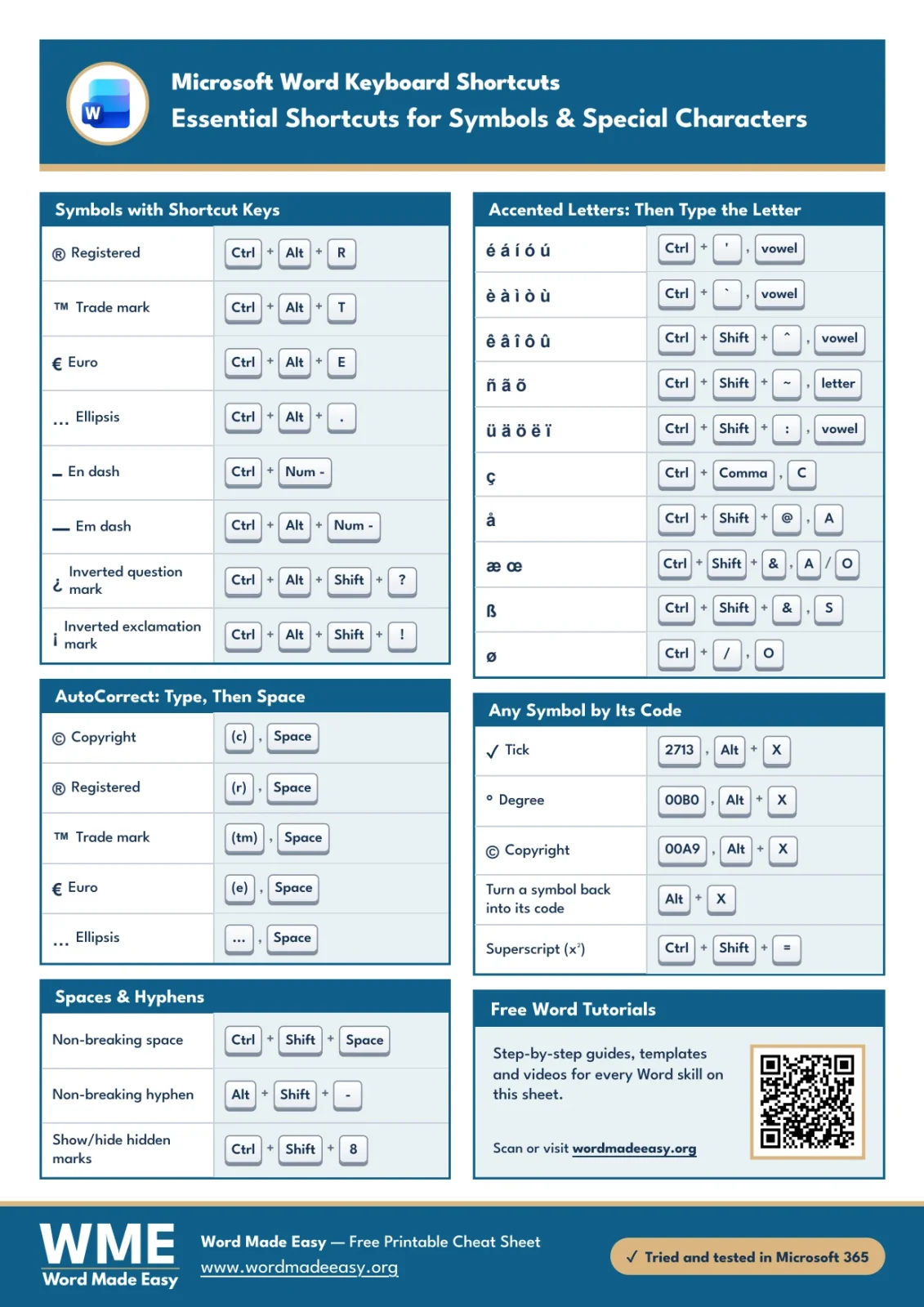
Symbol shortcuts in Word let you type ©, ®, ™, €, proper dashes and accented letters straight from the keyboard, without hunting through the Symbol menu. This cheat sheet gathers 31 of them on one page, and every shortcut was tested in Microsoft 365 Word for Windows.
In this guide, you’ll learn the symbols that have their own keys, the ones Word types for you through AutoCorrect, the accent shortcuts for é, ñ and ü, and how to type any symbol at all with Alt + X.
Download the Free PDF Cheat Sheet
All 31 symbol shortcuts in this guide fit on a free one-page A4 printable PDF, and every one was tried and tested in Microsoft 365. Print it for your desk or keep it open while you work.
What This Symbol Shortcuts Cheat Sheet Covers
The sheet is grouped by the way you type each symbol: with shortcut keys, with AutoCorrect, with a two-step accent shortcut or with a Unicode code. Pick whichever method suits your keyboard.
It is most useful when you need to:
- Add ©, ® or ™ to a report, a product name or a footer.
- Use a real en dash or em dash instead of a hyphen.
- Spell names and words such as café, señor or Müller correctly on an English keyboard.
- Type ✓, ° or any other symbol without copying it from the web.
Symbols With Shortcut Keys
These symbols have their own key combination in Word. Hold the keys down together, then let go.
| Symbol | Name | Shortcut |
|---|---|---|
| ® | Registered | Ctrl + Alt + R |
| ™ | Trade mark | Ctrl + Alt + T |
| € | Euro | Ctrl + Alt + E |
| … | Ellipsis | Ctrl + Alt + . |
| – | En dash | Ctrl + Num - |
| — | Em dash | Ctrl + Alt + Num - |
| ¿ | Inverted question mark | Ctrl + Alt + Shift + ? |
| ¡ | Inverted exclamation mark | Ctrl + Alt + Shift + ! |
👉 Num – is the minus key on the numeric keypad. On a laptop without a keypad, use AutoCorrect for dashes instead: see how to create an em dash in Word.
How to Type the Copyright Symbol in Word
The quickest way is to type (c) and press Space: Word changes it to © straight away. You can also type 00A9 and press Alt + X, or hold Alt and type 0169 on the numeric keypad.
👉 Many older guides list Ctrl + Alt + C for ©. In current Microsoft 365 Word that shortcut copies formatting instead, so use (c) or Alt + X.
AutoCorrect Symbols in Word
Word’s AutoCorrect turns a few short codes into symbols as you type. Type the code, then press Space or a punctuation mark.
| Symbol | Name | Type this, then Space |
|---|---|---|
| © | Copyright | (c) |
| ® | Registered | (r) |
| ™ | Trade mark | (tm) |
| € | Euro | (e) |
| … | Ellipsis | ... |
👉 Want the letters back? Press Ctrl + Z straight after Word changes them. To stop it for good, see how to disable AutoCorrect in Word.
Accented Letter Shortcuts
Accents use a two-step shortcut. Press the first keys together, let go, then type the letter.
Steps:
- Click where you want the letter.
- Press the shortcut from the table, for example Ctrl + ', and let go.
- Type the letter, for example e. Word types é.
- For a capital, type a capital letter in the last step: É.
| Letters | Accent | Shortcut |
|---|---|---|
| é á í ó ú | Acute accent | Ctrl + ', then the vowel |
| è à ì ò ù | Grave accent | Ctrl + `, then the vowel |
| ê â î ô û | Circumflex | Ctrl + Shift + ^, then the vowel |
| ñ ã õ | Tilde | Ctrl + Shift + ~, then the letter |
| ü ä ö ë ï | Umlaut | Ctrl + Shift + :, then the vowel |
| ç | Cedilla | Ctrl + ,, then c |
| å | Ring | Ctrl + Shift + @, then a |
| æ œ | Joined letters | Ctrl + Shift + &, then a or o |
| ß | German sharp s | Ctrl + Shift + &, then s |
| ø | Slashed o | Ctrl + /, then o |
👉 The full list of accent codes, including capitals, is in the accented letter alt codes guide.
Type Any Symbol With Alt + X
Every symbol has a Unicode code. Type the code, then press Alt + X, and Word swaps the code for the symbol. It needs no numeric keypad, so it works on any laptop.
| Symbol | Name | Shortcut |
|---|---|---|
| ✓ | Tick | 2713, then Alt + X |
| ° | Degree | 00B0, then Alt + X |
| © | Copyright | 00A9, then Alt + X |
| Turn a symbol back into its code | Alt + X straight after it | |
| x² | Superscript | Ctrl + Shift + = |
👉 Put a space before the code if it follows other letters or numbers, or Word may read them as part of the code. For a full degree guide, see how to insert a degree symbol in Word.
Non-Breaking Spaces and Hyphens
These keep words together on one line, such as “10 kg”, “§ 4” or a hyphenated phone number.
| Character | Shortcut |
|---|---|
| Non-breaking space | Ctrl + Shift + Space |
| Non-breaking hyphen | Alt + Shift + - |
| Show or hide hidden marks | Ctrl + Shift + 8 |
Common Problems and Fixes
- Ctrl + Alt + C does not type ©: current versions of Word use it to copy formatting. Type (c) and press Space instead.
- The en or em dash shortcut does nothing: the minus key must be the one on the numeric keypad. Turn on Num Lock, or use the AutoCorrect method.
- An accent shortcut types a symbol instead: let go of the first keys before you type the letter.
- (c) stays as (c): AutoCorrect may be off. Turn it back on in File > Options > Proofing > AutoCorrect Options.
- An empty box appears: the font has no picture for that symbol. Select it and change to a fuller font such as Aptos, Segoe UI or Arial.
Pro Tips for Symbol Shortcuts
- Press Alt + X straight after any symbol to see its code, then reuse that code anywhere in Word.
- Add your own AutoCorrect entry, such as “(tick)” for ✓, in File > Options > Proofing > AutoCorrect Options.
- Some graphics-card tools capture Ctrl + Alt shortcuts. If one does nothing, try the AutoCorrect or Alt + X method.
- Keep the common symbol alt codes sheet with this one for ticks, boxes and bullets.
FAQs
What is the shortcut for the copyright symbol in Word?
Type (c) and press Space, or type 00A9 and press Alt + X. In current Microsoft 365, Ctrl + Alt + C copies formatting instead.
How do I type the trademark symbol in Word?
Press Ctrl + Alt + T, or type ™ and press Space.
How do I type an em dash in Word?
Press Ctrl + Alt + the minus key on the numeric keypad. Ctrl + the keypad minus gives an en dash.
How do I type é in Word?
Press Ctrl + apostrophe, let go, then type e. Type a capital E for É.
What does Alt + X do in Word?
It turns the Unicode code before the cursor into its symbol, and turns a symbol back into its code.
Do these shortcuts work on a Mac?
No. This sheet is for Word for Windows. Word for Mac uses different keys.
Conclusion
Symbol shortcuts in Word save you from the Symbol menu every time you need ©, ™, a proper dash or an accented letter.
Download the free PDF, and for equations and maths symbols, the companion sheet of equation shortcuts in Word works the same way.
Related Tutorials
Word Tutorials
Recently Added on Word Made Easy
Browse the complete collection for help with formatting, layout, pages, tables, images, and document setup.
For Microsoft support documentation, visit the official Microsoft guidance.
Leave a Reply