
Knowing how to add subscript in Word is essential for writing chemical formulas like H₂O or CO₂, mathematical notation, and technical documentation. Microsoft Word makes it easy to apply subscript formatting using either the ribbon or a keyboard shortcut.
In this guide, you’ll learn both methods, how to remove subscript formatting again, and how subscript differs from superscript.
What Is Subscript in Word?
Subscript is text that sits slightly below the normal line and appears in a smaller size — for example H₂O, CO₂, x₂, or a₁. It’s used widely across:
- Chemistry formulas (H₂O, CO₂, NH₃)
- Mathematical equations and indexed variables (x₁, x₂, aₙ)
- Scientific notation in physics and engineering
- Academic and technical writing
Watch the Video Tutorial
If you prefer to see this in action, the full video walkthrough is below, showing each method step by step.
How to Add Subscript in Word: Step-by-Step
There are two ways to apply subscript formatting — the ribbon button or a keyboard shortcut. Both produce identical results.
Method 1: How to Add Subscript in Word Using the Ribbon
- Open your Word document.
- Select the text or number you want to format.
- Click the Home tab.
- In the Font group, click the Subscript button (X₂).

The selected text immediately drops below the baseline and shrinks — turning H2O into H₂O. This method is best for occasional, one-off formatting.
Method 2: How to Add Subscript in Word Using a Keyboard Shortcut
If you work with formulas or equations regularly, a shortcut is much faster.
- Highlight the text you want to format.
- Press Ctrl + = (on some layouts, Ctrl + Shift + Minus).
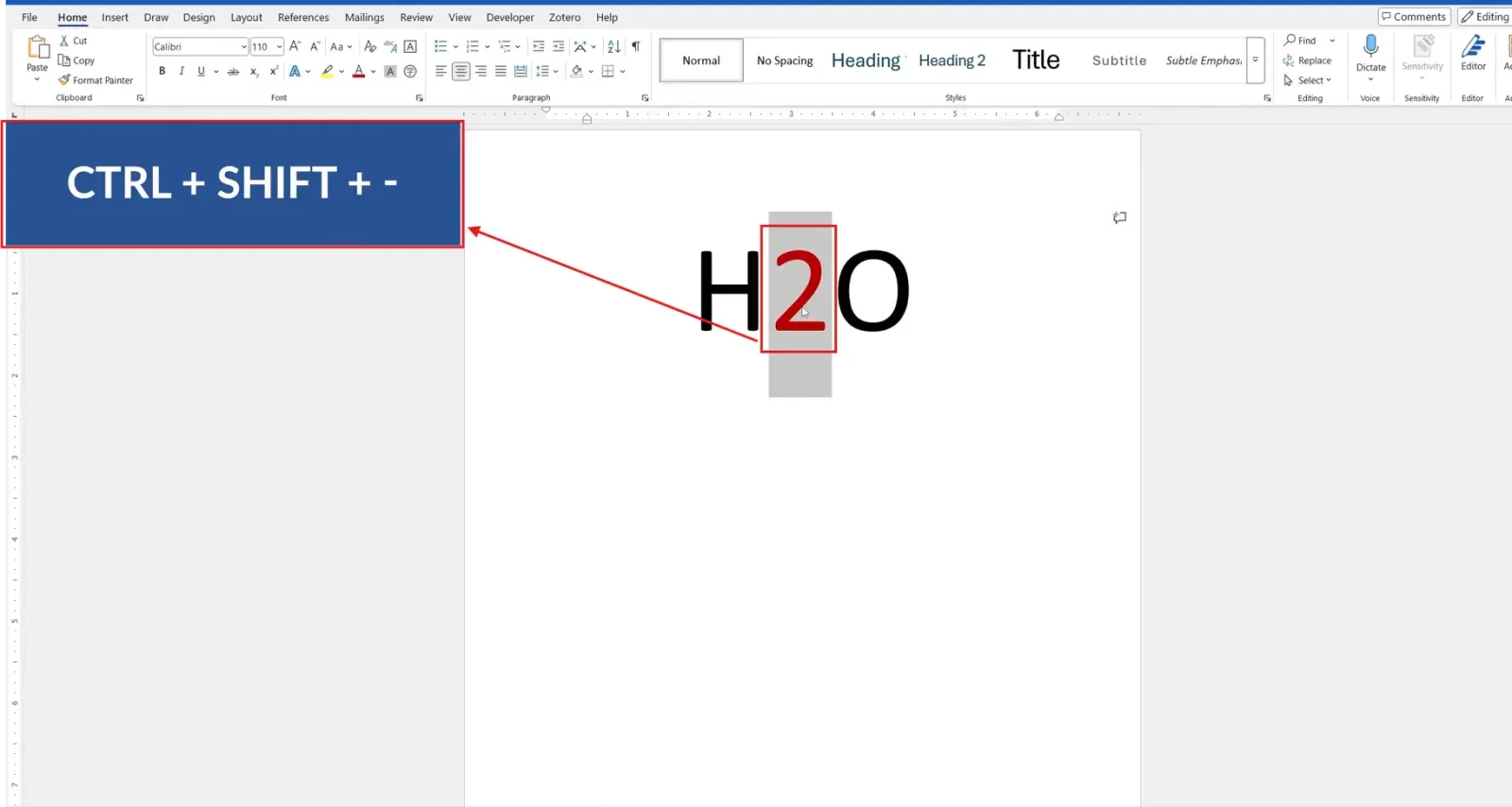
The selected text becomes subscript instantly. Pressing Ctrl + = again toggles it back to normal — useful when typing a long formula like C₆H₁₂O₆, where you can type each character and toggle subscript on and off as you go, rather than selecting and formatting afterwards.
Which Method Should You Use?
| Method | Best For | Speed |
|---|---|---|
| Ribbon (X₂ button) | Occasional, one-off subscript text | A few clicks |
| Keyboard shortcut (Ctrl + =) | Formulas, equations, repeated use | Fastest — toggle on/off while typing |
How to Remove Subscript Formatting
If you’ve applied subscript by mistake, removing it is just as quick:
- Select the subscript text and click the Subscript button again, or
- Select the text and press Ctrl + = to toggle it off
The text returns to normal size and position immediately.
Subscript vs. Superscript
Subscript and superscript are often confused — for the full superscript walkthrough, see our guide on how to use superscript in Word.
| Formatting | Position | Examples |
|---|---|---|
| Subscript | Below the text line | H₂O, CO₂ |
| Superscript | Above the text line | x², 10³ |
Common Problems When Adding Subscript
Subscript Button Isn’t Working
Make sure the text is selected before clicking the Subscript button — it has no effect on an empty cursor position.
Keyboard Shortcut Doesn’t Work
Some keyboard layouts require Ctrl + Shift + Minus instead of Ctrl + =.
Subscript Text Looks Too Small
This is normal — Word automatically reduces font size when applying subscript formatting.
Subscript Keeps Applying to New Text
Subscript is still toggled on — press Ctrl + = again or click the Subscript button to turn it off before continuing to type.
Pro Tips
- Use the keyboard shortcut and toggle it on/off while typing long formulas — it’s far faster than formatting each character afterwards.
- Don’t mix subscript and superscript in the same string unless the notation requires it — it hurts readability.
- If your document mixes bold, italic, and subscript formatting, check our guide on bold, italic, and underline in Word to keep formatting consistent — applying subscript on top of bold or italic text works the same way.
- For a full list of formatting shortcuts alongside Ctrl + =, bookmark our Microsoft Word keyboard shortcuts cheat sheet.
FAQs
How do I add subscript in Word?
Select the text and click the Subscript (X₂) button in the Home tab’s Font group, or press Ctrl + =.
What is the keyboard shortcut for subscript in Word?
The default shortcut is Ctrl + =.
How do I remove subscript formatting?
Select the subscript text and press Ctrl + = again, or click the Subscript button to toggle it off.
Why does my text get smaller when I apply subscript?
Word automatically reduces the font size slightly to create the subscript effect — this is expected behaviour.
What’s the difference between subscript and superscript?
Subscript sits below the text line (H₂O); superscript sits above it (x²).
Can I add subscript in Word Online?
Yes — Word Online supports the same Subscript button in the Home tab and the Ctrl + = shortcut.
Is subscript the same as writing fractions in Word?
No — subscript only lowers and shrinks text. For stacked fraction formatting, see our guide on how to write fractions in Word.
Conclusion
Now you know how to add subscript in Word using either the ribbon button or the Ctrl + = shortcut, plus how to remove it again when you’re done.
If your document also needs strikethrough formatting for marking up edits or showing deleted content, our guide on how to use strikethrough in Word covers that next.
Related Tutorials
- How to Use Superscript in Word
- How to Write Fractions in Word
- Microsoft Word Keyboard Shortcuts Cheat Sheet
Word Tutorials
Recent Microsoft Word Tutorials
Browse the complete collection for help with formatting, layout, pages, tables, images, and document setup.
For Microsoft support documentation, visit the official Microsoft guidance.
Leave a Reply