
Learning how to write fractions in Word helps you create clear worksheets, reports, and mathematical documents without awkward spacing. For measurements and geometry, you may also need to insert a degree symbol in Word.
In this guide, you’ll learn four methods for creating stacked, linear, improper, and common fractions using the Equation tool, quick entry, fraction templates, and built-in symbols.
Why Use the Equation Tool for Fractions?
Word includes an Equation tool designed for mathematical content. It keeps numerators and denominators aligned, preserves the mathematical structure, and makes each value easy to edit later.
The Equation tool is useful because it:
- Creates consistent stacked and linear fractions
- Supports proper and improper fractions
- Keeps mathematical expressions editable
- Provides several fraction structures from one menu

For most school work, formulas, and formal documents, the Equation tool is the most reliable way to learn how to write fractions in Word.
Watch the Video Tutorial
If you prefer to see this in action, the full video walkthrough is below, showing each method step by step.
How to Write Fractions in Word: Step-by-Step
The best method depends on where the fraction appears. Use quick equation entry for speed, insert several fractions inside one equation, type improper fractions in the same way, or choose a template when you need a particular visual style.
Method 1: How to Write Fractions in Word with Equation Entry
Quick equation entry is the fastest method for creating a basic stacked fraction. You type the numerator, a forward slash, and the denominator inside an equation box.
Insert a New Equation
- Place the cursor where the fraction should appear.
- Open the Insert tab.
- Select Equation.
- Select Insert New Equation.

👉 Word opens an equation box and displays the Equation tab.
Type the Numerator and Denominator
- Type the numerator, such as 3.
- Type a forward slash: /.
- Type the denominator, such as 4.
- Press Space.
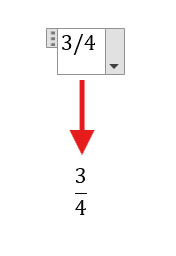
👉 Done. Word converts 3/4 into a formatted fraction. No manual superscript or spacing required.
Method 2: How to Write Fractions in Word on One Line
You can enter several fractions inside the same equation box. This works well for comparisons, calculations, and exercises containing more than one value.
Separate Multiple Fractions
- Create the first fraction using the numerator, slash, and denominator method.
- Press Space again to move beyond the fraction structure.
- Enter any required symbol or surrounding text.
- Type the next numerator, /, and denominator.
- Press Space to format the next fraction.
👉 Each fraction stays inside the same editable equation. You can select any value later and replace its numerator or denominator.
Method 3: How to Write Fractions in Word as Improper Fractions
Improper fractions use the same quick-entry method. The numerator can be larger than the denominator, and Word will still create the correct stacked structure.
Create an Improper Fraction
- Insert a new equation or select an existing equation box.
- Type an improper value, such as 7/3.
- Press Space.
👉 Word formats the improper fraction immediately. The entry method does not change when the numerator is larger.
Avoid building fractions manually with raised and lowered characters unless the layout specifically requires it. For individual formatting controls, see how to use superscript in Word and subscript in Word.
Method 4: How to Write Fractions in Word with Templates
Fraction templates provide more control over appearance. You can choose a stacked, skewed, or linear structure, then enter values into the empty placeholders.
Open the Fraction Template Menu
- Open the Insert tab.
- Select Equation → Insert New Equation.
- Open the Fraction menu on the Equation tab.
- Choose a stacked, skewed, or linear fraction structure.
- Select the upper placeholder and type the numerator.
- Select the lower placeholder and type the denominator.
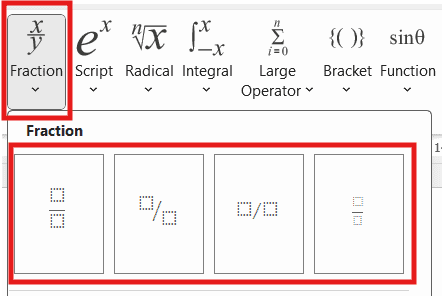
👉 The selected fraction structure remains editable and keeps both values correctly positioned.
Which Method Should You Use?
| Situation | Best Method |
|---|---|
| Entering a basic fraction quickly | Type the numerator, slash, and denominator in an equation |
| Writing several fractions together | Keep them inside one equation box |
| Creating an improper fraction | Use the same quick-entry method |
| Choosing a specific fraction appearance | Use a fraction template |
For most mathematical documents, quick equation entry is the fastest choice. Use templates when the fraction must match a particular visual style.
Common Problems with Fractions in Word
Most problems with how to write fractions in Word come from typing outside an equation box or expecting automatic replacement to support every possible value.
The Fraction Does Not Convert
Confirm that the cursor is inside an equation box. Type the numerator, /, and denominator without extra spaces, then press Space.
Only Common Fractions Change Automatically
Automatic text replacement may convert familiar values such as one-half but leave less common fractions unchanged. Insert an equation when you need a reliable result for any numerator and denominator.
The Fraction Is on a Separate Line
Select the equation and use an inline layout when the fraction should sit within a sentence. A display equation is better for a formula that needs its own centred line.
The Fraction Changes After Pasting
Paste using the destination formatting, then check the equation structure. Avoid converting the fraction into separate ordinary text characters if it still needs editing.
Pro Tips for Writing Fractions in Word
- Press Alt + = to open an equation box without using the ribbon.
- Use one fraction style throughout the document. Consistency matters more than decoration.
- Keep equations editable until the document is final.
- Use stacked fractions for formal mathematics and linear fractions when vertical space is limited.
- Bookmark the Word keyboard shortcuts cheat sheet if you enter equations frequently.
- Check every fraction in Print Preview before sharing or printing the document.
FAQs
How do I write fractions in Word?
To learn how to write fractions in Word, insert a new equation, type the numerator, a forward slash, and the denominator, then press Space. Word converts the entry into a formatted fraction.
What is the shortcut for inserting an equation in Word?
Press Alt + = to insert an equation box. You can then type a fraction or choose a structure from the Equation tab.
Can I write a fraction without the Equation tool?
Yes. You can type a slash fraction such as 3/7 or use an available fraction character. The Equation tool gives more consistent mathematical formatting.
How do I create a stacked fraction in Word?
Insert a new equation and type the numerator, slash, and denominator, then press Space. You can also select a stacked structure from the Fraction menu.
Can I write improper fractions in Word?
Yes. Enter the larger numerator, type /, enter the denominator, and press Space. Word formats it in the same way as a proper fraction.
Can I edit a fraction after inserting it?
Yes. Select the equation, then click the numerator or denominator and replace the value. The fraction structure remains intact.
Why does Word convert one-half but not other fractions?
Automatic text replacement supports only a limited selection of common fraction characters. Use the Equation tool for uncommon values and consistent formatting.
Which fraction style is best for school work?
Stacked fractions are usually the clearest choice for school work, worksheets, and formal calculations. Use the same structure consistently throughout the document.
Conclusion
Knowing how to write fractions in Word gives you clean, editable mathematical notation without manual spacing. Quick equation entry handles most values, while templates provide more control over the fraction style.
Use stacked fractions for formal calculations, keep the formatting consistent, and check each equation before printing. Once you know the quick-entry pattern, creating proper and improper fractions takes seconds.
For polished academic documents, finish the page by learning how to apply double line spacing in Word.
Related Tutorials
- How to Insert a Degree Symbol in Word
- How to Use Superscript in Word
- Word Keyboard Shortcuts Cheat Sheet
Word Tutorials
Recent Microsoft Word Tutorials
Browse the complete collection for help with formatting, layout, pages, tables, images, and document setup.
For Microsoft support documentation, visit the official Microsoft guidance.
Leave a Reply