
To type a maths question in Word, insert a text box, type the question, then press Alt + = to add an equation and type it, for example x/3+3=5. Word turns x/3 into a stacked fraction when you press Space. Remove the text box outline, then press Ctrl + D to duplicate the question.
In this guide, you’ll follow the six steps from the video to make one question you can copy into a worksheet. The steps are for Word in Microsoft 365, Word 2021, Word 2019 and Word 2016 for Windows. For equations on their own, see how to insert equations in Word.
Why Put a Maths Question in a Text Box?
A text box keeps the question and its equation together. You can drag it anywhere on the page, line it up with other questions and copy it in one go. That makes it quick to turn one question into a full worksheet.
Watch the Video Tutorial
If you prefer to see this in action, the full video walkthrough is below, showing each method step by step.
Step 1: Insert a Text Box
- Select Insert > Text Box (in the Text group) > Simple Text Box.
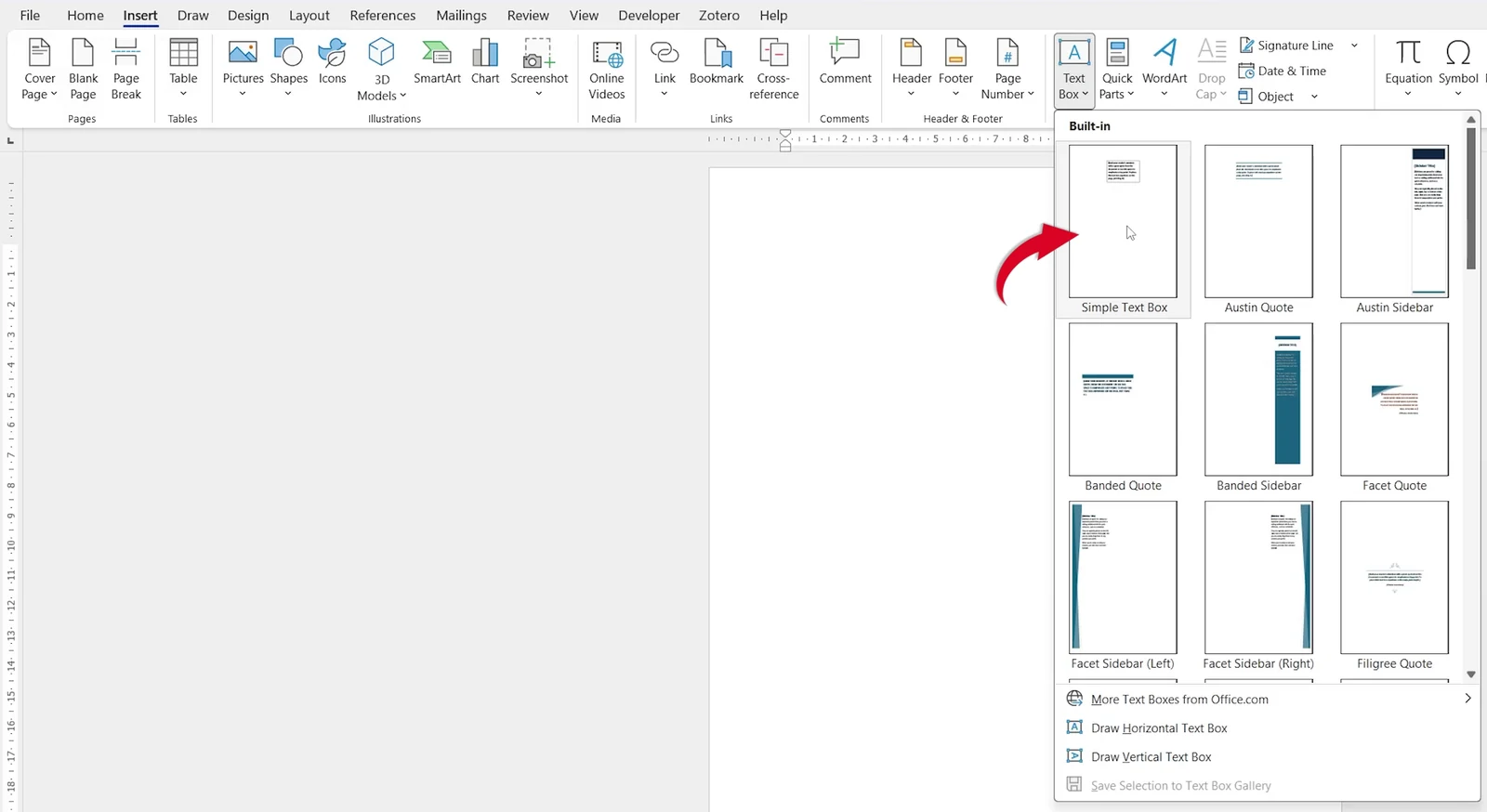
- Drag the text box to where you want the question.
- Select the sample text inside it and press Delete.
Step 2: Type the Question
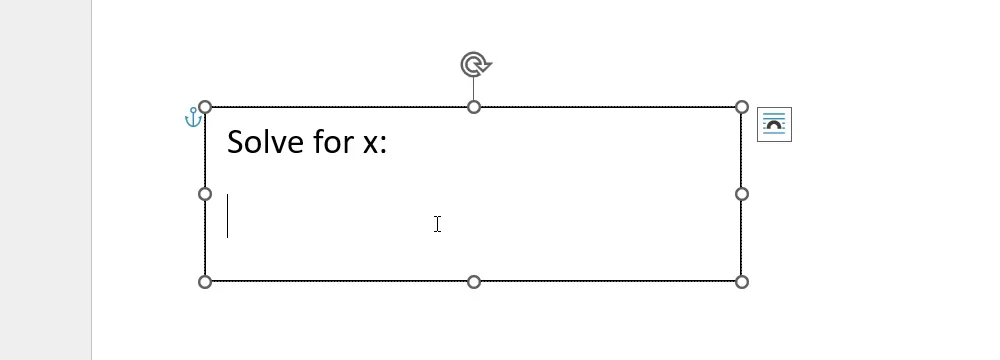
- Click inside the text box and type the instruction, such as Solve for x:.
- Press Enter to start a new line for the equation.
Step 3: Insert an Equation
- Press Alt + =. An equation box appears with Type equation here.
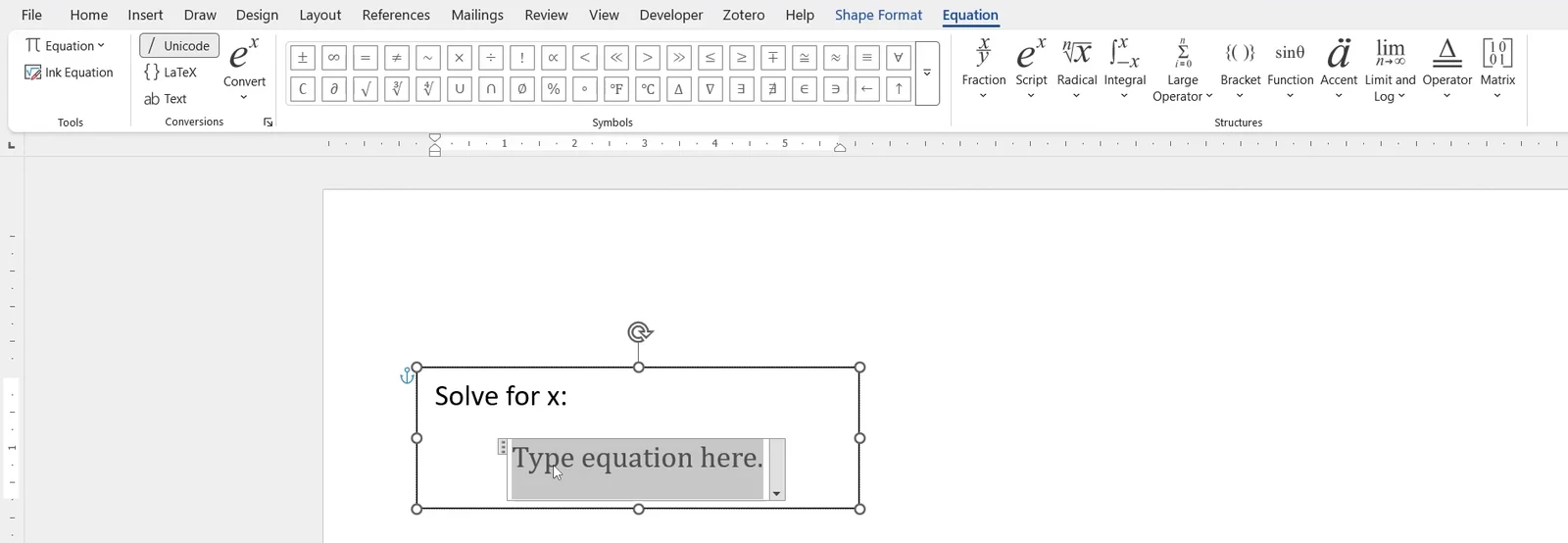
- Or select Insert > Equation (the π symbol).
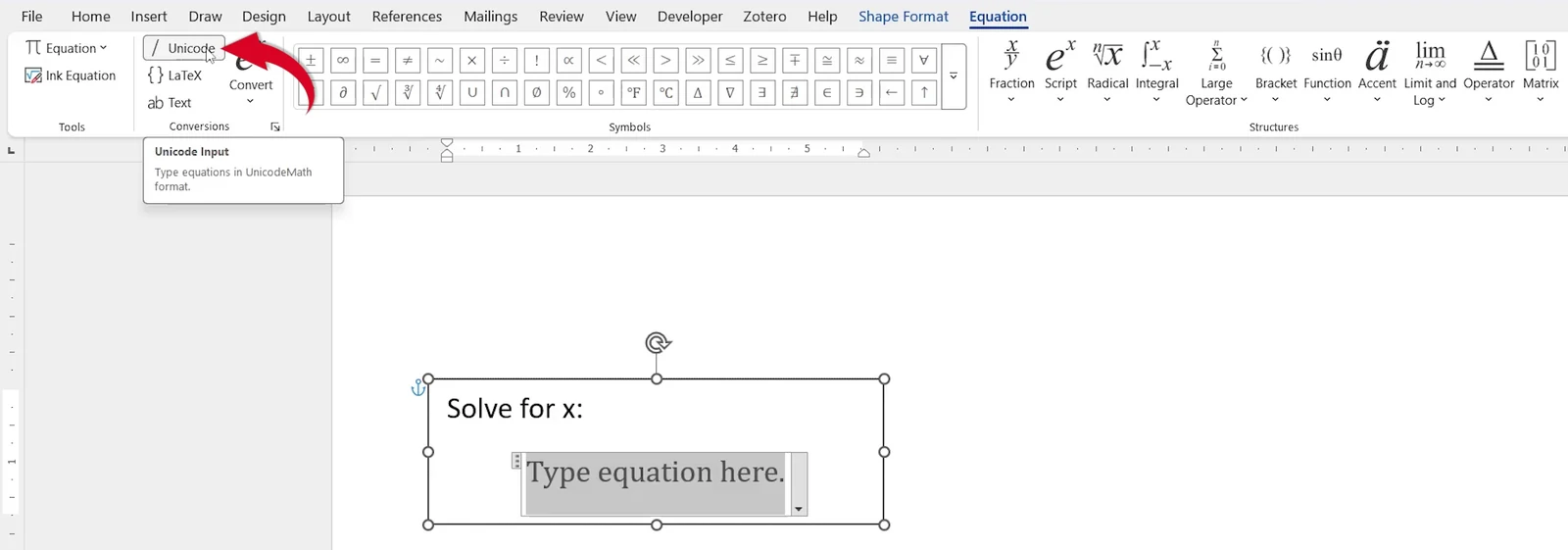
- On the Equation tab, make sure Unicode is selected so Word turns what you type into maths.
Step 4: Type the Equation and Fraction
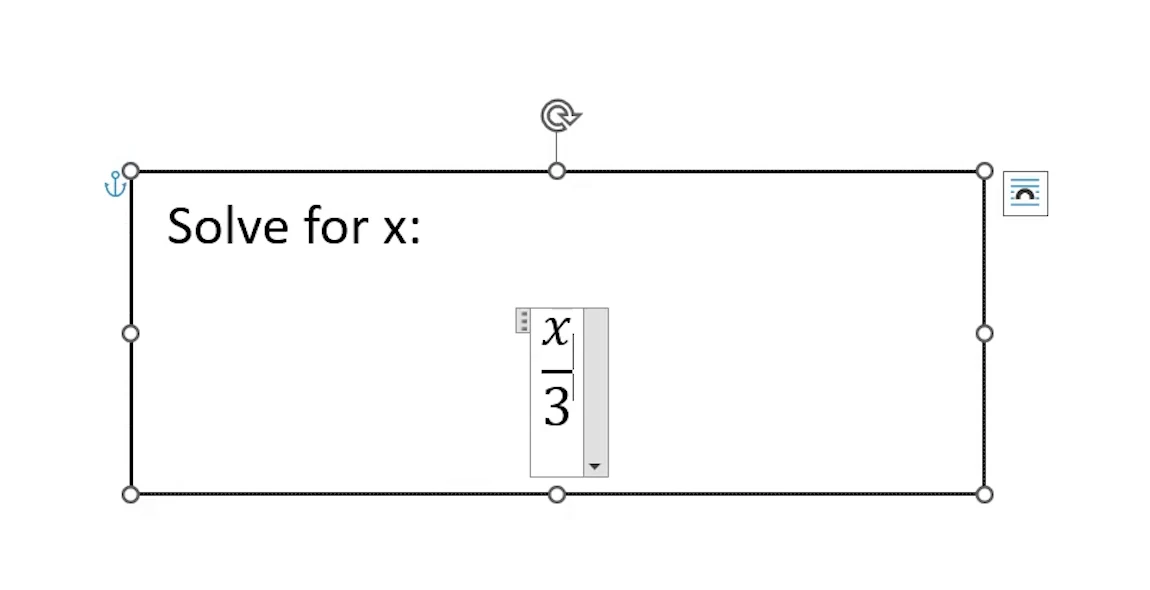
- Type x/3 and press Space. Word turns it into a stacked fraction, with x over 3.
- Press → to move out of the fraction, then type +3=5.
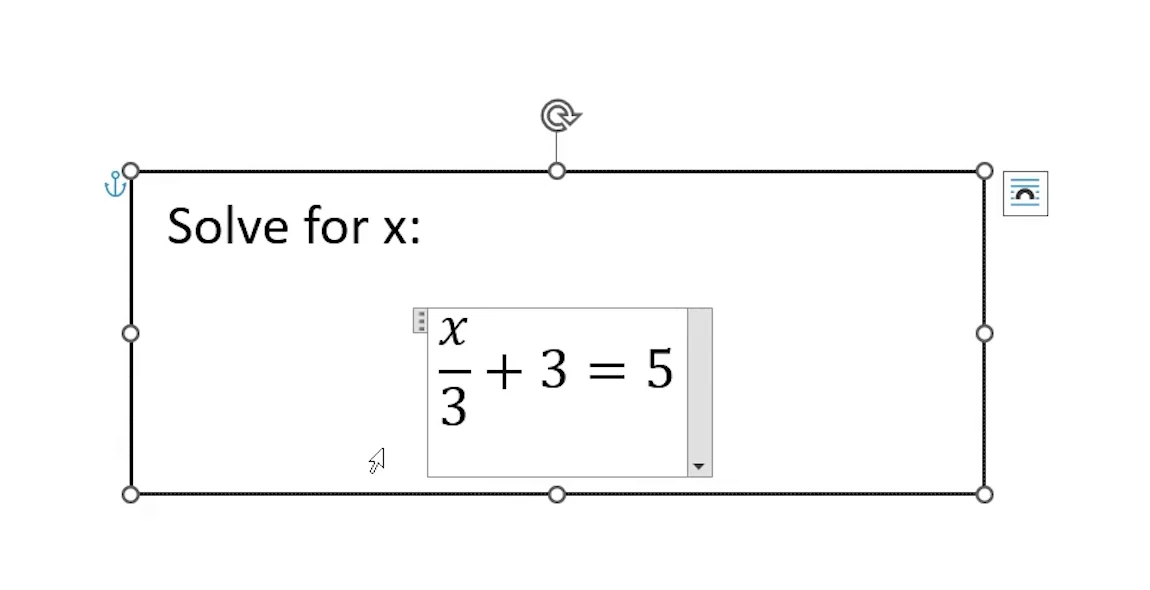
- Click outside the equation. Check that the whole equation is still inside its box.
👉 You can also build the fraction from the menu: select Equation > Fraction > Stacked Fraction, then click each box and type the top and bottom numbers.
Step 5: Remove the Text Box Border
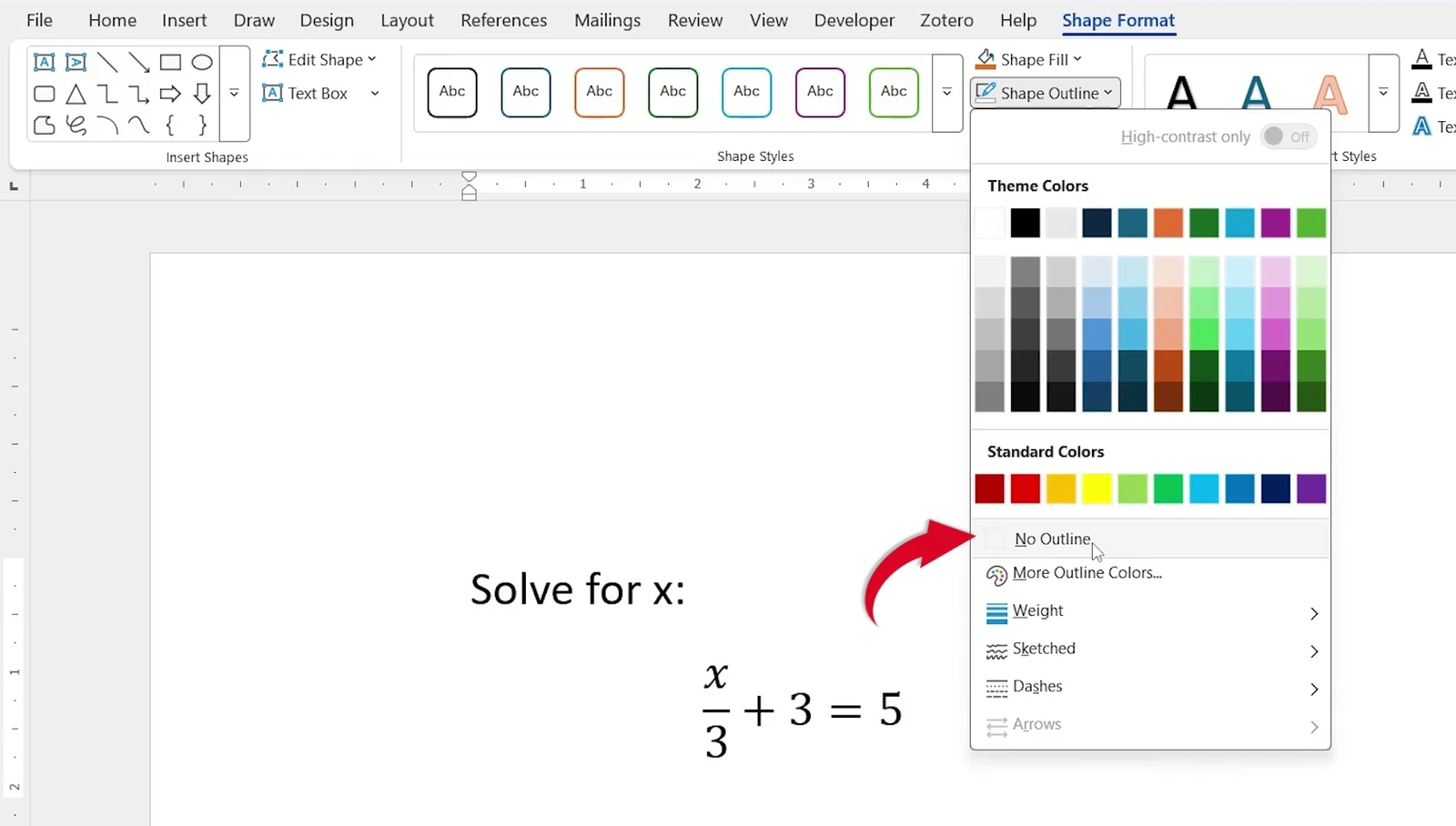
- Click the edge of the text box once so you see the round handles.
- Select Shape Format > Shape Outline > No Outline.
Step 6: Duplicate the Question
- With the text box still selected, press Ctrl + D. Word makes a copy.
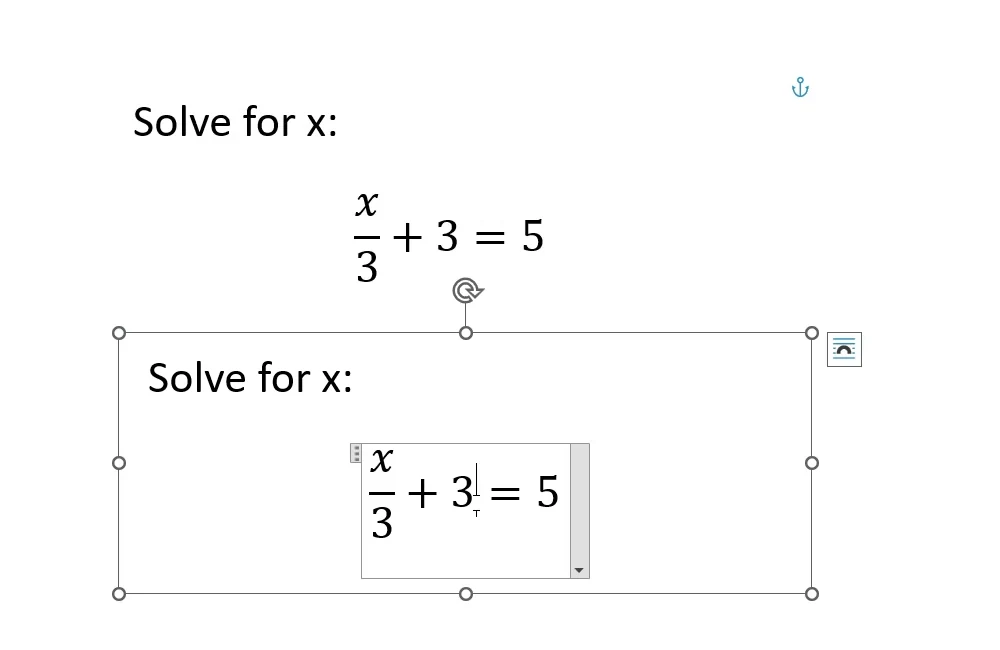
- Drag the copy into place and change its numbers to make a new question.
- Repeat until the worksheet is full.
Quick Tips
More Structures
The Equation tab has ready-made structures such as powers, roots and brackets, plus a full set of maths symbols.
Shortcuts for Symbols
Type symbols faster with the equation shortcuts in Word and maths symbol Alt codes.
Line Up Questions
Select several text boxes, then use Shape Format > Align to space them evenly.
Ready-Made Worksheets
Short on time? Download the free fraction worksheets for Word.
FAQs
How do I type a maths question in Word?
Insert a text box, type the question, press Alt + = to add an equation, then type the equation, such as x/3+3=5.
What is the shortcut for an equation in Word?
Press Alt + = to insert a new equation where the cursor is.
How do I type a fraction in a Word equation?
Type the top number, a forward slash and the bottom number, such as x/3, then press Space.
Why does my fraction not stack?
Check that Unicode is selected on the Equation tab, and press Space after typing the fraction.
Why use a text box for maths questions?
A text box keeps the question and equation together, so you can move and copy it easily.
How do I copy a maths question in Word?
Select the text box and press Ctrl + D to duplicate it, then edit the copy.
Conclusion
To type a maths question in Word, put it in a text box, add the equation with Alt + =, type fractions with a forward slash, hide the outline and duplicate the box. Microsoft lists more equation options in write an equation or formula and linear format equations in Word.
Want more ways to write equations? Read how to insert equations in Word.
Related Tutorials
- How to Insert Equations in Word: 3 Easy Methods
- Equation Shortcuts in Word: 34 Easy Codes (Free PDF)
- Math Symbol Alt Codes in Word: 38 Easy Codes (Free PDF)
Word Tutorials
Recently Added on Word Made Easy
Browse the complete collection for help with formatting, layout, pages, tables, images, and document setup.
For Microsoft support documentation, visit the official Microsoft guidance.
Leave a comment
Stuck on a step, or know a quicker way? Ask or share it below.