
To remove strikethrough in Word, select the crossed-out text, then select Home > Strikethrough (the ab button with a line through it) in the Font group. The line disappears and the words stay. If the line is red and the text is in a different colour, it is a tracked deletion: right-click it and choose Reject Deletion.
In this guide, you’ll learn the three fixes from the video and how to tell which one you need. The steps are for Word in Microsoft 365, Word 2021, Word 2019 and Word 2016 for Windows. To add the line instead, see how to strikethrough in Word.
Why Text Has a Line Through It
Single Strikethrough
One line through the text, in the same colour as the words. This is formatting: use Method 1.
Double Strikethrough
Two lines through the text. This is formatting from the Font dialog box: use Method 2.
Tracked Deletion
A coloured line, often red, with a mark in the margin. Track Changes is on: use Method 3.
Watch the Video Tutorial
If you prefer to see this in action, the full video walkthrough is below, showing each method step by step.
Method 1: Remove Strikethrough With the Home Tab
Use this method for ordinary single strikethrough.
Steps
- Click and drag over the crossed-out words to select them.

- Select Home, then look in the Font group. The Strikethrough button is highlighted because it is on.
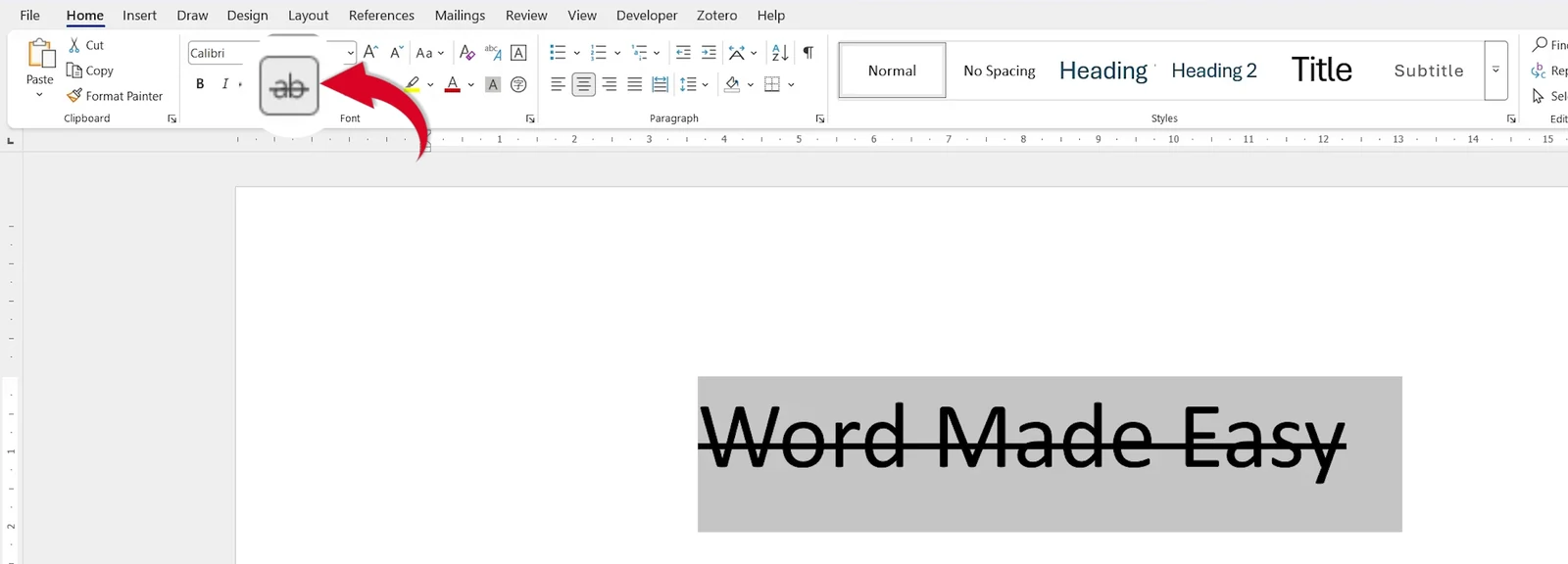
- Select Strikethrough to turn it off.
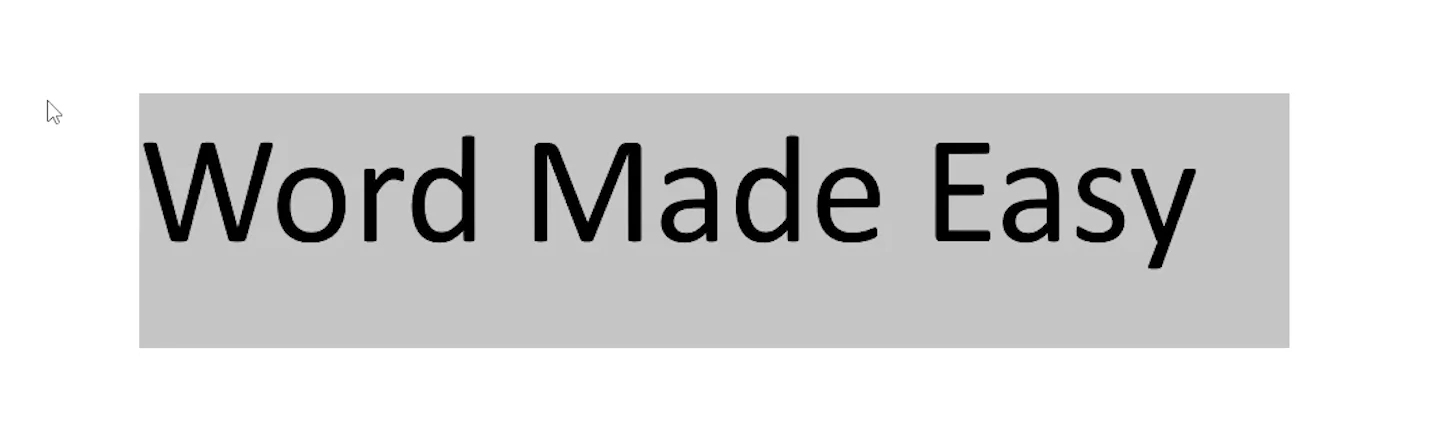
👉 The line disappears and the words stay as they were.
Method 2: Remove Double Strikethrough
Use this method when there are two lines through the text. The Strikethrough button does not show as on for double strikethrough.
Steps
- Select the text with the two lines through it.

- Select Home > Strikethrough once. One line is removed.
- Select Strikethrough again. The last line is removed.
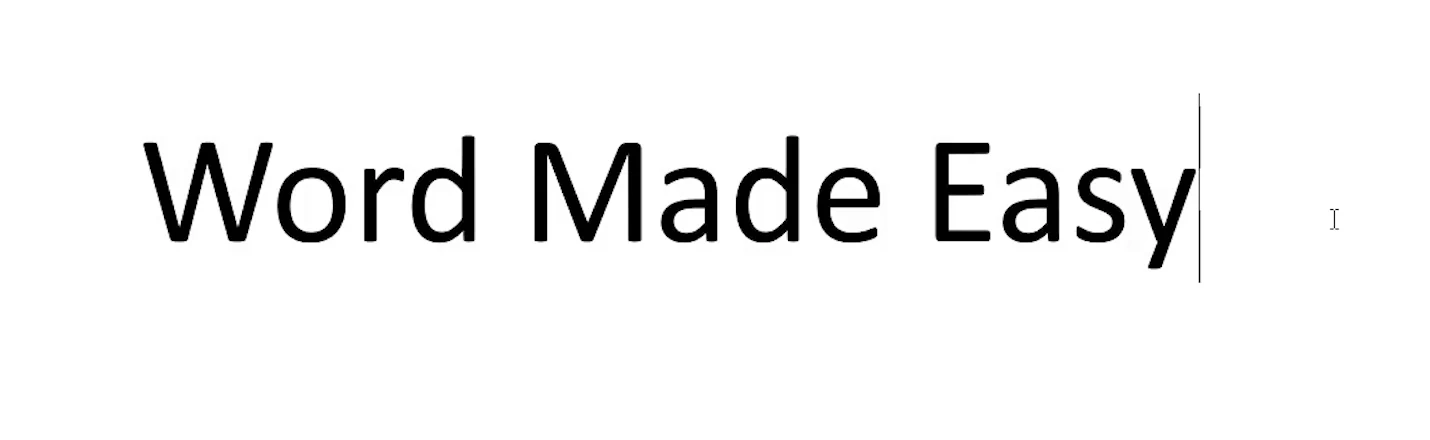
👉 You can also press Ctrl + D to open the Font dialog box, untick Double strikethrough and select OK.
Method 3: Reject a Tracked Deletion
Use this method when the line is still there after you remove strikethrough. The text was deleted while Track Changes was on.
Steps
- Right-click the crossed-out text.
- Choose Reject Deletion.
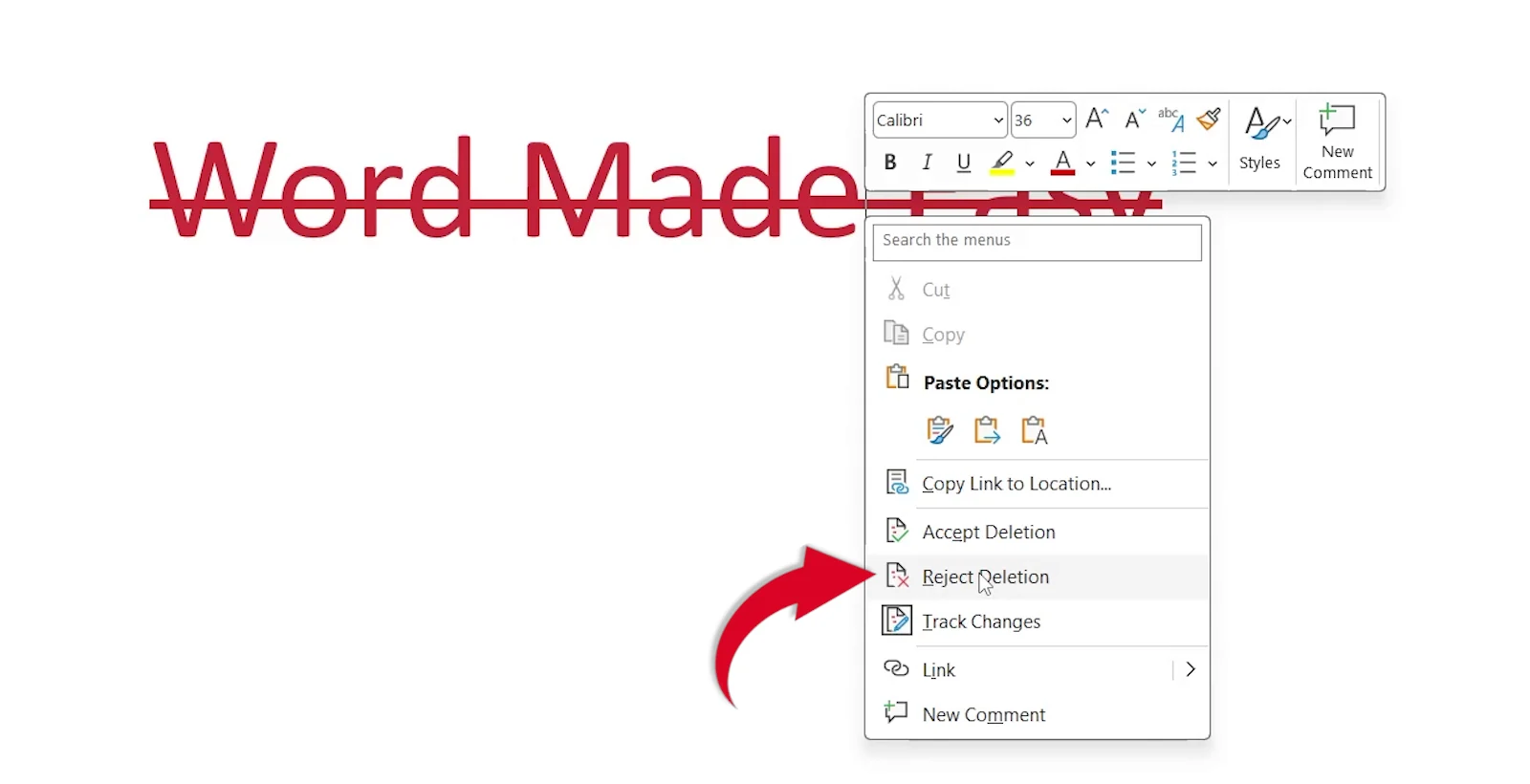
👉 The red line and the change mark in the margin disappear, and the words stay. Choosing Accept Deletion would delete the words for good instead.
Which Method Should You Use?
Strikethrough Button
One line in the text colour. Turn the button off.
Click Twice
Two lines. Click Strikethrough twice, or untick Double strikethrough in the Font dialog box.
Reject Deletion
A coloured line with a margin mark. It is a tracked change, not formatting.
Quick Tips
Clear All Character Formatting
Press Ctrl + Space to remove strikethrough along with bold, italic and other text formatting. See how to clear formatting in Word.
A Whole Document
Press Ctrl + A to select everything, then turn Strikethrough off once.
Many Tracked Deletions
Select Review > Reject > Reject All Changes to undo every tracked change at once.
Track Changes Keys
See the Track Changes shortcuts in Word to review edits faster.
FAQs
How do I remove strikethrough in Word?
Select the crossed-out text, then select Home > Strikethrough in the Font group to turn it off.
How do I remove double strikethrough in Word?
Select the text and click Strikethrough twice, or press Ctrl + D and untick Double strikethrough.
Why won’t the strikethrough go away?
The line is probably a tracked deletion. Right-click the text and choose Reject Deletion.
Why is my strikethrough red?
Red crossed-out text usually means Track Changes was on when the text was deleted.
Is there a shortcut to remove strikethrough?
Word has no default single-key shortcut for strikethrough, but Ctrl + Space removes all manual character formatting, including strikethrough.
How do I remove strikethrough from the whole document?
Press Ctrl + A to select everything, then turn off Strikethrough on the Home tab.
Conclusion
To remove strikethrough in Word, turn off the Strikethrough button, click it twice for a double line, or reject the deletion when Track Changes made the line. Microsoft covers the formatting side in apply or remove strikethrough text formatting and the tracked changes side in accept or reject tracked changes in Word.
Need to hide text rather than cross it out? See how to hide a paragraph in Word.
Related Tutorials
- How to Strikethrough in Word: Shortcut + 3 Easy Methods
- How to Clear Formatting in Word: 3 Easy Steps
- How to Change Your Username for Track Changes in Word (Author Name): 2 Easy Methods
Word Tutorials
Recently Added on Word Made Easy
Browse the complete collection for help with formatting, layout, pages, tables, images, and document setup.
For Microsoft support documentation, visit the official Microsoft guidance.
Leave a comment
Stuck on a step, or know a quicker way? Ask or share it below.