
To undo in Word, select Undo (the curved arrow pointing left) at the top of the window, or press Ctrl + Z. Word reverses your last change. Keep pressing Ctrl + Z to step back through several changes, and press Ctrl + Y to redo a change you undid by mistake.
In this guide, you’ll learn the same methods as the video, plus the Undo list for reversing many changes at once. The steps are for Word in Microsoft 365, Word 2021, Word 2019 and Word 2016 for Windows.
What Undo Does in Word
Undo reverses your most recent action: typing, deleting, formatting, moving a picture and most other edits. Word remembers a long list of actions, so you can step back one at a time until the document is how it was. Redo does the opposite and puts back what you just undid.
Watch the Video Tutorial
If you prefer to see this in action, the full video walkthrough is below, showing each method step by step.
Method 1: Undo With the Undo Button
Use this method when you prefer the mouse, or to see what Word will undo.
Steps
- Make the change you want to reverse. In the video, the word garden is deleted from a sentence.

- Select Undo (the curved arrow pointing left) at the top of the window.
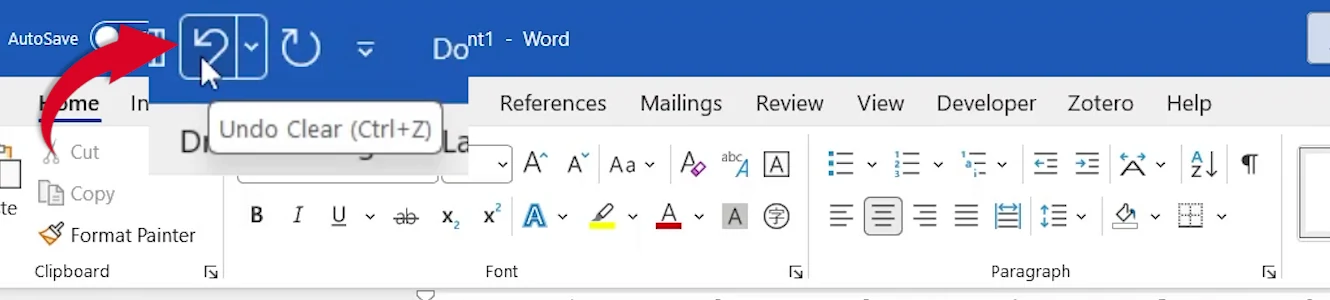
👉 The deleted word comes straight back.
Method 2: Undo With the Keyboard Shortcut
Use this method for the quickest undo while you type.
Steps
- Make the change you want to reverse.
- Press Ctrl + Z once.
👉 Word undoes the last change. Your cursor stays in the document, so you can carry on typing.
Method 3: Undo Several Changes at Once
Use this method when you have made a few changes in a row and want them all gone.
Steps
- In the video, three changes are made: class becomes bold, visit is deleted and garden is underlined.

- Hold Ctrl and press Z again and again. Each press undoes one more change, newest first.
- Stop when the text is back to how you want it.

👉 To jump back several steps in one go, select the small arrow next to Undo and choose the oldest action you want to reverse. Word undoes it and everything after it.
How to Redo in Word
Undid one change too many? Redo puts it back.
Steps
- Press Ctrl + Y, or select Redo (the curved arrow pointing right) next to Undo.

- Press it again to redo the next change.
👉 Remember the pair: Ctrl + Z undoes and Ctrl + Y redoes.
Which Method Should You Use?
Undo Button
Easiest to find, and the arrow next to it lists every action you can undo.
Ctrl + Z
Fastest while typing. Press it as many times as you need.
Undo List
Best for reversing a run of changes in one click.
Ctrl + Y
Brings back anything you undid by mistake.
Quick Tips
Undo Before Saving and Closing
Once you close a document, its undo history is gone. Undo first, then save.
Repeat an Action
When there is nothing to redo, Ctrl + Y repeats your last action, such as applying the same formatting again.
Lost Work?
Undo cannot bring back a file you closed without saving. See how to recover an unsaved Word document.
More Shortcuts
Keep the essentials to hand with the Microsoft Word keyboard shortcuts cheat sheet.
FAQs
How do I undo in Word?
Select Undo (the curved arrow pointing left) at the top of the window, or press Ctrl + Z.
What is the shortcut to undo in Word?
Ctrl + Z undoes your last action. Press it again to undo the change before that.
What is the shortcut to redo in Word?
Ctrl + Y redoes the last action you undid.
How do I undo several changes at once?
Keep pressing Ctrl + Z, or select the arrow next to Undo and choose the oldest action you want to reverse.
Why is the Undo button greyed out?
There is nothing left to undo. This happens in a newly opened document or after you have undone every change.
Can I undo after saving in Word?
Yes, while the document is still open. Once you close it, the undo history is cleared.
Conclusion
To undo in Word, select Undo or press Ctrl + Z, press it again to step back further, and use Ctrl + Y to redo. Microsoft explains the details in undo, redo, or repeat an action.
Want to select everything before you make a change? See how to select all text in Word.
Related Tutorials
- How to Select All Text in Word: 3 Easy Methods
- How to Cut, Copy, and Paste in Microsoft Word
- How to Recover an Unsaved Word Document: 2 Methods
Word Tutorials
Recently Added on Word Made Easy
Browse the complete collection for help with formatting, layout, pages, tables, images, and document setup.
For Microsoft support documentation, visit the official Microsoft guidance.
Leave a comment
Stuck on a step, or know a quicker way? Ask or share it below.