Skip to content
Word Made Easy
Home Word Tutorials Word Templates Google Docs PowerPoint Tutorials YouTube Videos

How to Clear Formatting in Word: 3 Easy Steps

Microsoft Word, Word Formatting Basics

To clear formatting in Word, select the text and select Clear All Formatting on the Home tab: the big A with a small pink eraser. It resets fonts, sizes, colours and styles in one click. Two things survive it, highlighting and capital letters, so this guide fixes those too. To copy formatting instead, see how to use Format Painter in Word.

In this guide, you’ll learn how to clear formatting in Word from a phrase, a paragraph or the whole document, then remove leftover highlighting and restore proper capital letters.


Contents hide
1 What Clear All Formatting Removes
2 How to Clear Formatting in Word
3 Keyboard Shortcuts to Clear Formatting
4 Common Problems
5 FAQs
6 Conclusion
7 Related Tutorials
8 Word Tutorials

What Clear All Formatting Removes

Clear All Formatting takes text back to the default style, removing:

  • Font, font size and font colour changes
  • Bold, italic, underline and strikethrough
  • Styles such as headings and quotes
  • Text effects such as shadows and glows

It does not remove text highlighting or change letters typed in capitals. Steps 2 and 3 handle those.
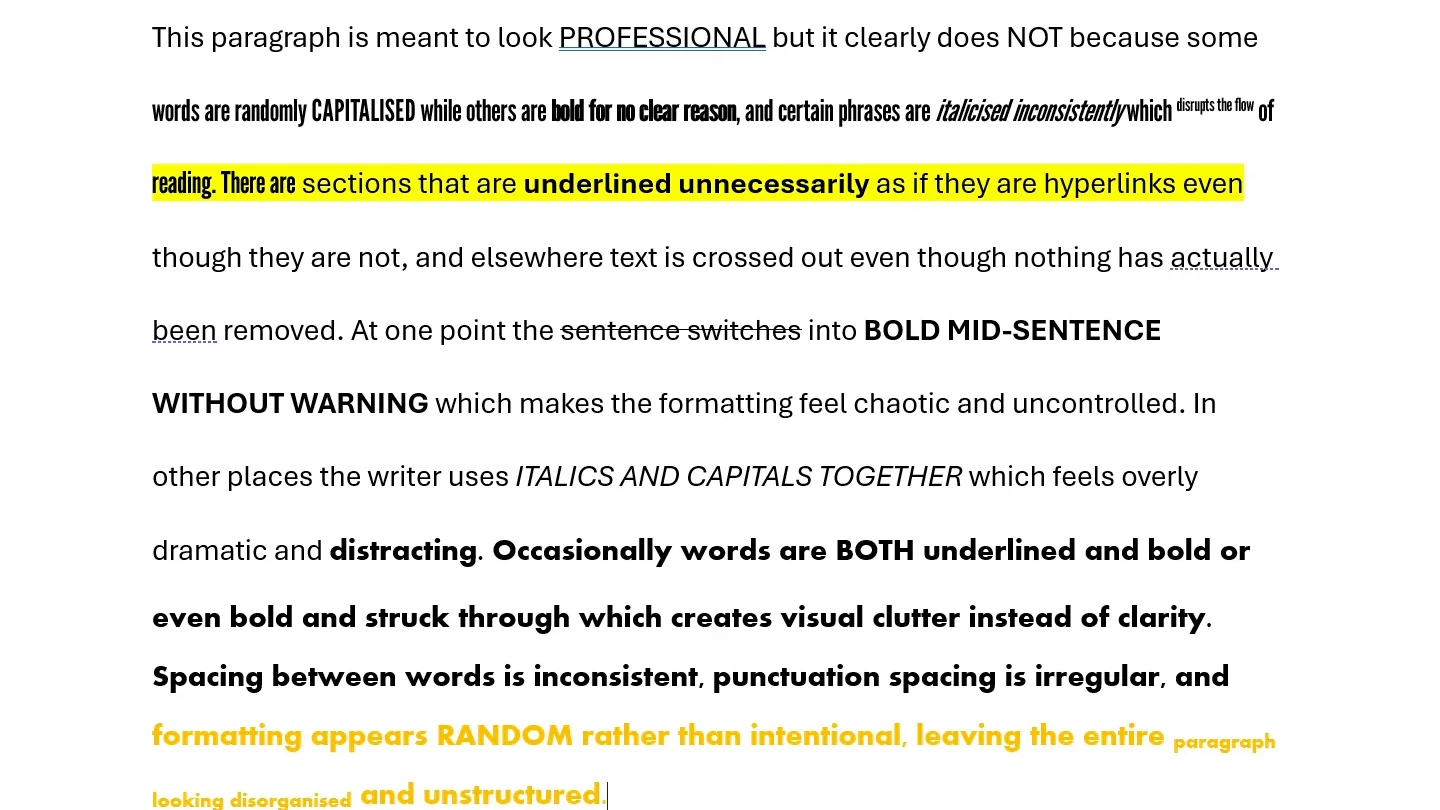
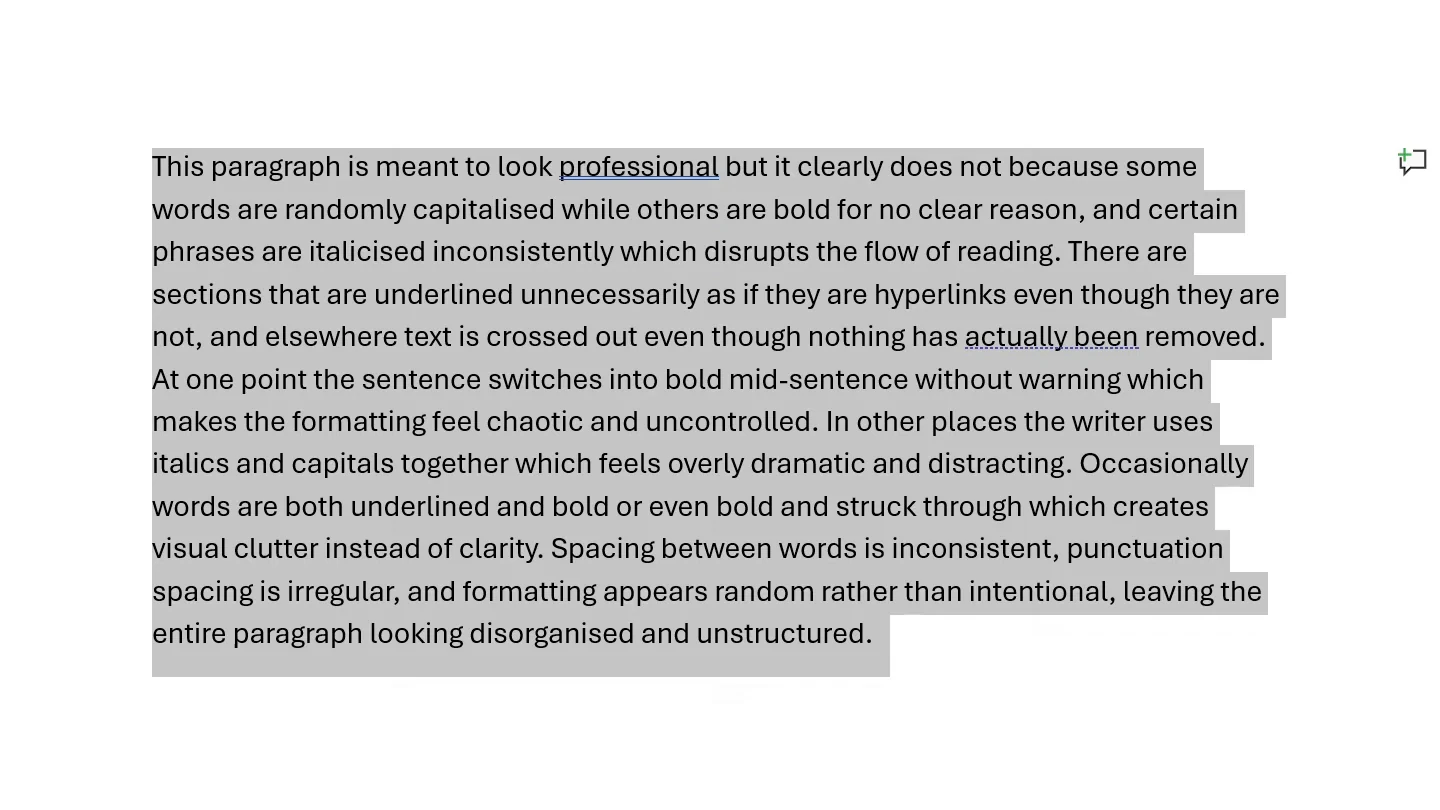
Paragraph in Word with mixed fonts, capitals, highlighting and underlining before clearing formatting

Watch the Video Tutorial

If you prefer to see this in action, the full video walkthrough is below, showing each method step by step.


How to Clear Formatting in Word

Step 1: Use Clear All Formatting

  1. Select the text you want to reset. Press Ctrl + A to select the whole document.
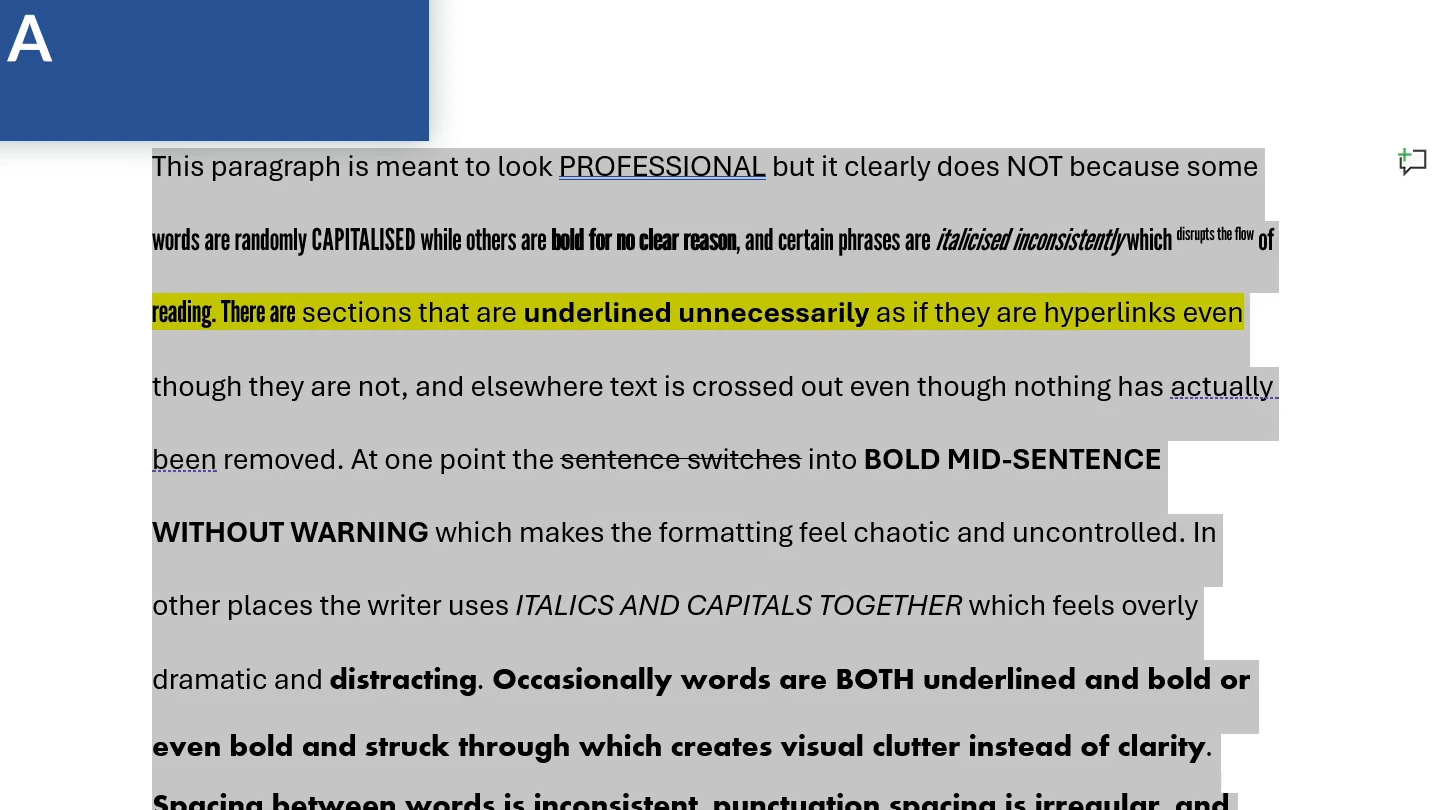
Paragraph selected with Ctrl + A before you clear formatting in Word
  1. On the Home tab, select Clear All Formatting in the Font group.
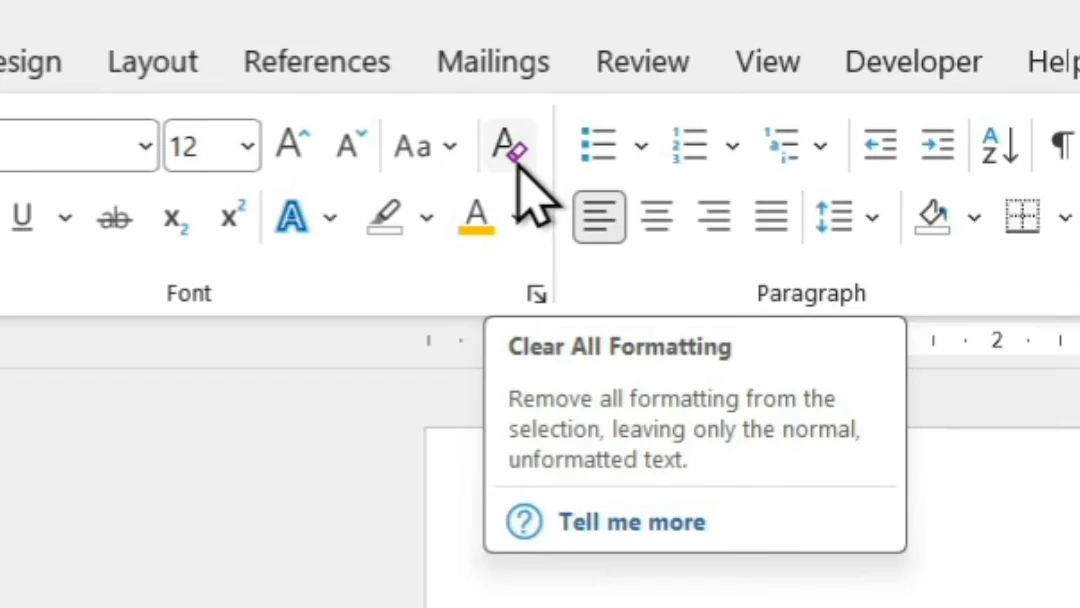
Clear All Formatting button on the Word Home tab

👉 Most of the formatting disappears straight away. Highlighting and capital letters stay, so Steps 2 and 3 remove them.
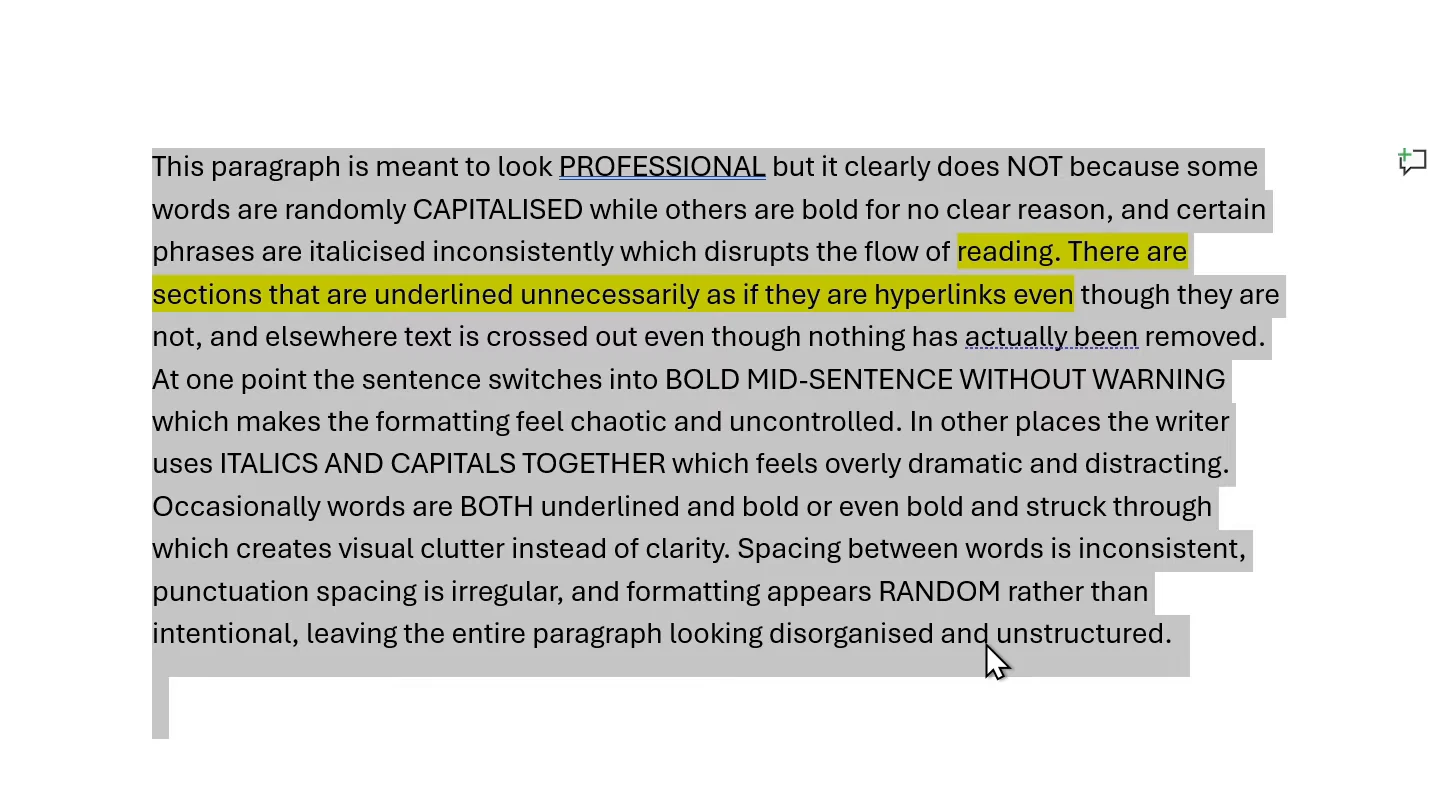
Text after Clear All Formatting in Word with the highlighting and capitals still showing

Step 2: Remove Leftover Highlighting

  1. Keep the text selected, select the arrow next to Text Highlight Color and choose No Color.
Text Highlight Color menu in Word with No Color

👉 The highlighting is gone. For more on highlights, see how to highlight text in Word.

Step 3: Fix Capital Letters With Change Case

Text typed in capitals stays in capitals. Change Case fixes it in two clicks:

  1. Select the text again and select Change Case (Aa) in the Font group.
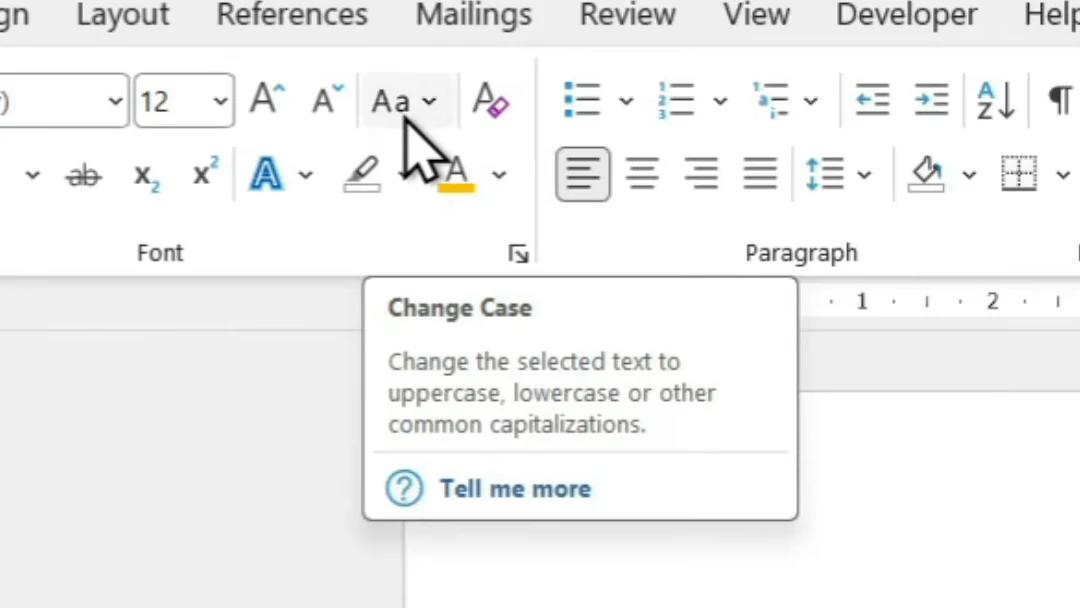
Change Case button in the Font group on the Word Home tab
  1. Choose lowercase.
Change Case menu in Word with lowercase
Text in Word after lowercase, ready for Sentence case
  1. Select Change Case again and choose Sentence case.
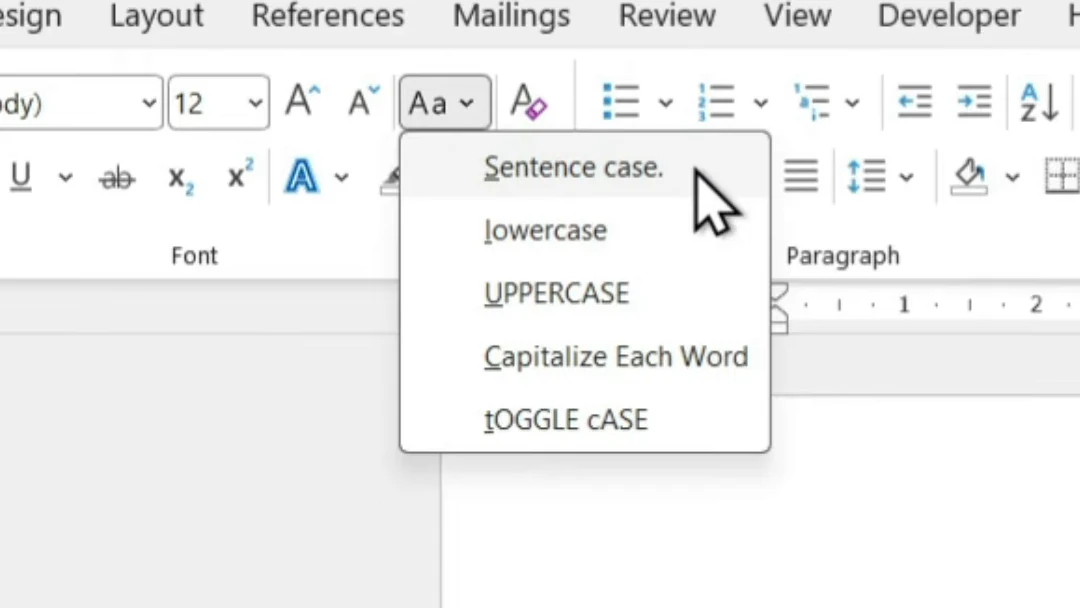
Change Case menu in Word with Sentence case

👉 Each sentence now starts with a capital letter after every full stop. Check names and places, then apply the formatting you want, such as justified text and your own spacing. For every case option, see how to change text case in Word.

Paragraph in Word after clearing formatting, justified with new line spacing

Keyboard Shortcuts to Clear Formatting

Character Formatting

Press Ctrl + Space to remove font changes such as bold, italic and colour from the selection.

Paragraph Formatting

Press Ctrl + Q to remove indents, spacing and alignment changes.

Normal Style

Press Ctrl + Shift + N to apply the Normal style.

Paste as Plain Text

Right-click and choose Keep Text Only to paste without any formatting.


Common Problems

The Highlight Is Still There

Clear All Formatting does not remove highlighting. Use Text Highlight Color > No Color.

The Text Is Still in Capitals

The letters were typed as capitals. Use Change Case > lowercase, then Sentence case.

The Background Colour Remains

Paragraph shading is set in Borders and Shading. Set the fill to No Color, as shown in how to add background colour to a line in Word.


FAQs

How do I clear formatting in Word?

Select the text and select Clear All Formatting, the A with an eraser, on the Home tab. Press Ctrl + A first to clear formatting from the whole document.

What is the shortcut to clear formatting in Word?

Press Ctrl + Space to clear character formatting and Ctrl + Q to clear paragraph formatting from the selected text.

Why does Clear All Formatting not remove highlighting?

Highlighting is treated separately from font formatting. Select the text, open Text Highlight Color and choose No Color.

How do I remove capital letters after clearing formatting?

Use Change Case on the Home tab. Choose lowercase, then Sentence case to put capitals back at the start of each sentence.

How do I paste text without formatting in Word?

Right-click where you want the text and choose Keep Text Only under Paste Options, or press Ctrl + Shift + V.

Does clearing formatting delete my text?

No. Clear All Formatting only changes how the text looks. The words stay exactly as they are.


Conclusion

To clear formatting in Word, select the text, use Clear All Formatting, remove leftover highlighting with No Color and fix capital letters with Change Case. Microsoft covers the button in its guide to clearing all text formatting.

With a clean slate, set up the look you want with how to change the font in Word.


Related Tutorials

  • How to Use Format Painter in Word
  • How to Change Text Case in Word
  • How to Remove Formatting Marks in Word

Word Tutorials

Recently Added on Word Made Easy

  • How to Select All Text in Word: 3 Easy Methods

    October 19, 2026
  • How to Hide a Paragraph in Word: 3 Easy Steps

    October 19, 2026
  • How to Write Overline in Word: 2 Easy Methods

    October 19, 2026

Browse the complete collection for help with formatting, layout, pages, tables, images, and document setup.

View all Word tutorials
Watch on YouTube

For Microsoft support documentation, visit the official Microsoft guidance.

Like this:

Like Loading…
Change Case in Word Clear All Formatting clear formatting in Word microsoft word Microsoft Word tutorial remove formatting in Word
←How to Fix Selection Is Locked in Word: 6 Easy Methods
How to Save in Word: 4 Easy Methods (Quick Guide)→

Comments

Leave a Reply Cancel reply

Meet the Author

Patrick Elliott standing outdoors holding his dog.

I’m Patrick Elliott, the creator of Word Made Easy. I’ve worked in schools for over 10 years and I’m now an Inclusion Lead in the UAE. I use Microsoft Word and PowerPoint every day for planning, documentation and classroom resources.

Every guide is tested step by step before publishing (usually in Microsoft 365), and every free template is one I made myself in Word. You’ll also find practical walkthroughs on my YouTube channel.

Browse

  • Word TutorialsStep-by-step guides for every feature
  • Word Beginners HubFree 12-chapter Word course
  • Word TemplatesFree, editable downloads
  • Word Shortcut Cheat SheetsFree printable PDFs
  • Google Docs TutorialsStep-by-step Docs guides
  • PowerPoint TutorialsClear, simple slide guides
  • YouTube VideosWatch the video walkthroughs

Watch on YouTube

Prefer to watch? Most guides have a short video walkthrough on the Word Made Easy channel.

  • 147videos
  • 1.88Mviews
  • 8,000+subscribers
Subscribe on YouTube

Recently Added

  • Free CV Templates for Word: 8 ATS-Friendly CVsOctober 21, 2026
  • Free Cover Letter Templates for Word: 8 Easy LettersOctober 21, 2026
  • Free Resume Templates for Word: 8 ATS-Friendly ResumesOctober 21, 2026
  • Free Letter to Santa Templates for Word: 8 Easy PrintablesOctober 21, 2026
  • Free Christmas List Templates for Word: 8 Easy PrintablesOctober 21, 2026
Word Made Easy

Free, step-by-step Microsoft Word tutorials, written and tested by teacher Patrick Elliott.

Subscribe on YouTube Follow on Facebook Follow on Pinterest

Explore

  • Home
  • Word Tutorials
  • Word Templates
  • Google Docs Tutorials
  • PowerPoint Tutorials
  • YouTube Videos

Microsoft Word

  • Page Layout & Sections
  • Tables, Images & Media
  • Formatting Basics
  • Productivity & Automation
  • Beginners Hub
  • Templates
  • Shortcut Cheat Sheets

Google Docs

  • Basics
  • Formatting
  • Page Layout
  • Tables & Images
  • Files & PDFs
  • Sharing & Signing
  • Writing & Research
  • Templates

About

  • About Me
  • Contact
Privacy Policy Cookie Policy Terms of Use
© 2012–2026 Word Made Easy. All rights reserved.
Manage your privacy

To provide the best experiences, we and our partners use technologies like cookies to store and/or access device information. Consenting to these technologies will allow us and our partners to process personal data such as browsing behavior or unique IDs on this site and show (non-) personalized ads. Not consenting or withdrawing consent, may adversely affect certain features and functions.

Click below to consent to the above or make granular choices. Your choices will be applied to this site only. You can change your settings at any time, including withdrawing your consent, by using the toggles on the Cookie Policy, or by clicking on the manage consent button at the bottom of the screen.

Functional Always active
The technical storage or access is strictly necessary for the legitimate purpose of enabling the use of a specific service explicitly requested by the subscriber or user, or for the sole purpose of carrying out the transmission of a communication over an electronic communications network.
Preferences
The technical storage or access is necessary for the legitimate purpose of storing preferences that are not requested by the subscriber or user.
Statistics
The technical storage or access that is used exclusively for statistical purposes. The technical storage or access that is used exclusively for anonymous statistical purposes. Without a subpoena, voluntary compliance on the part of your Internet Service Provider, or additional records from a third party, information stored or retrieved for this purpose alone cannot usually be used to identify you.
Marketing
The technical storage or access is required to create user profiles to send advertising, or to track the user on a website or across several websites for similar marketing purposes.
Statistics

Marketing

Features
Always active

Special features

Special purposes
Always active

  • Manage options
  • Manage services
  • Manage {vendor_count} vendors
  • Read more about these purposes
Manage options
  • {title}
  • {title}
  • {title}
Manage your privacy
To provide the best experiences, we use technologies like cookies to store and/or access device information. Consenting to these technologies will allow us to process data such as browsing behavior or unique IDs on this site. Not consenting or withdrawing consent, may adversely affect certain features and functions.
Functional Always active
The technical storage or access is strictly necessary for the legitimate purpose of enabling the use of a specific service explicitly requested by the subscriber or user, or for the sole purpose of carrying out the transmission of a communication over an electronic communications network.
Preferences
The technical storage or access is necessary for the legitimate purpose of storing preferences that are not requested by the subscriber or user.
Statistics
The technical storage or access that is used exclusively for statistical purposes. The technical storage or access that is used exclusively for anonymous statistical purposes. Without a subpoena, voluntary compliance on the part of your Internet Service Provider, or additional records from a third party, information stored or retrieved for this purpose alone cannot usually be used to identify you.
Marketing
The technical storage or access is required to create user profiles to send advertising, or to track the user on a website or across several websites for similar marketing purposes.
Statistics

Marketing

Features
Always active

Special features

Special purposes
Always active

  • Manage options
  • Manage services
  • Manage {vendor_count} vendors
  • Read more about these purposes
Manage options
  • {title}
  • {title}
  • {title}

Discover more from Word Made Easy

Subscribe now to keep reading and get access to the full archive.

Continue reading

Loading Comments...
%d