Skip to content
Word Made Easy
Home Word Tutorials Word Templates Google Docs PowerPoint Tutorials YouTube Videos

How to Fix Selection Is Locked in Word: 6 Easy Methods

Microsoft Word, Word Productivity & Automation

When the selection is locked in Word, you see the message “You can’t make this change because the selection is locked” every time you type or delete. The document is not broken. Something is stopping edits: editing protection, Viewing mode, a “final” mark, a read-only file or, if every document is locked, a licensing problem. If you want to lock a file on purpose, see how to password protect a Word document.

In this guide, you’ll learn six fixes, in the order to try them, so you can unlock the selection and get back to editing in Microsoft 365, Word 2021, Word 2019 and Word 2016 for Windows.


Contents hide
1 Why the Selection Is Locked in Word
2 Method 1: Stop Protection to Fix Selection Is Locked in Word
3 Method 2: Switch From Viewing to Editing
4 Method 3: Edit a Document Marked as Final
5 Method 4: Clear the Read-only Attribute
6 Method 5: Open the File in the Desktop App
7 Method 6: Fix an Office Licensing Problem
8 When You Cannot Unlock It
9 Quick Tips
10 FAQs
11 Conclusion
12 Related Tutorials
13 Word Tutorials

Why the Selection Is Locked in Word

Word locks the selection when one of these is switched on:

  • Restrict Editing: the document is protected, so only some changes (or none) are allowed.
  • Viewing mode: Word is set to read the document, not edit it.
  • Mark as Final: the author marked the document as finished.
  • Read-only file: the file itself is set to read-only in Windows.
  • Licensing: Office cannot confirm your licence, so every document opens locked.
The selection is locked in Word message: You can't make this change because the selection is locked

Watch the Video Tutorial

If you prefer to see this in action, the full video walkthrough is below, showing each method step by step.


Method 1: Stop Protection to Fix Selection Is Locked in Word

Editing protection is the most common reason the selection is locked in Word. Check it first.

  1. Select the Review tab.
Review tab selected on the Word ribbon
  1. Select Restrict Editing in the Protect group.
Restrict Editing button in the Protect group on the Word Review tab
  1. In the Restrict Editing pane, select Stop Protection at the bottom. Type the password if Word asks for one.
Stop Protection button at the bottom of the Restrict Editing pane in Word

👉 The protection is removed and you can edit again. If Stop Protection asks for a password you do not have, ask the document owner for it or for an unprotected copy.


Method 2: Switch From Viewing to Editing

Even with protection removed, Word can stay in read mode. Change the mode:

  1. Select the Viewing button at the top right of the ribbon.
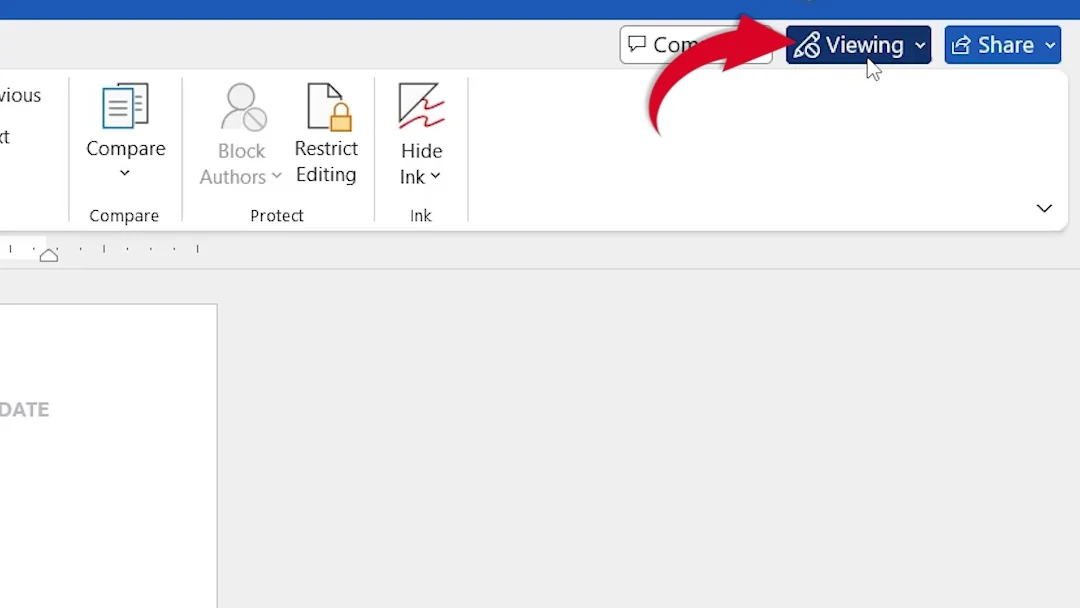
Viewing mode button at the top right of the Word ribbon
  1. Choose Editing.
Editing chosen from the Word mode menu

👉 The mode button now says Editing, and you can type and delete as normal.


Method 3: Edit a Document Marked as Final

A yellow bar saying Marked as Final means the author finished the document. To edit it:

  1. Select Edit Anyway on the yellow bar.
Marked as Final bar in Word with the Edit Anyway button

If the bar is not there, because it was closed or did not load, remove the mark from the File menu:

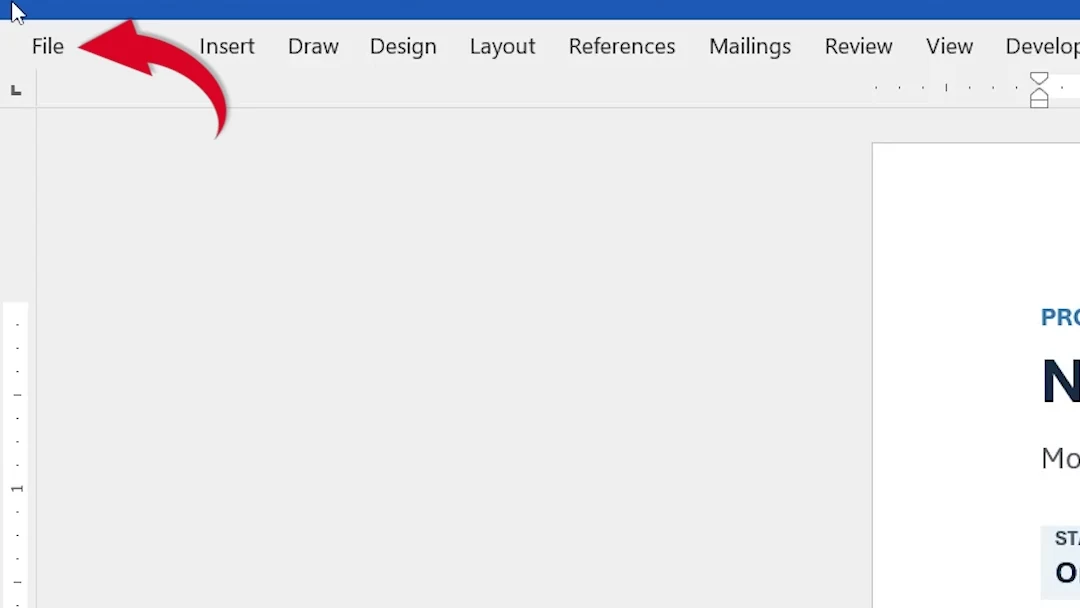
  1. Select File.
File tab at the top left of Word
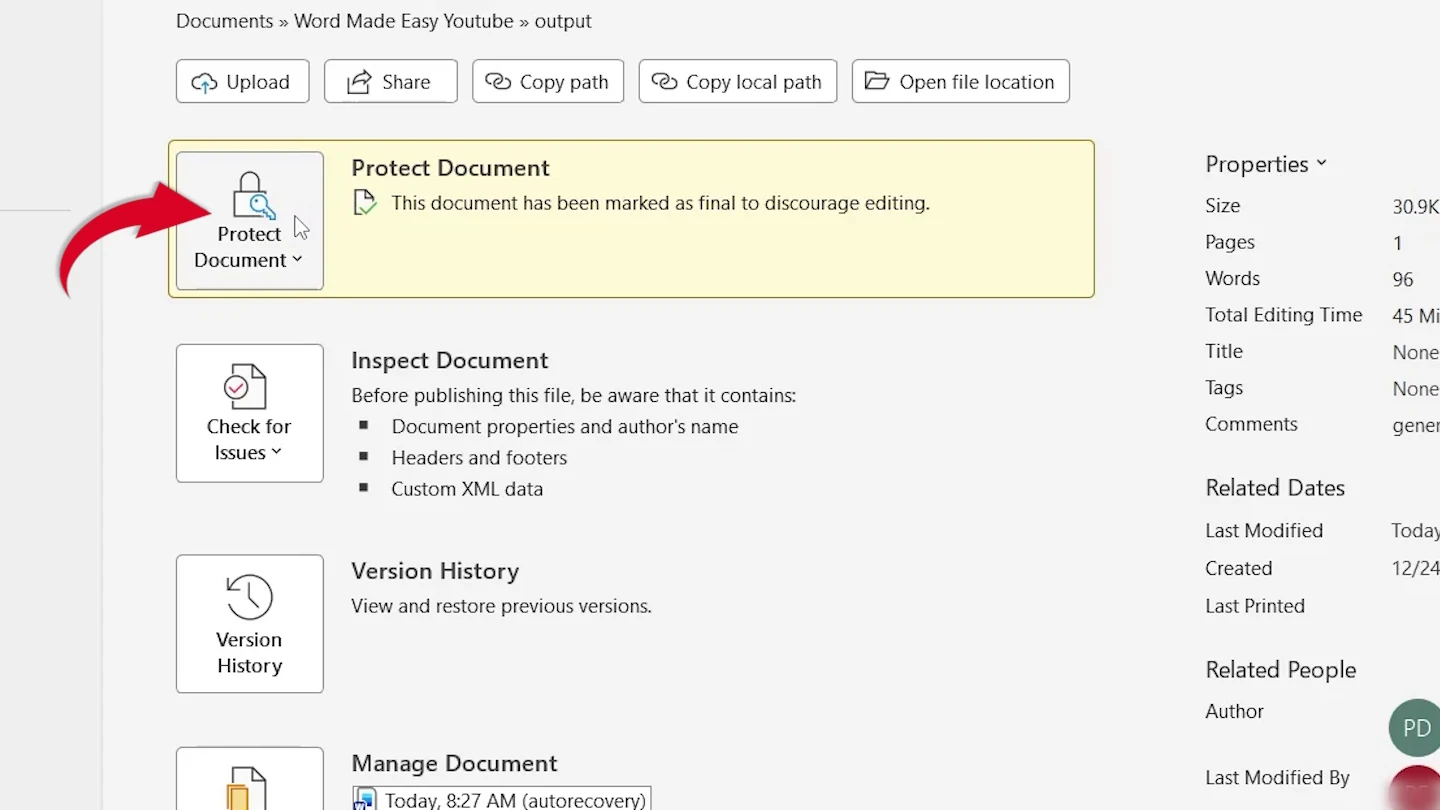
  1. Select Info, then Protect Document.
Protect Document on the Word File Info page
  1. Select Mark as Final to switch it off, then go back to the document.
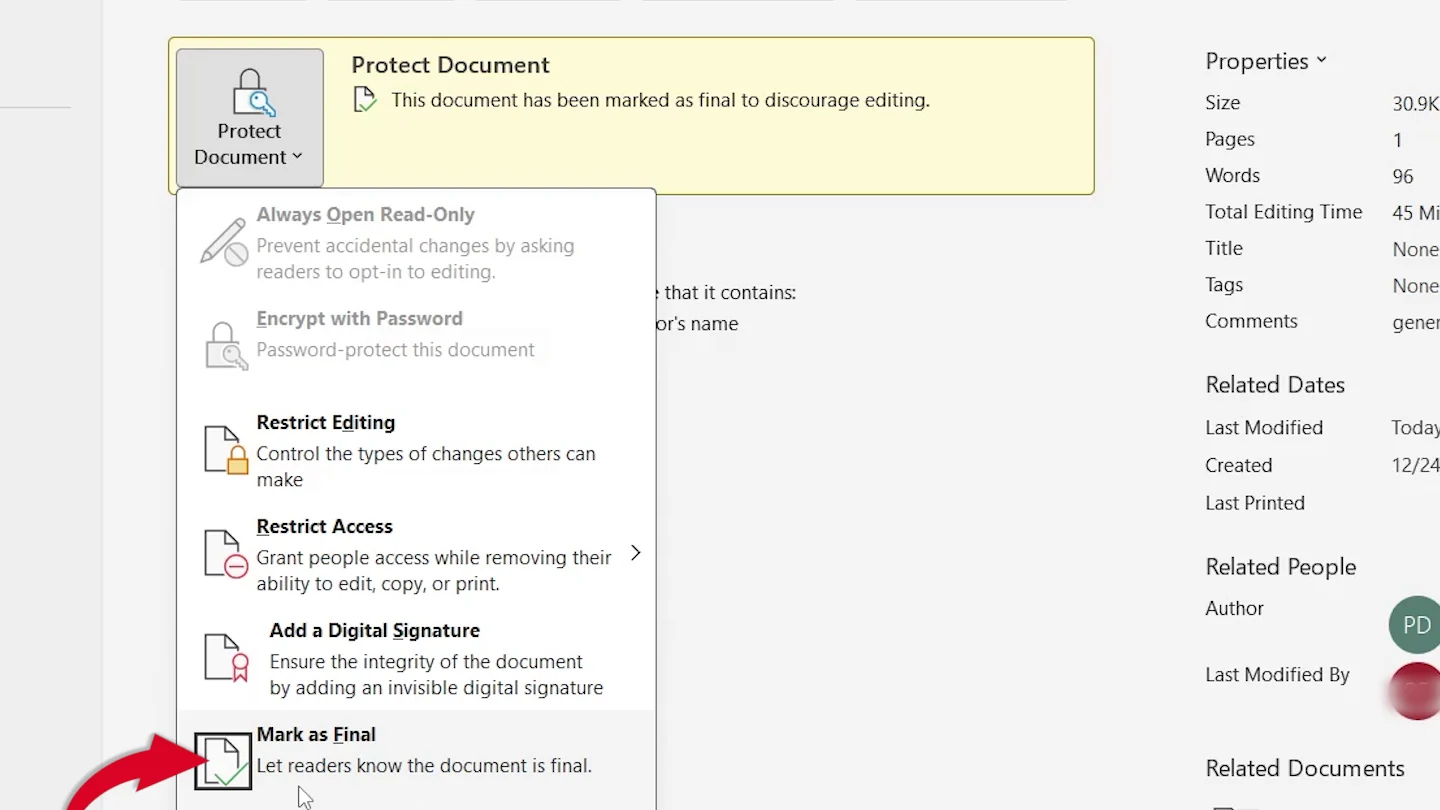
Protect Document menu in Word with Mark as Final selected

👉 The document is editable again. File, Info and Protect Document are in the desktop app only, not Word for the web.

Cannot find Restrict Editing or Protect Document? Type Restrict Editing into the Search box at the top of Word and select it from the results.
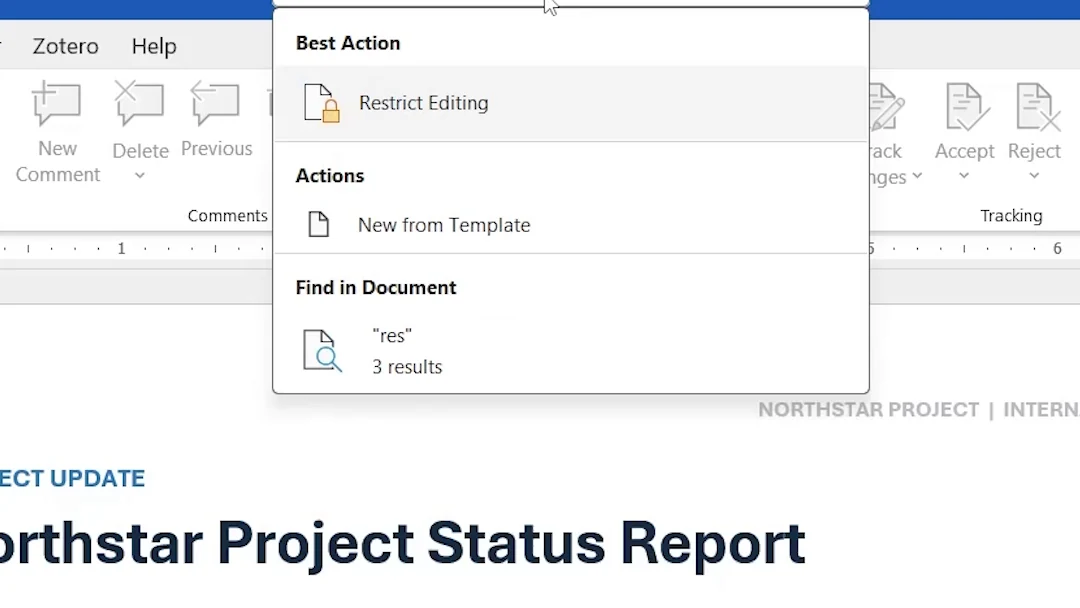
Word Search box showing Restrict Editing as the best action

Method 4: Clear the Read-only Attribute

If only one file is locked, Windows may have set it to read-only.

  1. Close Word, find the file in File Explorer, right-click it and select Properties.
Right-click menu on a Word file in File Explorer with Properties
  1. Under Attributes, untick Read-only, then select OK.
File Properties in Windows with the Read-only attribute ticked

👉 The file opens normally and the selection is no longer locked. To make a file read-only on purpose, see how to make a document read only in Word.


Method 5: Open the File in the Desktop App

Word for the web shows fewer options, so some locks cannot be removed there. Move the file to the desktop app:

  1. Select File > Create a Copy > Download a copy, then open the download in Word for desktop.
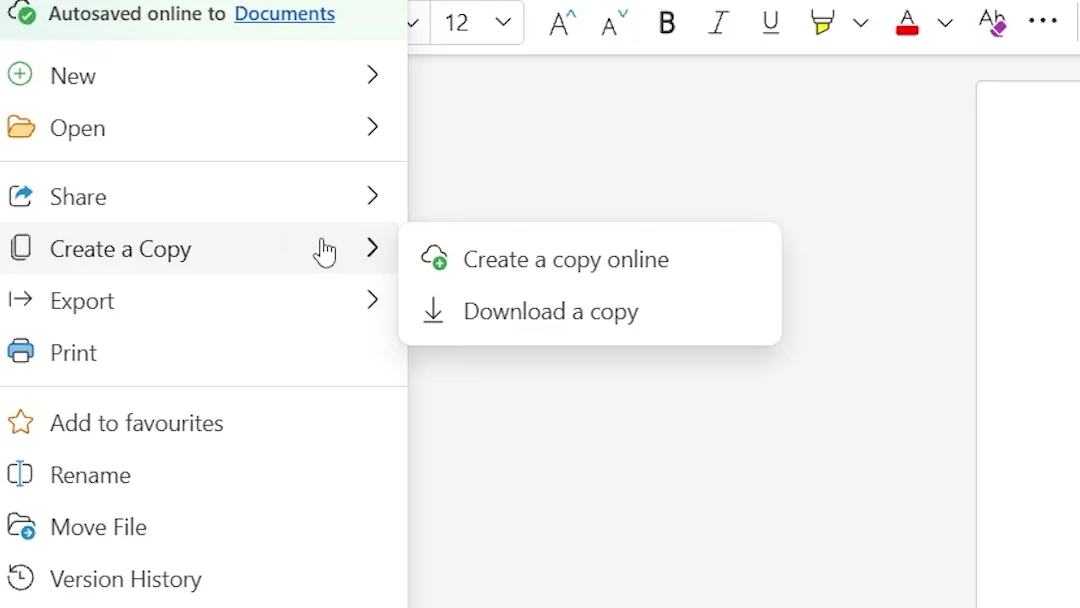
Word for the web File menu with Create a Copy and Download a copy

👉 You can now use Methods 1 to 4 in the desktop app. File > Info > Open in Desktop App does the same for files saved in OneDrive.


Method 6: Fix an Office Licensing Problem

If every Word document you open is locked, or Word says Unlicensed Product, the cause is licensing. Microsoft’s licence reset tool clears the stored licence so you can sign in again:

  1. Close every Office app, then press Windows + R to open Run.
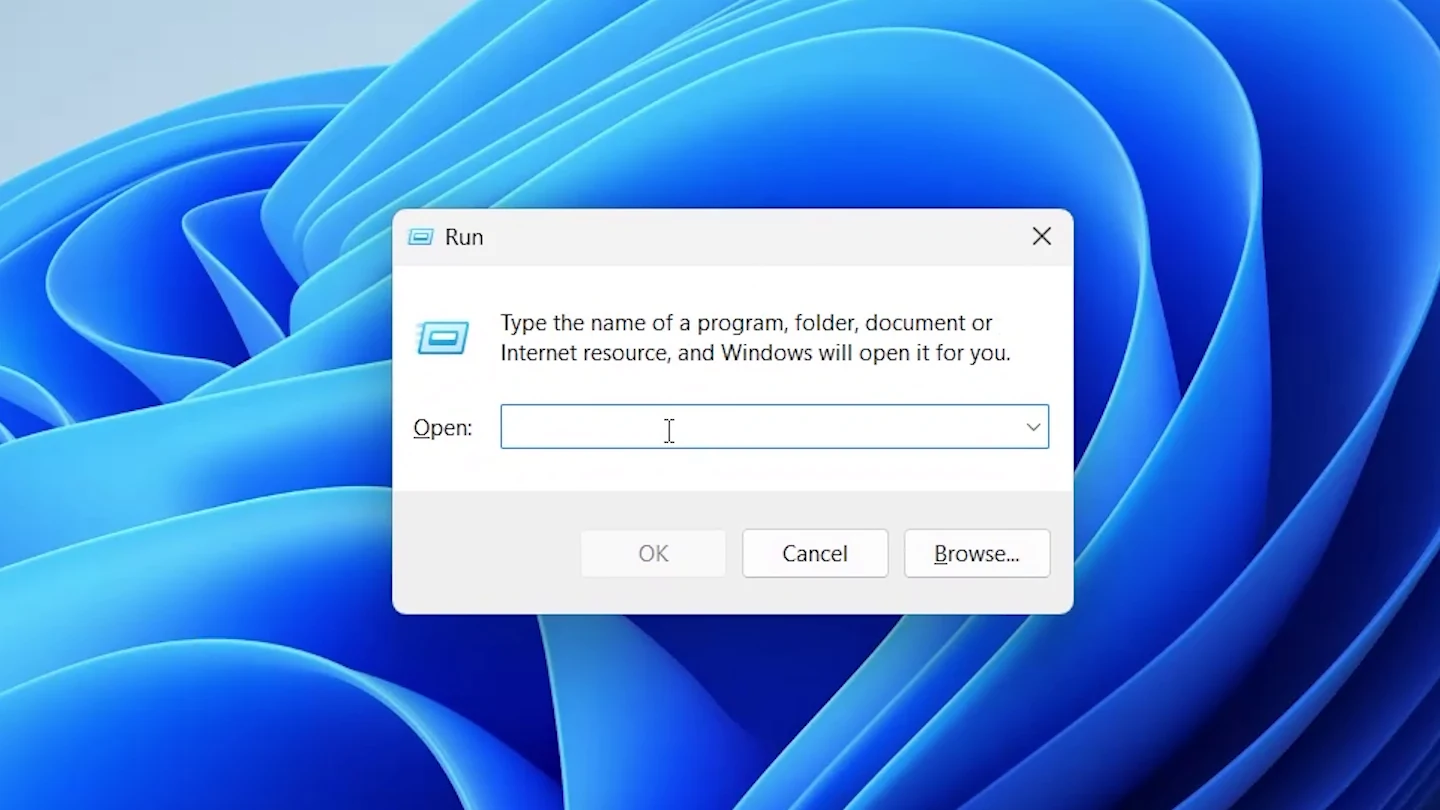
Windows Run box opened with Windows + R
  1. Type %ProgramFiles%\Microsoft Office\Office16 and select OK. If the folder does not exist, try %ProgramFiles(x86)%\Microsoft Office\Office16.
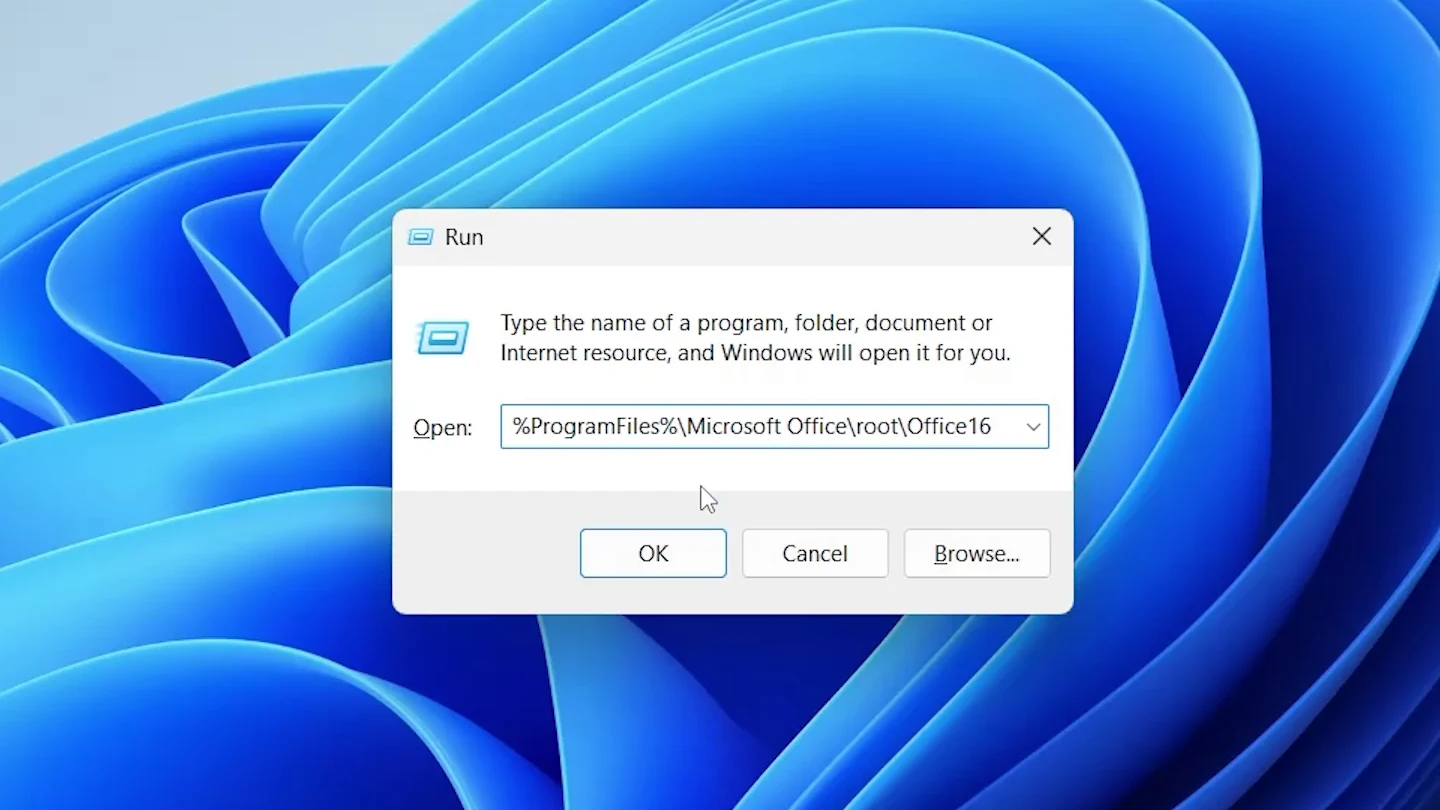
Office16 folder path typed into the Windows Run box
  1. Find OSPPREARM.EXE in the folder.
OSPPREARM.EXE found in the Office16 folder in File Explorer
  1. Right-click it, select Run as administrator, then select Yes.
Right-click menu on OSPPREARM.EXE with Run as administrator
User Account Control prompt for Microsoft Office

👉 A command window flashes and closes. Open Word and sign in with the account linked to your licence, and documents open for editing again. The tool only resets licensing: it does not remove protection, bypass a password or provide a licence.


When You Cannot Unlock It

Some documents are locked by their owner, your school or workplace, or encrypted with a password. In those cases, ask the owner for editing permission or an editable copy. Microsoft explains the protection options in allow changes to parts of a protected Word document.


Quick Tips

Check in Order

Try Restrict Editing first, then Editing mode, then Mark as Final. Most locks are one of these three.

Search for It

If a menu is missing, type its name into the Search box at the top of Word.

One File or All?

One locked file points to the file itself. Every file locked points to licensing.

Keep a Copy

Save an unlocked copy with F12 before you make big changes.


FAQs

How do I fix selection is locked in Word?

Select Review > Restrict Editing > Stop Protection, then switch the mode from Viewing to Editing. If the document is marked as final, select Edit Anyway.

Why does Word say I can’t make this change because the selection is locked?

Word shows it when the document is protected, opened in Viewing mode, marked as final, set to read-only or when Office is unlicensed.

How do I unlock a Word document without the password?

You cannot remove password protection without the password. Ask the document owner for the password or for an unprotected copy.

Where is Restrict Editing in Word?

It is on the Review tab, in the Protect group. If you cannot see it, type Restrict Editing into the Search box at the top of Word.

How do I turn off Mark as Final in Word?

Select Edit Anyway on the yellow bar, or select File > Info > Protect Document > Mark as Final to switch it off.

Why are all my Word documents locked?

If every document is locked, Office usually has a licensing problem. Sign in with the account linked to your licence, or reset licensing as shown in Method 6.

Can I fix a locked document in Word for the web?

Not always, because Word for the web has fewer options. Open the file in the desktop app or download a copy, then remove the lock there.


Conclusion

When the selection is locked in Word, work through the fixes in order: stop protection, switch to Editing, clear Mark as Final, remove Read-only, move web files to the desktop app and, if every file is locked, reset licensing. One of them will unlock it.

Once you can edit again, keep your work safe with how to recover an unsaved Word document.


Related Tutorials

  • How to Password Protect a Word Document
  • How to Make a Document Read Only in Word
  • How to Recover a Corrupted Document in Word

Word Tutorials

Recently Added on Word Made Easy

  • How to Select All Text in Word: 3 Easy Methods

    October 19, 2026
  • How to Hide a Paragraph in Word: 3 Easy Steps

    October 19, 2026
  • How to Write Overline in Word: 2 Easy Methods

    October 19, 2026

Browse the complete collection for help with formatting, layout, pages, tables, images, and document setup.

View all Word tutorials
Watch on YouTube

For Microsoft support documentation, visit the official Microsoft guidance.

Like this:

Like Loading…
mark as final in Word microsoft word Microsoft Word tutorial restrict editing in Word selection is locked in Word Word read only
←Free Word Scramble Templates for Word: 8 Easy Printables
How to Clear Formatting in Word: 3 Easy Steps→

Comments

Leave a Reply Cancel reply

Meet the Author

Patrick Elliott standing outdoors holding his dog.

I’m Patrick Elliott, the creator of Word Made Easy. I’ve worked in schools for over 10 years and I’m now an Inclusion Lead in the UAE. I use Microsoft Word and PowerPoint every day for planning, documentation and classroom resources.

Every guide is tested step by step before publishing (usually in Microsoft 365), and every free template is one I made myself in Word. You’ll also find practical walkthroughs on my YouTube channel.

Browse

  • Word TutorialsStep-by-step guides for every feature
  • Word Beginners HubFree 12-chapter Word course
  • Word TemplatesFree, editable downloads
  • Word Shortcut Cheat SheetsFree printable PDFs
  • Google Docs TutorialsStep-by-step Docs guides
  • PowerPoint TutorialsClear, simple slide guides
  • YouTube VideosWatch the video walkthroughs

Watch on YouTube

Prefer to watch? Most guides have a short video walkthrough on the Word Made Easy channel.

  • 147videos
  • 1.88Mviews
  • 8,000+subscribers
Subscribe on YouTube

Recently Added

  • Free Concept Map Templates for Word: 6 Graphic OrganizersOctober 22, 2026
  • Free Mind Map Templates for Word: 8 Editable Mind MapsOctober 22, 2026
  • Free T-Chart Templates for Word: 8 Graphic OrganizersOctober 22, 2026
  • Free KWL Chart Templates for Word: 8 Graphic OrganizersOctober 22, 2026
  • Free Gantt Chart Templates for Word: 12 Project PlannersOctober 22, 2026
Word Made Easy

Free, step-by-step Microsoft Word tutorials, written and tested by teacher Patrick Elliott.

Subscribe on YouTube Follow on Facebook Follow on Pinterest

Explore

  • Home
  • Word Tutorials
  • Word Templates
  • Google Docs Tutorials
  • PowerPoint Tutorials
  • YouTube Videos

Microsoft Word

  • Page Layout & Sections
  • Tables, Images & Media
  • Formatting Basics
  • Productivity & Automation
  • Beginners Hub
  • Templates
  • Shortcut Cheat Sheets

Google Docs

  • Basics
  • Formatting
  • Page Layout
  • Tables & Images
  • Files & PDFs
  • Sharing & Signing
  • Writing & Research
  • Templates

About

  • About Me
  • Contact
Privacy Policy Cookie Policy Terms of Use
© 2012–2026 Word Made Easy. All rights reserved.
Manage your privacy

To provide the best experiences, we and our partners use technologies like cookies to store and/or access device information. Consenting to these technologies will allow us and our partners to process personal data such as browsing behavior or unique IDs on this site and show (non-) personalized ads. Not consenting or withdrawing consent, may adversely affect certain features and functions.

Click below to consent to the above or make granular choices. Your choices will be applied to this site only. You can change your settings at any time, including withdrawing your consent, by using the toggles on the Cookie Policy, or by clicking on the manage consent button at the bottom of the screen.

Functional Always active
The technical storage or access is strictly necessary for the legitimate purpose of enabling the use of a specific service explicitly requested by the subscriber or user, or for the sole purpose of carrying out the transmission of a communication over an electronic communications network.
Preferences
The technical storage or access is necessary for the legitimate purpose of storing preferences that are not requested by the subscriber or user.
Statistics
The technical storage or access that is used exclusively for statistical purposes. The technical storage or access that is used exclusively for anonymous statistical purposes. Without a subpoena, voluntary compliance on the part of your Internet Service Provider, or additional records from a third party, information stored or retrieved for this purpose alone cannot usually be used to identify you.
Marketing
The technical storage or access is required to create user profiles to send advertising, or to track the user on a website or across several websites for similar marketing purposes.
Statistics

Marketing

Features
Always active

Special features

Special purposes
Always active

  • Manage options
  • Manage services
  • Manage {vendor_count} vendors
  • Read more about these purposes
Manage options
  • {title}
  • {title}
  • {title}
Manage your privacy
To provide the best experiences, we use technologies like cookies to store and/or access device information. Consenting to these technologies will allow us to process data such as browsing behavior or unique IDs on this site. Not consenting or withdrawing consent, may adversely affect certain features and functions.
Functional Always active
The technical storage or access is strictly necessary for the legitimate purpose of enabling the use of a specific service explicitly requested by the subscriber or user, or for the sole purpose of carrying out the transmission of a communication over an electronic communications network.
Preferences
The technical storage or access is necessary for the legitimate purpose of storing preferences that are not requested by the subscriber or user.
Statistics
The technical storage or access that is used exclusively for statistical purposes. The technical storage or access that is used exclusively for anonymous statistical purposes. Without a subpoena, voluntary compliance on the part of your Internet Service Provider, or additional records from a third party, information stored or retrieved for this purpose alone cannot usually be used to identify you.
Marketing
The technical storage or access is required to create user profiles to send advertising, or to track the user on a website or across several websites for similar marketing purposes.
Statistics

Marketing

Features
Always active

Special features

Special purposes
Always active

  • Manage options
  • Manage services
  • Manage {vendor_count} vendors
  • Read more about these purposes
Manage options
  • {title}
  • {title}
  • {title}

Discover more from Word Made Easy

Subscribe now to keep reading and get access to the full archive.

Continue reading

Loading Comments...
%d