
To recover a corrupted document in Word, make a copy of the damaged file, then let Word repair it as it opens. If that does not work, use Open and Repair, and if the file still will not open, import its text into a new document.
In this guide, you’ll learn how to recover a corrupted document in Word with three methods, from the simplest to the last resort. Success depends on how badly the file is damaged, so check the result carefully each time. The steps are for Word for Windows.
Before You Start: Copy the Damaged File
The first step to recover a corrupted document in Word is to protect the original. A repair can change the file, so keep it safe and work on a duplicate.
- Open the folder that contains the damaged document in File Explorer.
- Select the file and press Ctrl + C.
- Press Ctrl + V. Windows adds a copy named – Copy in the same folder.
- Use the copy for every method below.

👉 Prefer to make the copy from inside Word? See how to copy a Word document.
Watch the Video Tutorial
If you prefer to see this in action, the full video walkthrough is below, showing each method step by step.
Method 1: Let Word Repair the File as It Opens
Start here. Word often fixes minor damage on its own.
- Double-click the copied file to open it.
- If Word shows Word found unreadable content, select Yes to recover the contents.
- Read the Show Repairs list, which explains what Word had to fix, then select Close.
- Check the document and save it with File > Save As under a new name.
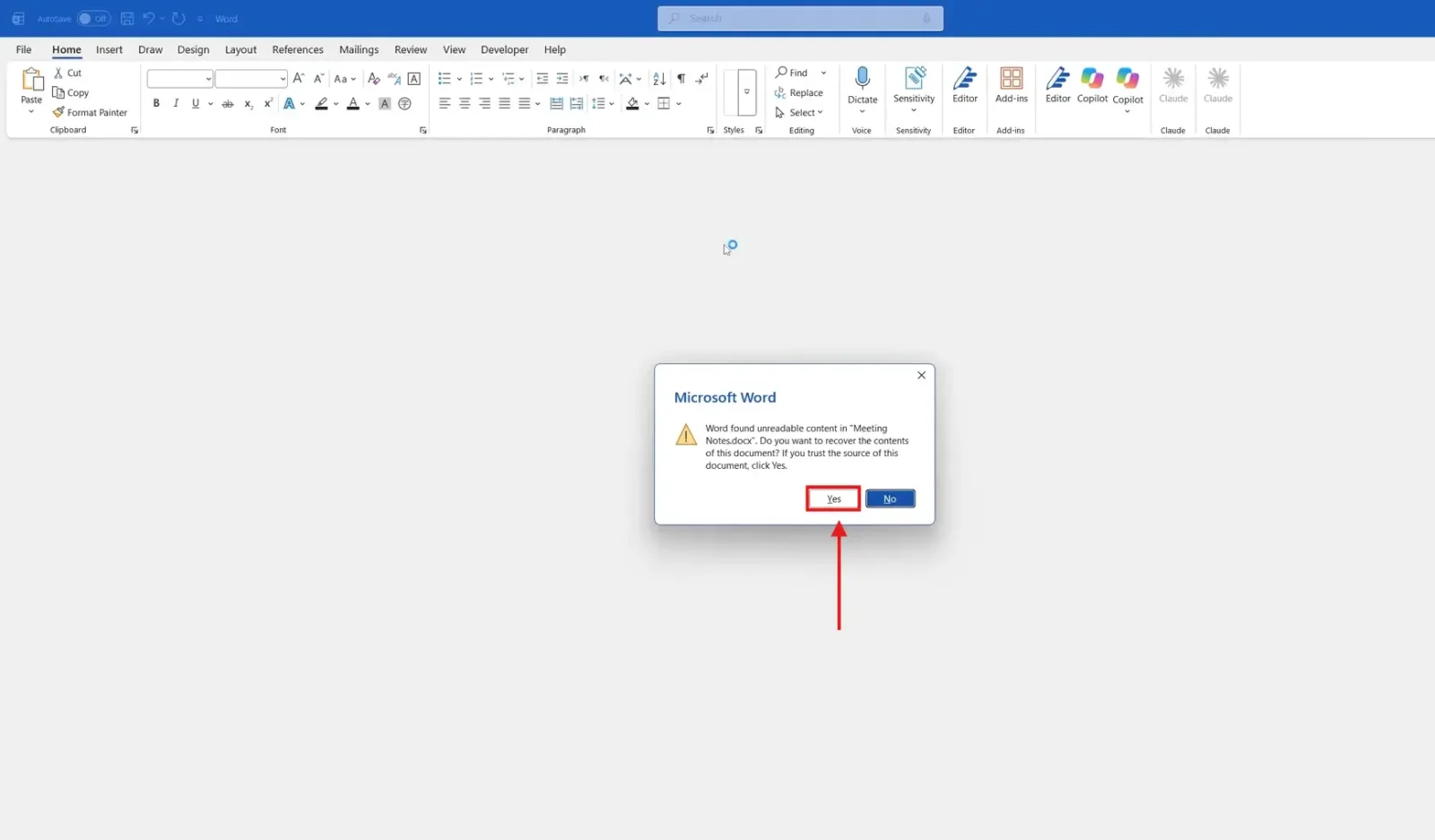
👉 The repairs are only kept once you save. If the document opens but text is missing, move on to Method 2.
Method 2: Use Open and Repair
Open and Repair tells Word to rebuild the file as it opens. It is the main tool Microsoft recommends when you need to recover a corrupted document in Word.
- Open Word without opening the damaged file.
- Select File > Open > Browse. Do not use the Recent list, because it skips the dialog you need.
- Go to the folder and click the copied file once to select it.
- Select the arrow next to the Open button.
- Choose Open and Repair.
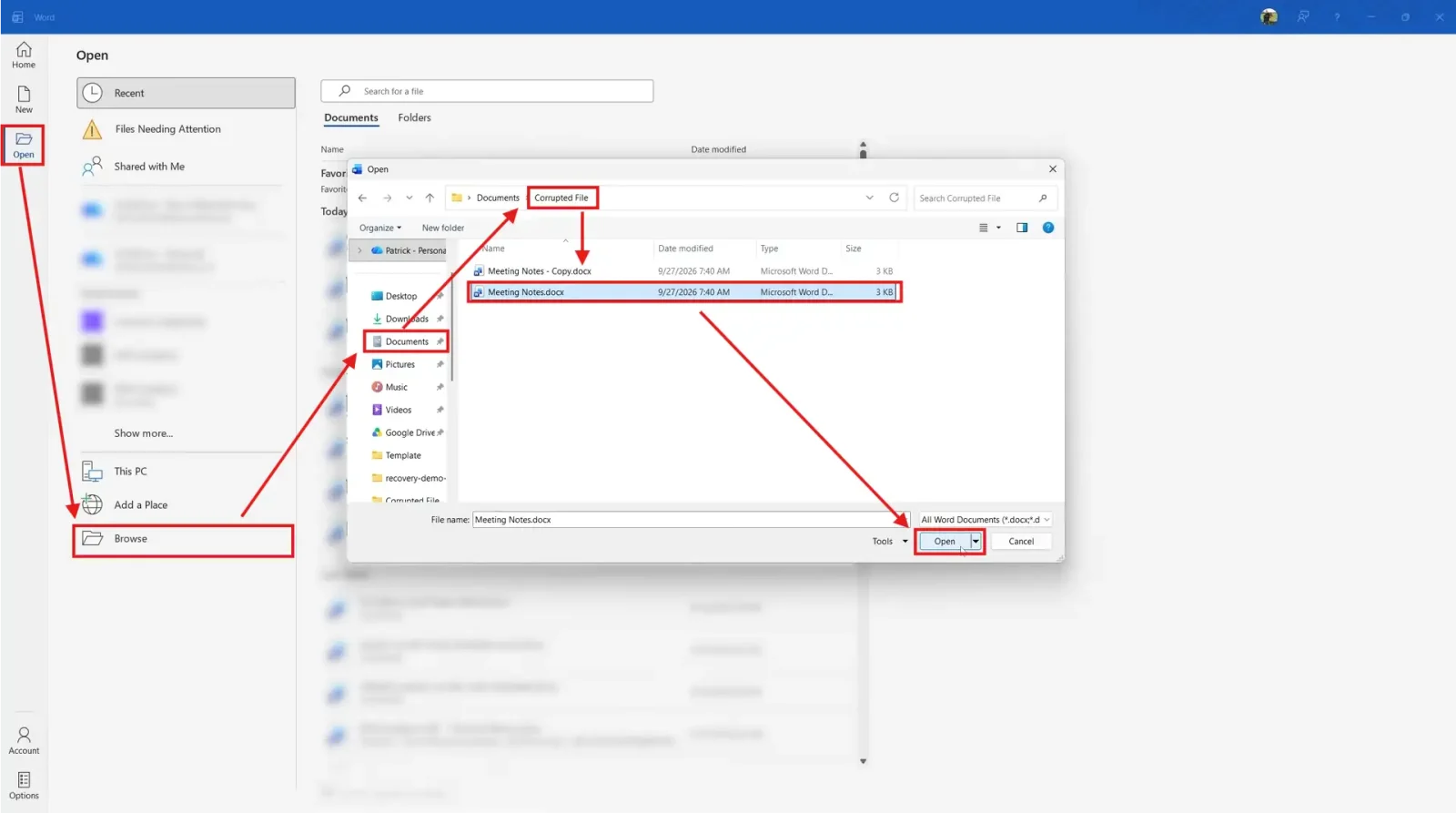
👉 Review the repaired document, then save it under a new name. Microsoft describes the same steps in its guide to opening a document after a file corruption error.
Method 3: Insert the Text into a New Document
If the file still will not open, you can often recover a corrupted document in Word by pulling its contents into a fresh document instead.
- Create a new blank document with Ctrl + N.
- Open the Insert tab.
- Select the arrow next to Object in the Text group.
- Choose Text from File.
- Select the damaged file and select Insert.
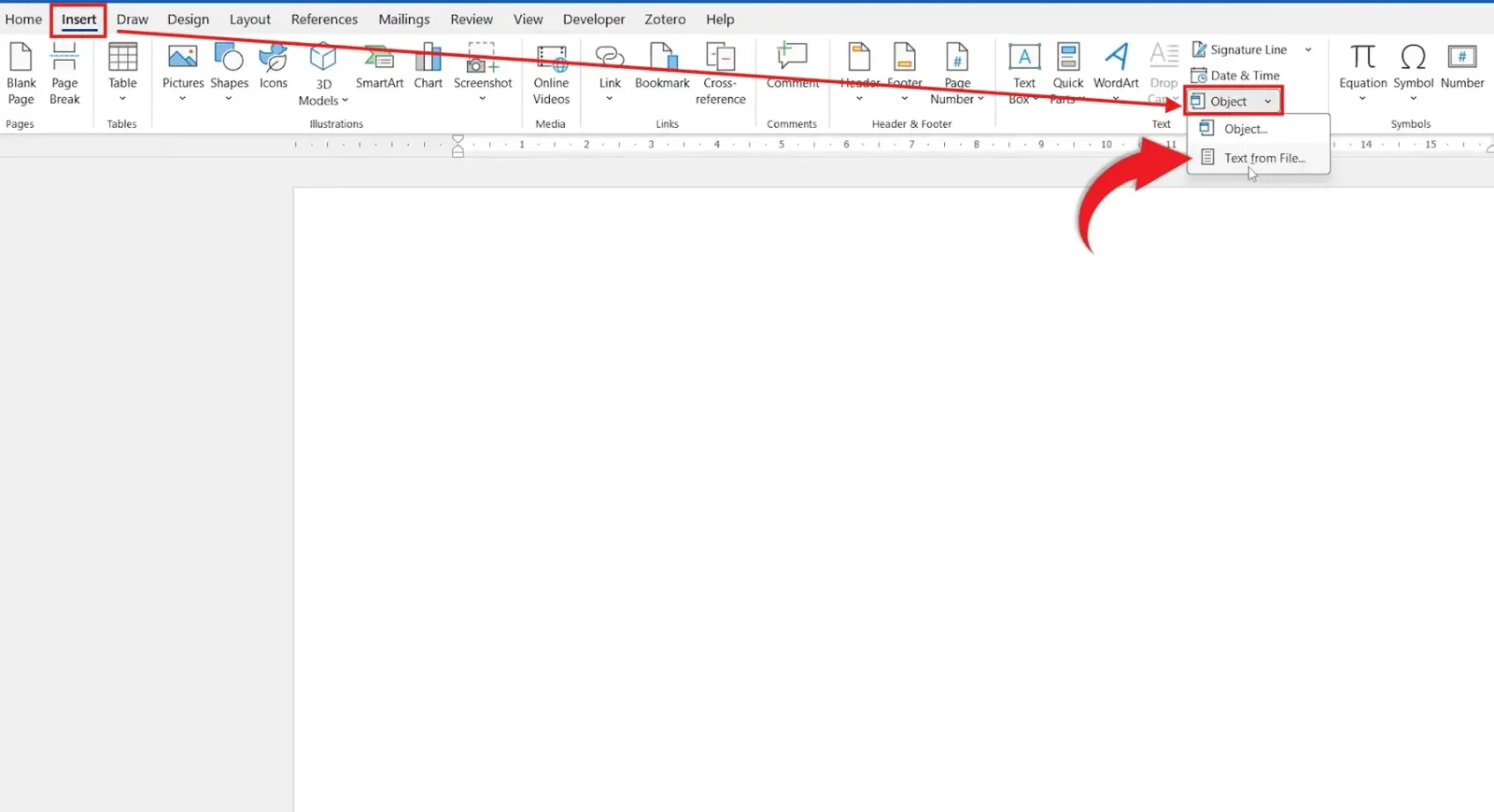
👉 Word places everything it can read into the new document. You may need to reapply some formatting, especially page settings in the last section, so save it as a new file and tidy it up.
Best Way to Recover a Corrupted Document in Word
| Situation | Try |
|---|---|
| Word offers to recover the contents | Method 1: select Yes and save |
| The file opens with problems or will not open | Method 2: Open and Repair |
| Both repairs fail | Method 3: Text from File in a new document |
| Only the words matter | Recover Text from Any File (see below) |
When you recover a corrupted document in Word, work through the methods in order. The first two try to repair the file itself; the third rescues its contents into a new one.
If Nothing Works
- Recover Text from Any File: in File > Open > Browse, change the file type list to Recover Text from Any File (*.*) and open the damaged file. You keep the words but lose formatting and pictures.
- Older version: if the file is on OneDrive, right-click it and choose Version history to restore an earlier copy.
- Unsaved work: if Word closed before you saved, see how to recover an unsaved Word document.
Common Problems
The Repaired Document Is Missing Content
Method 1 may only recover part of the file. Go back to your untouched original, make a fresh copy and try Open and Repair or Text from File.
Open and Repair Is Not in the Menu
You probably opened the file from the Recent list. Use File > Open > Browse and select the arrow on the Open button in that dialog.
Every Document Misbehaves, Not Just One
If other files show the same problem, the fault is likely in Word rather than the document. Try opening Word in Safe Mode to rule out add-ins.
The Recovered Text Has Strange Characters
Recover Text from Any File can leave unreadable characters at the start and end of the document. Delete them before you save.
Pro Tips to Prevent Corrupted Documents
- Save important work to OneDrive and keep AutoSave switched on, so you can roll back with version history.
- Use Safely Remove Hardware before unplugging a USB drive, especially while a document is open.
- Keep a second copy of important files, for example a PDF version of the document.
For every troubleshooting option, including draft view and linking to the damaged file, see Microsoft’s guide to troubleshooting damaged documents in Word.
FAQs
How do I recover a corrupted document in Word?
Make a copy of the file first. Then open it and select Yes when Word offers to recover the contents. If that fails, use File > Open > Browse, select the file and choose Open and Repair. As a last resort, insert it into a new document with Insert > Object > Text from File.
What does “Word found unreadable content” mean?
Word has found part of the file it cannot read. Selecting Yes lets Word rebuild the document from the parts it can read, and then lists anything it had to repair.
Where is Open and Repair in Word?
Select File > Open > Browse, click the damaged file once, then select the arrow next to the Open button and choose Open and Repair. It is not available from the Recent list.
Why should I copy a corrupted file before repairing it?
A repair attempt can change the file. Working on a copy keeps the original untouched, so you can try a different method if the first one makes things worse.
Can I get the text back if Word cannot repair the file?
Often, yes. Insert the file into a new blank document with Text from File, or open it with the Recover Text from Any File file type. The second option keeps the words but drops formatting and pictures.
How do I stop Word documents becoming corrupted?
Save to OneDrive with AutoSave switched on, keep AutoRecover enabled, and always use Safely Remove Hardware before unplugging a USB drive that holds an open file.
Conclusion
To recover a corrupted document in Word, copy the file first, then select Yes when Word offers to recover it. If that fails, use Open and Repair from File > Open > Browse, and as a last resort insert the text into a new document with Text from File.
Always check the result carefully and save it under a new name. To protect your work in future, learn how to password protect a Word document and keep AutoSave switched on.
Related Tutorials
- How to Recover an Unsaved Word Document: 2 Methods
- How to Open Word in Safe Mode: 2 Easy Methods (Quick Guide)
- How to Make a Document Read Only in Word: 2 Easy Steps
Word Tutorials
Recent Microsoft Word Tutorials
Browse the complete collection for help with formatting, layout, pages, tables, images, and document setup.
For Microsoft support documentation, visit the official Microsoft guidance.
Leave a Reply