
What Is Dictation in Microsoft Word?
Dictation in Microsoft Word allows you to speak out loud and have Word type your words automatically into a document. Instead of using a keyboard, your voice becomes the input tool.
Learning how to use dictation in Word is especially helpful if you:
- Want to write faster
- Struggle with typing
- Are drafting long documents
- Need accessibility support
Dictation is built directly into Word and works in real time.
Why Use Dictation Instead of Typing?
Using dictation can:
- Save time when writing emails, documents, or lesson plans — just like learning Word keyboard shortcuts can speed up your everyday workflow
- Reduce strain on hands and wrists
- Improve focus by letting ideas flow naturally
- Support students or professionals with accessibility needs
While it isn’t perfect, dictation technology is improving rapidly and already performs very well for everyday writing.
What You Need Before Using Dictation
Before you start:
- Microsoft Word (desktop or online version)
- A working microphone (built-in or external)
- Internet connection (required for speech recognition)
Want the live step-by-step walkthrough?
If you want to see this done in real time, follow my video for the full step-by-step guide.
How to Use Dictation in Word
Step 1: Open Dictation in Word
To access dictation:
- Open Microsoft Word
- Look at the Ribbon at the top
- Click Home
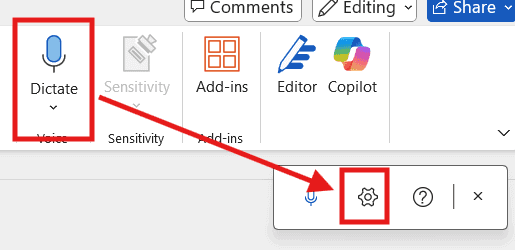
- Move to the far right and find Dictate
- Click the downward arrow
- Select Dictate

Where to Find the Dictate Button
The Dictate tool is always located on the Home tab of the Ribbon. When selected correctly, Word will begin listening to your voice immediately.
Step 2: Dictate vs Transcribe (Important Difference)
When you click the Dictate menu, you’ll see two options:
- Dictate – speaks live and types instantly
- Transcribe – uploads an audio file and converts it to text later
👉 For this tutorial, always choose Dictate.
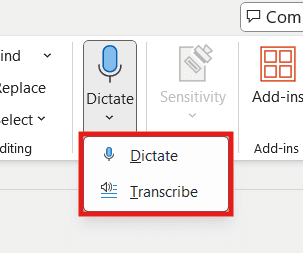
Transcribe is useful, but it requires recorded audio files and is a completely different workflow.
Step 3: Configure Dictation Settings
Before speaking, it’s important to set up dictation properly.
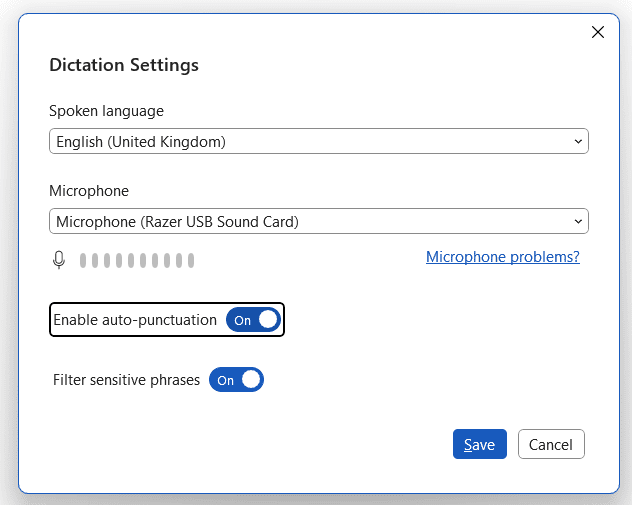
Click Settings inside the Dictate menu and configure the following:
Spoken Language
Choose the language you’ll be speaking so Word can recognize pronunciation correctly.
Microphone Selection
Make sure the correct microphone is selected, especially if you use headphones or an external mic.
Auto Punctuation
Turn this ON so Word automatically adds:
- Full stops
- Commas
- Question marks
Filter Sensitive Phrases
Highly recommended in professional settings to avoid inappropriate words appearing.
Click Save when finished.
Step 4: Start Dictating in Word
Now you’re ready to dictate.
- Click the microphone icon
- The icon will turn blue
- Start speaking naturally

Word will begin typing what you say in real time.
You don’t need to speak perfectly—Word captures most speech accurately and applies punctuation if enabled.
How Accurate Is Word Dictation?
Word dictation isn’t perfect, but it is surprisingly accurate.
- It captures most words correctly
- Punctuation is usually logical
- Errors are easy to fix afterward
The technology is constantly improving, and for many users, it’s already “good enough” for daily writing.
Best Tips for Better Dictation Results
- Speak clearly and at a steady pace
- Avoid background noise
- Pause briefly between sentences
- Proofread after dictating
- Use auto punctuation
Dictation works best when treated as a drafting tool, not a final editor — and once you’ve finished drafting, you can insert a word counter directly in your document to track your progress.
Common Dictation Problems and Fixes
| Problem | Solution |
|---|---|
| Dictation not working | Check microphone permissions |
| Wrong words typed | Speak slower and more clearly |
| No punctuation | Enable auto punctuation |
| Dictate button missing | Ensure Word is up to date |
FAQs
Is dictation free in Microsoft Word?
Yes, dictation is included with Microsoft Word.
Can I use dictation offline?
No, an internet connection is required.
Does dictation work with accents?
Yes, especially when the correct spoken language is selected.
Can students use dictation for schoolwork?
Absolutely—it’s excellent for accessibility and writing support.
Is transcribe better than dictate?
Transcribe is better for recorded audio; dictate is best for live typing.
Can I edit text after dictation?
Yes, you can edit text just like normal typed content.
Conclusion
Now you know how to use dictation in Word to quickly turn speech into text. It’s a simple feature that can dramatically improve writing speed and accessibility. While it’s not perfect, it’s more than good enough for drafting documents, emails, and lesson materials.
Give it a try and see how it fits into your workflow — and once your draft is done, you may also want to change the default font in Word to match your preferred style before finalising.
Related Tutorials
- Microsoft Word Keyboard Shortcuts Cheat Sheet
- How to Insert a Word Counter Directly in Your Word Document
- How to Change the Default Font in Microsoft Word
Word Tutorials
Recent Microsoft Word Tutorials
Browse the complete collection for help with formatting, layout, pages, tables, images, and document setup.
For Microsoft support documentation, visit the official Microsoft guidance.
Leave a Reply