Skip to content
Word Made Easy
Home Word Tutorials PowerPoint Tutorials YouTube Videos
Microsoft Word, Page Layout & Sections, Word Templates

Word Templates

18 Free Pastel Cornell Notes Templates for Word

Pastel Cornell notes templates let you preview both styles together across all 18 colours, then download both complete Word documents together.

1 download18 colour pairs2 Word documentsFree
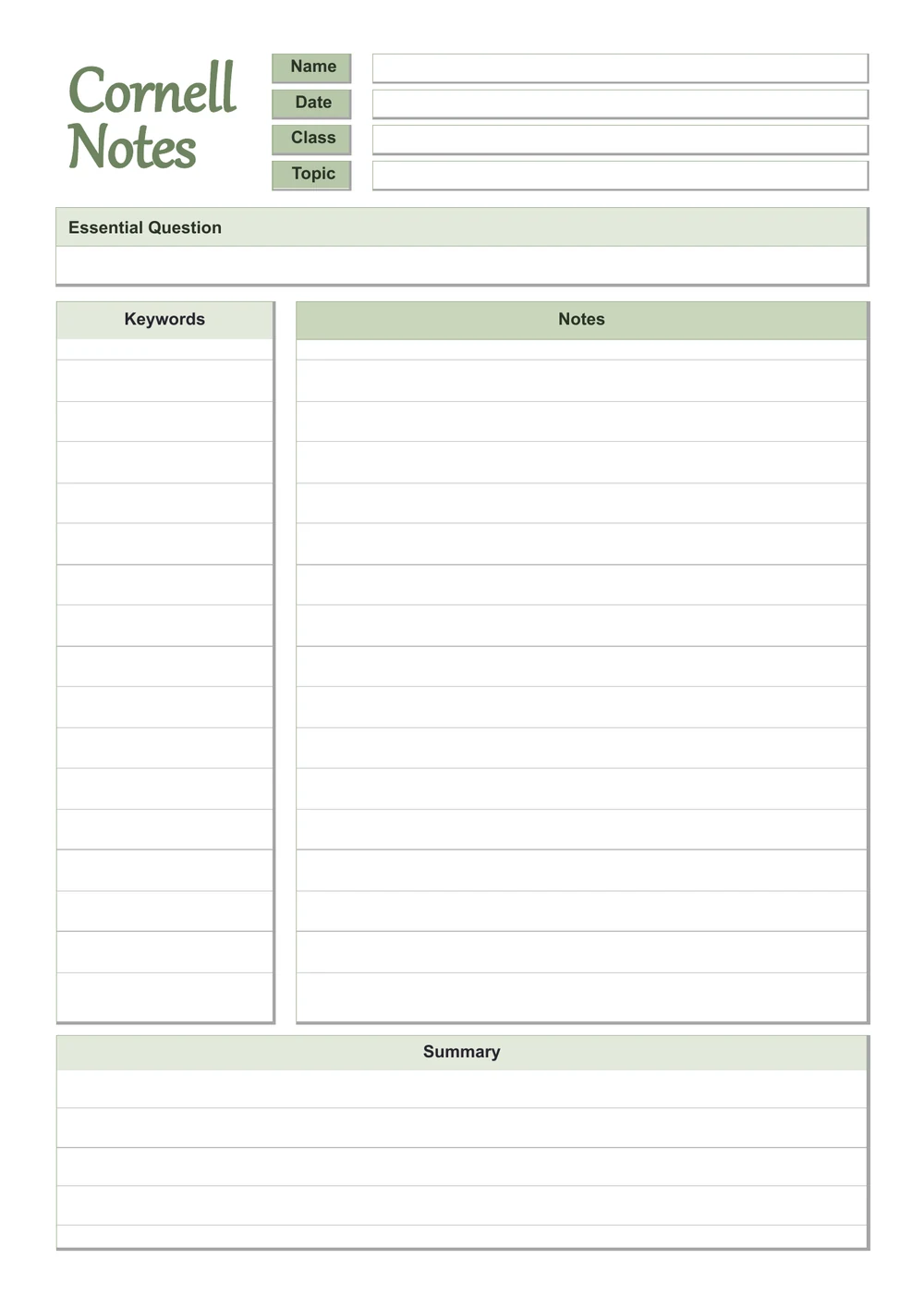
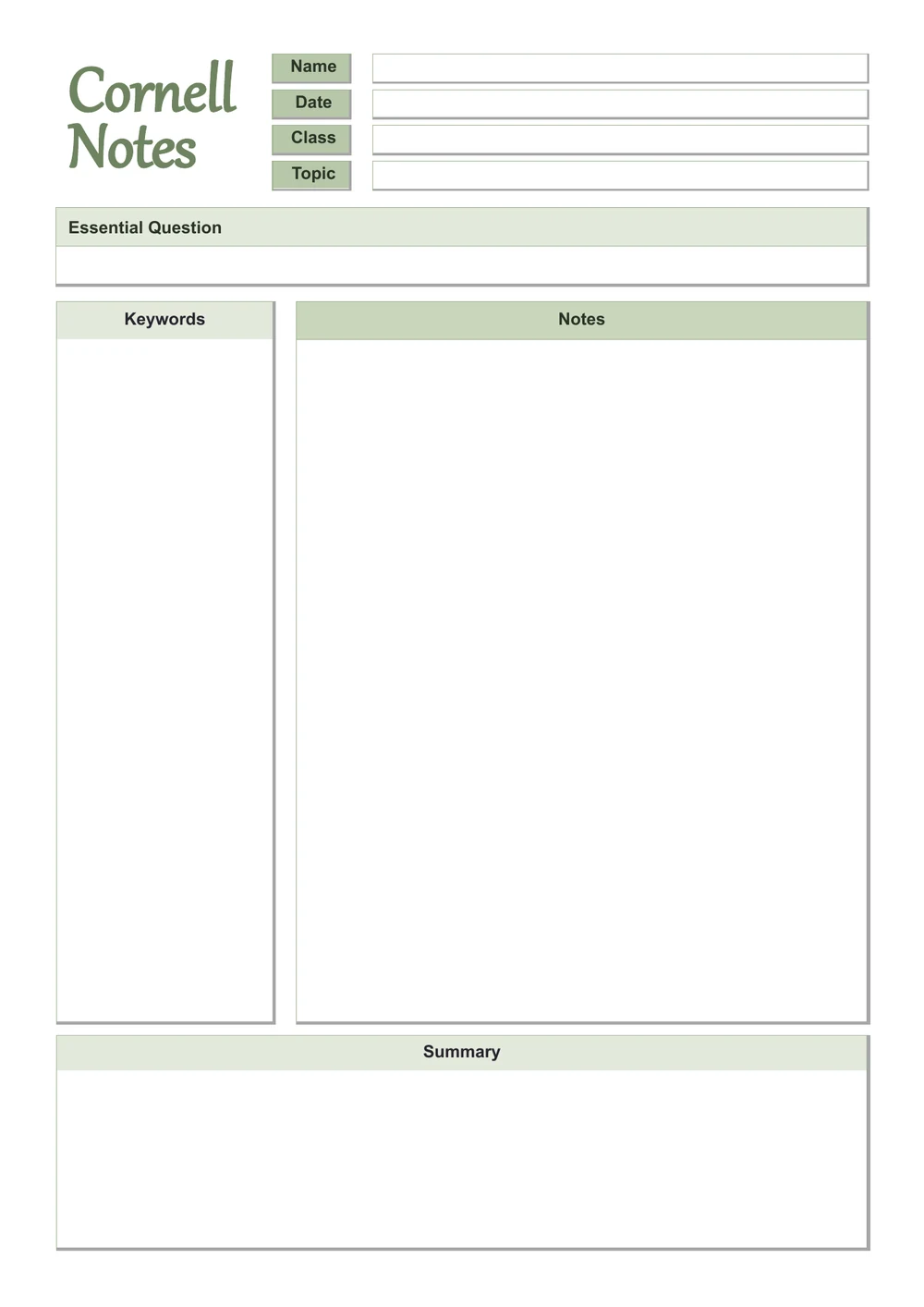
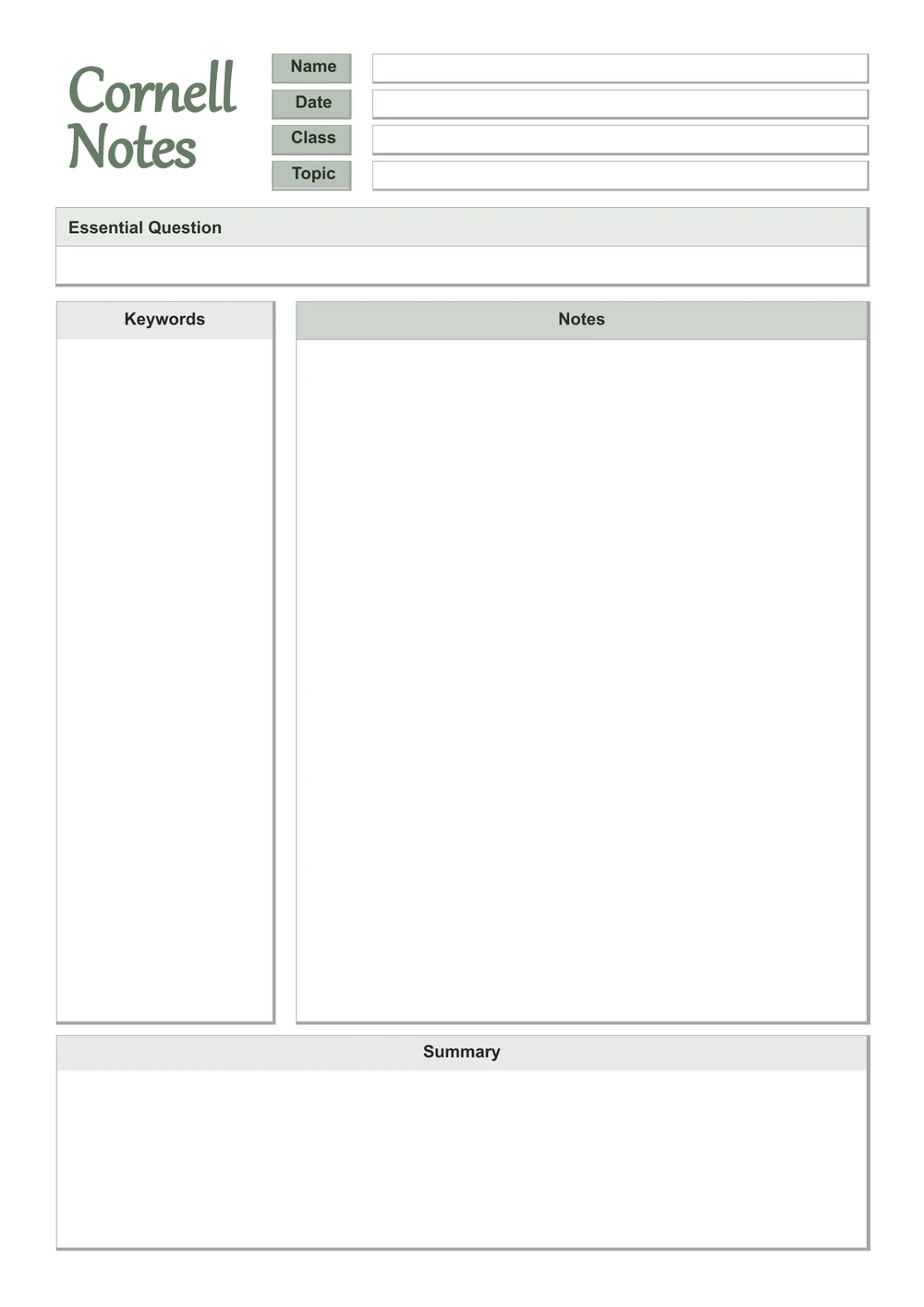
Sage Green pastel Cornell notes template with lined keywords, notes and summary areas
Lined — Sage Green. Click to enlarge.
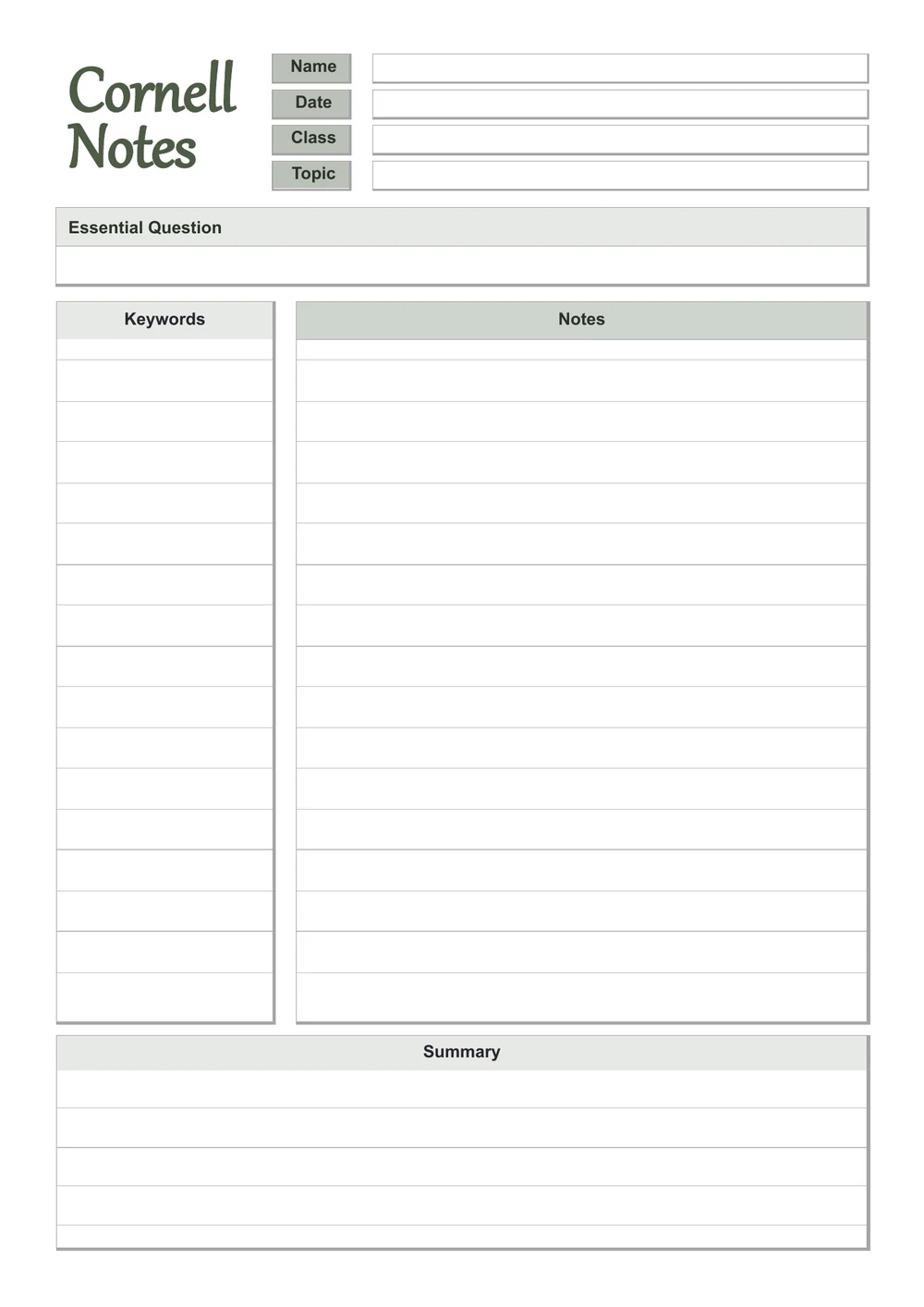
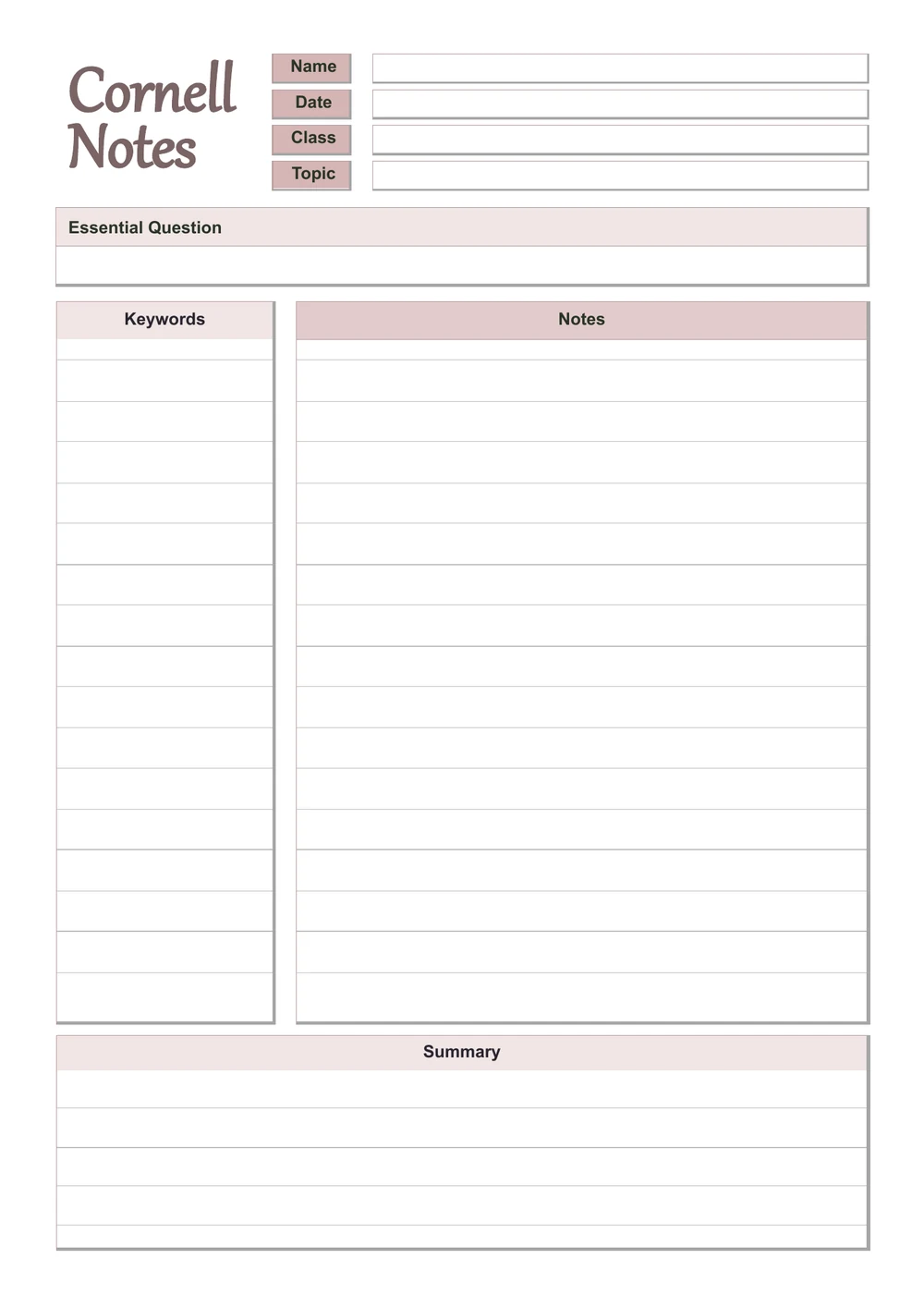
Sage Green pastel Cornell notes template with unlined keywords, notes and summary areas
Unlined — Sage Green. Click to enlarge.
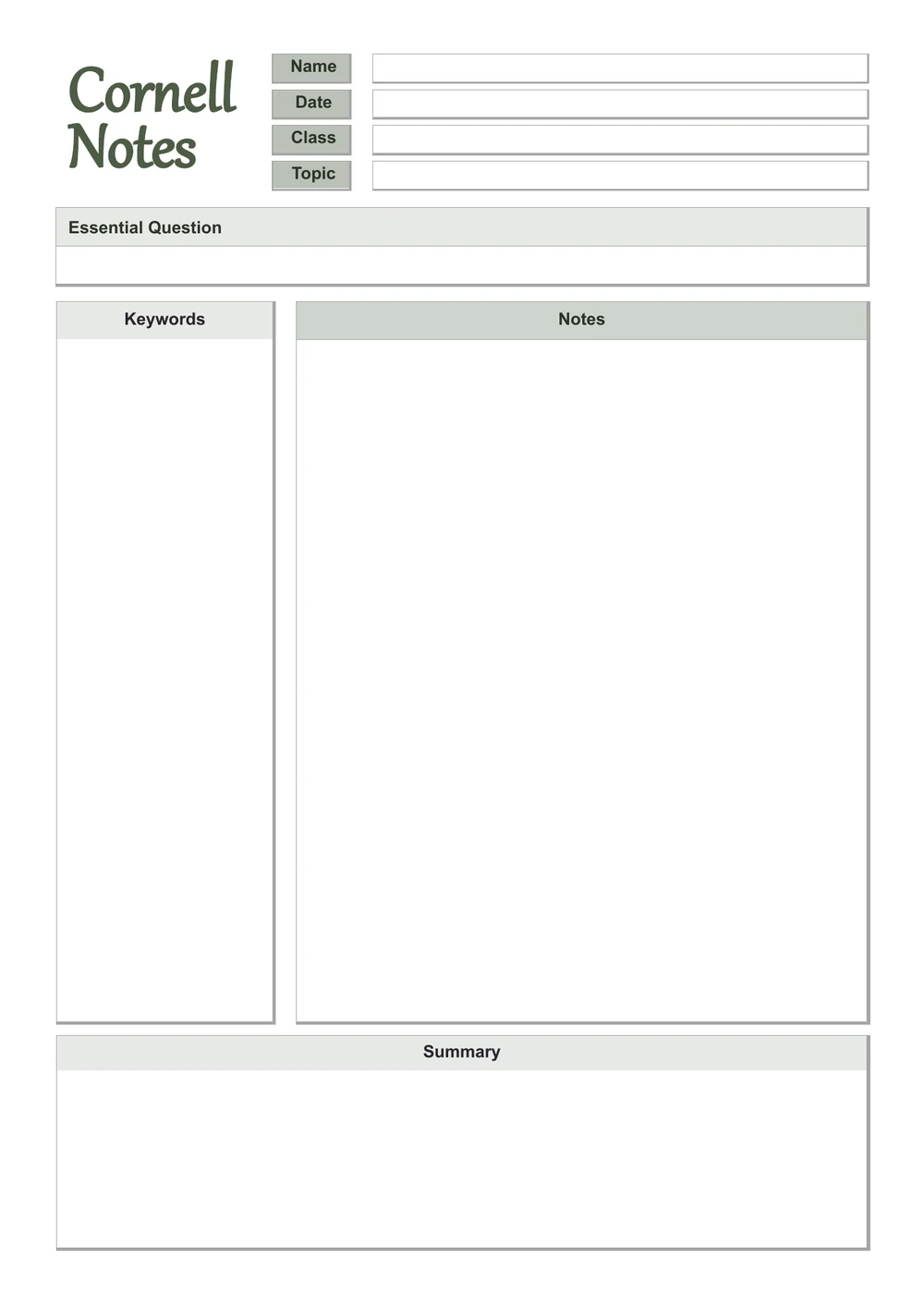
Stone Grey pastel Cornell notes template with lined keywords, notes and summary areas
Lined — Stone Grey. Click to enlarge.
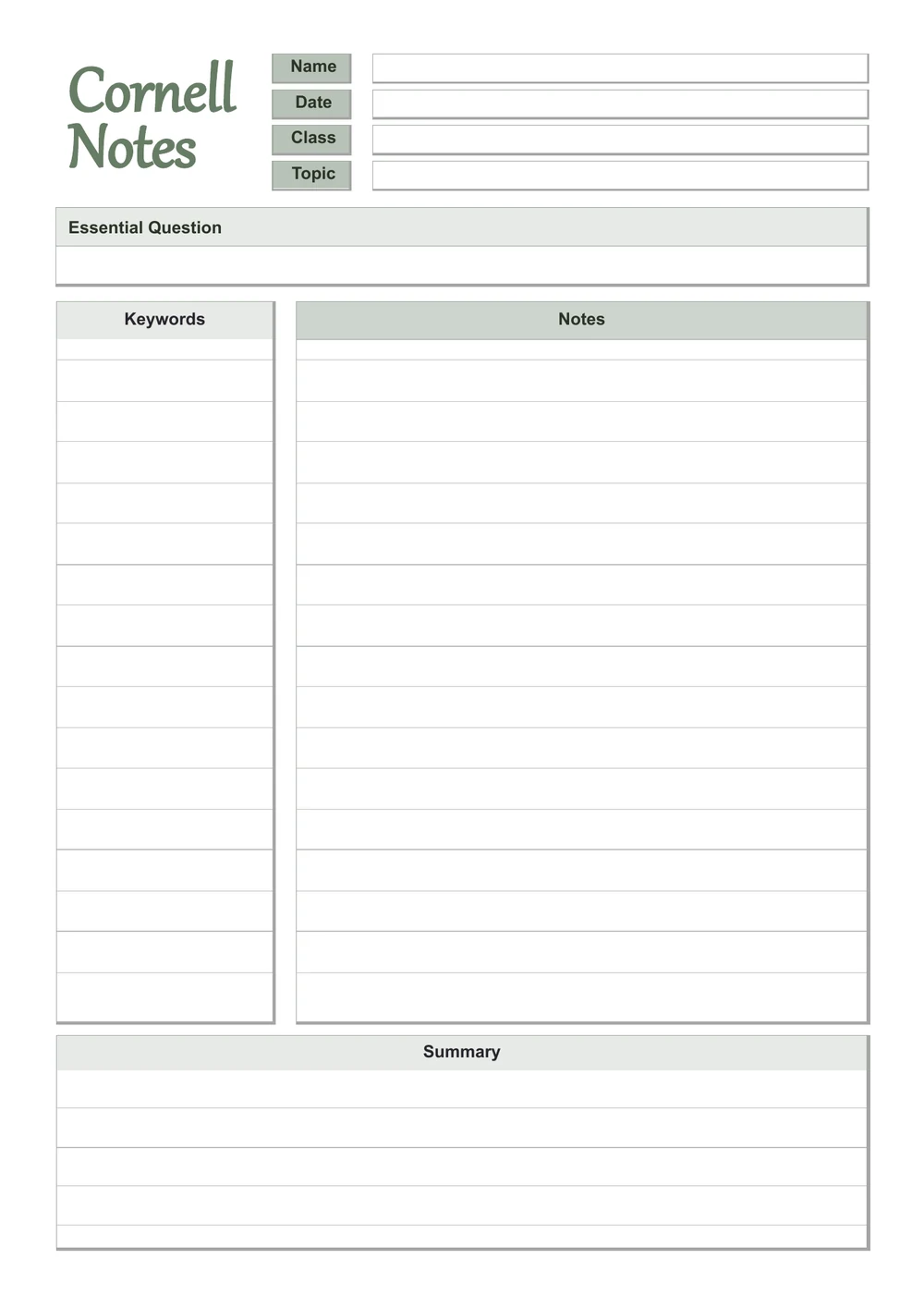
Stone Grey pastel Cornell notes template with unlined keywords, notes and summary areas
Unlined — Stone Grey. Click to enlarge.
Silver Grey pastel Cornell notes template with lined keywords, notes and summary areas
Lined — Silver Grey. Click to enlarge.
Silver Grey pastel Cornell notes template with unlined keywords, notes and summary areas
Unlined — Silver Grey. Click to enlarge.
Warm Cream pastel Cornell notes template with lined keywords, notes and summary areas
Lined — Warm Cream. Click to enlarge.
Warm Cream pastel Cornell notes template with unlined keywords, notes and summary areas
Unlined — Warm Cream. Click to enlarge.
Dusty Rose pastel Cornell notes template with lined keywords, notes and summary areas
Lined — Dusty Rose. Click to enlarge.
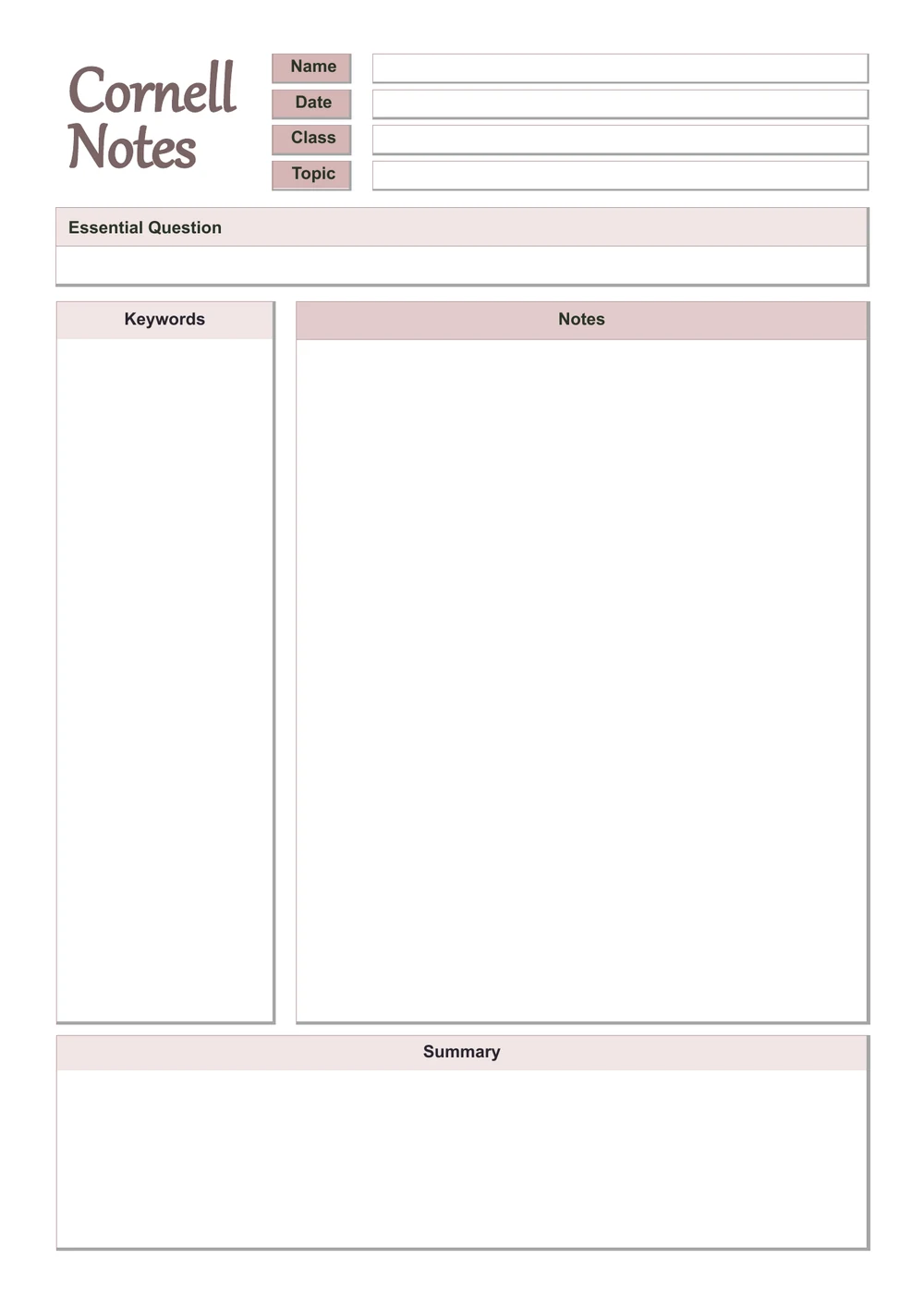
Dusty Rose pastel Cornell notes template with unlined keywords, notes and summary areas
Unlined — Dusty Rose. Click to enlarge.
Mauve pastel Cornell notes template with lined keywords, notes and summary areas
Lined — Mauve. Click to enlarge.
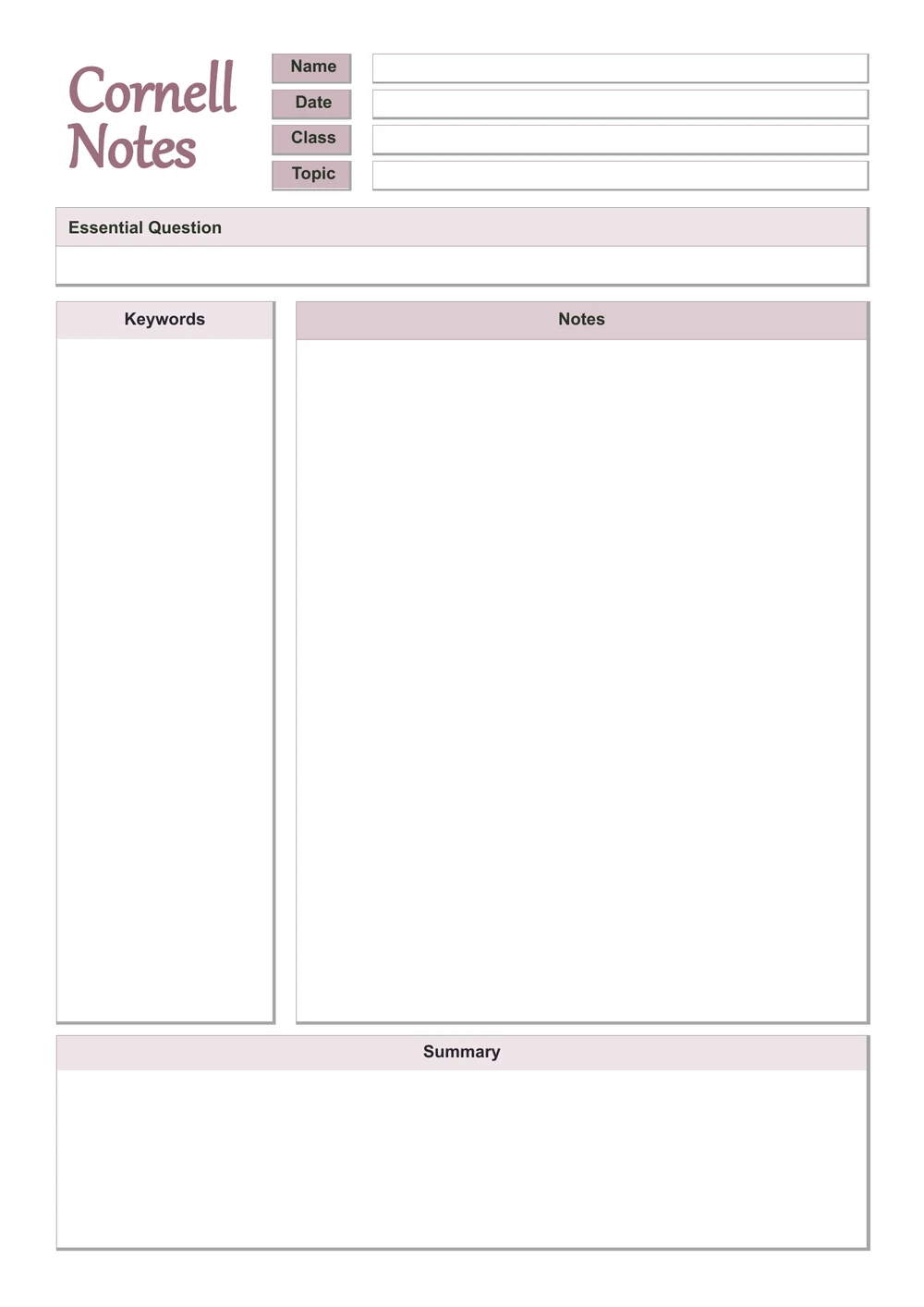
Mauve pastel Cornell notes template with unlined keywords, notes and summary areas
Unlined — Mauve. Click to enlarge.
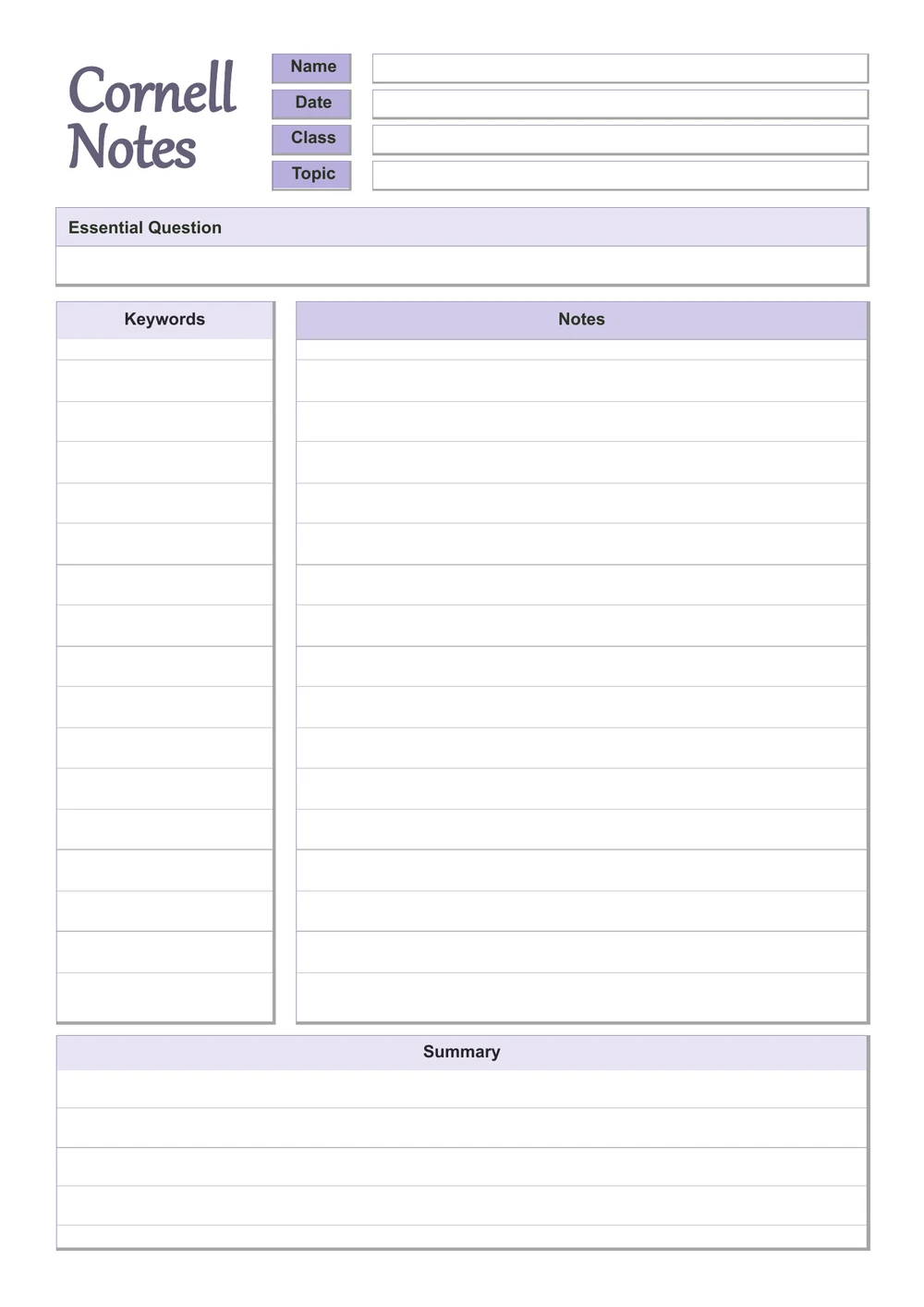
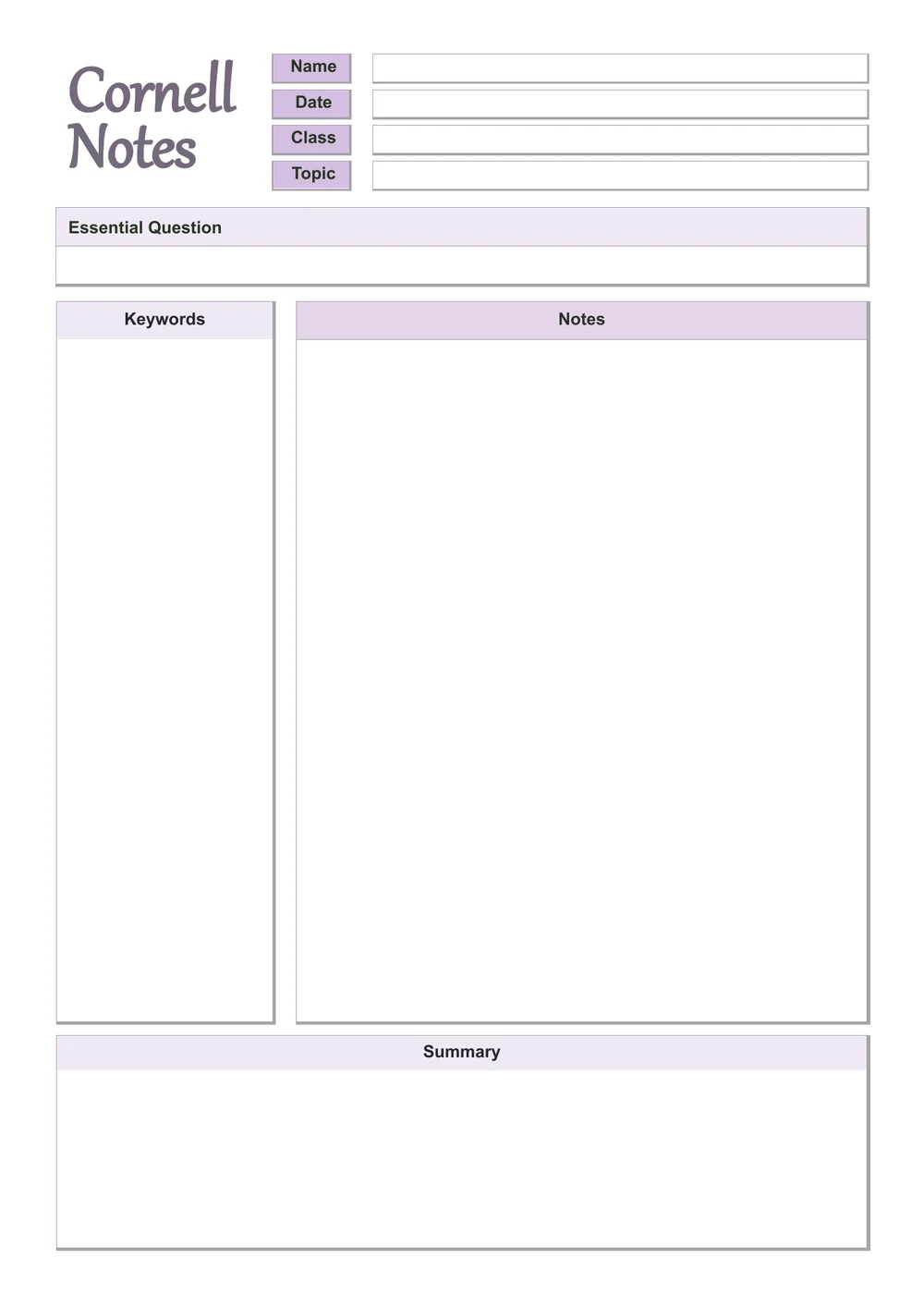
Lavender pastel Cornell notes template with lined keywords, notes and summary areas
Lined — Lavender. Click to enlarge.
Lavender pastel Cornell notes template with unlined keywords, notes and summary areas
Unlined — Lavender. Click to enlarge.
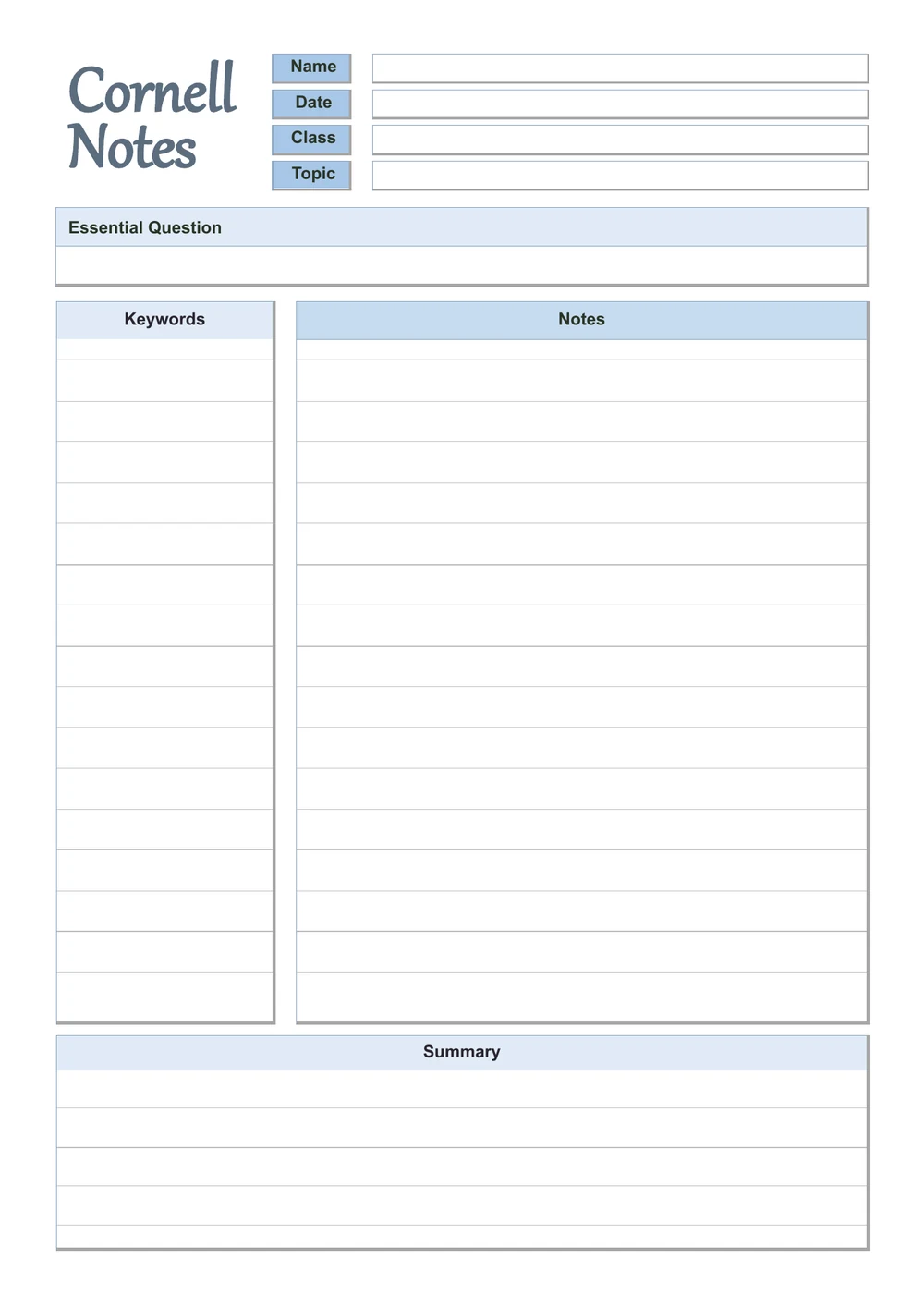
Powder Blue pastel Cornell notes template with lined keywords, notes and summary areas
Lined — Powder Blue. Click to enlarge.
Powder Blue pastel Cornell notes template with unlined keywords, notes and summary areas
Unlined — Powder Blue. Click to enlarge.
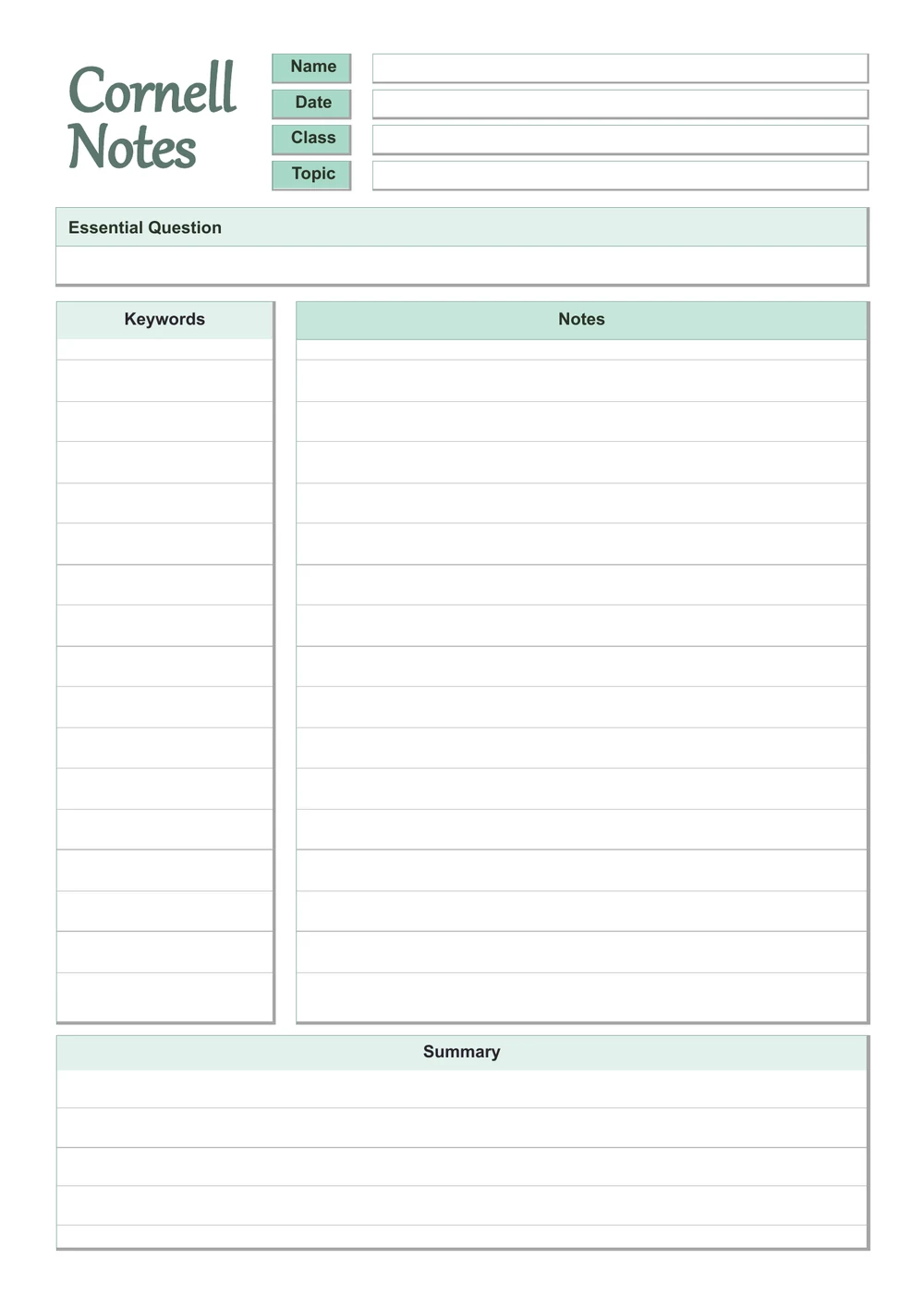
Seafoam pastel Cornell notes template with lined keywords, notes and summary areas
Lined — Seafoam. Click to enlarge.
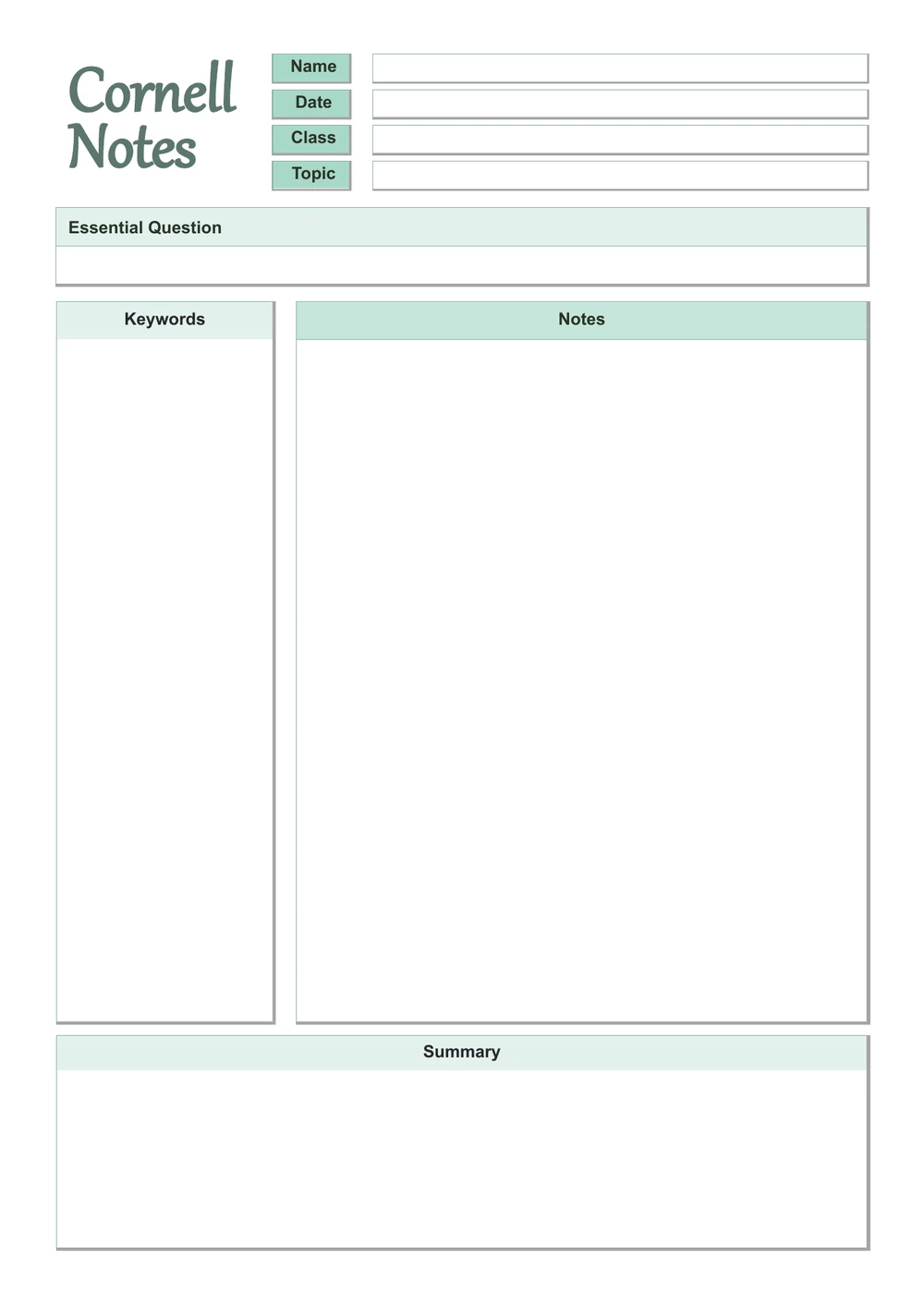
Seafoam pastel Cornell notes template with unlined keywords, notes and summary areas
Unlined — Seafoam. Click to enlarge.
Apricot pastel Cornell notes template with lined keywords, notes and summary areas
Lined — Apricot. Click to enlarge.
Apricot pastel Cornell notes template with unlined keywords, notes and summary areas
Unlined — Apricot. Click to enlarge.
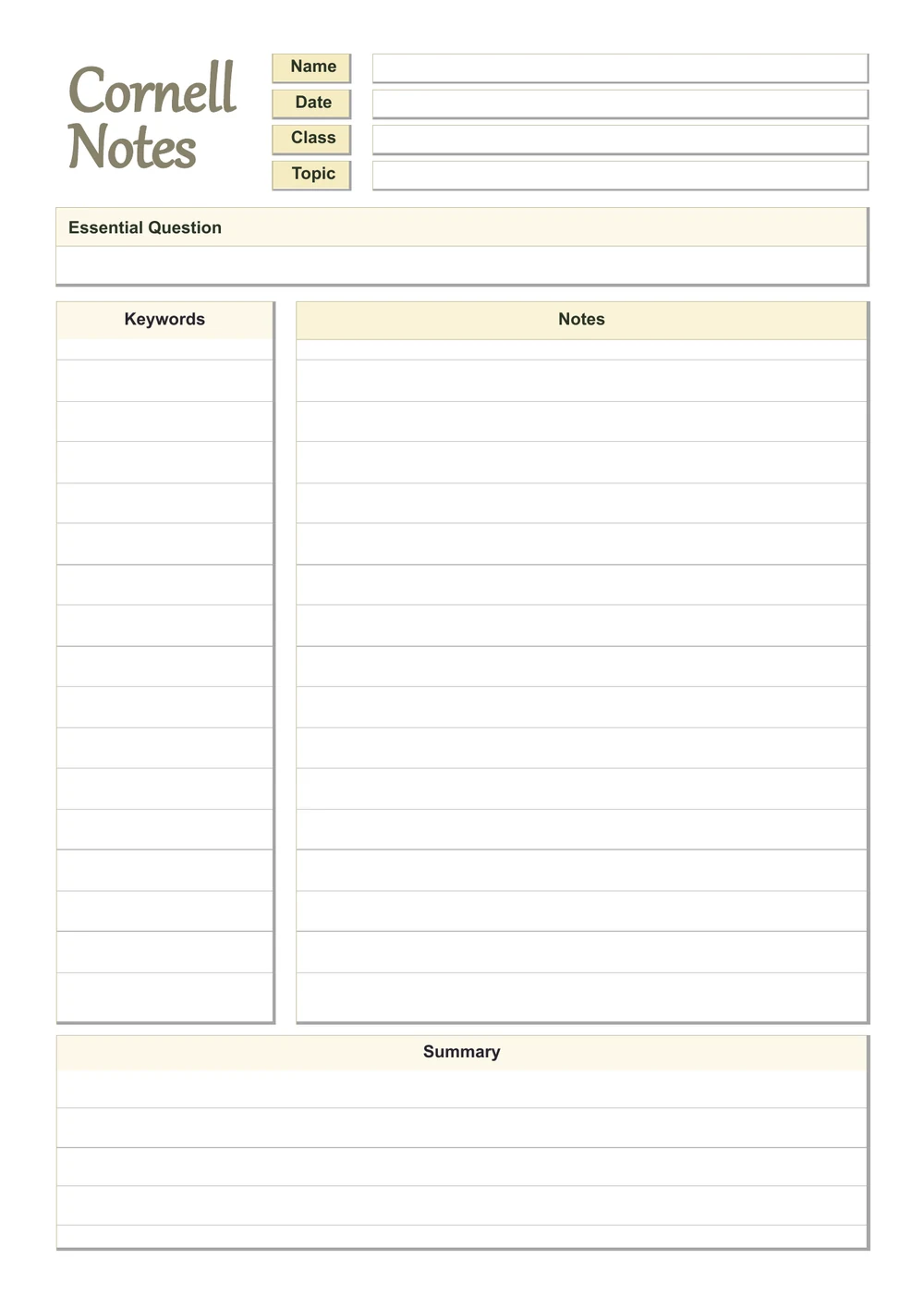
Butter Yellow pastel Cornell notes template with lined keywords, notes and summary areas
Lined — Butter Yellow. Click to enlarge.
Butter Yellow pastel Cornell notes template with unlined keywords, notes and summary areas
Unlined — Butter Yellow. Click to enlarge.
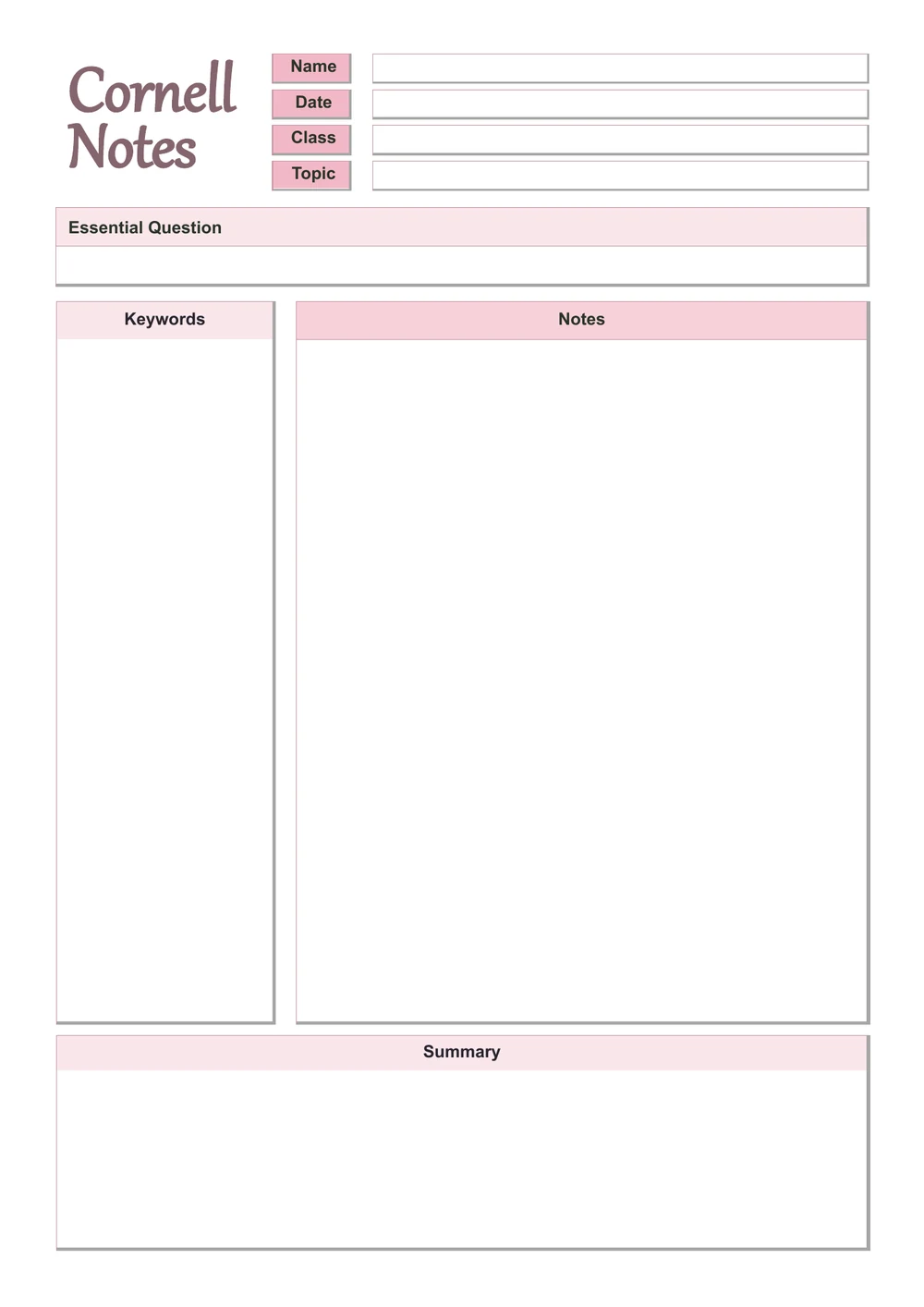
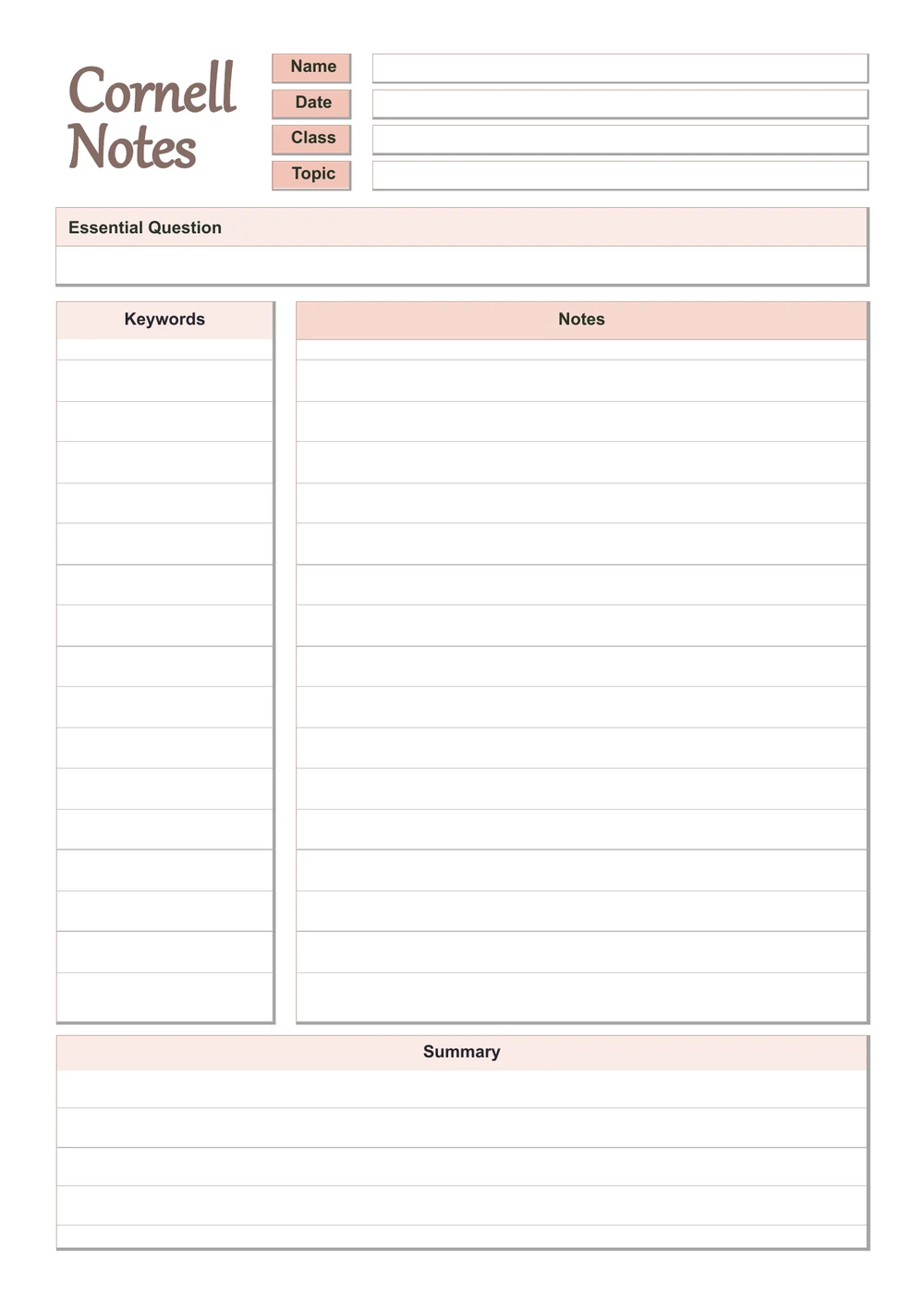
Blush Pink pastel Cornell notes template with lined keywords, notes and summary areas
Lined — Blush Pink. Click to enlarge.
Blush Pink pastel Cornell notes template with unlined keywords, notes and summary areas
Unlined — Blush Pink. Click to enlarge.
Lilac pastel Cornell notes template with lined keywords, notes and summary areas
Lined — Lilac. Click to enlarge.
Lilac pastel Cornell notes template with unlined keywords, notes and summary areas
Unlined — Lilac. Click to enlarge.
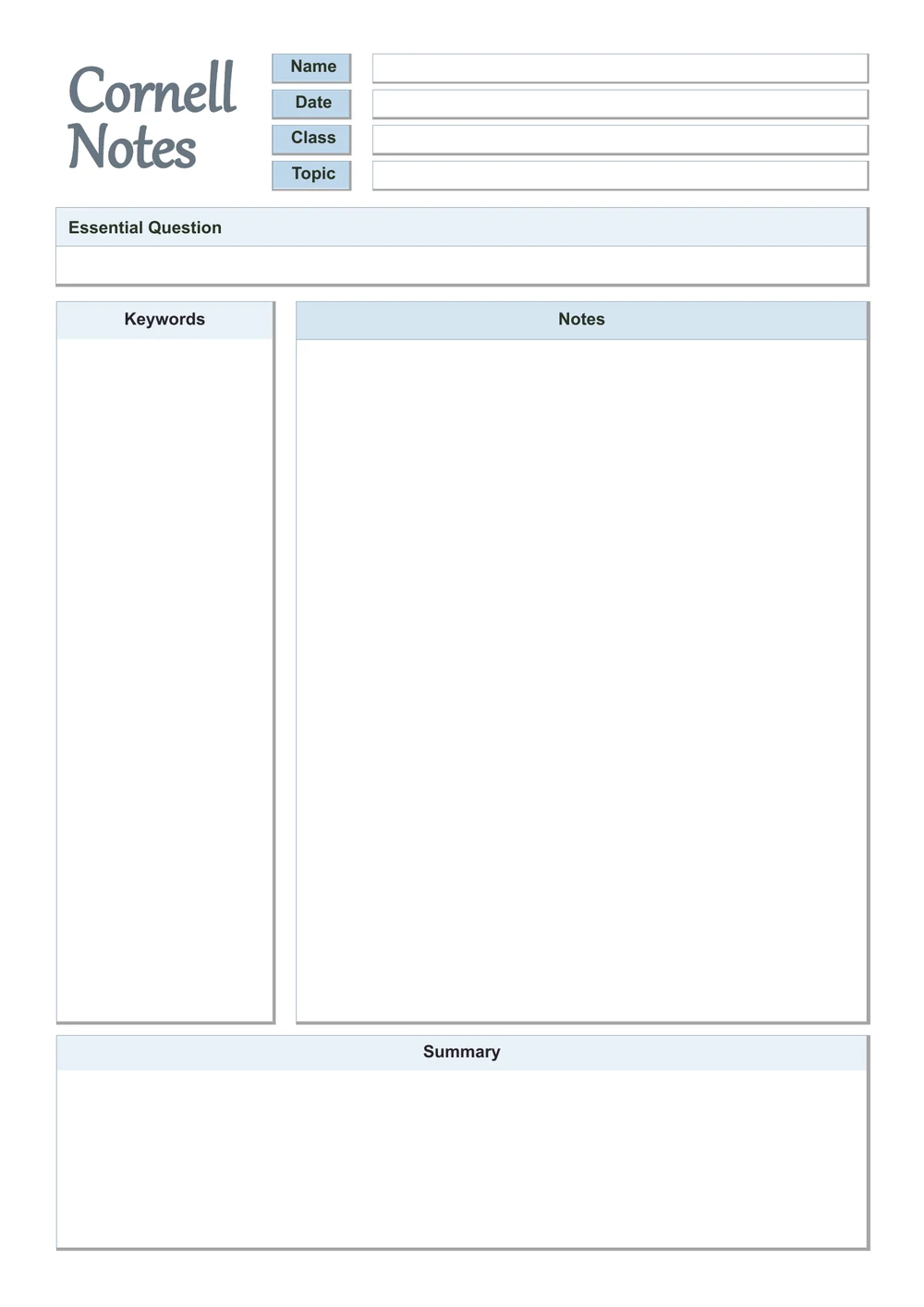
Sky Blue pastel Cornell notes template with lined keywords, notes and summary areas
Lined — Sky Blue. Click to enlarge.
Sky Blue pastel Cornell notes template with unlined keywords, notes and summary areas
Unlined — Sky Blue. Click to enlarge.
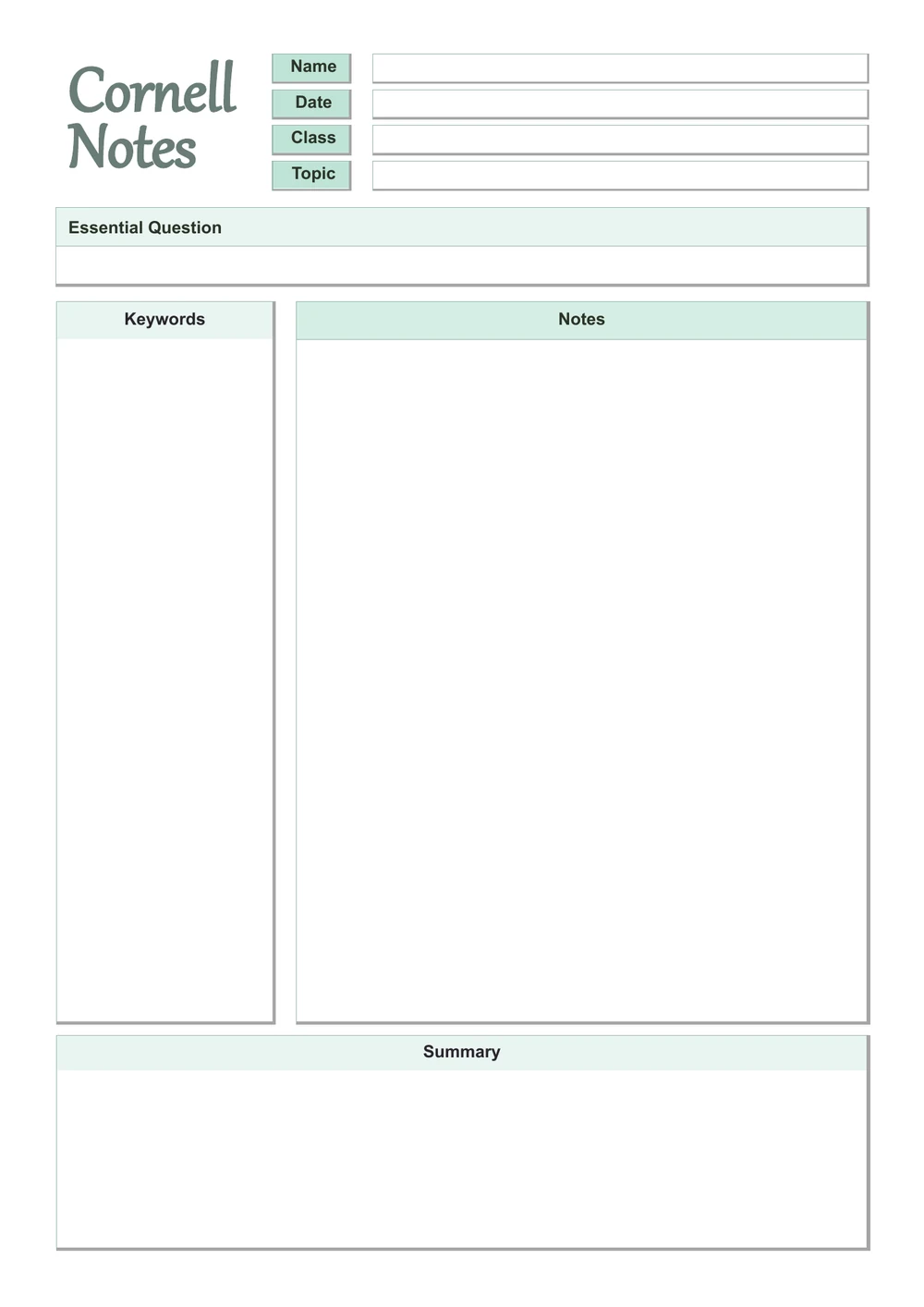
Mint Green pastel Cornell notes template with lined keywords, notes and summary areas
Lined — Mint Green. Click to enlarge.
Mint Green pastel Cornell notes template with unlined keywords, notes and summary areas
Unlined — Mint Green. Click to enlarge.
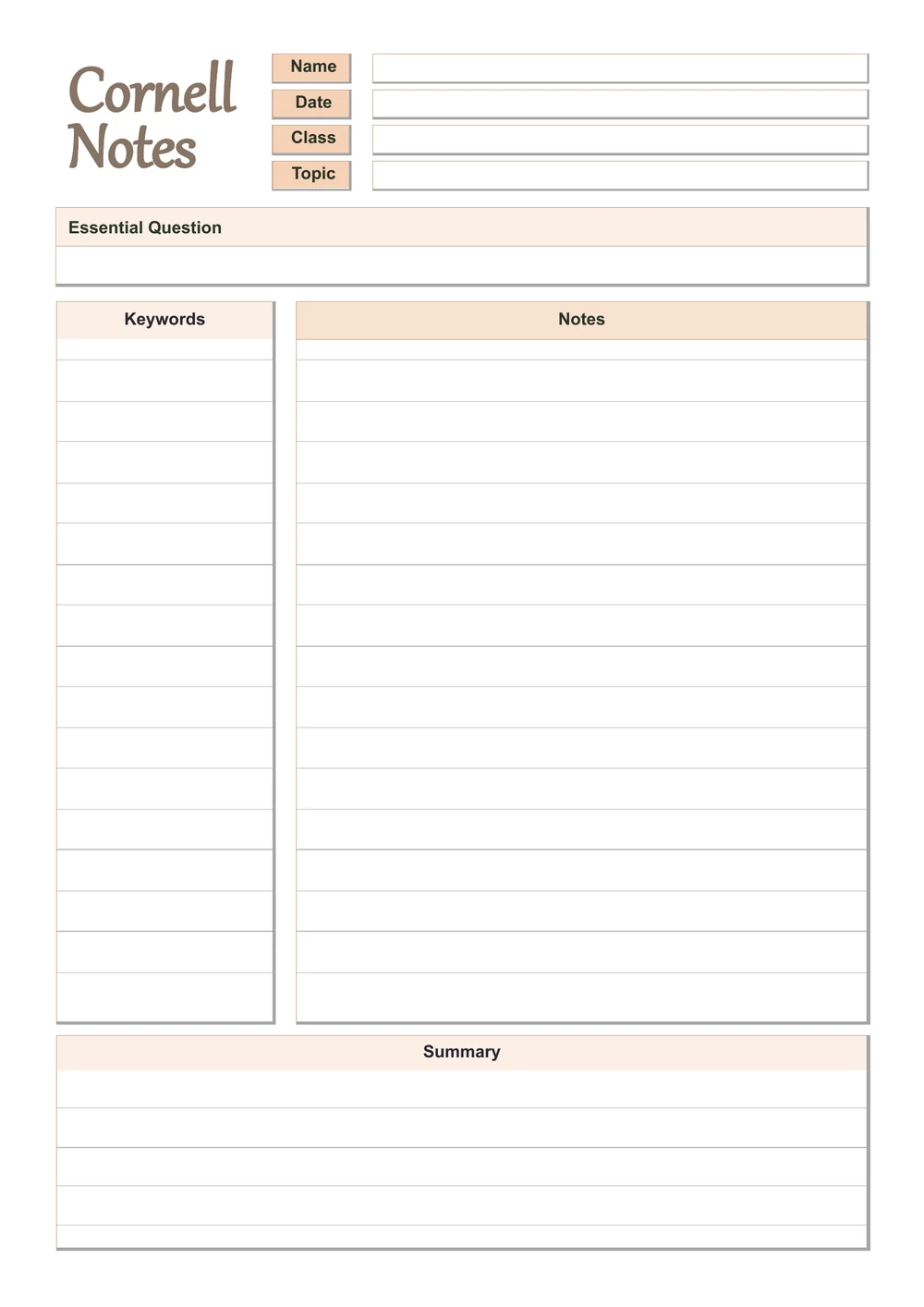
Peach pastel Cornell notes template with lined keywords, notes and summary areas
Lined — Peach. Click to enlarge.
Peach pastel Cornell notes template with unlined keywords, notes and summary areas
Unlined — Peach. Click to enlarge.
Pale Yellow pastel Cornell notes template with lined keywords, notes and summary areas
Lined — Pale Yellow. Click to enlarge.
Pale Yellow pastel Cornell notes template with unlined keywords, notes and summary areas
Unlined — Pale Yellow. Click to enlarge.
Coral pastel Cornell notes template with lined keywords, notes and summary areas
Lined — Coral. Click to enlarge.
Coral pastel Cornell notes template with unlined keywords, notes and summary areas
Unlined — Coral. Click to enlarge.

Download the lined and unlined Cornell notes Word templates

Enter your email address, then choose whether you would also like occasional emails about new Word Made Easy Word Templates.

Choose your email preference

I agree that Word Made Easy may email me occasional updates about new Word Templates. I can unsubscribe at any time. Choose Download only if you do not want marketing emails.

Read the Privacy Policy for details about storage, retention and your rights.

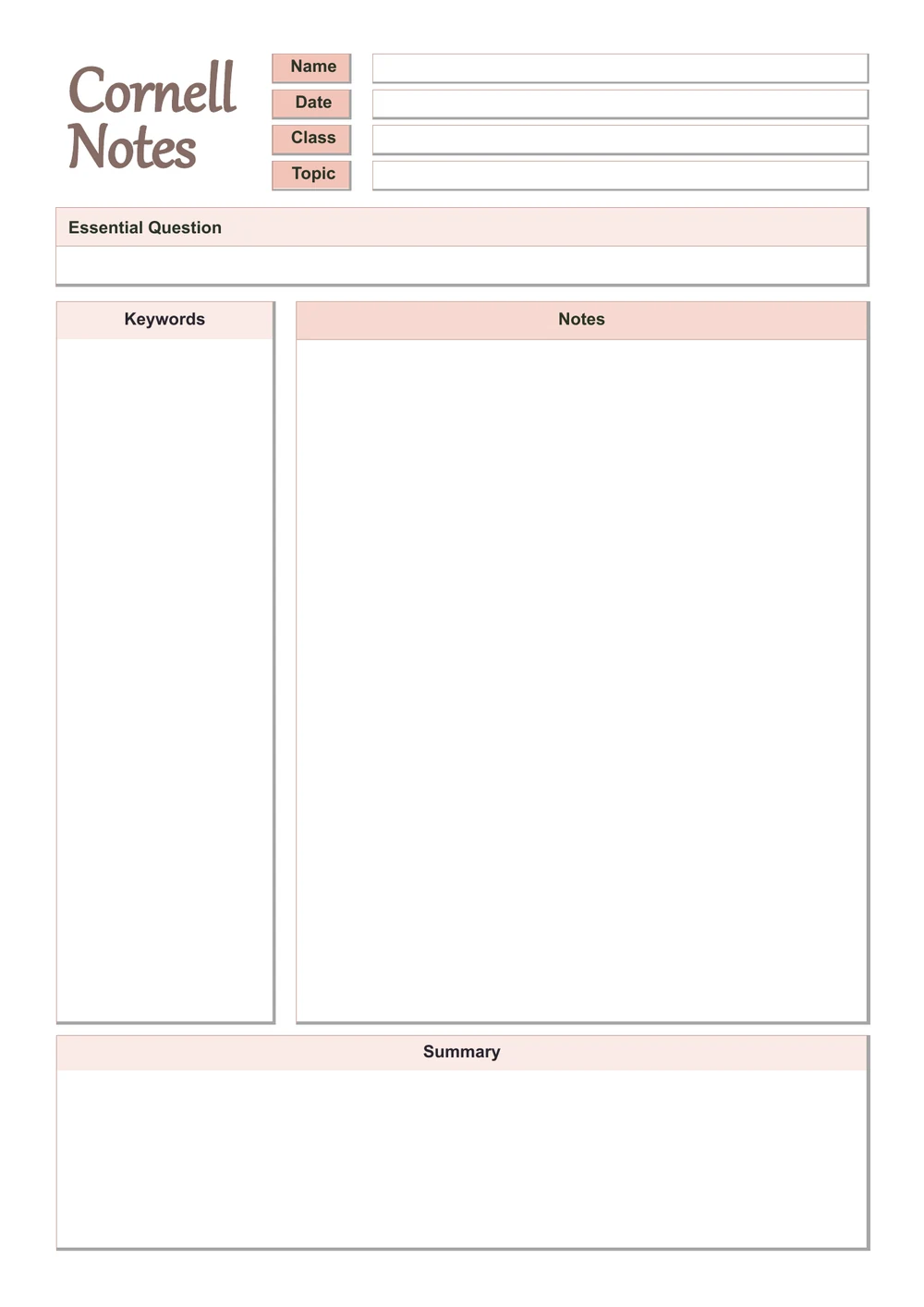
Use the lined sheets for handwriting and the unlined sheets for diagrams, free-form notes or shorter typed entries. Every design includes name, date, class and topic fields, an essential question, a keywords column, a notes area and a summary box.


Contents hide
1 Lined or unlined: which layout should you choose?
2 How to edit the Cornell notes templates in Word
3 How to print one sheet or the whole collection
4 How to use the Cornell notes layout
5 Frequently asked questions
6 Choose a colour and start your notes
7 Related Tutorials
8 Word Tutorials

Lined or unlined: which layout should you choose?

LayoutUseful forWhat changes
LinedHandwritten lecture notes, reading notes and revisionWriting lines in the keywords, notes and summary areas.
UnlinedDiagrams, sketches, flexible spacing and typed notesThe same coloured headings and sections, with blank writing areas.

Both versions have the same page layout and colour choices. Use the lined document for guided handwriting or the unlined document for more flexible notes. You can change labels, colours or text in Word before printing. If you need help with paper settings, see how to set A4 as the default paper size in Word.


How to edit the Cornell notes templates in Word

These instructions use desktop Word for Windows. Keep an untouched copy of your download so you can reuse the blank template for another topic.

  1. Choose the lined or unlined collection, then preview all 18 colours in its carousel.
  2. Open the .docx file in Word and save a copy with a name that identifies your subject or lesson.
  3. Click inside the name, date, class and topic boxes to enter your details. Keep these short so they fit the header.
  4. Click inside the notes, keywords or summary area to type. Existing blank paragraphs provide space for entries; long text or extra paragraphs can push content onto another page.
  5. To change a cell colour, select the relevant table cells, then choose Table Design > Shading.
  6. Open File > Print and check the preview before printing.

You can also change the font in Word or adjust line spacing. Recheck the page after either change: the available writing space is designed around the supplied formatting. Microsoft explains the colour controls in its table shading guide.

If typed text moves the summary onto another page

The lined sheet is primarily a printable writing template. Its writing lines are blank paragraphs inside the table. If an entry wraps onto another line, the table can grow and move the summary onto a second page. Keep entries short and check the print preview after editing. For longer typed notes, start with the unlined version and adjust the layout as needed. The unlined version gives you more flexibility for short typed notes; neither layout is an automatically expanding digital notebook.

How to print one sheet or the whole collection

Open the lined or unlined Word document, select A4 paper and check the print preview. Each document contains all 18 colours. In the print dialog, enter the page number for the colour you want, then print one test page to check how the pale colours and writing lines look on your printer.

In Word for Windows, open File > Print. If you are using an 18-page collection, choose the page you need under the print settings instead of printing all pages. Microsoft?s Word printing guide explains page selection and colour printing. These downloads are A4; using Letter paper may require scaling.


How to use the Cornell notes layout

  1. Before taking notes: add your topic and write an essential question that identifies what you want to understand.
  2. During a lesson or while reading: record key ideas, examples and diagrams in the larger notes area.
  3. When reviewing: add keywords or questions in the left column, then write a short summary in your own words.
  4. For revision: cover the main notes and use the left-hand questions to check what you can recall.

For more guidance on the method, visit Cornell University?s Cornell Note Taking System page. The templates here are Word Made Easy designs.

A short example for a Word lesson

SectionExample entry
TopicChanging table colours in Word
Essential questionHow can I change a table cell?s background colour?
Keywords / questionsShading ? which tab contains the colour control?
NotesSelect the cells. Open Table Design, choose Shading, then select a colour.
SummaryTable shading changes the background of the selected cells. It is useful for distinguishing labels from writing areas.

Frequently asked questions

Are these pastel Cornell notes templates free?

Yes. Enter your email address, choose Download only or Subscribe & download, then use the single button to download both Word documents. Download only does not add your address to marketing emails.

How many templates are included?

There are 18 colour designs. Every colour has a lined and an unlined version, giving you 36 individual sheets.

Can I type into the Word templates?

Yes. The Word files use editable tables and text. Keep entries concise and check the page layout after typing, because longer content can extend onto another page.

Which file should I download for printing?

The single ZIP contains two editable Word documents: one lined and one unlined. Open the document you prefer and select the page for your chosen colour.

Are these templates A4 or US Letter?

All supplied templates use A4 portrait pages. They are not separate US Letter editions; printing on Letter paper may require scaling.

Can I change the pastel colours?

Yes. In desktop Word, select the relevant cells and use Table Design > Shading. Save your edited copy separately so the original template stays available.

Can I use the files in Google Docs or another app?

The editable files are supplied as Word documents. Other apps may change fonts, borders or spacing, so check the result after importing and before printing.


Choose a colour and start your notes

Start with the lined Word document for handwritten notes, or use the unlined document when you want more open writing space. These pastel Cornell notes templates share the same structure across all 18 colours, so you can change colour between subjects without changing your note-taking routine.


Related Tutorials

  • How to Set A4 as Default in Word: 2 Easy Methods
  • How to Change the Font in Word: 3 Easy Methods (Quick Guide)
  • How to Change Line Spacing in Word: 4 Easy Methods

Word Tutorials

Recent Microsoft Word Tutorials

  • 18 Free Pastel Cornell Notes Templates for Word
    September 26, 2026
  • How to View Two Pages Side by Side in Word: 2 Easy Methods (Quick Guide)

    August 29, 2026
  • Open Two Documents Side by Side in Word: 2 Easy Steps (Quick Guide)

    August 29, 2026

Browse the complete collection for help with formatting, layout, pages, tables, images, and document setup.

View all Word tutorials
Watch on YouTube

For Microsoft support documentation, visit the official Microsoft guidance.

Like this:

Like Loading…
←How to View Two Pages Side by Side in Word: 2 Easy Methods (Quick Guide)

Comments

Leave a ReplyCancel reply

Meet the Author

Patrick Elliott standing outdoors holding his dog.

I’m Patrick Elliott, the creator of Word Made Easy. I’m an educator and Inclusion Lead, and I use Microsoft Word and PowerPoint daily for planning, documentation, and classroom resources.

Every guide is tested step-by-step before publishing (usually in Microsoft 365). You’ll also find practical walkthroughs on my YouTube channel.

More:About me.Contact.YouTube

Explore More

  • Word Tutorials
  • PowerPoint Tutorials
  • YouTube Videos

YouTube

Recent Tutorials

  • 18 Free Pastel Cornell Notes Templates for WordSeptember 26, 2026
  • How to View Two Pages Side by Side in Word: 2 Easy Methods (Quick Guide)August 29, 2026
  • Open Two Documents Side by Side in Word: 2 Easy Steps (Quick Guide)August 29, 2026
  • How to Open Word in Safe Mode: 2 Easy Methods (Quick Guide)August 29, 2026
  • How to Replace Text in Word: 2 Easy Methods (Quick Guide)August 29, 2026
Word Made Easy

Explore

  • →Home
  • →Word Tutorials
  • →PowerPoint Tutorials
  • →YouTube Videos

Categories

  • →Page Layout & Sections
  • →Tables, Images & Media
  • →Word Formatting Basics
  • →Word Productivity & Automation

Author

  • →About Me
  • →Contact
  • →YouTube
Privacy Policy Cookie Policy Terms of Use
© 2012–2026 Word Made Easy. Content is protected.
Your privacy choices

We use cookies and similar technologies to make this site work, understand how it is used, and show relevant content and advertising. You can accept all cookies, deny non-essential cookies, or manage your preferences. You can change your choice at any time.

Functional Always active
The technical storage or access is strictly necessary for the legitimate purpose of enabling the use of a specific service explicitly requested by the subscriber or user, or for the sole purpose of carrying out the transmission of a communication over an electronic communications network.
Preferences
The technical storage or access is necessary for the legitimate purpose of storing preferences that are not requested by the subscriber or user.
Statistics
The technical storage or access that is used exclusively for statistical purposes. The technical storage or access that is used exclusively for anonymous statistical purposes. Without a subpoena, voluntary compliance on the part of your Internet Service Provider, or additional records from a third party, information stored or retrieved for this purpose alone cannot usually be used to identify you.
Marketing
The technical storage or access is required to create user profiles to send advertising, or to track the user on a website or across several websites for similar marketing purposes.
  • Manage options
  • Manage services
  • Manage {vendor_count} vendors
  • Read more about these purposes
Manage preferences
  • {title}
  • {title}
  • {title}

Discover more from Word Made Easy

Subscribe now to keep reading and get access to the full archive.

Continue reading

%d