
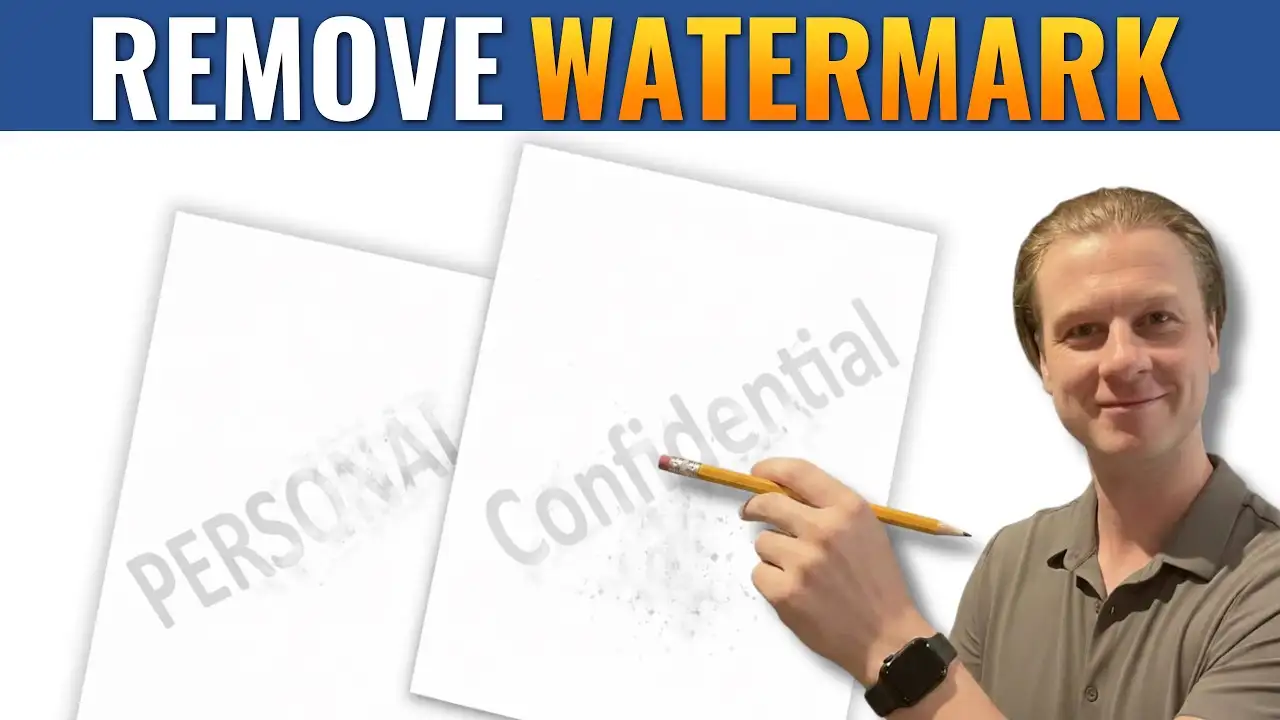
Working in Microsoft Word, watermarks are often used to label documents as drafts, confidential, or samples. However, there may come a time when you need to remove a watermark to clean up your document.
In this guide, you’ll learn how to remove a watermark in Word using two simple methods, including how to delete stubborn watermark images that don’t disappear with the standard option.
Why Watermarks Don’t Always Remove Easily
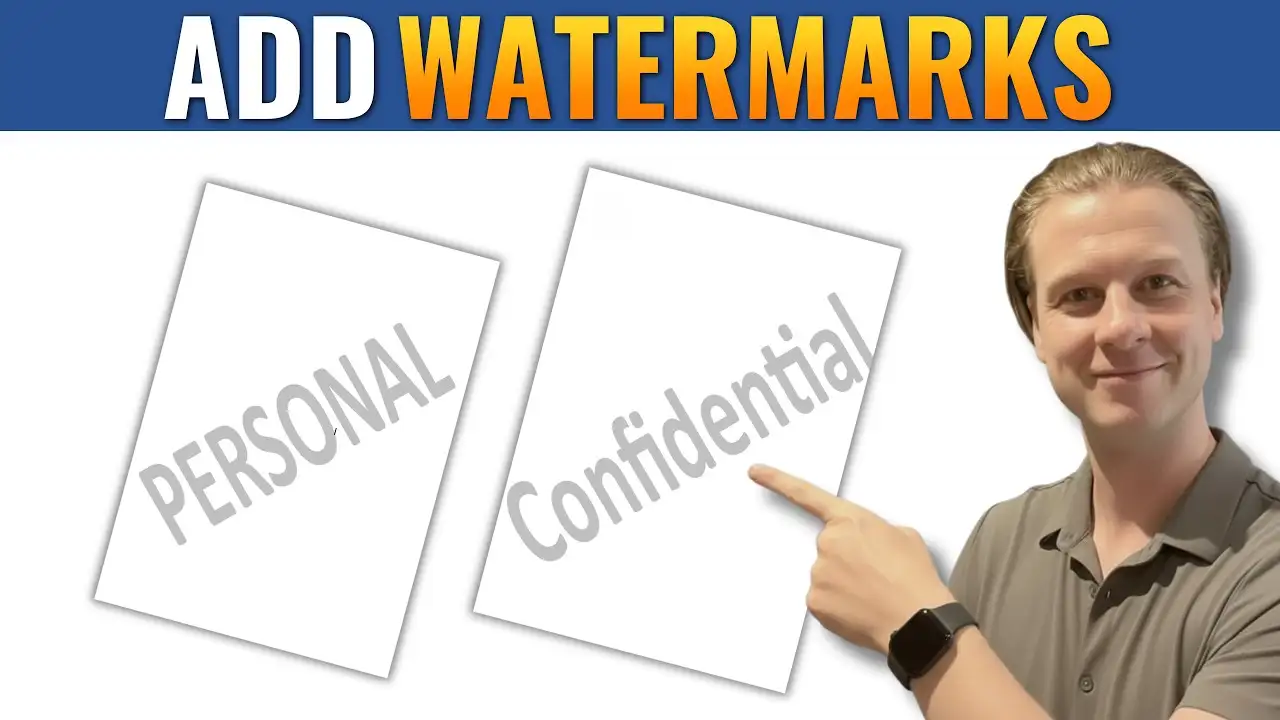
Most watermarks in Word are added using the built-in feature — covered in our companion guide on how to add a watermark in Microsoft Word — but in some cases, they are inserted manually as images in the header.
This means:
- The standard “Remove Watermark” option may not work
- The watermark is actually placed behind the document via the header or footer
- You’ll need a different method to remove it
Understanding this difference is key to fixing the problem quickly.
Watch the Video Tutorial
If you prefer to see this in action, the full video walkthrough is below, showing each method step by step.
Method 1: Remove Watermark from the Design Tab
This is the easiest and most common way to remove a watermark.
Steps:
- Go to the Design tab
- Click Watermark
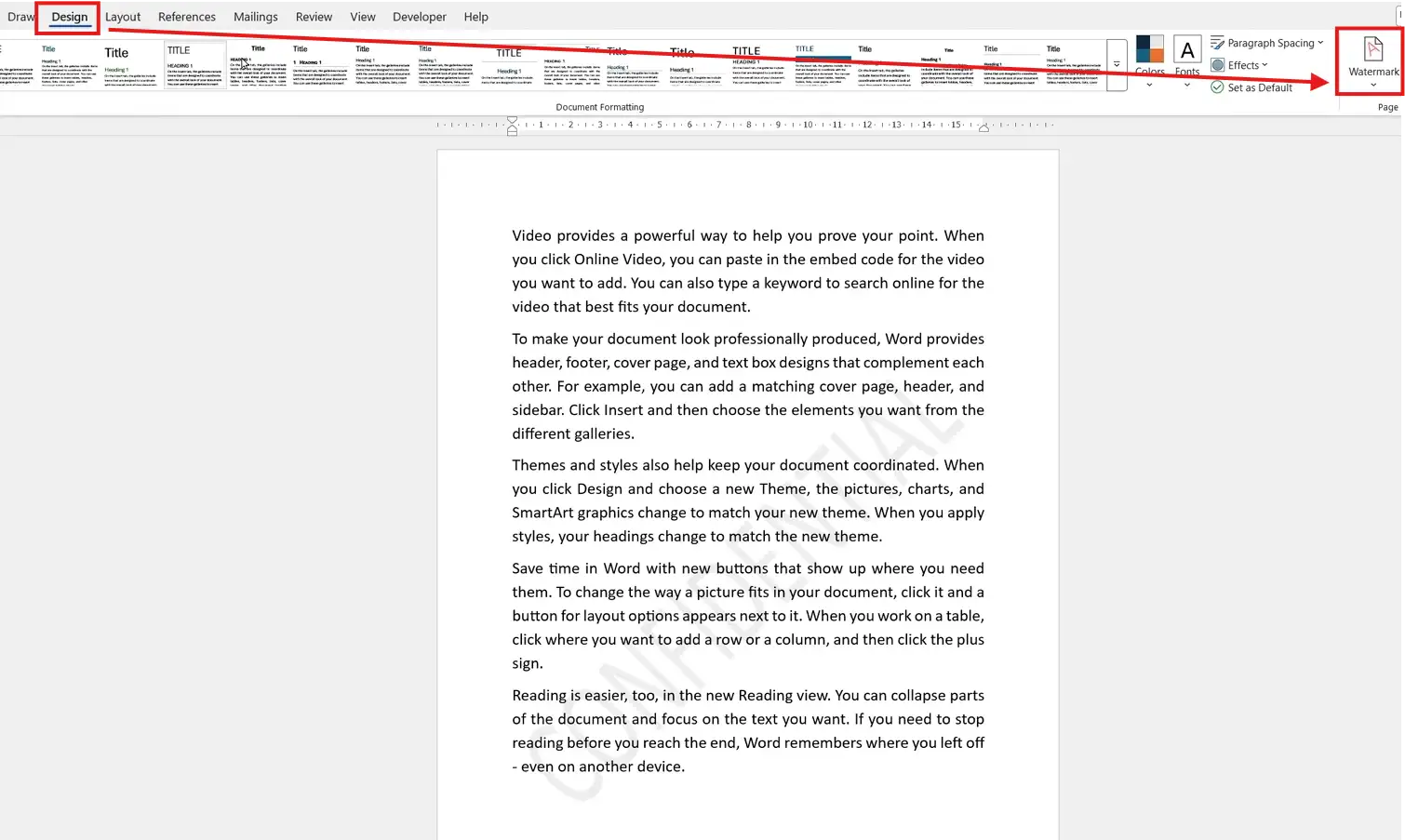
- Select Remove Watermark
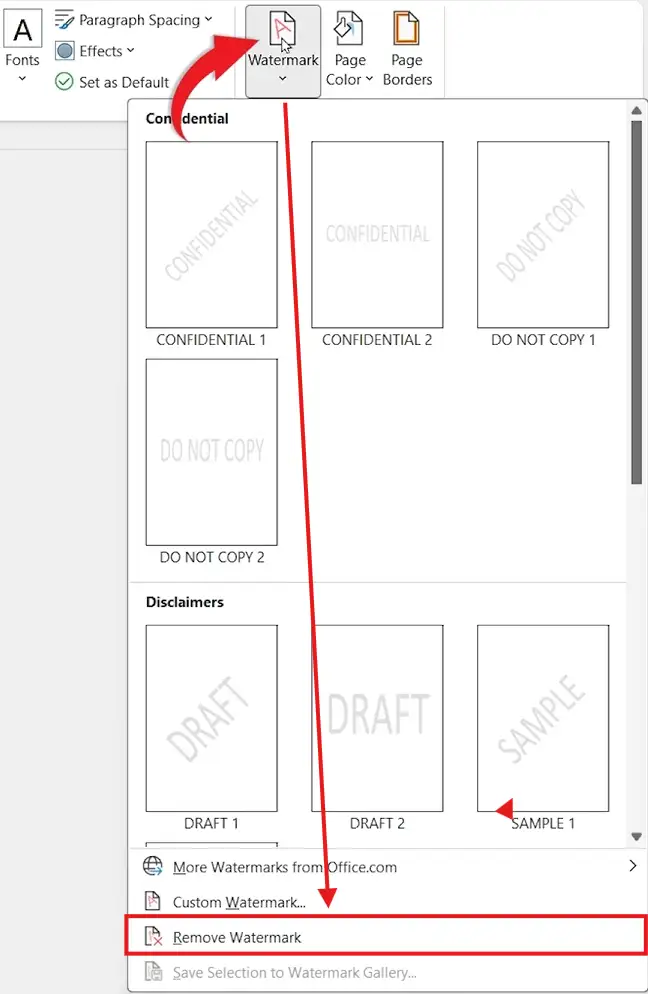
👉 In most cases, this will instantly remove the watermark from your document.
Method 2: Remove Watermark from Header (Advanced Fix)
If the watermark doesn’t disappear, it’s likely inserted as an image in the header — see how to remove headers and footers in Microsoft Word for the full breakdown of editing the header area.
Steps:
- Double-click at the top of the page to open the header
- Try selecting the watermark image
- Press Delete on your keyboard
- Click Close Header and Footer
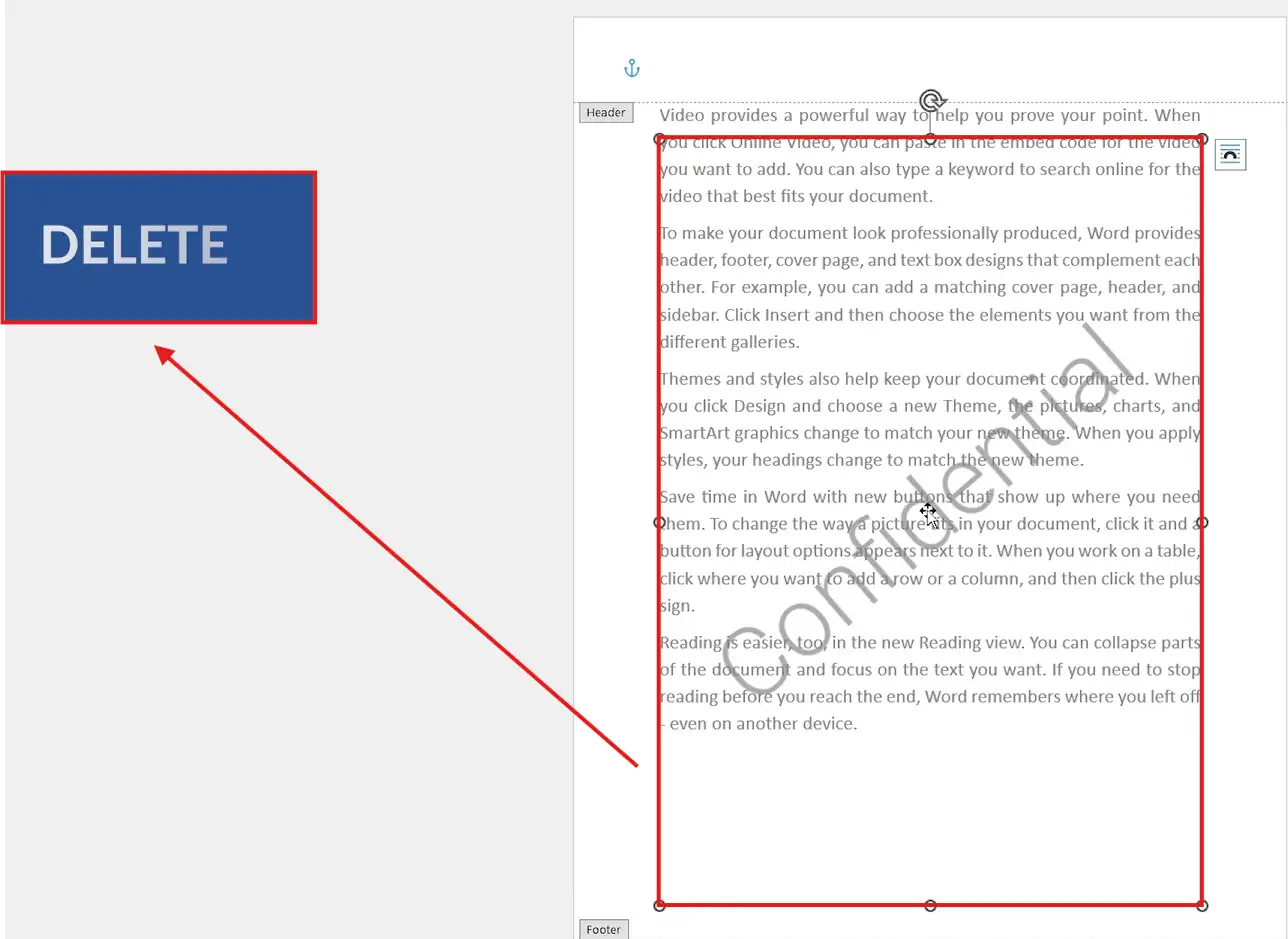
👉 This method removes watermarks that were manually inserted and cannot be removed using the default option.
How to Check Where the Watermark Is Placed
If you’re unsure which method to use:
- Try Method 1 first
- If it fails, open the header area
- If you can click the watermark, it’s an image inside the header
This quick check saves time and helps you apply the correct fix immediately.
Common Issues When Removing Watermarks
Here are a few problems you might encounter:
- Watermark appears on all pages → it’s part of the header
- “Remove Watermark” does nothing → watermark is an inserted image
- Watermark is hard to click → try selecting it from the header area, similar to handling embedded images covered in how to make an image transparent in Word
Key Takeaways
- Most watermarks can be removed from the Design tab
- If that fails, the watermark is likely inside the header
- Double-click the header to access and delete it manually
- Always close the header to return to your document
FAQs
Why won’t my watermark delete in Word?
It’s likely inserted as an image in the header rather than using the built-in watermark feature.
Can I remove a watermark from only one page?
Yes, but you’ll need to use section breaks and edit headers individually.
Are watermarks part of the main document text?
No, they are usually placed in the header behind the content.
Will removing a watermark affect my document formatting?
No, removing a watermark does not change your text or layout.
What’s the fastest way to remove a watermark?
Use the Design → Watermark → Remove Watermark option first.
Conclusion
Removing a watermark in Microsoft Word is usually quick and straightforward once you know where the watermark is stored.
By using the Design tab or editing the header directly, you can remove both standard and stubborn watermarks, giving your document a clean and professional finish.
Related Tutorials
- How to Add a Watermark in Microsoft Word
- How to Remove Headers and Footers in Microsoft Word
- How to Make an Image Transparent in Word

Recent Microsoft Word Tutorials

Looking for more help with Microsoft Word? Browse all step-by-step Word tutorials covering formatting, layout, pages, and document setup.
👉 View all Microsoft Word tutorials: https://wordmadeeasy.org/microsoft-word/
👉 Need more support – check out the official guidance: https://support.microsoft.com/en-au

Prefer watching instead of reading? Many Word tutorials are also available as short, step-by-step videos on the Word Made Easy YouTube channel.







Leave a Reply