
If you’re using Microsoft Word, you’ve probably run into the frustrating issue of an extra blank page that just won’t go away.
The good news is that this problem is usually caused by one of two things: a page break or a section break. In this guide, you’ll learn exactly how to identify and remove both so you can quickly delete unwanted pages.
Why Extra Pages Appear in Word
An extra page in Word doesn’t just appear randomly. It’s typically caused by hidden formatting elements such as:
- Page breaks
- Section breaks
- Extra paragraph marks
These elements are not always visible unless you turn on formatting tools — if you want them gone for good afterwards, here’s how to remove formatting marks in Word.
Watch the Video Tutorial
If you prefer to see this in action, the full video walkthrough is below, showing each method step by step.
Use the Show and Hide Tool to Find the Problem
Before deleting anything, you need to identify what’s causing the extra page.
Steps:
- Go to the Home tab
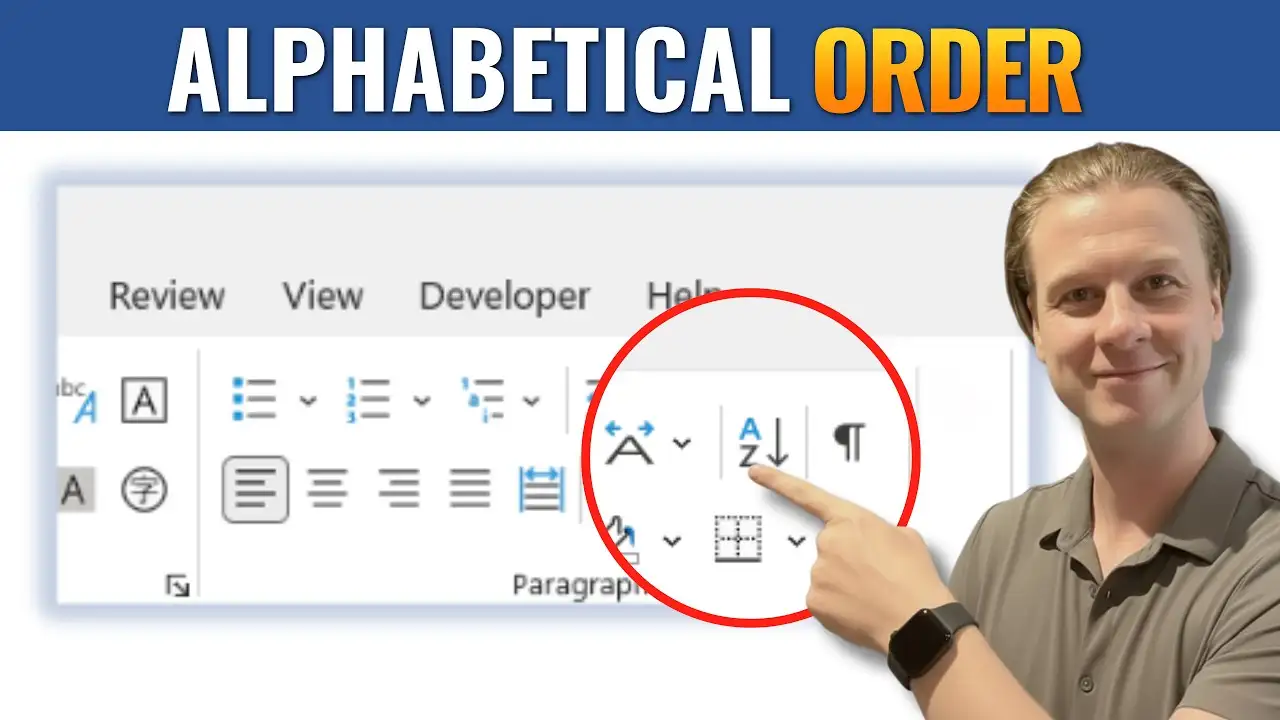
- Click the Show/Hide (¶) button (the backwards “P” symbol)
This reveals hidden formatting marks like:
- Page breaks
- Section breaks
- Paragraph spacing
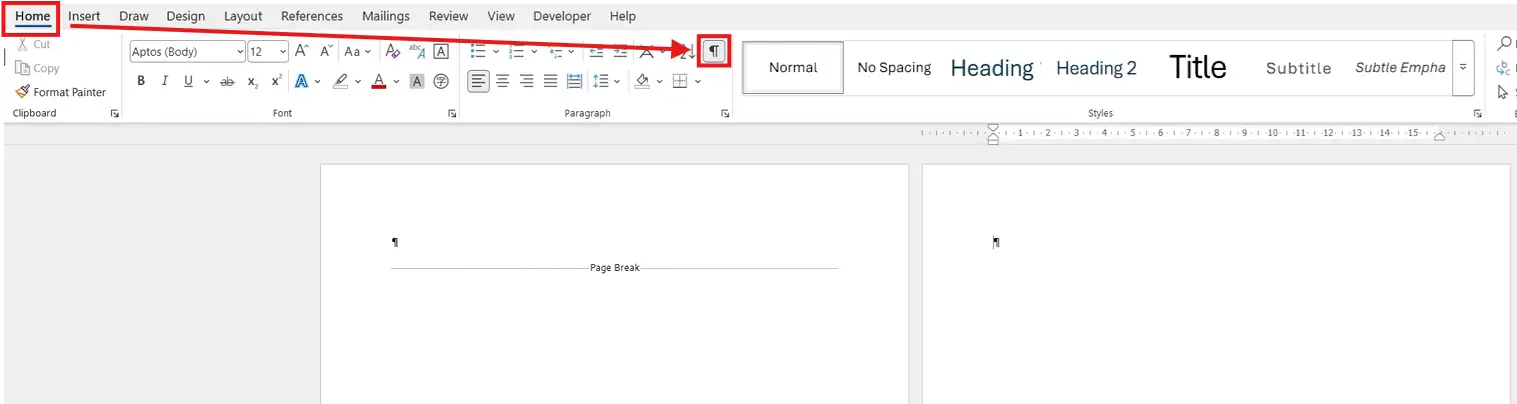
Once enabled, you’ll immediately see what’s creating the extra page.
How to Delete a Page Break
A page break is the most common cause of an extra page.
To remove a page break:
- Place your cursor at the top of the extra page
- Press Backspace on your keyboard
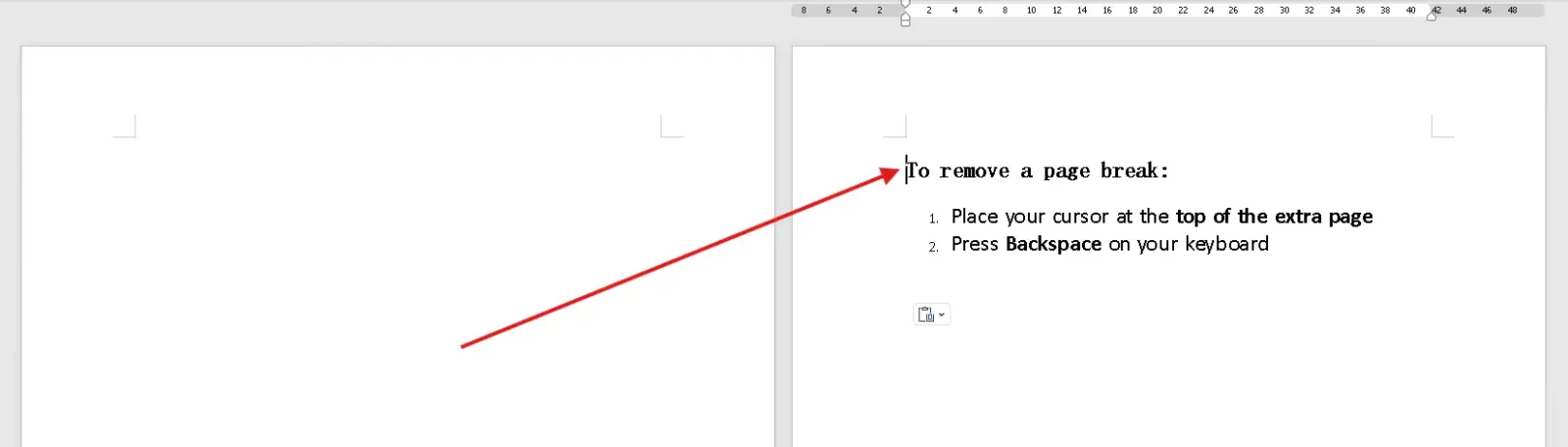
This will remove the page break and delete the unwanted page.
How to Delete a Section Break
Section breaks are slightly trickier because they control layout and formatting — for a full breakdown, see our guide on how to put different footers on each page in Word, which shows exactly how section breaks behave.
Method 1: Backspace + Delete
- Place your cursor at the top of the extra page
- Press Backspace once
- You’ll notice the ruler at the top shift slightly
- Press Delete

This removes the section break and deletes the page.
Method 2: Direct Selection
- Turn on Show/Hide (¶)
- Locate the Section Break
- Click just before or after it
- Press Delete
Both methods achieve the same result.
Extra Page Caused by Tables
Sometimes it looks like a table is causing the issue but that’s rarely the case.
What’s actually happening is:
- A section break or page break is placed after the table, which is a common side-effect when you’ve used three ways to insert a table in Word and didn’t notice the trailing break
- This forces content onto a new page
How to fix it:
- Turn on Show/Hide (¶)
- Look below the table
- Find the section break or page break
- Delete it using the methods above

Quick Summary (Key Takeaways)
- Most extra pages are caused by:
- Page breaks
- Section breaks
- To delete a page break:
- Press Backspace
- To delete a section break:
- Press Backspace, then Delete
- Use the Show/Hide (¶) tool to diagnose the issue quickly
Pro Tips for Avoiding Extra Pages
- Avoid inserting unnecessary page or section breaks
- Keep formatting marks visible while editing complex documents
- Regularly check layout when working with tables
- Use print preview to confirm your document layout
FAQs
Why won’t my extra page delete in Word?
It’s likely caused by a section break, which requires both Backspace and Delete to remove.
How do I see hidden formatting in Word?
Use the Show/Hide (¶) button in the Home tab to reveal breaks and spacing.
Can tables create extra pages in Word?
Not directly. The issue is usually a break placed before or after the table.
What is the difference between a page break and a section break?
A page break simply moves content to a new page, while a section break controls layout and formatting.
Do I always need the Show/Hide tool?
No, but it makes identifying and fixing the issue much easier.
Related Tutorials
- How to Remove Formatting Marks in Word
- How to Put Different Footers on Each Page in Word
- Three Ways to Insert a Table in Word
Conclusion
Deleting an extra page in Microsoft Word is simple once you know what to look for.
By using the Show/Hide tool and understanding the difference between page breaks and section breaks, you can quickly fix layout issues and keep your document clean and professional.

Recent Microsoft Word Tutorials

Looking for more help with Microsoft Word? Browse all step-by-step Word tutorials covering formatting, layout, pages, and document setup.
👉 View all Microsoft Word tutorials: https://wordmadeeasy.org/microsoft-word/
👉 Need more support – check out the official guidance: https://support.microsoft.com/en-au

Prefer watching instead of reading? Many Word tutorials are also available as short, step-by-step videos on the Word Made Easy YouTube channel.







Leave a Reply