
Tables are one of the most powerful features in Microsoft Word — but also one of the most click-heavy. Every row, column, cell, and selection usually requires several mouse clicks, especially when you’re working with large tables in reports, invoices, or academic documents. Keyboard shortcuts cut that work down to a fraction of the time.
In this guide, you’ll learn the essential Microsoft Word keyboard shortcuts for working with tables — covering navigation, selection, inserting and deleting rows or columns, splitting and merging cells, and quick formatting. Each shortcut is grouped by category so you can scan, learn, and apply them quickly. A free printable PDF cheat sheet is also available at the end of the article.

Why Use Keyboard Shortcuts for Tables?
Table tasks are some of the most repetitive in Microsoft Word. Inserting rows, jumping between cells, selecting columns, and adjusting formatting all take multiple clicks when done with the mouse. Keyboard shortcuts replace those clicks with a single keystroke — and once they’re in muscle memory, working with tables feels dramatically faster.
Using shortcuts for tables helps you:
- Build and edit large tables in seconds
- Avoid breaking your typing flow with constant mouse movement
- Navigate complex tables quickly using just the keyboard
- Apply consistent formatting across every cell
- Reduce errors when restructuring rows and columns
For a complete reference of every shortcut covered on this site, see the full Microsoft Word keyboard shortcuts cheat sheet.
Navigation is the foundation of working in tables. The faster you can jump between cells, rows, and columns, the faster every other table task becomes. These shortcuts replace the slowest part of table editing — moving the cursor with the mouse — and let you fly through even very large tables. If you don’t have a table yet, see the guide on three ways to insert a table in Word.
Essential Shortcuts
- Tab — Move to next cell
- Shift + Tab — Move to previous cell
- Alt + Home — Move to first cell in row
- Alt + End — Move to last cell in row
- Alt + Page Up — Move to first cell in column
- Alt + Page Down — Move to last cell in column
- Up / Down arrow — Move between rows
👉 Tip: Tab at the end of the last cell automatically creates a new row. This is the fastest way to extend a table without using the ribbon.
Selection Shortcuts
Selecting parts of a table accurately is critical for formatting, deleting, or copying content. Mouse selection often grabs more or less than you intended — keyboard shortcuts give you precise, repeatable selections every time.
Essential Shortcuts
- Shift + Arrow keys — Extend selection by character or row
- Ctrl + Shift + F8, then arrow keys — Select a column
- Alt + 5 (on numeric keypad, NumLock off) — Select entire table
- Triple-click in a cell — Select cell content
- Click + Shift — Select range of cells
👉 Tip: To select an entire row from the keyboard, click in the first cell, then press Shift + End repeatedly until the row is fully highlighted. To select an entire column, use Ctrl + Shift + F8 then arrow down.
Rows & Columns Shortcuts
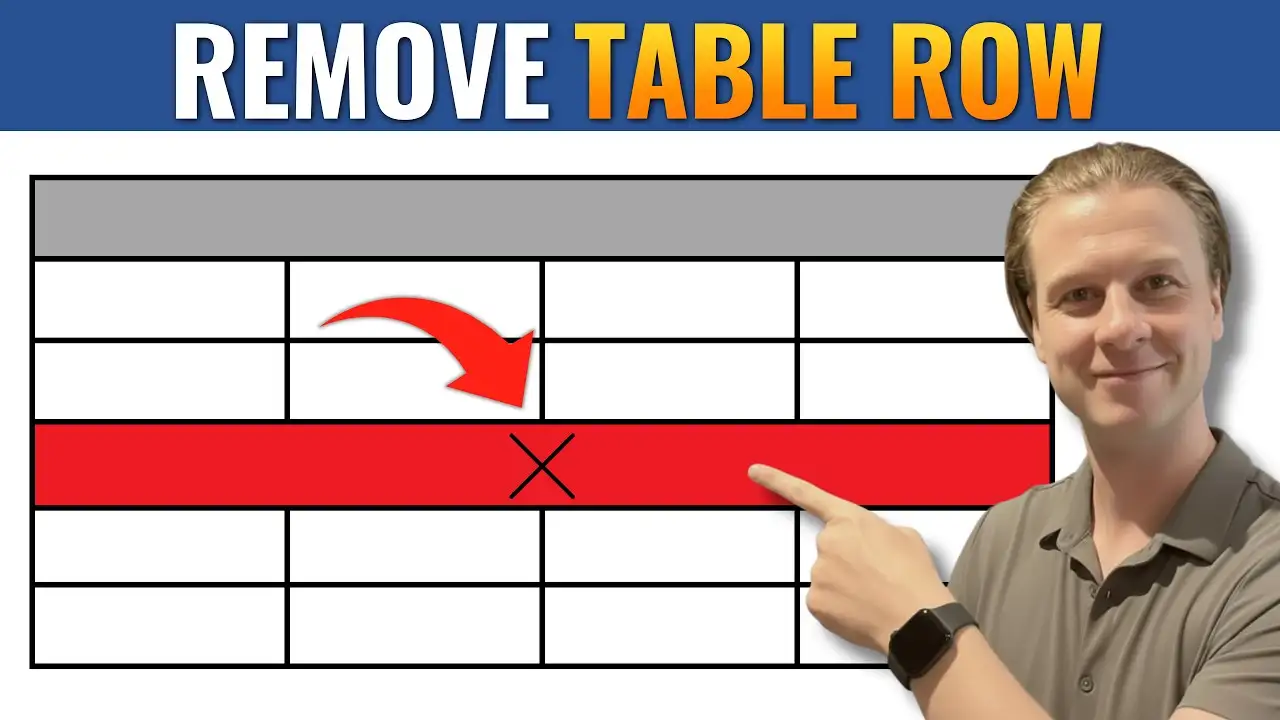
Inserting and deleting rows and columns is the most common table task in Word. These shortcuts let you restructure tables instantly without opening the Layout ribbon. For a deeper walkthrough, see the guide on how to delete a row in a Microsoft Word table.
Essential Shortcuts
- Tab (in last cell) — Add a new row at the bottom
- Alt + J + L + A — Insert row above
- Alt + J + L + B — Insert row below
- Alt + J + L + L — Insert column to the left
- Alt + J + L + R — Insert column to the right
- Alt + J + L + D + R — Delete row
- Alt + J + L + D + C — Delete column
- Alt + J + L + D + T — Delete entire table
👉 Tip: The Alt + J + L prefix opens the Table Layout ribbon. Once it’s open, every action becomes a single letter — meaning you can chain row, column, and deletion tasks without leaving the keyboard.
Cell Operation Shortcuts
Splitting and merging cells lets you create complex table layouts — invoices, schedules, comparison tables, and structured forms. These shortcuts speed up the cell-level edits that the ribbon makes slow. If you need to combine separate tables, see the guide on how to merge two tables in Microsoft Word.
Essential Shortcuts
- Alt + J + L + M — Merge selected cells
- Alt + J + L + P — Split cells
- Ctrl + Shift + Enter — Split table at cursor
- Backspace (with cell selected) — Clear cell content
- Delete (with cell selected) — Delete cell content without removing cell
👉 Tip: Ctrl + Shift + Enter is one of the most useful — it splits a single table into two separate tables at the cursor position. Perfect when you need to insert text or images between sections of data.
Formatting Shortcuts
Once your table structure is right, formatting brings it to life — alignment, borders, shading, and visual hierarchy. These shortcuts apply formatting to selected cells without opening any dialog box. For a clean, borderless look, see the guide on how to hide table lines in Microsoft Word.
Essential Shortcuts
- Ctrl + B — Bold cell content
- Ctrl + I — Italicise cell content
- Ctrl + U — Underline cell content
- Ctrl + L — Left-align cell text
- Ctrl + E — Centre-align cell text
- Ctrl + R — Right-align cell text
- Ctrl + J — Justify cell text
👉 Tip: To apply formatting to multiple cells at once, select them with Shift + Arrow keys first, then apply your shortcut. The formatting hits every selected cell instantly.
How to Memorise Table Shortcuts Faster
Trying to memorise every shortcut at once is overwhelming. The most effective approach is to learn shortcuts in small batches, applied to real work.
- Pick three shortcuts per week — start with Tab, Shift + Tab, and Alt + J + L
- Force yourself to use them — even when the mouse feels easier
- Print the cheat sheet — keep it next to your keyboard
- Group by task — learn navigation first, then row/column edits, then formatting
- Use Alt key hints — pressing Alt alone reveals every ribbon shortcut letter
Within two to three weeks of consistent use, you’ll find the shortcuts become muscle memory.
Common Issues and Fixes
Shortcut Not Working
- Make sure your cursor is inside the table
- Confirm your keyboard layout (UK vs US) — some symbol keys differ
- Restart Word after installing updates
Tab Inserts a Tab Character Instead of Moving
- This means your cursor isn’t actually inside a table cell — click directly into a cell first
- If you need a literal tab inside a cell, press Ctrl + Tab instead
Different Shortcut on Mac
- Most Ctrl shortcuts become Cmd shortcuts on Mac
- Alt-based ribbon shortcuts do not exist on Mac — use the menu bar instead
Best Use Cases for Table Shortcuts
These shortcuts are especially useful for:
- Invoices, quotes, and order forms with frequently changing rows
- Comparison tables, schedules, and timetables
- Academic papers with structured data
- Business reports with large datasets
- Forms, applications, and checklists
Pro Tips for Faster Table Work
- Use Tab to extend tables — it’s faster than the Insert Row button
- Apply table styles before manual formatting — saves repeated work
- Set repeating header rows for tables that span multiple pages
- Save commonly used tables as Quick Parts for instant reuse
- Practise navigation shortcuts on a blank test table first
FAQs
Are these shortcuts the same in every version of Microsoft Word?
Most shortcuts work in Word 2016, 2019, 2021, and Microsoft 365. A few Alt-based ribbon shortcuts may differ slightly in older versions.
How do I quickly add a row at the bottom of a table?
Place your cursor in the last cell and press Tab. A new row appears instantly.
What’s the fastest way to select a whole table?
Click anywhere inside the table, then press Alt + 5 on the numeric keypad with NumLock off.
Can I split one table into two with a shortcut?
Yes. Place your cursor in the row where you want the split, then press Ctrl + Shift + Enter.
Do these shortcuts work on Mac?
Most Ctrl shortcuts become Cmd shortcuts. Alt-based ribbon navigation is Windows-only.
Download the Free Cheat Sheet
Want every shortcut on this page in one printable PDF? Enter your email below and we’ll send the Tables Cheat Sheet straight to your inbox — free, no spam, unsubscribe any time.
Conclusion
Microsoft Word table shortcuts are some of the highest-impact time savers you can learn. Navigation, selection, row and column operations, cell merges, and formatting all become a few keystrokes away once these shortcuts are in your muscle memory.
Start with three shortcuts a week, keep the printable PDF cheat sheet next to your keyboard, and within a month your table workflow will feel completely different. The mouse will become the slow option — and Word will start feeling like the productivity tool it was always meant to be.
Related Tutorials
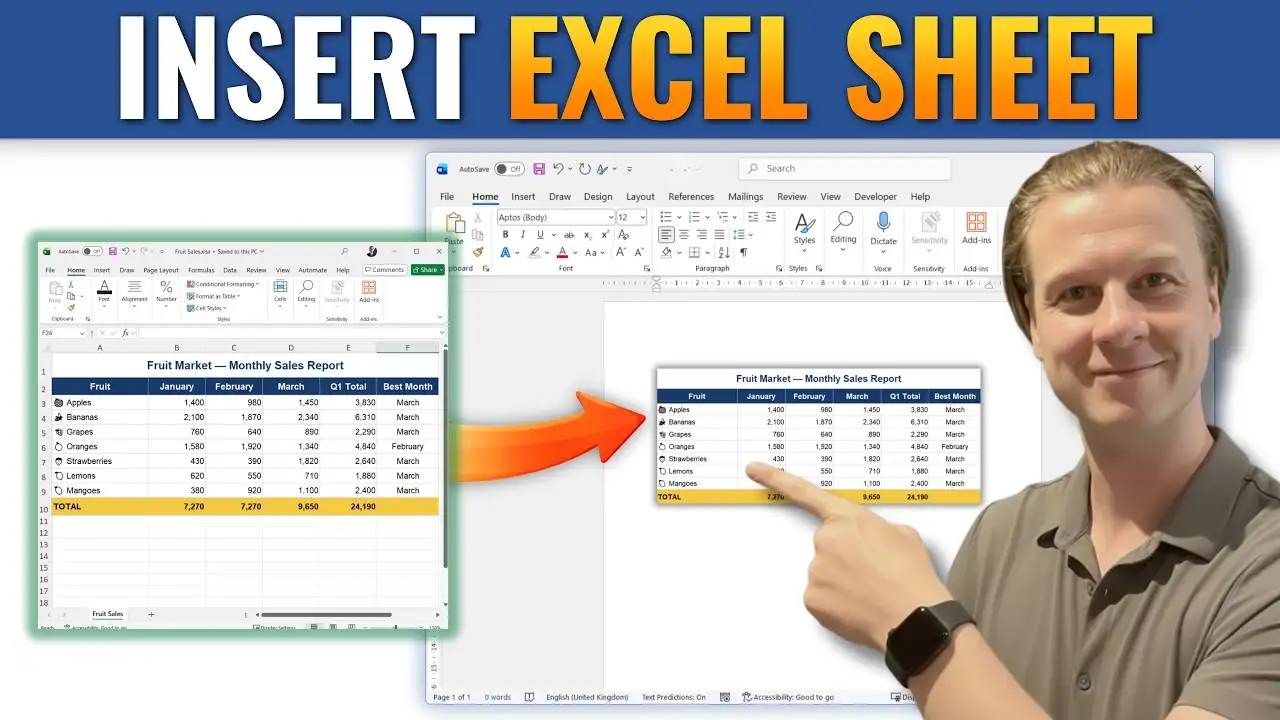
- How To Insert an Excel Sheet or Table in MS Word
- How To Merge Two Tables in Microsoft Word
- How To Delete a Table Row in Microsoft Word

Recent Microsoft Word Tutorials

Looking for more help with Microsoft Word? Browse all step-by-step Word tutorials covering formatting, layout, pages, and document setup.
👉 View all Microsoft Word tutorials: https://wordmadeeasy.org/microsoft-word/
👉 Need more support – check out the official guidance: https://support.microsoft.com/en-au

Prefer watching instead of reading? Many Word tutorials are also available as short, step-by-step videos on the Word Made Easy YouTube channel.














Leave a Reply