Skip to content
Word Made Easy Shop
Home Word Tutorials Word Templates Resources Google Docs PowerPoint Tutorials YouTube Videos
Home Word Tutorials Word Templates Resources Google Docs PowerPoint Tutorials YouTube Videos Shop

How to Put Different Footers on Each Page in Word: 2 Easy Methods

Microsoft Word, Page Layout & Sections

Updated 7 November 2026 · By Patrick Elliott

In Microsoft Word, footers repeat on every page by default. This is fine for simple documents, but it becomes a problem when you need different footers on different pages.

This guide shows you how to correctly add different footers in Word using Different First Page and Section Breaks. This method fixes the issue properly and avoids common mistakes.


Contents hide
1 Why Footers Repeat in Word
2 The Quick Fix: Different First Page
3 Why This Method Has Limitations
4 Understanding Sections in Word
5 How to Put Different Footers on Each Page in Word: 2 Easy Methods
6 Adding a Third (or More) Footer
7 Common Footer Mistakes to Avoid
8 Next Steps
9 FAQs
10 Conclusion
11 Related Tutorials
12 Word Tutorials

Why Footers Repeat in Word

By default, all pages in a Word document belong to the same section.
This means:

  • Footers are linked together
  • Editing one footer changes them all
  • Each page shares the same footer content

To use different footers, each page must start a new section — the same principle applies when you need to insert different page numbers in Microsoft Word, which also relies on section breaks to work correctly.


Watch the Video Tutorial

If you prefer to see this in action, the full video walkthrough is below, showing each method step by step.

Next stepHeader and Footer Shortcuts in Word: 22 Keys (Free PDF)A printable PDF to keep next to your keyboard, free for everyone.See the cheat sheet →

The Quick Fix: Different First Page

If you only need a different footer on the first page, this is the fastest method.

Steps

  1. Go to the first page
  2. Double-click the footer
  3. The Header & Footer tab opens
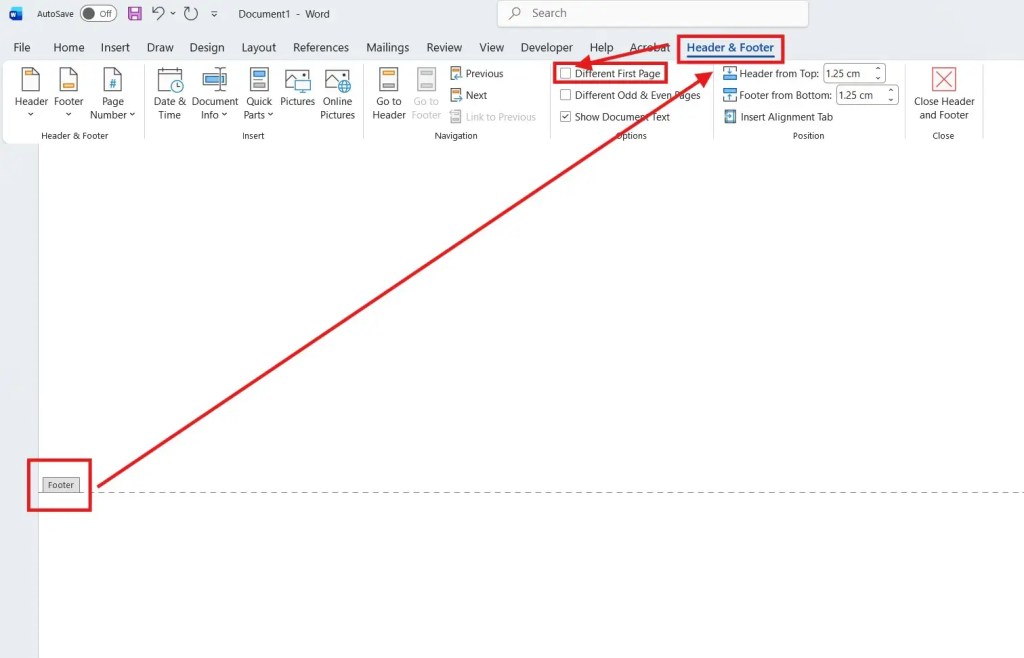
  4. Tick Different First Page
Different footers in Word: Unticking Different First Page in Microsoft Word footer settings

You’ll know it’s enabled because Word displays First Page Footer.
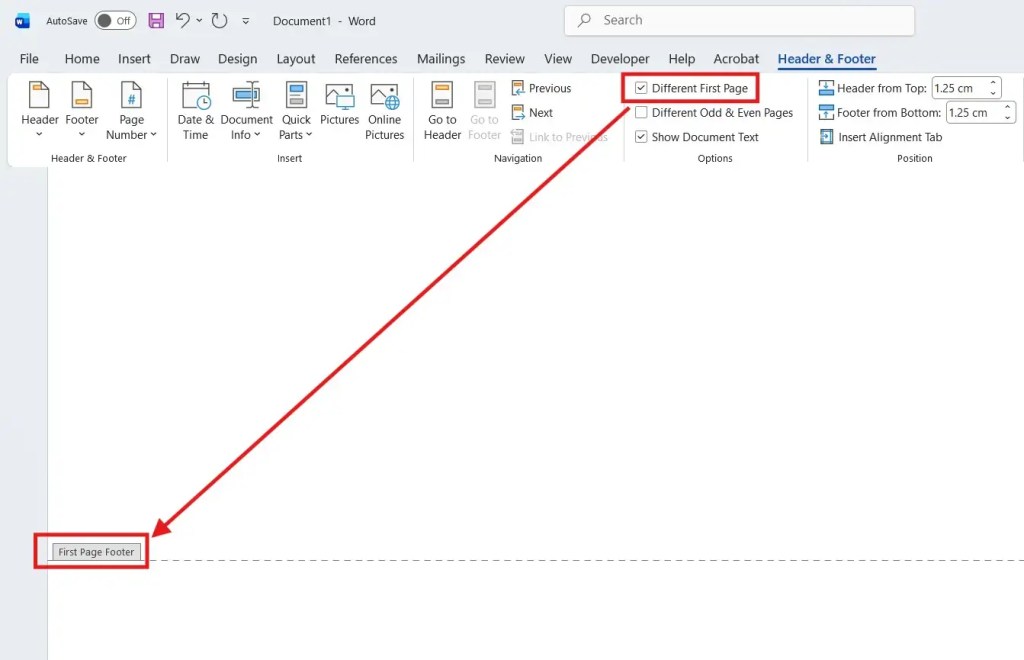
Ticking Different First Page in Microsoft Word footer settings

You can now type a unique footer for page one, and it will not affect the rest of the document.


Why This Method Has Limitations

The Different First Page option only applies to:

  • Page one
  • The rest of the document as a group

If you insert another page later, it will share the same footer as page two.

To give every page its own footer, you must use section breaks.


Understanding Sections in Word

A section controls:

  • Headers
  • Footers
  • Page layout

As long as pages are in the same section, their footers remain linked.

To use different footers, each page must start a new section.


How to Put Different Footers on Each Page in Word: 2 Easy Methods

Step 1: Add a New Section

Follow these steps carefully.

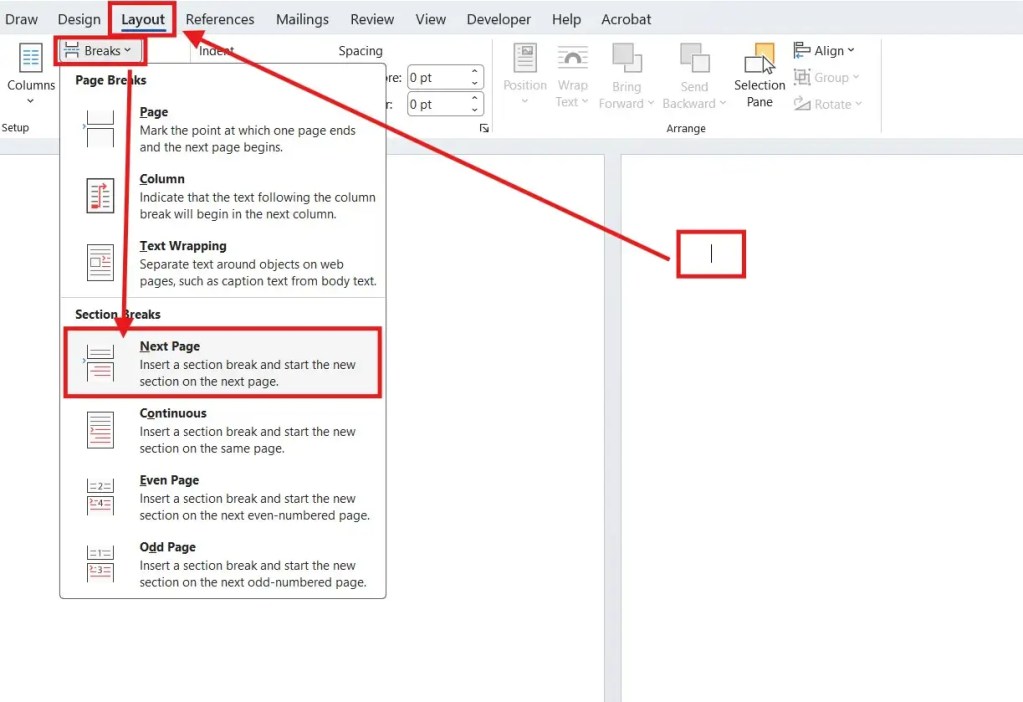
  1. Click on the page that should start the new footer
  2. Go to Layout
  3. Click Breaks
  4. Select Next Page
Inserting a Next Page section break in Microsoft Word layout menu

Word now creates a new section starting on that page — if you want to see exactly where section breaks are placed in your document, you can turn on the Show/Hide formatting marks to make them visible.


Step 2: Unlink Footers Correctly

This is the most important step.

  1. Double-click the footer on the new page
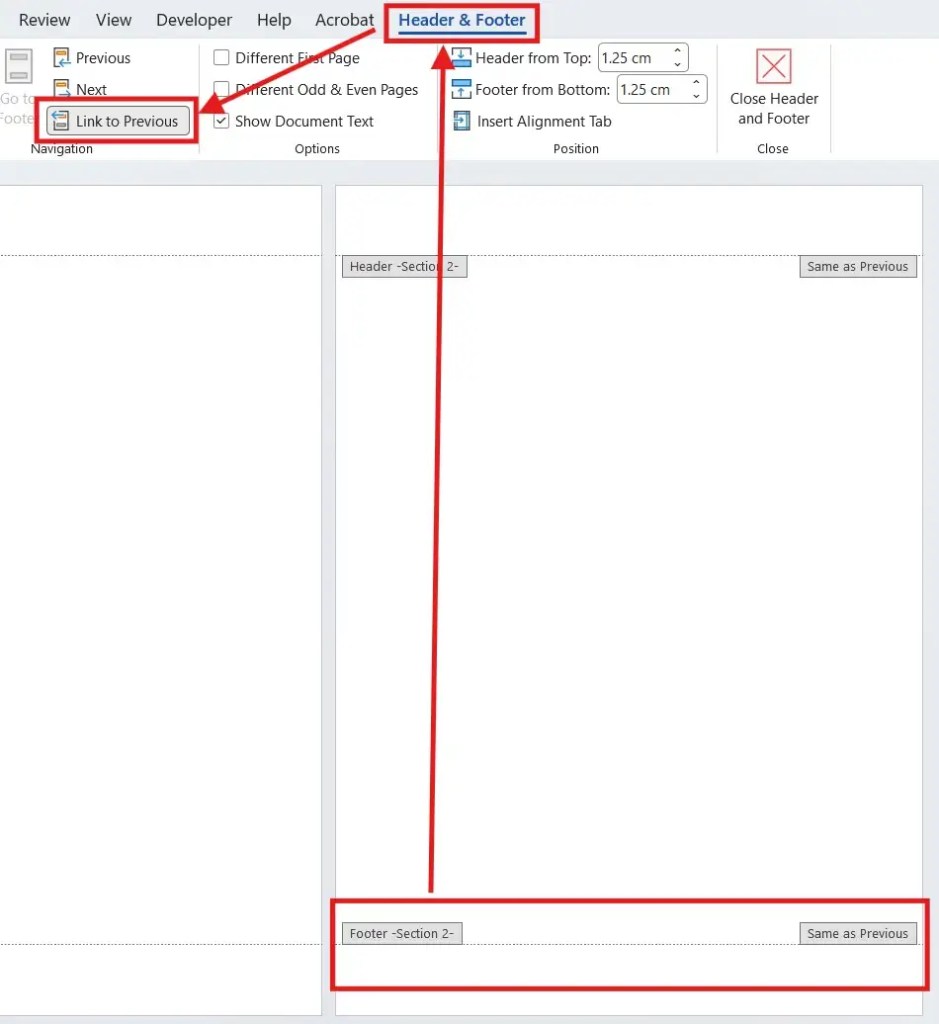
  2. Look for Link to Previous
  3. Click it to turn it off
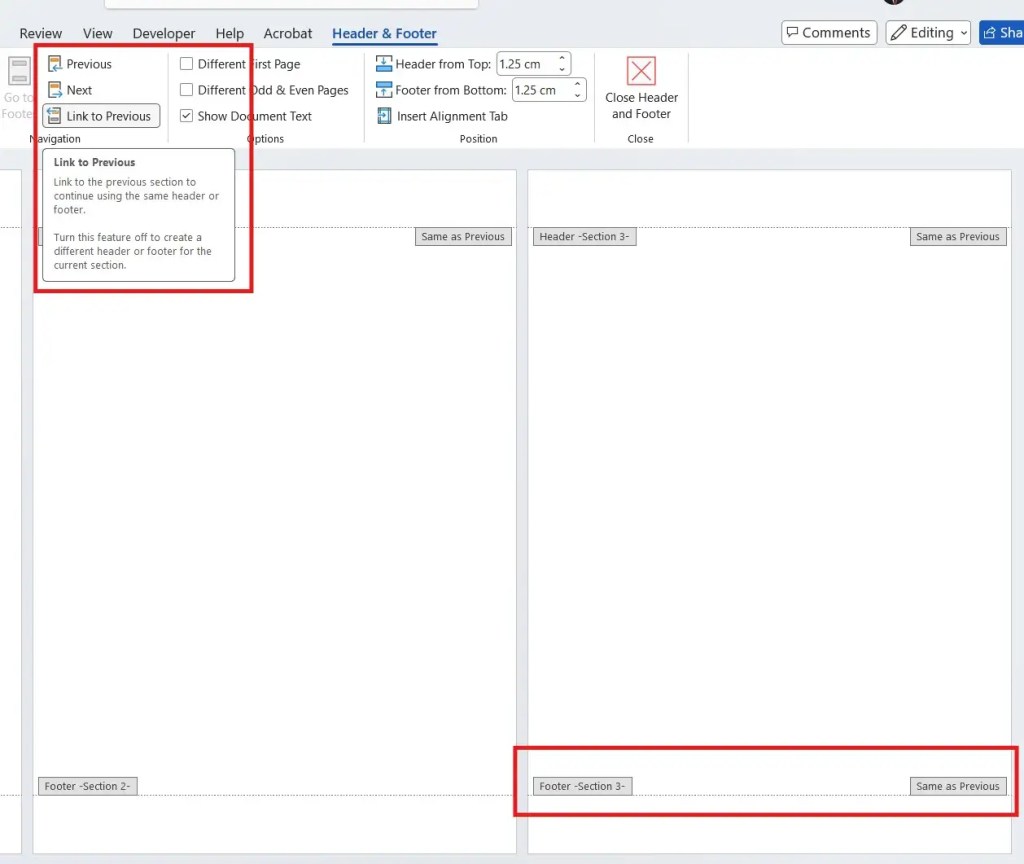
Footer linked to previous section in Microsoft Word showing same footer on multiple pages

You’ll know it’s disabled when Same as Previous disappears.
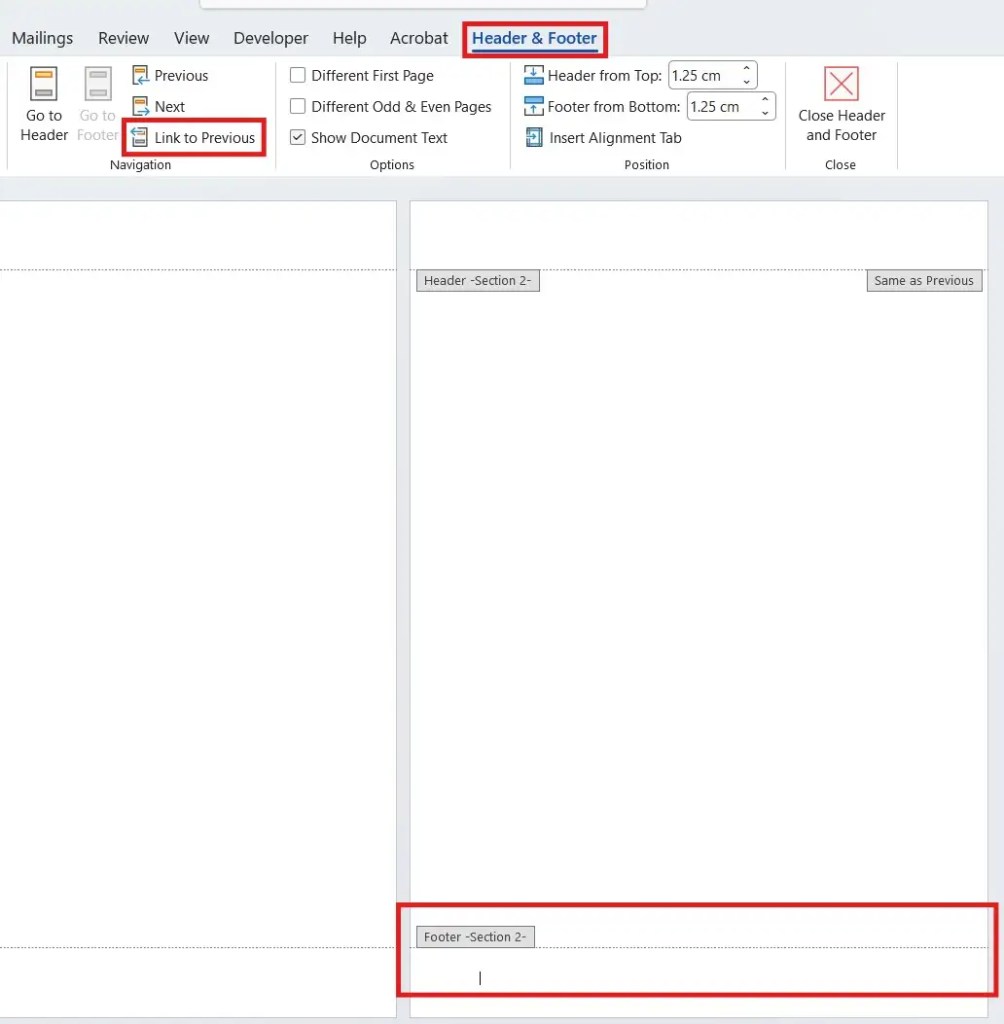
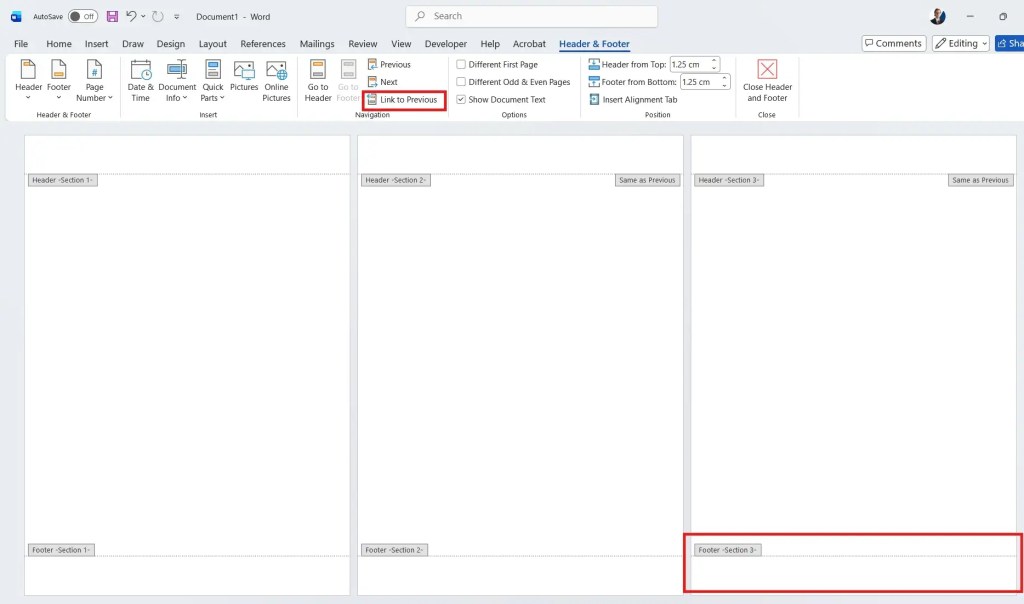
Footer unlinked from previous section in Microsoft Word using Link to Previous

You can now type a new footer without affecting earlier pages.


Adding a Third (or More) Footer

To repeat the process:

  1. Insert a new blank page
  2. Select where the new footer should start
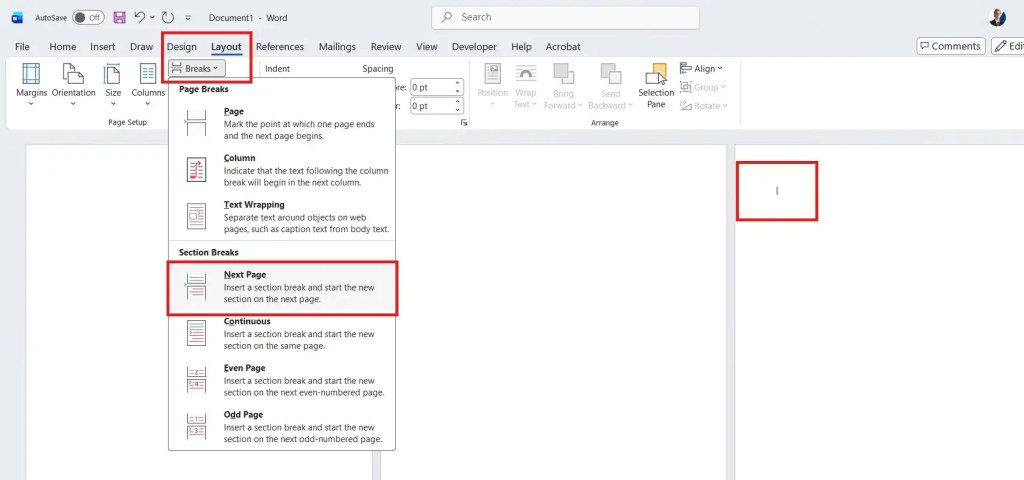
  3. Go to Layout → Breaks → Next Page
  4. Double-click the footer
  5. Turn off Link to Previous
  6. Type the new footer text
Adding a section break before creating a third footer in Microsoft Word
A new section is created to allow a third unique footer.
Third page footer linked to previous section in Microsoft Word
The third page footer is still linked to the previous section.
Third page footer unlinked from previous section in Microsoft Word
The third page now has its own independent footer.

Each section now has its own independent footer.

Three different footers displayed across multiple sections in Microsoft Word
Each section now displays its own unique footer.

Common Footer Mistakes to Avoid

  • Forgetting to turn off Link to Previous
  • Editing the header instead of the footer
  • Assuming Different First Page works for all pages
  • Not checking section numbers

Important: Headers and footers follow separate rules. Always double-click the footer, not the header.

Christmas printables

  • Secret Santa questionnaires
  • Christmas cards
  • Christmas stationery
  • 2027 calendar
  • Free 2027 planner

Next Steps

Once your footers are sorted, these guides help with the rest of the page layout:

  • Section Breaks in Word Explained: Understand the breaks that control layout, numbering and orientation.
  • How to Add a Header on the First Page Only in Word: Keep a cover page clean while the rest of the document has a header.
  • How to Remove Headers and Footers in Word: Clear a footer from one section without touching the others.

FAQs

Why does my footer keep changing on every page?

Your pages are in the same section and the footers are linked.

Can I have a different footer on every page in Word?

Yes. Each page must start a new section, and footers must be unlinked.

What does “Link to Previous” mean?

It means the footer copies content from the previous section.

Do headers and footers behave the same way?

No. Headers and footers are controlled separately and must be edited individually.

Is Different First Page enough for most documents?

Only if you need one unique first-page footer. For multiple footers, use sections.

Will this work in Microsoft 365 and older versions?

Yes. Section breaks and footer linking work in most modern desktop versions of Word.


Conclusion

Adding different footers in Microsoft Word requires more than simply typing new text. Footers repeat because pages share the same section.

By using Section Breaks and disabling Link to Previous, you gain full control over footer content on every page. This method works reliably and prevents formatting issues later.

Once you understand how sections work, managing headers and footers in Word becomes much easier—especially for longer or more complex documents. Sections are also used when you need to rotate a single page in Word without changing the orientation of the rest of the document.

If you’d rather start with a footer that’s already set up, our free letterhead templates for Word keep your company details in the real Word header and footer, so they repeat on every page of a long letter.

Free downloads for this topic

  • Word Page Layout Shortcuts: 27 Essential Keys (Free PDF) Free printable PDF cheat sheet
  • Free Letterhead Templates for Word: Company, School and Personal Free Word templates, ready to download

Related Tutorials

  • How to Insert Different Page Numbers in Microsoft Word
  • How to Remove Formatting Marks in Word
  • Rotate a Single Page in Word

Word Tutorials

Recently Added on Word Made Easy

  • How to Mail Merge Certificates in Word: 7 Easy Steps

    November 12, 2026
  • How to Split a Cell in Word: 2 Easy Methods

    November 11, 2026
  • How to Add Mendeley Citations in Word: 9 Easy Steps

    November 11, 2026

Browse the complete collection for help with formatting, layout, pages, tables, images, and document setup.

View all Word tutorials
Watch on YouTube

For Microsoft support documentation, visit the official Microsoft guidance.

More Word tutorials on this topic

  • How to Add an Image to the Footer in Word: 2 Easy Methods
  • Long Bond Paper Size in Word (8.5 x 13 in): How to Set It in Easy Steps
  • How to Select a Page in Word (Just One Page): 3 Easy Methods
  • How to View Two Pages Side by Side in Word: 2 Easy Methods (Quick Guide)

Comments

2 responses to “How to Put Different Footers on Each Page in Word: 2 Easy Methods”

  1. M Keerthi Nair avatar
    September 25, 2026
    M Keerthi Nair

    thank you

    Loading…
    Reply
    1. Patrick Elliott avatar
      September 27, 2026
      Patrick Elliott

      You are very welcome.

      Loading…
      Reply

Leave a comment Cancel reply

Stuck on a step, or know a quicker way? Ask or share it below.

Meet the Author

Patrick Elliott standing outdoors holding his dog.

I’m Patrick Elliott, the creator of Word Made Easy. I’ve worked in schools for over 10 years and I’m now an Inclusion Lead in the UAE. I use Microsoft Word and PowerPoint every day for planning, documentation and classroom resources.

Every guide is tested step by step before publishing (usually in Microsoft 365), and every free template is one I made myself in Word. You’ll also find practical walkthroughs on my YouTube channel.

Browse

  • Word TutorialsStep-by-step guides for every feature
  • Word Beginners HubFree 12-chapter Word course
  • Word TemplatesFree, editable downloads
  • ResourcesWorksheets, posters and puzzles
  • Word Shortcut Cheat SheetsFree printable PDFs
  • Google Docs TutorialsStep-by-step Docs guides
  • PowerPoint TutorialsClear, simple slide guides
  • YouTube VideosWatch the video walkthroughs

Watch on YouTube

Prefer to watch? Most guides have a short video walkthrough on the Word Made Easy channel.

  • 147videos
  • 1.88Mviews
  • 8,000+subscribers
Subscribe on YouTube

Recently Added

  • Math Brain Teasers: 10 Free Printable Number Puzzles with AnswersNovember 27, 2026
  • Danielson Lesson Plan Template for Word: 4 Free Observation PlansNovember 27, 2026
  • SIOP Lesson Plan Template for Word: 4 Free SIOP-Style PlansNovember 27, 2026
  • edTPA Lesson Plan Template for Word: 4 Free edTPA-Style FormsNovember 27, 2026
  • UbD Template for Word: 4 Free Printable Lesson and Unit PlansNovember 27, 2026

Most Downloaded

  • Free ILAW Lesson Plan Templates for Word: English and Filipino (DO 16, s. 2026)91 downloads in the last 30 days
  • Microsoft Word for Beginners: Free Guide and PDF86 downloads in the last 30 days
  • Free 1×1 and 2×2 Picture Templates for Word: 4 ID Photo Sheets78 downloads in the last 30 days
  • Free Fillable Form Templates for Word: 4 Easy Forms65 downloads in the last 30 days
  • Free Microsoft Word Keyboard Shortcuts Bundle: 18 Cheat Sheets (PDF)55 downloads in the last 30 days

About

  • About Me
  • Contact
  • Shop

Microsoft Word

  • All Word Tutorials
  • Page Layout & Sections
  • Tables, Images & Media
  • Formatting Basics
  • Productivity & Automation
  • Beginners Hub
  • Shortcut Cheat Sheets

Word Templates

  • Business
  • Calendars and Planners
  • Home, Health and Money
  • School and Teacher Forms
  • Cards, Invitations and Labels
  • Paper and Grids
  • Holidays and Seasonal

Resources

  • Phonics and Reading
  • Handwriting
  • Writing
  • Maths
  • Puzzles and Activities
  • Classroom Display
  • Study Packs
  • Seasonal
  • Collections

More Tutorials

  • Google Docs Tutorials
  • PowerPoint Tutorials
  • YouTube Videos

Follow Us

  • YouTube
  • Facebook
  • Pinterest
Privacy Policy Cookie Policy Terms of Use
© 2012–2026 Word Made Easy. All rights reserved.
Manage your privacy

To provide the best experiences, we and our partners use technologies like cookies to store and/or access device information. Consenting to these technologies will allow us and our partners to process personal data such as browsing behavior or unique IDs on this site and show (non-) personalized ads. Not consenting or withdrawing consent, may adversely affect certain features and functions.

Click below to consent to the above or make granular choices. Your choices will be applied to this site only. You can change your settings at any time, including withdrawing your consent, by using the toggles on the Cookie Policy, or by clicking on the manage consent button at the bottom of the screen.

Functional Always active
The technical storage or access is strictly necessary for the legitimate purpose of enabling the use of a specific service explicitly requested by the subscriber or user, or for the sole purpose of carrying out the transmission of a communication over an electronic communications network.
Preferences
The technical storage or access is necessary for the legitimate purpose of storing preferences that are not requested by the subscriber or user.
Statistics
The technical storage or access that is used exclusively for statistical purposes. The technical storage or access that is used exclusively for anonymous statistical purposes. Without a subpoena, voluntary compliance on the part of your Internet Service Provider, or additional records from a third party, information stored or retrieved for this purpose alone cannot usually be used to identify you.
Marketing
The technical storage or access is required to create user profiles to send advertising, or to track the user on a website or across several websites for similar marketing purposes.
Statistics

Marketing

Features
Always active

Special features

Special purposes
Always active

  • Manage options
  • Manage services
  • Manage {vendor_count} vendors
  • Read more about these purposes
Manage options
  • {title}
  • {title}
  • {title}
Manage your privacy
To provide the best experiences, we use technologies like cookies to store and/or access device information. Consenting to these technologies will allow us to process data such as browsing behavior or unique IDs on this site. Not consenting or withdrawing consent, may adversely affect certain features and functions.
Functional Always active
The technical storage or access is strictly necessary for the legitimate purpose of enabling the use of a specific service explicitly requested by the subscriber or user, or for the sole purpose of carrying out the transmission of a communication over an electronic communications network.
Preferences
The technical storage or access is necessary for the legitimate purpose of storing preferences that are not requested by the subscriber or user.
Statistics
The technical storage or access that is used exclusively for statistical purposes. The technical storage or access that is used exclusively for anonymous statistical purposes. Without a subpoena, voluntary compliance on the part of your Internet Service Provider, or additional records from a third party, information stored or retrieved for this purpose alone cannot usually be used to identify you.
Marketing
The technical storage or access is required to create user profiles to send advertising, or to track the user on a website or across several websites for similar marketing purposes.
Statistics

Marketing

Features
Always active

Special features

Special purposes
Always active

  • Manage options
  • Manage services
  • Manage {vendor_count} vendors
  • Read more about these purposes
Manage options
  • {title}
  • {title}
  • {title}
%d
    Request