
Section breaks in Word split a document into parts that can each have their own layout: different margins, a landscape page, two columns, or new headers and page numbers. A page break only starts a new page; a section break starts a new set of page settings, which is how you rotate one page in Word without turning the rest.
In this guide, you’ll learn what each of the four section breaks does, which one to choose, how to see them and how to delete one without losing your layout. Everything here applies to Word for Windows in Microsoft 365, Word 2021, 2019 and 2016.
What a Section Break Controls
Each section has its own page setup. Change any of these in one section and the others stay as they were:
- Margins, orientation and paper size
- Columns
- Headers, footers and page numbering
- Line numbers and vertical alignment
How to Insert a Section Break
Steps:
- Click where the new section should start.
- Go to the Layout tab and click Breaks.
- Under Section Breaks, choose Next Page, Continuous, Even Page or Odd Page.
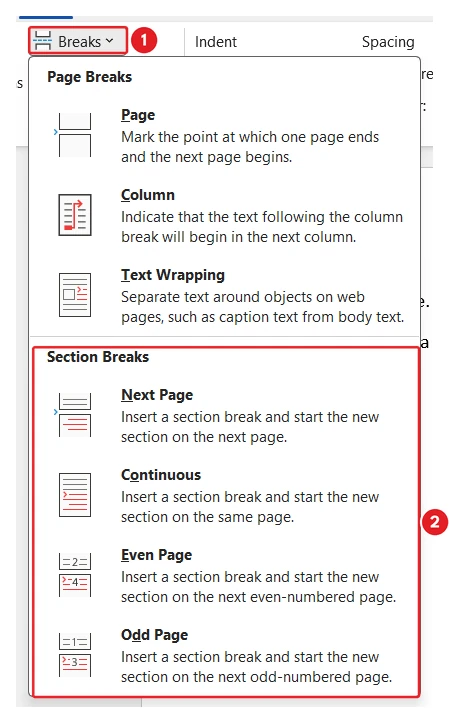
👉 From the keyboard, press Alt, P, B, N for Next Page or Alt, P, B, O for Continuous — press each key in turn.
The Four Types of Section Break
| Type | Where the new section starts | Use it for |
|---|---|---|
| Next Page | On the next page | New chapters, a landscape page, a new page-number style |
| Continuous | On the same page | Switching to two columns part-way down a page |
| Even Page | On the next even-numbered page | Printed books where a part must start on a left-hand page |
| Odd Page | On the next odd-numbered page | Chapters that must start on a right-hand page |
Next Page
The most common break. The new section begins at the top of the next page, so you can change its orientation, margins or page numbers freely.
Continuous
The new section begins straight away on the same page. Use it to put a heading across the page and columns underneath, like a newsletter.
Even Page and Odd Page
These start the new section on the next even or odd page. If that means skipping a page, Word adds a blank one: in our test, an Odd Page break at the end of page 1 started the next section on page 3, with a blank page 2. An Even Page break on page 1 simply went to page 2.
👉 Use Odd Page for books and theses printed double-sided, where every chapter should open on the right.
How to See Section Breaks in Word
Section breaks are invisible until you show formatting marks. Press Ctrl + Shift + 8 or click the ¶ button on the Home tab, and each break appears as a dotted line labelled with its type.

How to Delete Section Breaks in Word
Steps:
- Press Ctrl + Shift + 8 to show formatting marks.
- Click just before the section break line.
- Press Delete.
👉 The section break holds the layout of the section above it. When you delete it, the text above takes on the layout of the section below — so a landscape page can suddenly turn portrait. Undo with Ctrl + Z if that happens.
Common Section Break Problems
- A header change appears in every section: the sections are linked. Double-click the header and turn off Link to Previous — see different footers on different pages.
- An unexpected blank page: an Odd Page or Even Page break is skipping a page. Change it to Next Page from Layout > Page Setup > Layout > Section start.
- A page break will not go away: it may be a section break instead; see how to remove a page break in Word.
FAQs
What is the difference between a page break and a section break?
A page break only moves text to a new page. A section break starts a new section that can have its own margins, orientation, columns, headers and page numbers.
Which section break should I use for a landscape page?
Next Page. Put one before and one after the page, then change only that section to landscape.
What does a continuous section break do?
It starts a new section on the same page, so you can change the layout, such as the number of columns, part-way down a page.
Why did Word add a blank page?
An Odd Page or Even Page section break makes the next section start on an odd or even page, so Word inserts a blank page when it has to.
How do I see section breaks in Word?
Press Ctrl + Shift + 8 to show formatting marks. Each section break appears as a labelled dotted line.
Why did my layout change when I deleted a section break?
The break stores the layout of the section before it. Deleting it merges that text into the next section, which takes over.
Conclusion
Section breaks in Word are what let one document hold different layouts. Next Page covers most jobs, Continuous handles columns, and Even and Odd Page keep printed chapters on the right side.
Show formatting marks while you work so you can see every break, and for numbering that changes by section, see how to insert different page numbers in Word.
Related Tutorials
- How to Insert Different Page Numbers in Word
- How to Rotate One Page in Word
- Different Footers on Different Pages
Word Tutorials
Recent Microsoft Word Tutorials
Browse the complete collection for help with formatting, layout, pages, tables, images, and document setup.
For Microsoft support documentation, visit the official Microsoft guidance.
Leave a Reply