Skip to content
Word Made Easy
Home Word Tutorials PowerPoint Tutorials YouTube Videos

Different Footers on Different Pages

Microsoft Word, Page Layout & Sections

When working in Microsoft Word, footers often repeat on every page by default. This is fine for simple documents, but it becomes a problem when you need different footers on different pages.

This guide shows you how to correctly add different footers in Word using Different First Page and Section Breaks. This method fixes the issue properly and avoids common mistakes.


Contents hide
1 Why Footers Repeat in Word
2 The Quick Fix: Different First Page
3 Why This Method Has Limitations
4 Understanding Sections in Word
5 Different Footers on Different Pages
6 Adding a Third (or More) Footer
7 Common Footer Mistakes to Avoid
8 FAQs
9 Conclusion
10 Word Tutorials

Why Footers Repeat in Word

By default, all pages in a Word document belong to the same section.
This means:

  • Footers are linked together
  • Editing one footer changes them all
  • Each page shares the same footer content

To use different footers, each page must start a new section — the same principle applies when you need to insert different page numbers in Microsoft Word, which also relies on section breaks to work correctly.


Watch the Video Tutorial

If you prefer to see this in action, the full video walkthrough is below, showing each method step by step.


The Quick Fix: Different First Page

If you only need a different footer on the first page, this is the fastest method.

Steps

  1. Go to the first page
  2. Double-click the footer
  3. The Header & Footer tab opens
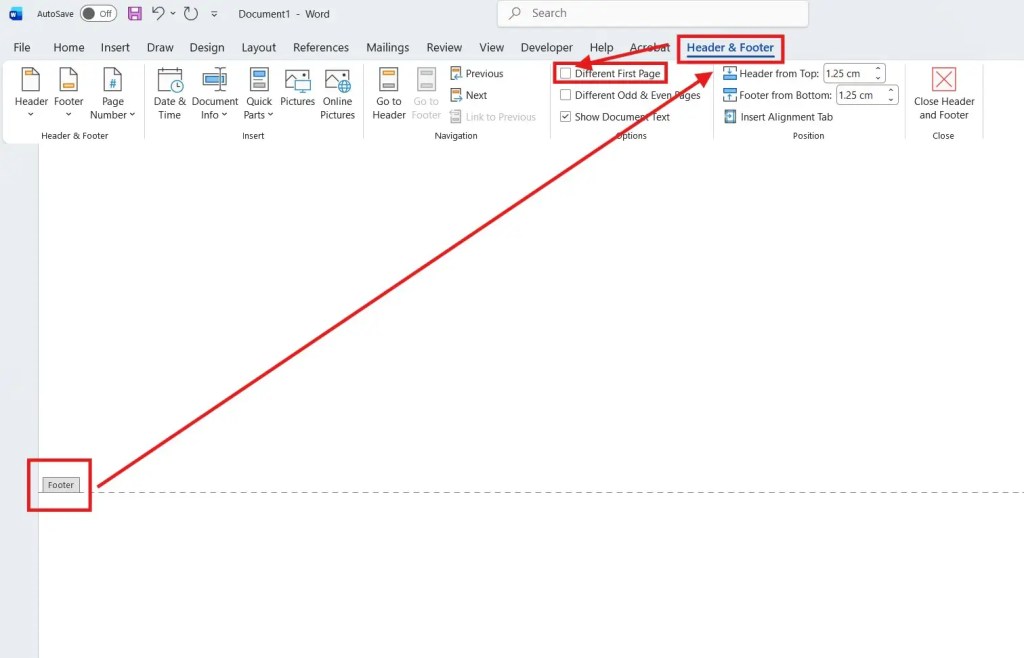
  4. Tick Different First Page
Unticking Different First Page in Microsoft Word footer settings

You’ll know it’s enabled because Word displays First Page Footer.
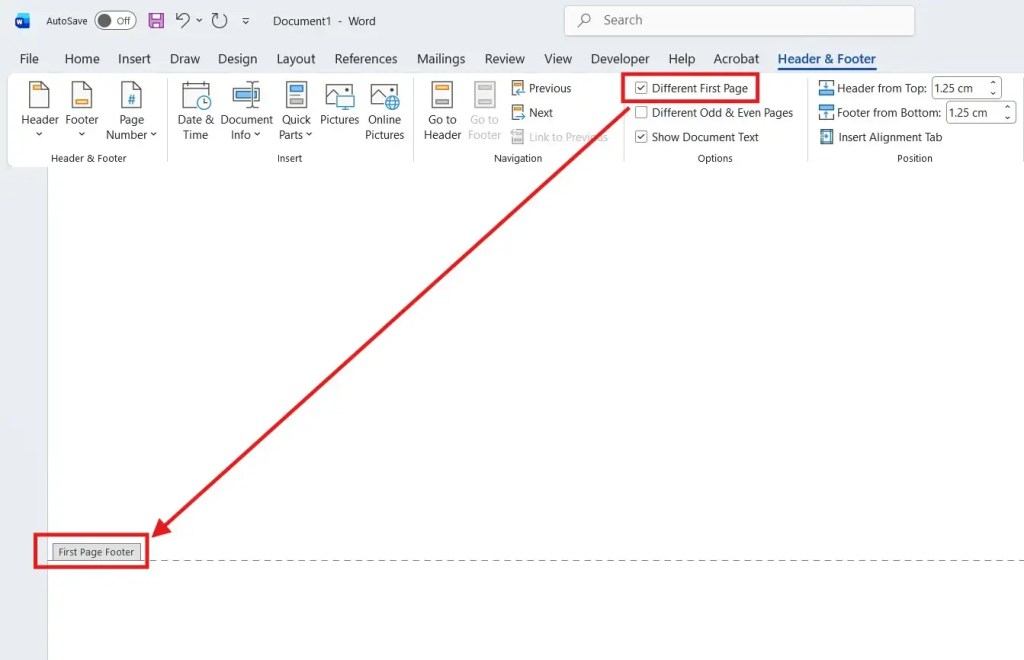
Ticking Different First Page in Microsoft Word footer settings

You can now type a unique footer for page one, and it will not affect the rest of the document.


Why This Method Has Limitations

The Different First Page option only applies to:

  • Page one
  • The rest of the document as a group

If you insert another page later, it will share the same footer as page two.

To give every page its own footer, you must use section breaks.


Understanding Sections in Word

A section controls:

  • Headers
  • Footers
  • Page layout

As long as pages are in the same section, their footers remain linked.

To use different footers, each page must start a new section.


Different Footers on Different Pages

Step 1: Add a New Section

Follow these steps carefully.

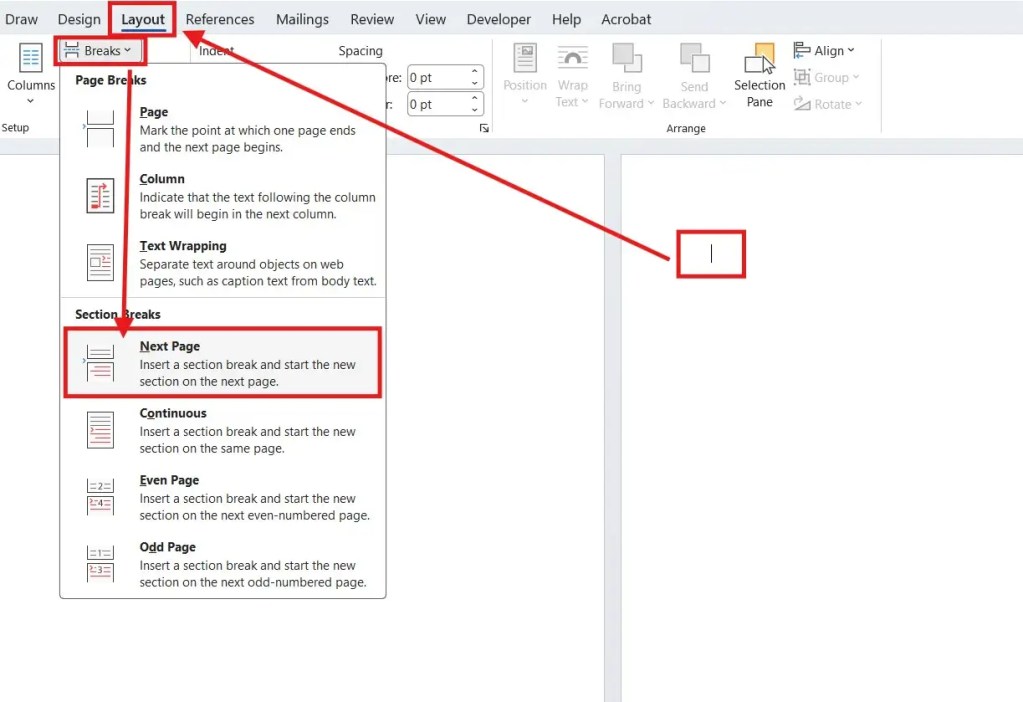
  1. Click on the page that should start the new footer
  2. Go to Layout
  3. Click Breaks
  4. Select Next Page
Inserting a Next Page section break in Microsoft Word layout menu

Word now creates a new section starting on that page — if you want to see exactly where section breaks are placed in your document, you can turn on the Show/Hide formatting marks to make them visible.


Step 2: Unlink Footers Correctly

This is the most important step.

  1. Double-click the footer on the new page
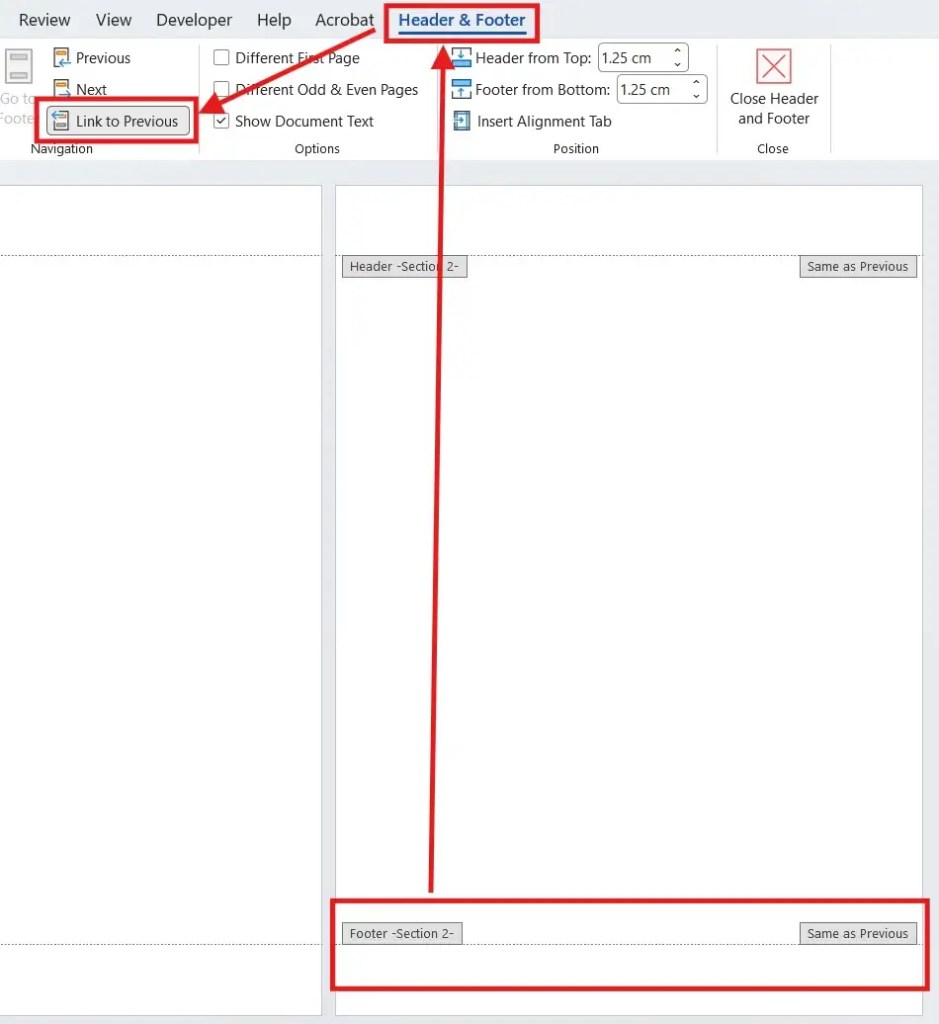
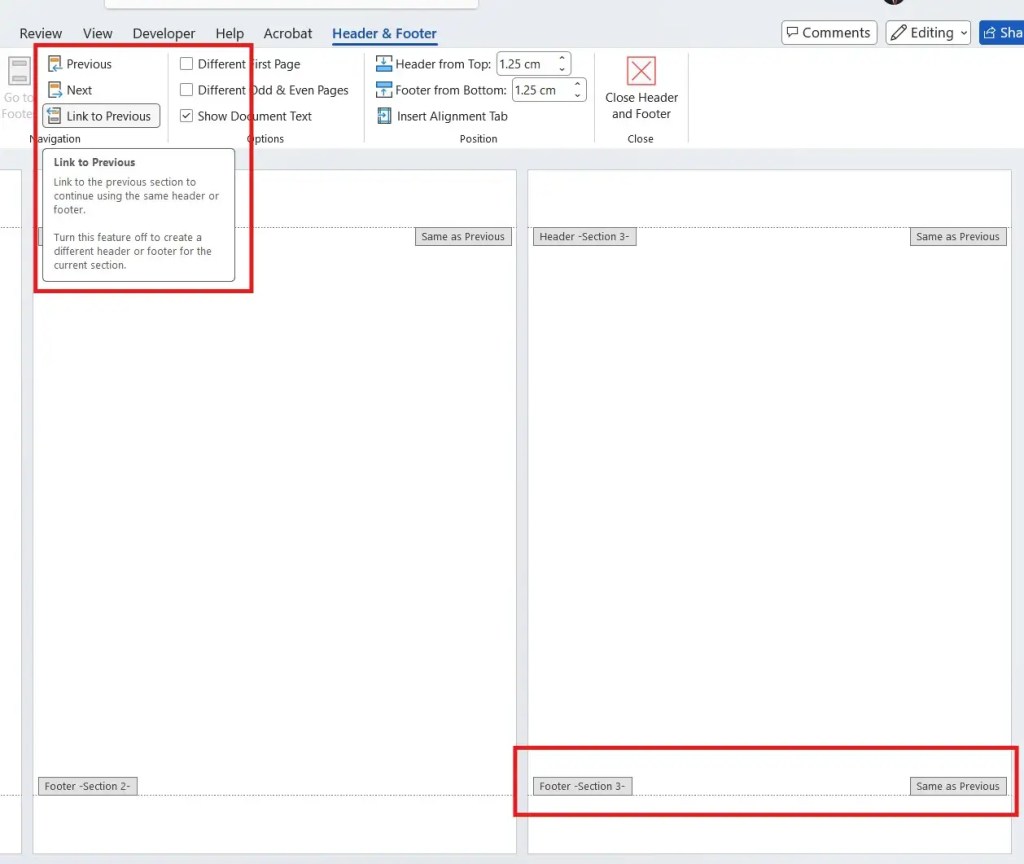
  2. Look for Link to Previous
  3. Click it to turn it off
Footer linked to previous section in Microsoft Word showing same footer on multiple pages

You’ll know it’s disabled when Same as Previous disappears.
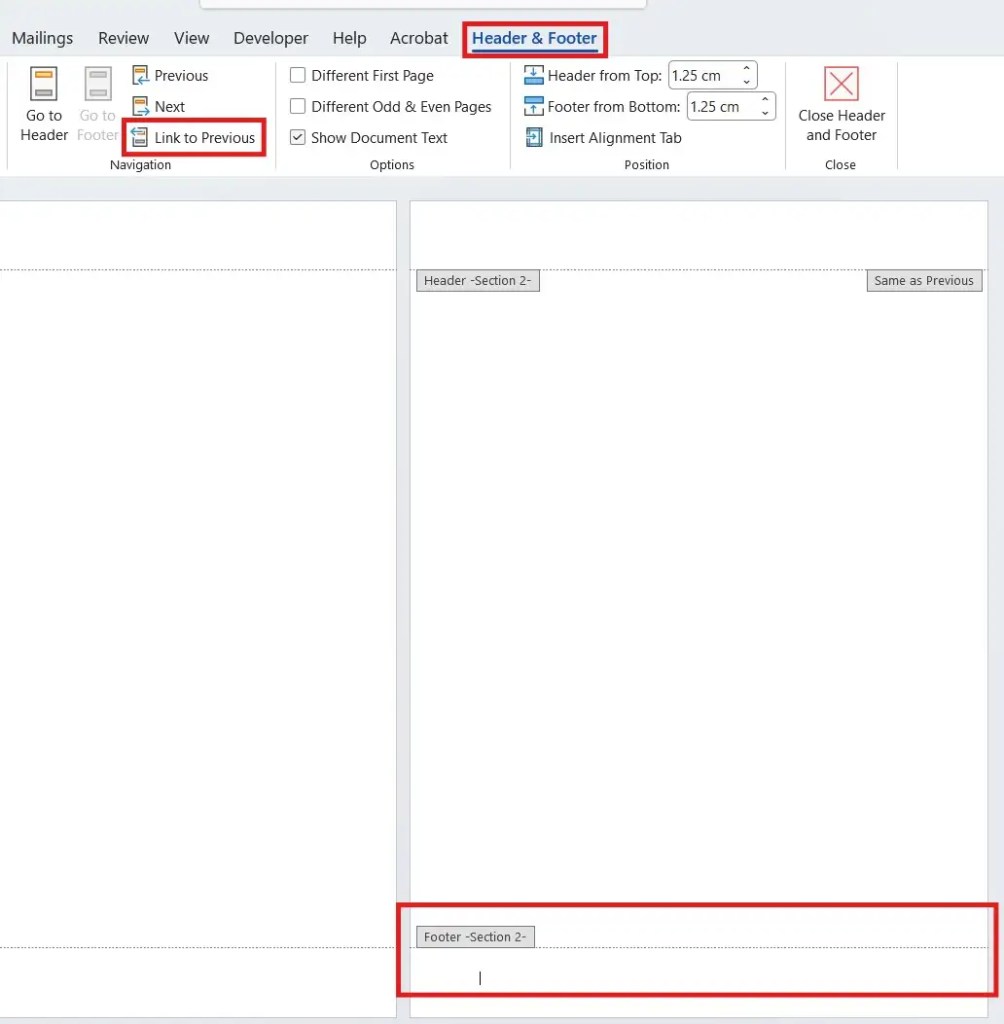
Footer unlinked from previous section in Microsoft Word using Link to Previous

You can now type a new footer without affecting earlier pages.


Adding a Third (or More) Footer

To repeat the process:

  1. Insert a new blank page
  2. Select where the new footer should start
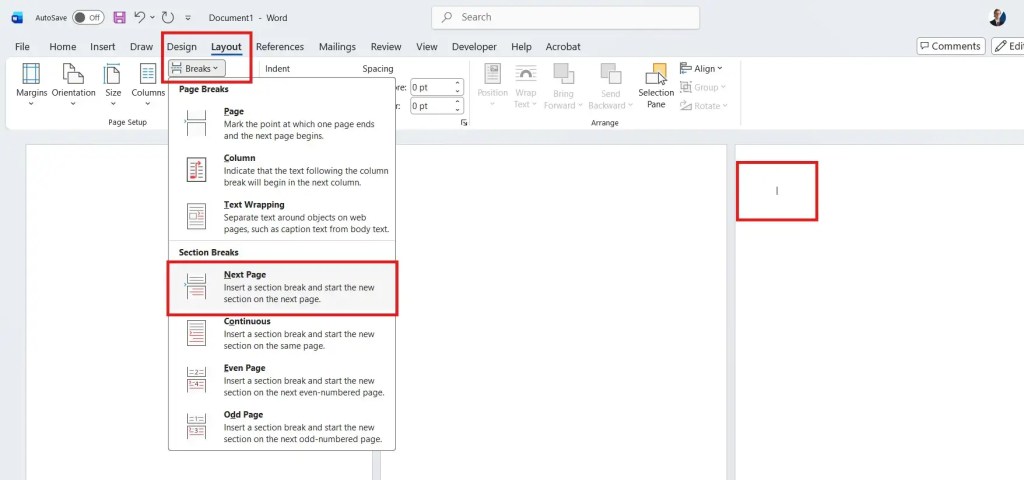
  3. Go to Layout → Breaks → Next Page
  4. Double-click the footer
  5. Turn off Link to Previous
  6. Type the new footer text
Adding a section break before creating a third footer in Microsoft Word
A new section is created to allow a third unique footer.
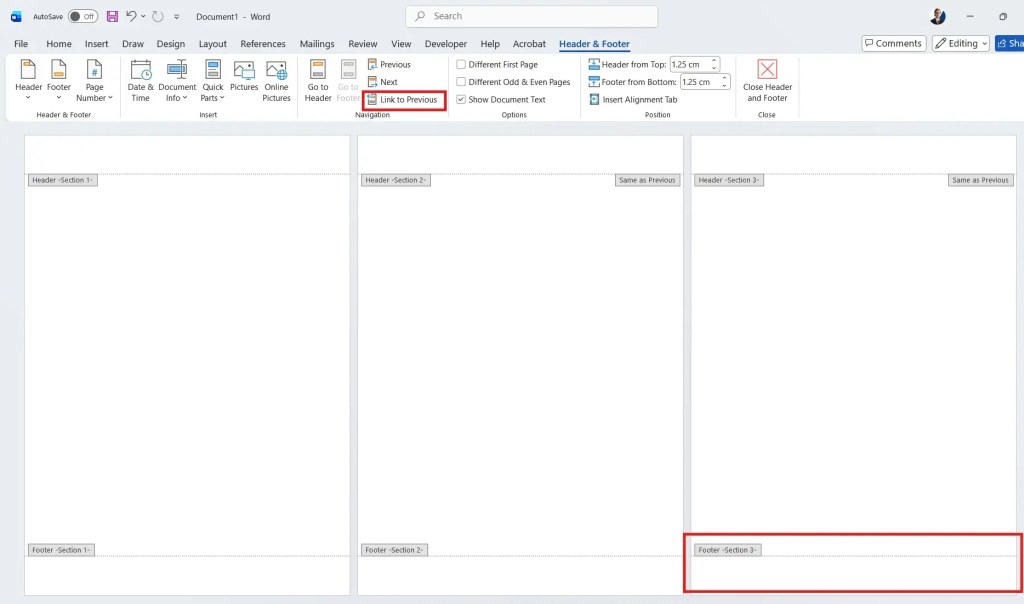
Third page footer linked to previous section in Microsoft Word
The third page footer is still linked to the previous section.
Third page footer unlinked from previous section in Microsoft Word
The third page now has its own independent footer.

Each section now has its own independent footer.

Three different footers displayed across multiple sections in Microsoft Word
Each section now displays its own unique footer.

Common Footer Mistakes to Avoid

  • Forgetting to turn off Link to Previous
  • Editing the header instead of the footer
  • Assuming Different First Page works for all pages
  • Not checking section numbers

Important: Headers and footers follow separate rules. Always double-click the footer, not the header.


FAQs

Why does my footer keep changing on every page?

Your pages are in the same section and the footers are linked.

Can I have a different footer on every page in Word?

Yes. Each page must start a new section, and footers must be unlinked.

What does “Link to Previous” mean?

It means the footer copies content from the previous section.

Do headers and footers behave the same way?

No. Headers and footers are controlled separately and must be edited individually.

Is Different First Page enough for most documents?

Only if you need one unique first-page footer. For multiple footers, use sections.

Will this work in Microsoft 365 and older versions?

Yes. Section breaks and footer linking work in most modern desktop versions of Word.


Conclusion

Adding different footers in Microsoft Word requires more than simply typing new text. Footers repeat because pages share the same section.

By using Section Breaks and disabling Link to Previous, you gain full control over footer content on every page. This method works reliably and prevents formatting issues later.

Once you understand how sections work, managing headers and footers in Word becomes much easier—especially for longer or more complex documents. Sections are also used when you need to rotate a single page in Word without changing the orientation of the rest of the document.


Related Tutorials

  • How to Insert Different Page Numbers in Microsoft Word
  • How to Remove Formatting Marks in Word
  • Rotate a Single Page in Word

Word Tutorials

Recent Microsoft Word Tutorials

  • 18 Free Pastel Cornell Notes Templates for Word

    September 26, 2026
  • How to View Two Pages Side by Side in Word: 2 Easy Methods (Quick Guide)

    August 29, 2026
  • Open Two Documents Side by Side in Word: 2 Easy Steps (Quick Guide)

    August 29, 2026

Browse the complete collection for help with formatting, layout, pages, tables, images, and document setup.

View all Word tutorials
Watch on YouTube

For Microsoft support documentation, visit the official Microsoft guidance.

Like this:

Like Loading…
Header and footer microsoft word section breaks Word footers word formatting word layout Word sections word tips Word tutorials
←How to Align Text in Word: 4 Easy Ways (Quick Guide)
How to Indent in Word: 3 Easy Methods (Quick Guide)→

Comments

2 responses to “Different Footers on Different Pages”

  1. M Keerthi Nair avatar
    September 25, 2026
    M Keerthi Nair

    thank you

    Loading…
    Reply
    1. Patrick Elliott avatar
      September 27, 2026
      Patrick Elliott

      You are very welcome.

      Loading…
      Reply

Leave a ReplyCancel reply

Meet the Author

Patrick Elliott standing outdoors holding his dog.

I’m Patrick Elliott, the creator of Word Made Easy. I’m an educator and Inclusion Lead, and I use Microsoft Word and PowerPoint daily for planning, documentation, and classroom resources.

Every guide is tested step-by-step before publishing (usually in Microsoft 365). You’ll also find practical walkthroughs on my YouTube channel.

More:About me.Contact.YouTube

Explore More

  • Word Tutorials
  • PowerPoint Tutorials
  • YouTube Videos

YouTube

Recent Tutorials

  • 18 Free Pastel Cornell Notes Templates for WordSeptember 26, 2026
  • How to View Two Pages Side by Side in Word: 2 Easy Methods (Quick Guide)August 29, 2026
  • Open Two Documents Side by Side in Word: 2 Easy Steps (Quick Guide)August 29, 2026
  • How to Open Word in Safe Mode: 2 Easy Methods (Quick Guide)August 29, 2026
  • How to Replace Text in Word: 2 Easy Methods (Quick Guide)August 29, 2026
Word Made Easy

Explore

  • →Home
  • →Word Tutorials
  • →PowerPoint Tutorials
  • →YouTube Videos

Categories

  • →Page Layout & Sections
  • →Tables, Images & Media
  • →Word Formatting Basics
  • →Word Productivity & Automation

Author

  • →About Me
  • →Contact
  • →YouTube
Privacy Policy Cookie Policy Terms of Use
© 2012–2026 Word Made Easy. Content is protected.
Your privacy choices

We use cookies and similar technologies to make this site work, understand how it is used, and show relevant content and advertising. You can accept all cookies, deny non-essential cookies, or manage your preferences. You can change your choice at any time.

Functional Always active
The technical storage or access is strictly necessary for the legitimate purpose of enabling the use of a specific service explicitly requested by the subscriber or user, or for the sole purpose of carrying out the transmission of a communication over an electronic communications network.
Preferences
The technical storage or access is necessary for the legitimate purpose of storing preferences that are not requested by the subscriber or user.
Statistics
The technical storage or access that is used exclusively for statistical purposes. The technical storage or access that is used exclusively for anonymous statistical purposes. Without a subpoena, voluntary compliance on the part of your Internet Service Provider, or additional records from a third party, information stored or retrieved for this purpose alone cannot usually be used to identify you.
Marketing
The technical storage or access is required to create user profiles to send advertising, or to track the user on a website or across several websites for similar marketing purposes.
  • Manage options
  • Manage services
  • Manage {vendor_count} vendors
  • Read more about these purposes
Manage preferences
  • {title}
  • {title}
  • {title}

Discover more from Word Made Easy

Subscribe now to keep reading and get access to the full archive.

Continue reading

Loading Comments...
%d