
If you need to remove watermark in Word — whether it’s a “Draft”, “Confidential” or “Sample” label — there are two reliable ways to do it, and the right one depends on how the watermark was added in the first place. This guide pairs with our companion tutorial on how to add a watermark in Microsoft Word, so you can switch between adding and removing them with confidence.
In this guide, you’ll learn the standard Design tab method, the advanced header fix for stubborn image watermarks, and how to spot which type you’re dealing with in seconds.
Why Watermarks Don’t Always Remove Easily
Most watermarks are added using Microsoft Word’s built-in Design tab feature, which makes them easy to remove with a single click. The trouble starts when someone has inserted the watermark manually as an image inside the header — at that point the standard removal option does nothing.
Here’s why the standard fix sometimes fails:
- The watermark was inserted as an image inside the header, not through the Watermark gallery
- The “Remove Watermark” button only clears watermarks added through the Design tab
- Image-based watermarks sit behind the document and have to be deleted from the header layer directly
Once you know which type you’re dealing with, the fix takes under ten seconds.
Watch the Video Tutorial
If you prefer to see this in action, the full video walkthrough is below, showing each method step by step.
How to Remove Watermark in Word: Step-by-Step
Both methods below take seconds once you know which one applies. Try Method 1 first — it handles roughly 90% of cases — and fall back to Method 2 only if the watermark refuses to disappear.
Method 1: How to Remove Watermark in Word from the Design Tab
This is the standard route and works on any watermark that was originally added through the built-in gallery.
Steps:
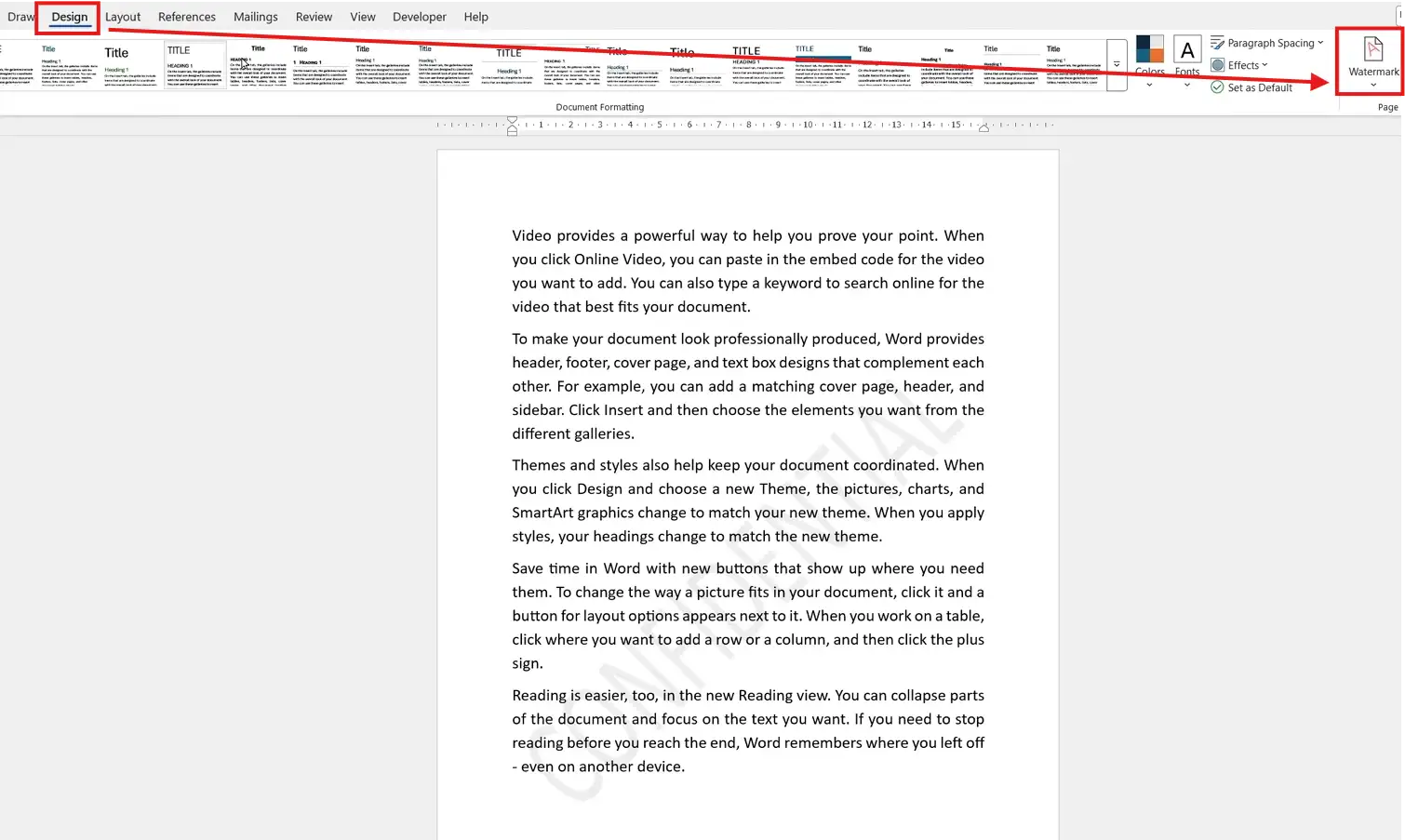
- Open your document and click the Design tab on the ribbon
- Click the Watermark button on the far right
- Select Remove Watermark from the dropdown menu
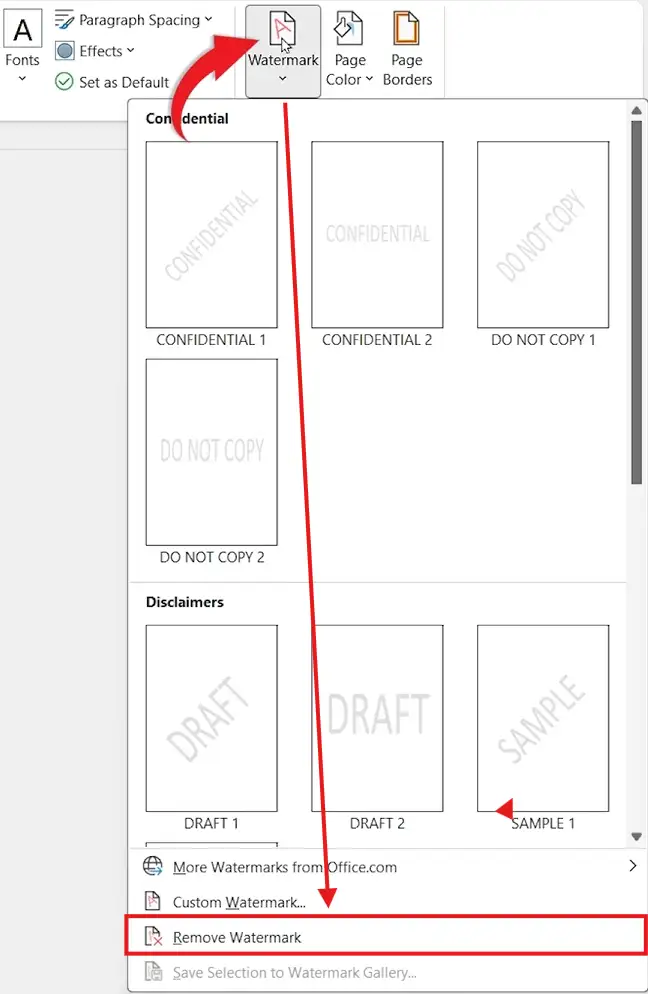
👉 The watermark disappears instantly across every page of the document.
Method 2: How to Remove Watermark in Word from the Header (Advanced Fix)
If Method 1 does nothing, the watermark is almost certainly an image sitting inside the header layer — you’ll need to delete it from there directly. For a deeper look at editing the header area, see the guide on how to remove headers and footers in Microsoft Word.
Steps:
- Double-click at the top of the page to open the header area
- Click the watermark image to select it (you’ll see the selection handles appear)
- Press Delete on your keyboard
- Click Close Header and Footer on the ribbon to return to your document
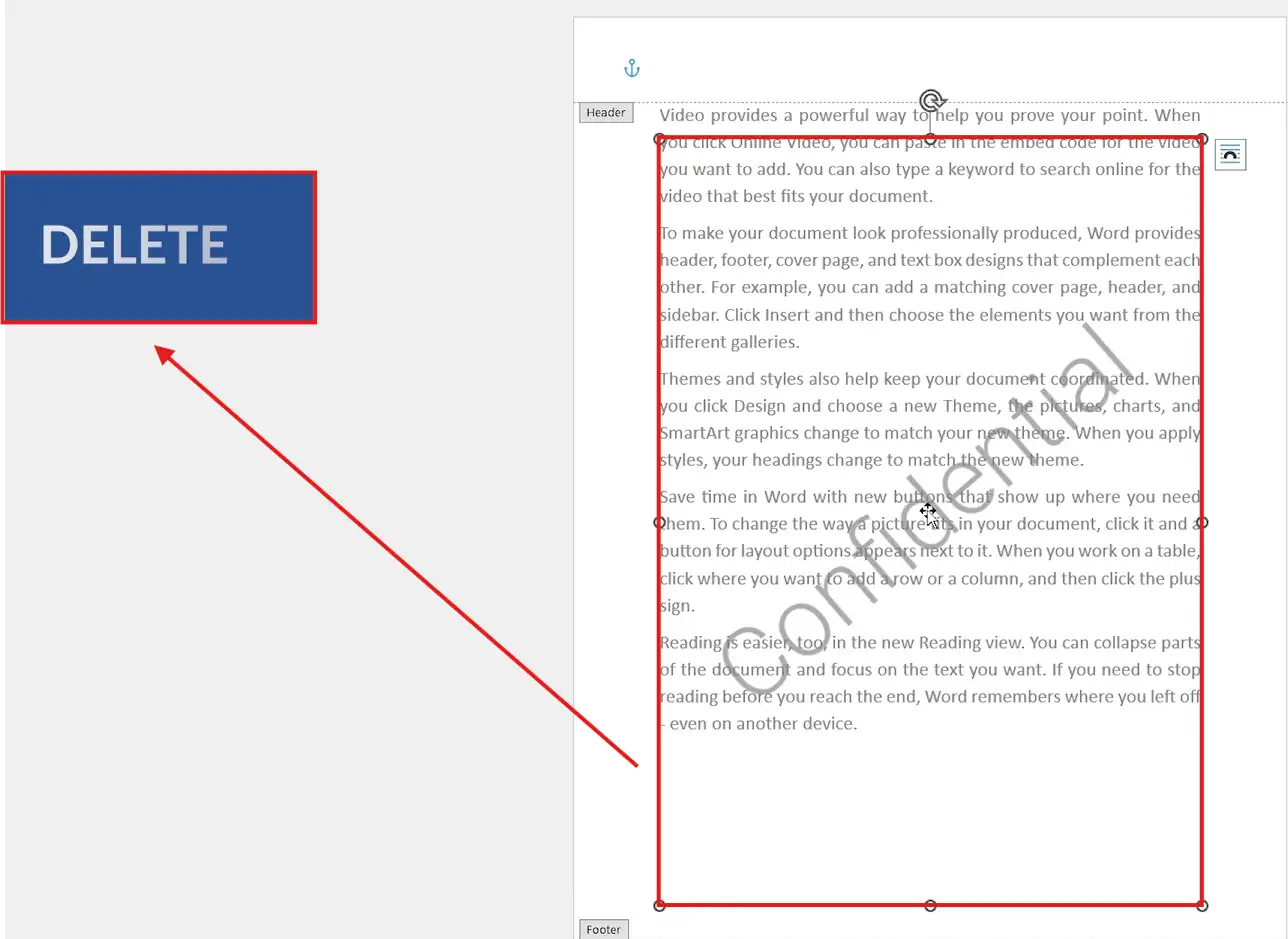
👉 This clears any image-based watermark that the standard “Remove Watermark” option leaves behind.
Which Method Should You Use?
| Method | Best For | Speed | Difficulty |
|---|---|---|---|
| Method 1: Design Tab | Standard watermarks added through the gallery | Instant | Beginner |
| Method 2: Header Fix | Image watermarks that ignore Method 1 | About 10 seconds | Beginner |
Always try Method 1 first. If nothing happens, move straight to Method 2.
Common Problems When Removing Watermarks in Word
The watermark appears on every page and won’t go away
This almost always means the watermark is anchored in the header. Open the header (double-click the top of any page), select the image, and press Delete.
“Remove Watermark” is greyed out or does nothing
The button only works on watermarks added through the Design tab gallery. Anything inserted manually has to be deleted from the header layer.
I can’t click on the watermark to select it
You need to be inside the header layer for the image to become selectable — the same principle applies to background images covered in how to make an image transparent in Word.
I only want to remove the watermark from one page
You’ll need to insert a section break before that page, then unlink the header so the change doesn’t cascade through the rest of the document.
Pro Tips
- Press Ctrl + Z immediately if the wrong element gets deleted from the header
- If the header contains both a logo and a watermark, click carefully — the watermark sits behind the text but in front of the page colour
- Watermarks that come from a template can be locked — check the Restrict Editing pane under the Review tab if Method 2 also fails
- If the watermark is actually a placed image you intended to keep visible — see the guide on how to insert a picture in Word before deleting it
FAQs
How do I remove a watermark in Word quickly?
To remove watermark in Word quickly, go to the Design tab, click Watermark, and choose Remove Watermark. This clears any watermark added through the built-in gallery in one click.
Why won’t my watermark delete in Word?
The most common reason is that the watermark was inserted as an image inside the header rather than through the Watermark gallery. You’ll need to open the header and delete it manually.
Can I remove a watermark from only one page in Word?
Yes, but it requires section breaks. Insert a section break before the page, unlink the header, then delete the watermark from that section only.
How do I remove a “Draft” or “Confidential” watermark?
Both are removed the same way. Try Design → Watermark → Remove Watermark first. If the watermark stays, it’s an image — open the header, click the image, and press Delete.
Will removing a watermark affect my document formatting?
No. Watermarks live in the header layer behind your content, so removing them leaves your text, images, and layout untouched.
Is there a keyboard shortcut to remove a watermark in Word?
No direct shortcut exists, but you can use Alt + G to jump to the Design tab, then keyboard-navigate to the Watermark dropdown to speed things up.
Why does the watermark still print after I’ve removed it?
The change hasn’t saved or the document is using a cached print preview. Save the file, close it, reopen it, and the watermark will be gone from the print output.
Conclusion
To remove watermark in Word, start with the Design tab — that single click handles the vast majority of cases. When it doesn’t, the watermark is hiding inside the header layer, and a quick double-click plus Delete finishes the job.
Once your document is clean, you can move on to other layout tasks like adjusting page numbers in Microsoft Word or refining your header content — clean documents print better and read better.
Related Tutorials
- How to Add a Watermark in Microsoft Word
- How to Remove Headers and Footers in Microsoft Word
- How to Make an Image Transparent in Word
Word Tutorials
Recently Added on Word Made Easy
Browse the complete collection for help with formatting, layout, pages, tables, images, and document setup.
For Microsoft support documentation, visit the official Microsoft guidance.

Leave a Reply