
Updated November 2026
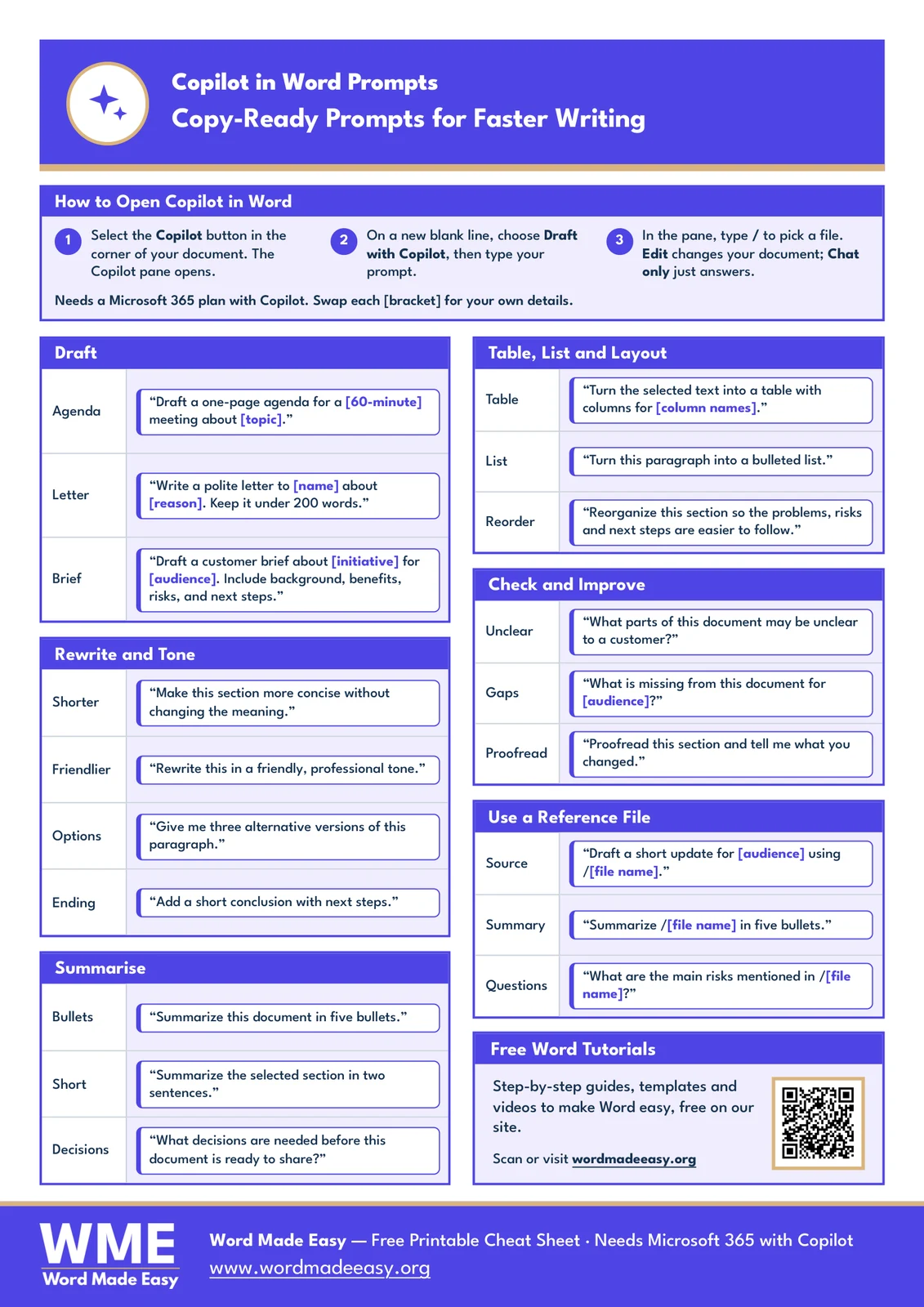
Copilot prompts are the short instructions you type to Copilot in Word, such as “draft a one-page agenda” or “make this section more concise”. The free cheat sheet collects 19 of them, ready to copy, for drafting, rewriting, summarising, tables and checking.
Each prompt has a [bracket] where your own details go. Copilot needs a Microsoft 365 plan that includes it, so check that first; the steps below show how to open it.
Jump to: Draft Rewrite and tone Summarise Table, list and layout Check and improve Reference file
Download the free PDF cheat sheet
Six groups of prompts fit on one A4 page: draft, rewrite and tone, summarise, table and layout, check and improve, and using a reference file. Open the PDF and copy any prompt into Copilot, or choose the editable Word file and change the prompts yourself.
Get new free printables first: follow Word Made Easy on Pinterest
How to use Copilot in Word
Copilot works inside your document, in a pane beside it. Open it like this:
- Select the Copilot button in the corner of your document. The Copilot pane opens.
- On a new blank line, choose Draft with Copilot, then type your prompt.
- In the pane, type / to pick a file. Edit changes your document, while Chat only just answers.
If you cannot see the button, your Microsoft 365 plan probably does not include Copilot. Microsoft’s Welcome to Copilot in Word page explains what is needed. The prompts follow the examples in Microsoft’s own Copilot in Word guides, and results vary with your document.
Draft prompts
Drafting prompts work best when you name the document type, the length and who will read it.
| Use | Prompt |
|---|---|
| Agenda | “Draft a one-page agenda for a [60-minute] meeting about [topic].” |
| Letter | “Write a polite letter to [name] about [reason]. Keep it under 200 words.” |
| Brief | “Draft a customer brief about [initiative] for [audience]. Include background, benefits, risks, and next steps.” |
Related tutorial: How to Dictate in Word. Speak your first draft, then ask Copilot to tidy it.
Rewrite and tone prompts
Select the text first, then ask for the change. Asking for alternatives is the quickest way to find wording you like.
| Use | Prompt |
|---|---|
| Shorter | “Make this section more concise without changing the meaning.” |
| Friendlier | “Rewrite this in a friendly, professional tone.” |
| Options | “Give me three alternative versions of this paragraph.” |
| Ending | “Add a short conclusion with next steps.” |
Related tutorial: Track Changes Shortcuts in Word. See every change before you accept it.
Summarise prompts
Summaries are useful for long reports, meeting notes and anything you need to read in a hurry.
| Use | Prompt |
|---|---|
| Bullets | “Summarize this document in five bullets.” |
| Short | “Summarize the selected section in two sentences.” |
| Decisions | “What decisions are needed before this document is ready to share?” |
Related tutorial: How to Check Word Count in Word. Check how long your summary is.
Table, list and layout prompts
These prompts change the shape of text you have already written.
| Use | Prompt |
|---|---|
| Table | “Turn the selected text into a table with columns for [column names].” |
| List | “Turn this paragraph into a bulleted list.” |
| Reorder | “Reorganize this section so the problems, risks and next steps are easier to follow.” |
Related tutorial: How to Convert Table to Text in Word. Turn a table back into plain text when you need it.
Check and improve prompts
Ask Copilot to review before you share a document, then read its suggestions and decide which to use.
| Use | Prompt |
|---|---|
| Unclear | “What parts of this document may be unclear to a customer?” |
| Gaps | “What is missing from this document for [audience]?” |
| Proofread | “Proofread this section and tell me what you changed.” |
Related tutorial: How to Undo in Word. Reverse any change you decide not to keep.
Prompts that use a reference file
Type a forward slash in the prompt to pick a file, then ask a question about it or draft something from it.
| Use | Prompt |
|---|---|
| Source | “Draft a short update for [audience] using /[file name].” |
| Summary | “Summarize /[file name] in five bullets.” |
| Questions | “What are the main risks mentioned in /[file name]?” |
Related tutorial: How to Save a Word Document. Save your file first so you can find it from the prompt.
Get new free printables first: follow Word Made Easy on Pinterest
Tips for better Copilot prompts
- Say who the writing is for and how long it should be.
- Select the text you want changed before you type the prompt.
- Ask for three versions when you are unsure of the tone, then pick one.
- Check names, dates and numbers in anything Copilot writes before you share it.
Frequently asked questions
Do I need a licence to use Copilot in Word?
Yes. Copilot in Word needs a Microsoft 365 plan that includes Copilot. Without it the Copilot button does not appear, but the cheat sheet still works as a list of ideas for any writing assistant.
Where do I type a Copilot prompt in Word?
Select Draft with Copilot on a new blank line, or type in the Copilot pane. Press Enter to send it.
What is the difference between Edit and Chat only?
Edit lets Copilot change your document. Chat only keeps your document as it is and just answers your question in the pane.
How do I make Copilot use another file?
Type a forward slash in your prompt, then choose the file. Ask it to summarise the file, draft from it or list its main risks.
Can I edit the prompts on the sheet?
Yes. Replace each [bracket] with your own topic, audience or file name, and change the wording to suit your document.
More Word cheat sheets
Other free cheat sheets from Word Made Easy, each with its own page and download:
- Word Function Keys: 30 F1–F12 Shortcuts (Free PDF)
- Word Text Selection Shortcuts: 30 Keys to Select and Move Text (Free PDF)
- Picture Shortcuts in Word: 22 Keys for Images and Shapes (Free PDF)
- Microsoft Word Keyboard Shortcuts Cheat Sheet (Free PDF): the everyday essentials
- Free Microsoft Word Keyboard Shortcuts Bundle: 18 Cheat Sheets (PDF)
Conclusion
Good Copilot prompts are short, specific and aimed at a reader. Print the sheet, pick the prompt that matches your task and swap in your own details.
If you prefer the keyboard, the Word keyboard shortcuts cheat sheet covers the essentials.
Related tutorials
Word Tutorials
Recently Added on Word Made Easy
Browse the complete collection for help with formatting, layout, pages, tables, images, and document setup.
For Microsoft support documentation, visit the official Microsoft guidance.
Leave a comment
Stuck on a step, or know a quicker way? Ask or share it below.