Skip to content
Word Made Easy Shop
Home Word Tutorials Word Templates Resources Google Docs PowerPoint Tutorials YouTube Videos
Home Word Tutorials Word Templates Resources Google Docs PowerPoint Tutorials YouTube Videos Shop

Word Function Keys: 30 F1–F12 Shortcuts (Free PDF)

Keyboard Shortcut Cheat Sheets, Microsoft Word

Published 27 November 2026 · By Patrick Elliott

Word function keys give you a one-key way to run a command: F1 opens Help, F4 repeats your last action, F7 checks spelling and F12 opens Save As. Add Shift, Ctrl or Alt and each key does more.

This free cheat sheet lists 30 Word function key shortcuts for F1 to F12 on Windows, grouped by what they do. Every key was checked in desktop Word.


Contents hide
1 Download the free PDF cheat sheet
2 What the Word function keys do
3 F1 to F4 shortcuts
4 F5 to F8 shortcuts
5 F9 to F11 field shortcuts
6 F10 and F12 menu and file shortcuts
7 Frequently asked questions
8 More Word cheat sheets
9 Conclusion
10 Related tutorials
11 Word Tutorials
Next stepWord Text Selection Shortcuts: 30 Keys to Select and Move Text (Free PDF)A printable PDF to keep next to your keyboard, free for everyone.See the cheat sheet →

Download the free PDF cheat sheet

The 30 shortcuts fit on one A4 page in four groups: F1 to F4, F5 to F8, the field keys F9 to F11, and F10 and F12.
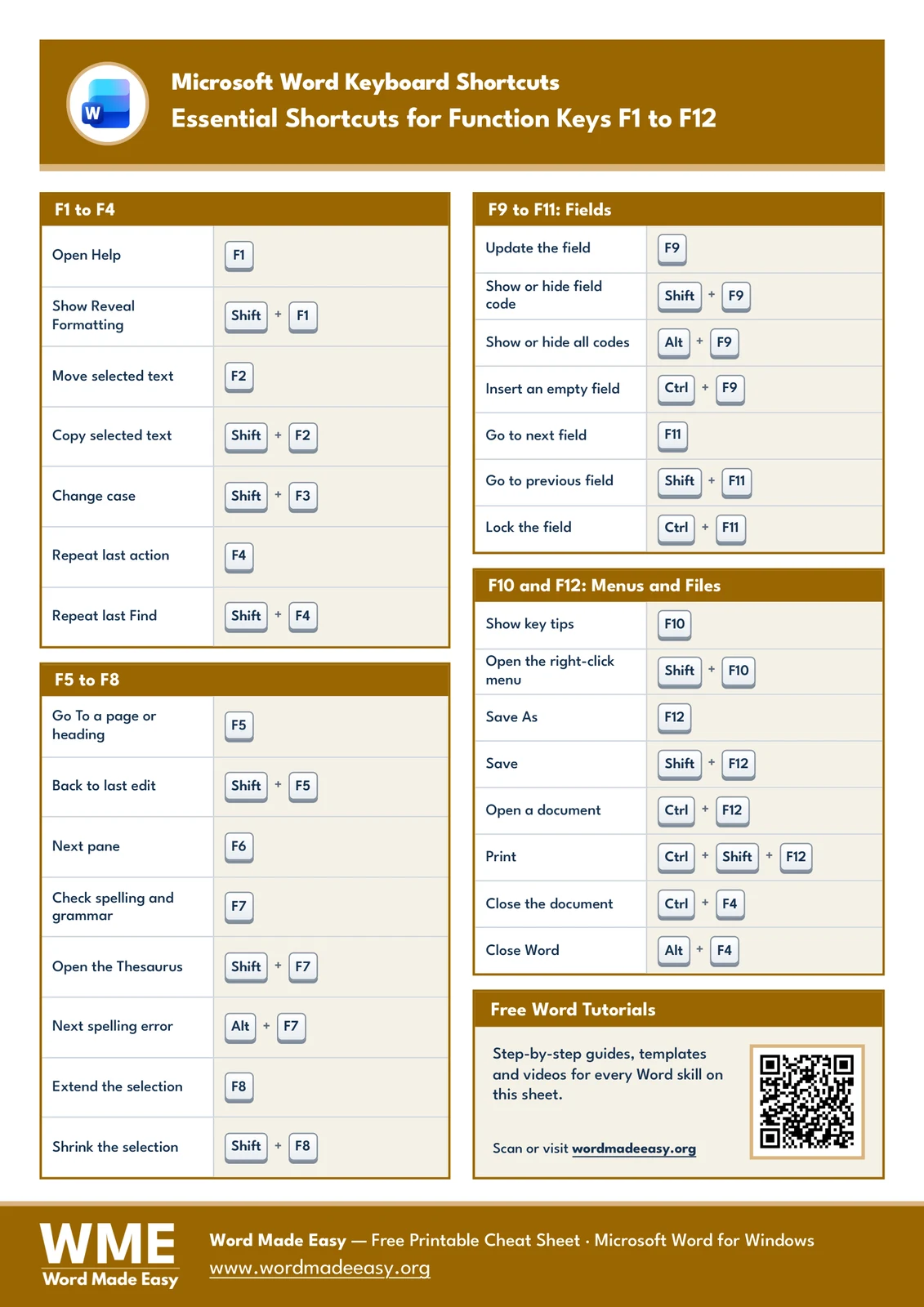
Word function keys cheat sheet for F1 to F12 with Shift, Ctrl and Alt on Windows

Get the free PDF cheat sheet

Enter your email address to download the one-page printable PDF. You can also choose to receive occasional emails about new free Word Made Easy resources.

I agree that Word Made Easy may email me a weekly newsletter with new free Word cheat sheets, templates and tutorials, and occasional offers of paid templates. I can unsubscribe at any time. Choose "No thanks, just download" if you do not want these emails.

Read the Privacy Policy for details about storage, retention and your rights.

Get new free printables first: follow Word Made Easy on Pinterest


What the Word function keys do

Press a function key on its own for its main job, or hold Shift, Ctrl or Alt first for a related command. On many laptops the top row controls volume and brightness first. If F-keys do not respond in Word, hold Fn as well, or switch the laptop’s function-key mode in its settings.


F1 to F4 shortcuts

F1 opens Help, F2 starts a move and Shift + F2 starts a copy; both finish when you press Enter. F4 repeats your last action, which saves a lot of clicking when you apply the same formatting again and again.

ActionShortcut
Open HelpF1
Show Reveal FormattingShift + F1
Move selected textF2 (then Enter)
Copy selected textShift + F2 (then Enter)
Change caseShift + F3
Repeat last actionF4
Repeat last FindShift + F4

F5 to F8 shortcuts

These keys help you move around, check your writing and select text. F5 opens Go To, F6 jumps between panes, F7 checks spelling and grammar, and F8 starts extending a selection.

ActionShortcut
Go To a page or headingF5
Back to last editShift + F5
Next paneF6
Check spelling and grammarF7
Open the ThesaurusShift + F7
Next spelling errorAlt + F7
Extend the selectionF8
Shrink the selectionShift + F8

F9 to F11 field shortcuts

Fields are the bits of Word that update themselves, such as page numbers, dates and tables of contents. The F9 to F11 keys update them, show their codes and move between them.

ActionShortcut
Update the fieldF9
Show or hide field codeShift + F9
Show or hide all codesAlt + F9
Insert an empty fieldCtrl + F9
Go to next fieldF11
Go to previous fieldShift + F11
Lock the fieldCtrl + F11

F10 and F12 menu and file shortcuts

F10 shows the key tips for the ribbon and F12 opens Save As. With Ctrl, Shift or Alt they handle saving, opening, printing and closing.

ActionShortcut
Show key tipsF10
Open the right-click menuShift + F10
Save AsF12
SaveShift + F12
Open a documentCtrl + F12
PrintCtrl + Shift + F12
Close the documentCtrl + F4
Close WordAlt + F4

Frequently asked questions

What does F4 do in Word?

F4 repeats your last action, such as applying a colour or inserting a table row. Shift + F4 repeats the last Find.

How do I check spelling with a function key?

Press F7 to check spelling and grammar, Shift + F7 to open the Thesaurus, or Alt + F7 to jump to the next spelling error.

What does F12 do in Word?

F12 opens Save As. Shift + F12 saves, Ctrl + F12 opens a document and Ctrl + Shift + F12 prints.

Why do the function keys not work on my laptop?

Many laptops use the top row for volume and brightness. Hold Fn while you press the F-key, or change the function-key mode in the laptop’s keyboard settings.

How do I show or hide a field code?

Select the field and press Shift + F9. Press Alt + F9 to show or hide every field code in the document.


More Word cheat sheets

Other free cheat sheets from Word Made Easy, each with its own page and download:

  • Word Text Selection Shortcuts: 30 Keys to Select and Move Text (Free PDF)
  • Picture Shortcuts in Word: 22 Keys for Images and Shapes (Free PDF)
  • Copilot Prompts for Word: 19 Copy-Ready Prompts (Free PDF)
  • Microsoft Word Keyboard Shortcuts Cheat Sheet (Free PDF): the everyday essentials
  • Free Microsoft Word Keyboard Shortcuts Bundle: 18 Cheat Sheets (PDF)

Conclusion

You do not need all 30. Start with F4 to repeat, F7 to check spelling and F12 to Save As, then add the field keys if you work with page numbers and dates.

For the Mac version, see Word for Mac function keys.

Free downloads for this topic

  • Word Text Selection Shortcuts: 30 Keys to Select and Move Text (Free PDF) Free printable PDF cheat sheet
  • Picture Shortcuts in Word: 22 Keys for Images and Shapes (Free PDF) Free printable PDF cheat sheet

Related tutorials

  • How to Save a Word Document: 4 Easy Methods (F12 and Ctrl + S)
  • How to Undo in Word: Shortcut + 3 Easy Methods
  • How to Find and Replace in Word

Word Tutorials

Recently Added on Word Made Easy

  • How to Mail Merge Certificates in Word: 7 Easy Steps

    November 12, 2026
  • How to Split a Cell in Word: 2 Easy Methods

    November 11, 2026
  • How to Add Mendeley Citations in Word: 9 Easy Steps

    November 11, 2026

Browse the complete collection for help with formatting, layout, pages, tables, images, and document setup.

View all Word tutorials
Watch on YouTube

For Microsoft support documentation, visit the official Microsoft guidance.
← PreviousCopilot Prompts for Word: 19 Copy-Ready Prompts (Free PDF)
Next →Word Text Selection Shortcuts: 30 Keys to Select and Move Text (Free PDF)

Leave a comment Cancel reply

Stuck on a step, or know a quicker way? Ask or share it below.

Meet the Author

Patrick Elliott standing outdoors holding his dog.

I’m Patrick Elliott, the creator of Word Made Easy. I’ve worked in schools for over 10 years and I’m now an Inclusion Lead in the UAE. I use Microsoft Word and PowerPoint every day for planning, documentation and classroom resources.

Every guide is tested step by step before publishing (usually in Microsoft 365), and every free template is one I made myself in Word. You’ll also find practical walkthroughs on my YouTube channel.

Browse

  • Word TutorialsStep-by-step guides for every feature
  • Word Beginners HubFree 12-chapter Word course
  • Word TemplatesFree, editable downloads
  • ResourcesWorksheets, posters and puzzles
  • Word Shortcut Cheat SheetsFree printable PDFs
  • Google Docs TutorialsStep-by-step Docs guides
  • PowerPoint TutorialsClear, simple slide guides
  • YouTube VideosWatch the video walkthroughs

Watch on YouTube

Prefer to watch? Most guides have a short video walkthrough on the Word Made Easy channel.

  • 147videos
  • 1.88Mviews
  • 8,000+subscribers
Subscribe on YouTube

Recently Added

  • Danielson Lesson Plan Template for Word: 4 Free Observation PlansNovember 27, 2026
  • SIOP Lesson Plan Template for Word: 4 Free SIOP-Style PlansNovember 27, 2026
  • edTPA Lesson Plan Template for Word: 4 Free edTPA-Style FormsNovember 27, 2026
  • UbD Template for Word: 4 Free Printable Lesson and Unit PlansNovember 27, 2026
  • Madeline Hunter Lesson Plan Template for Word: 4 Free PlansNovember 27, 2026

Most Downloaded

  • Microsoft Word for Beginners: Free Guide and PDF91 downloads in the last 30 days
  • Free ILAW Lesson Plan Templates for Word: English and Filipino (DO 16, s. 2026)90 downloads in the last 30 days
  • Free 1×1 and 2×2 Picture Templates for Word: 4 ID Photo Sheets76 downloads in the last 30 days
  • Free Fillable Form Templates for Word: 4 Easy Forms65 downloads in the last 30 days
  • Free Microsoft Word Keyboard Shortcuts Bundle: 18 Cheat Sheets (PDF)57 downloads in the last 30 days

About

  • About Me
  • Contact
  • Shop

Microsoft Word

  • All Word Tutorials
  • Page Layout & Sections
  • Tables, Images & Media
  • Formatting Basics
  • Productivity & Automation
  • Beginners Hub
  • Shortcut Cheat Sheets

Word Templates

  • Business
  • Calendars and Planners
  • Home, Health and Money
  • School and Teacher Forms
  • Cards, Invitations and Labels
  • Paper and Grids
  • Holidays and Seasonal

Resources

  • Phonics and Reading
  • Handwriting
  • Writing
  • Maths
  • Puzzles and Activities
  • Classroom Display
  • Study Packs
  • Seasonal
  • Collections

More Tutorials

  • Google Docs Tutorials
  • PowerPoint Tutorials
  • YouTube Videos

Follow Us

  • YouTube
  • Facebook
  • Pinterest
Privacy Policy Cookie Policy Terms of Use
© 2012–2026 Word Made Easy. All rights reserved.
Manage your privacy

To provide the best experiences, we and our partners use technologies like cookies to store and/or access device information. Consenting to these technologies will allow us and our partners to process personal data such as browsing behavior or unique IDs on this site and show (non-) personalized ads. Not consenting or withdrawing consent, may adversely affect certain features and functions.

Click below to consent to the above or make granular choices. Your choices will be applied to this site only. You can change your settings at any time, including withdrawing your consent, by using the toggles on the Cookie Policy, or by clicking on the manage consent button at the bottom of the screen.

Functional Always active
The technical storage or access is strictly necessary for the legitimate purpose of enabling the use of a specific service explicitly requested by the subscriber or user, or for the sole purpose of carrying out the transmission of a communication over an electronic communications network.
Preferences
The technical storage or access is necessary for the legitimate purpose of storing preferences that are not requested by the subscriber or user.
Statistics
The technical storage or access that is used exclusively for statistical purposes. The technical storage or access that is used exclusively for anonymous statistical purposes. Without a subpoena, voluntary compliance on the part of your Internet Service Provider, or additional records from a third party, information stored or retrieved for this purpose alone cannot usually be used to identify you.
Marketing
The technical storage or access is required to create user profiles to send advertising, or to track the user on a website or across several websites for similar marketing purposes.
Statistics

Marketing

Features
Always active

Special features

Special purposes
Always active

  • Manage options
  • Manage services
  • Manage {vendor_count} vendors
  • Read more about these purposes
Manage options
  • {title}
  • {title}
  • {title}
Manage your privacy
To provide the best experiences, we use technologies like cookies to store and/or access device information. Consenting to these technologies will allow us to process data such as browsing behavior or unique IDs on this site. Not consenting or withdrawing consent, may adversely affect certain features and functions.
Functional Always active
The technical storage or access is strictly necessary for the legitimate purpose of enabling the use of a specific service explicitly requested by the subscriber or user, or for the sole purpose of carrying out the transmission of a communication over an electronic communications network.
Preferences
The technical storage or access is necessary for the legitimate purpose of storing preferences that are not requested by the subscriber or user.
Statistics
The technical storage or access that is used exclusively for statistical purposes. The technical storage or access that is used exclusively for anonymous statistical purposes. Without a subpoena, voluntary compliance on the part of your Internet Service Provider, or additional records from a third party, information stored or retrieved for this purpose alone cannot usually be used to identify you.
Marketing
The technical storage or access is required to create user profiles to send advertising, or to track the user on a website or across several websites for similar marketing purposes.
Statistics

Marketing

Features
Always active

Special features

Special purposes
Always active

  • Manage options
  • Manage services
  • Manage {vendor_count} vendors
  • Read more about these purposes
Manage options
  • {title}
  • {title}
  • {title}
Request