
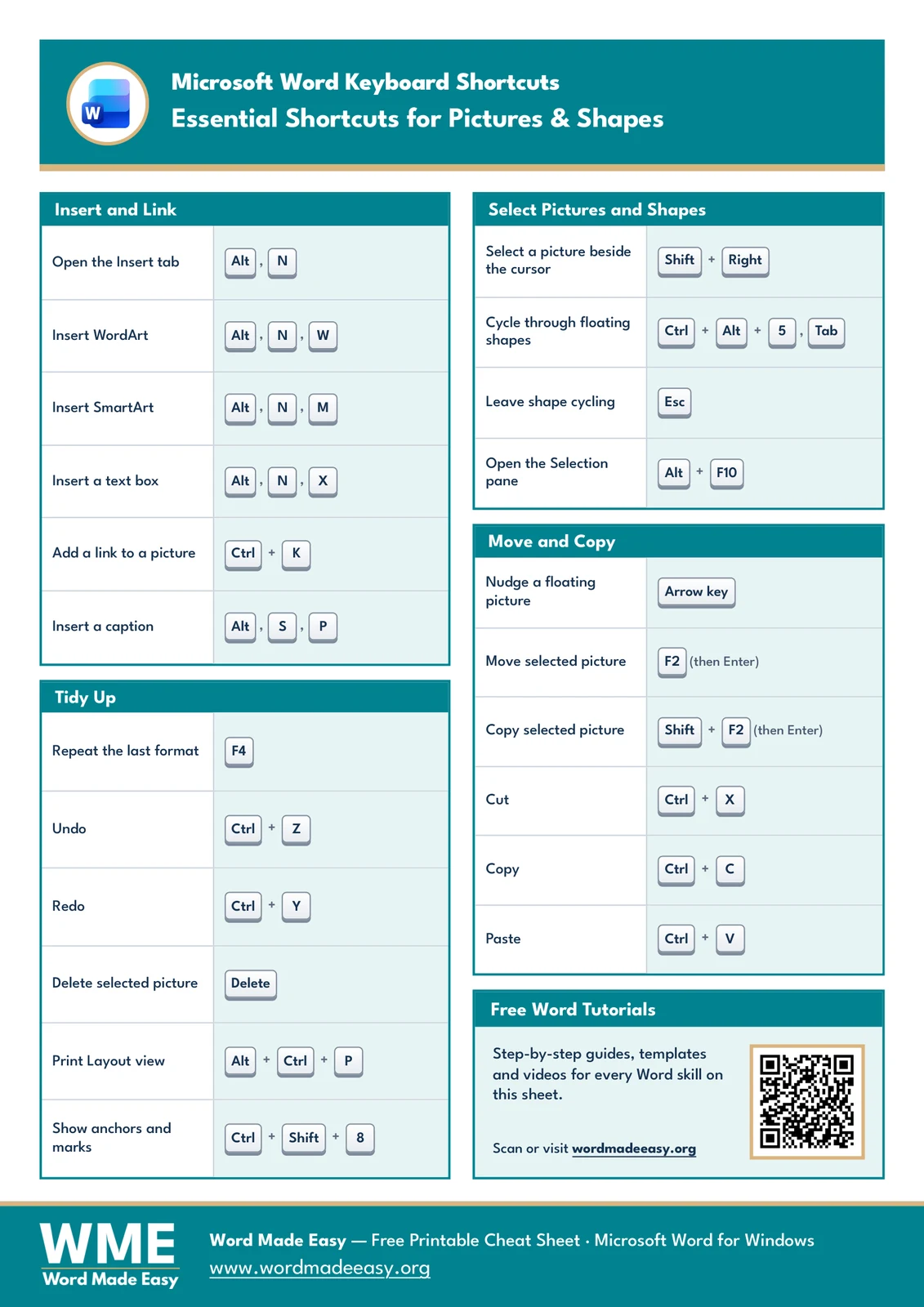
Picture shortcuts in Word save you from hunting through the ribbon: Shift + Right selects a picture next to the cursor, the arrow keys nudge a floating picture and Ctrl + K adds a link to it.
This free cheat sheet lists 22 keyboard shortcuts for pictures and shapes in Word on Windows. Every key was checked in desktop Word. If you want to place a picture exactly, see how to move an image freely in Word.
Download the free PDF cheat sheet
The 22 shortcuts fit on one A4 page in four groups: selecting, moving and copying, inserting and linking, and tidying up.
Get new free printables first: follow Word Made Easy on Pinterest
Inline pictures and floating pictures
Word treats a picture in one of two ways. An inline picture sits in the line of text like a letter and moves when the text moves. A floating picture has a text wrapping setting and can be placed anywhere on the page. Some shortcuts only suit one of the two. To change between them, open Wrap Text on the Layout tab, or see our guide to putting text over an image.
Select pictures and shapes
A picture that sits in a line of text is selected by moving the cursor onto it. A floating picture or shape is easier to reach with the keyboard than with the mouse when text is crowded around it.
| Action | Shortcut |
|---|---|
| Select a picture beside the cursor | Shift + Right |
| Cycle through floating shapes | Ctrl + Alt + 5, Tab |
| Leave shape cycling | Esc |
| Open the Selection pane | Alt + F10 |
Move and copy pictures
A floating picture moves a small step with each arrow key press. To move or copy to another place in the text, use F2 or Shift + F2, move the cursor, and press Enter.
| Action | Shortcut |
|---|---|
| Nudge a floating picture | Arrow keys |
| Move selected picture | F2 (then Enter) |
| Copy selected picture | Shift + F2 (then Enter) |
| Cut | Ctrl + X |
| Copy | Ctrl + C |
| Paste | Ctrl + V |
Insert and link pictures and shapes
Press Alt then N to open the Insert tab, then the letter shown for the item you want. Ctrl + K works on a selected picture as well as on text.
| Action | Shortcut |
|---|---|
| Open the Insert tab | Alt, N |
| Insert WordArt | Alt, N, W |
| Insert SmartArt | Alt, N, M |
| Insert a text box | Alt, N, X |
| Add a link to a picture | Ctrl + K |
| Insert a caption | Alt, S, P |
Tidy up and view
F4 repeats your last format, which is handy when you resize or border several pictures the same way.
| Action | Shortcut |
|---|---|
| Repeat the last format | F4 |
| Undo | Ctrl + Z |
| Redo | Ctrl + Y |
| Delete selected picture | Delete |
| Print Layout view | Alt + Ctrl + P |
| Show anchors and marks | Ctrl + Shift + 8 |
Frequently asked questions
How do I move a picture with the keyboard in Word?
Select a floating picture and press an arrow key to nudge it. For an inline picture, select it, press F2, move the cursor to the new place and press Enter.
How do I add a link to a picture in Word?
Select the picture and press Ctrl + K. Type or paste the address and press Enter.
How do I open the Selection pane?
Press Alt + F10. The pane lists every picture and shape on the page, which helps you reach ones hidden behind others. Press it again to close the pane.
How do I add a caption to a picture?
Select the picture and press Alt, S, P. The Caption box opens, ready for your text.
Why does the arrow key not move my picture?
Inline pictures move with the text, so the arrow keys move the cursor instead. Give the picture a text wrapping setting such as In Front of Text to make it float.
More Word cheat sheets
Other free cheat sheets from Word Made Easy, each with its own page and download:
- Word Function Keys: 30 F1–F12 Shortcuts (Free PDF)
- Word Text Selection Shortcuts: 30 Keys to Select and Move Text (Free PDF)
- Copilot Prompts for Word: 19 Copy-Ready Prompts (Free PDF)
- Microsoft Word Keyboard Shortcuts Cheat Sheet (Free PDF): the everyday essentials
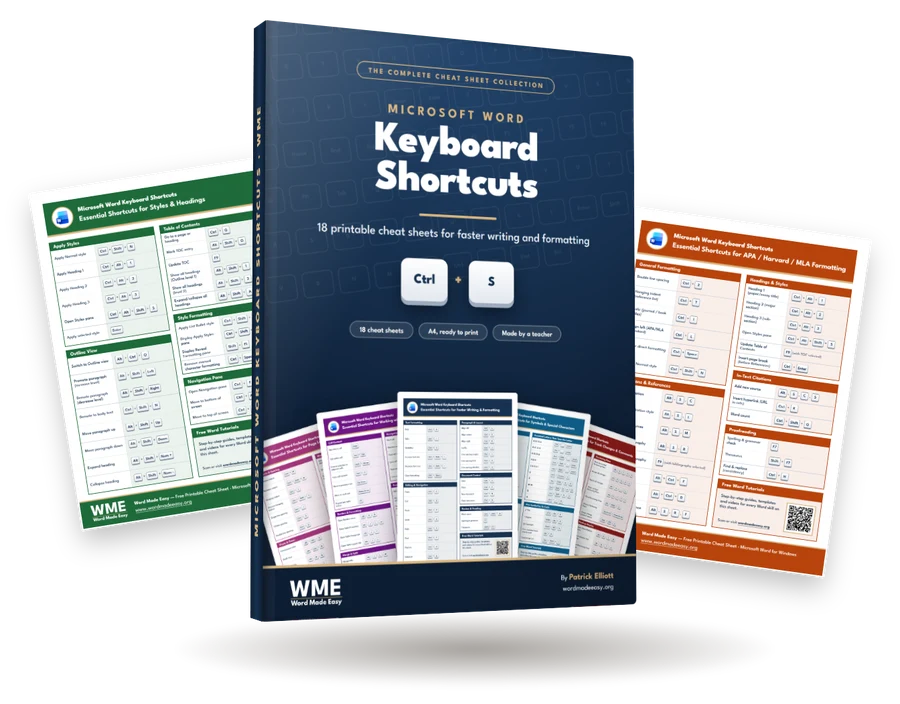
- Free Microsoft Word Keyboard Shortcuts Bundle: 18 Cheat Sheets (PDF)
Conclusion
Picture shortcuts are worth learning if you build flyers, reports or worksheets in Word. Print the sheet and try Shift + Right, Ctrl + K and the Selection pane first.
For the everyday keys that go with these, see the Word keyboard shortcuts cheat sheet.
Related tutorials
Word Tutorials
Recently Added on Word Made Easy
Browse the complete collection for help with formatting, layout, pages, tables, images, and document setup.
For Microsoft support documentation, visit the official Microsoft guidance.




Leave a comment
Stuck on a step, or know a quicker way? Ask or share it below.