
To center text in Word from left to right, select the paragraph and choose Home → Center, or press Ctrl + E. To centre it from top to bottom, use Layout → Page Setup → Layout → Vertical alignment → Center. Use both settings for a title in the middle of a page.
This guide covers Microsoft Word for Windows. For related instructions, see How to Align Text in Word: 4 Easy Ways (Quick Guide).
What Does Centred Alignment Change?
Horizontal alignment positions each paragraph between its left and right indents. Vertical alignment positions text within the available height of a page or section. They are separate settings: pressing the Center button does not move a title halfway down the page.
Watch the Video Tutorial
If you prefer to see this in action, the full video walkthrough is below, showing each method step by step.
Method 1: Center Text in Word Horizontally
Use paragraph alignment for a heading, invitation, short quotation or title. Click inside a single paragraph, or select several paragraphs when you want to change them together.
- Select the text or click inside the paragraph you want to centre.
- Open Home and find the Paragraph group.
- Choose Center. You can also press Ctrl + E in Word for Windows.
- Check the result against the page margins and paragraph indents.

The alignment belongs to the paragraph. If you centre a title and then start a new paragraph, check the new paragraph’s alignment before typing body text. Choose Align Left, or press Ctrl + L, when you want to return to left-aligned writing.
Method 2: Centre Text Vertically on the Page
Use vertical alignment for a cover page or a short block of text that should sit between the top and bottom margins. Decide which text the setting should affect before applying it.
- Select the text you want to centre vertically.
- Open the Layout tab and select the small dialog launcher in the Page Setup group.
- In the dialog, open the Layout tab.
- Set Vertical alignment to Center.
- In Apply to, choose Selected text for the selected content, then select OK.
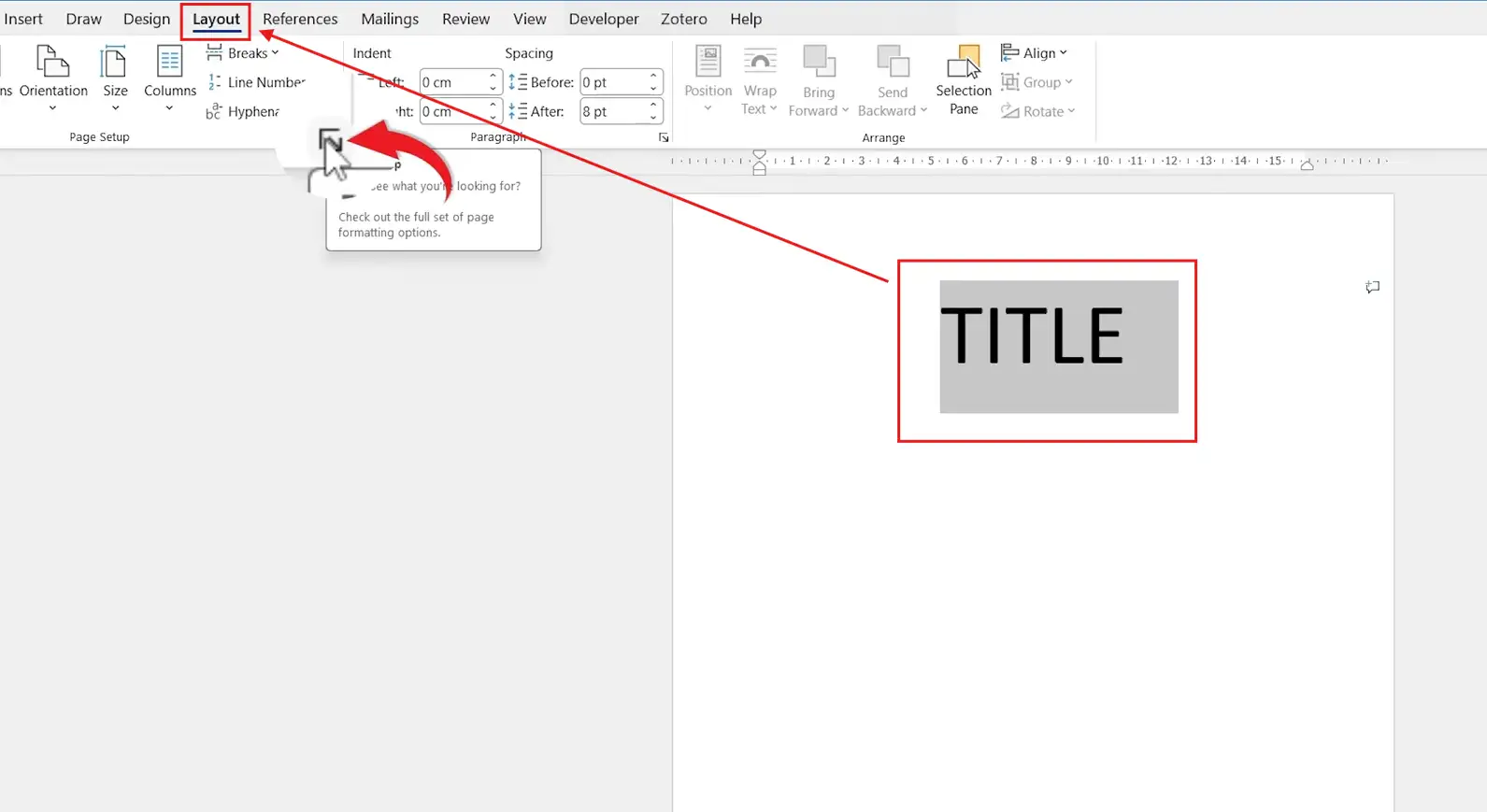

Check the surrounding pages after applying this setting. Page setup is section-based, and applying it to selected text can introduce section boundaries. If you are working in an existing title-page section, check that Apply to names the intended section instead of the whole document.
Place a Title in the Middle of a Page
For a title centred in both directions, first use horizontal Center alignment. Then apply vertical Center alignment to the title page or selected text. The result is measured within the page’s usable area, so unequal margins can make the text appear offset from the centre of the physical sheet.
Avoid adding a stack of blank paragraphs above the title. Blank lines change position when you edit the font, spacing or page size. A deliberate page or section layout is easier to maintain when the document grows.
Fix Text That Still Looks Off-Centre
- The title is too far left or right: check paragraph indents, tabs and leading spaces. A centred paragraph is centred within its paragraph boundaries.
- The whole document moved vertically: undo the change, then select the intended text or section and check Apply to.
- The text is in a table: use the table’s cell-alignment controls. Page vertical alignment serves a different purpose.
- The position changes after editing: remove unnecessary blank paragraphs and review paragraph spacing.
For the official distinction between paragraph and page alignment, see Microsoft’s text alignment instructions.
FAQs
What is the shortcut to center text in Word?
Ctrl + E centres the current paragraph or selected paragraphs horizontally in Word for Windows.
How do I centre text vertically?
Open the Page Setup dialog from Layout, choose its Layout tab, and set Vertical alignment to Center. Check Apply to before confirming.
Can I centre text in both directions?
Yes. Apply horizontal paragraph alignment and vertical page alignment separately to the intended text.
Why does Center not move text down the page?
The Home tab’s Center command changes horizontal paragraph alignment. Vertical alignment is a separate Page Setup option.
Will vertical alignment affect every page?
It depends on the Apply to setting and the document’s sections. Select the intended text or section and check the scope before choosing OK.
Should I use spaces to centre a heading?
No. Spaces depend on font widths and can move when the text changes. Use paragraph alignment instead.
Conclusion
Use paragraph alignment for ordinary headings and Page Setup for vertical positioning. Before finishing a cover page, check both the alignment and the scope of the page setting. For the next step, see How to Change Margins in Word: 3 Easy Methods (Quick Guide).
Related Tutorials
- How to Align Text in Word: 4 Easy Ways (Quick Guide)
- How to Change Margins in Word: 3 Easy Methods (Quick Guide)
- How to Change Line Spacing in Word: 4 Easy Methods
Word Tutorials
Recent Microsoft Word Tutorials
Browse the complete collection for help with formatting, layout, pages, tables, images, and document setup.
For Microsoft support documentation, visit the official Microsoft guidance.
Leave a Reply