
Creating QR codes directly inside Microsoft Word is easier than most people think. You don’t need any third-party tools or add-ins just a simple built-in field code.
In this guide, you’ll learn how to generate QR codes in Word, customize them, and update them whenever needed.
What Is a QR Code in Word?
A QR code (Quick Response code) is a scannable image that links to content such as:
- Websites
- Contact details
- Documents
- Online forms
In Word, QR codes are created using a special field function called:
DISPLAYBARCODE
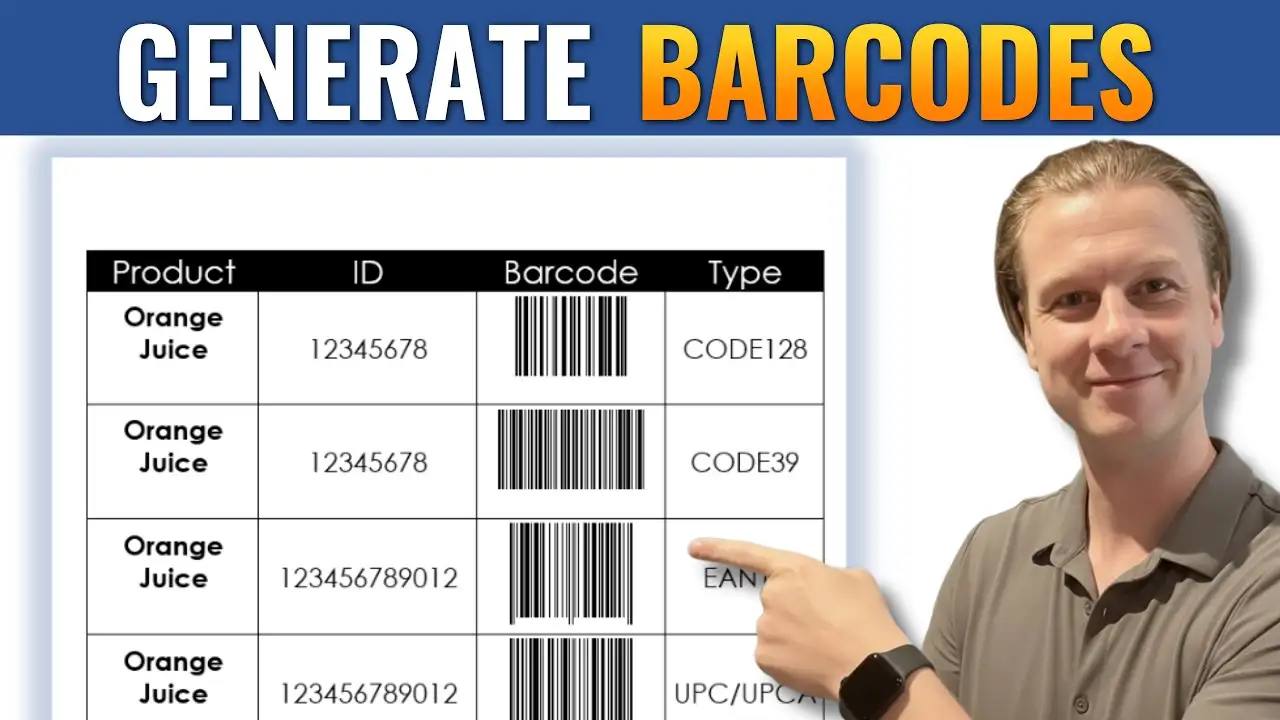
This works similarly to generating traditional barcodes in Word but allows you to create QR codes instantly within your document.
Watch the Video Tutorial
If you prefer to see this in action, the full video walkthrough is below, showing each method step by step.
How to Create a QR Code in Word
Follow these simple steps to generate your QR code:
Step-by-Step Instructions
- Place your cursor where you want the QR code
- Press Ctrl + F9
- This inserts field brackets
{ }
- This inserts field brackets
- Inside the brackets, type the following code:
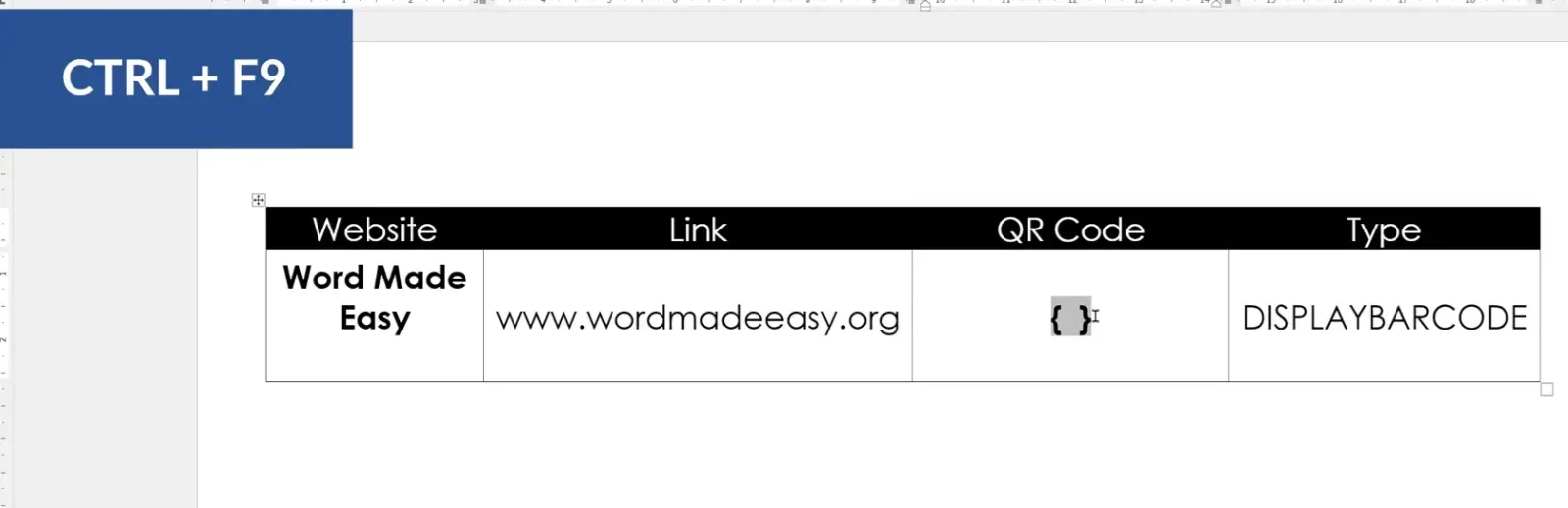
DISPLAYBARCODE "https://yourwebsite.com" QR \Q3
- Replace the URL with your own link
- Click inside the code
- Press Alt + F9 (you may need to press it twice)

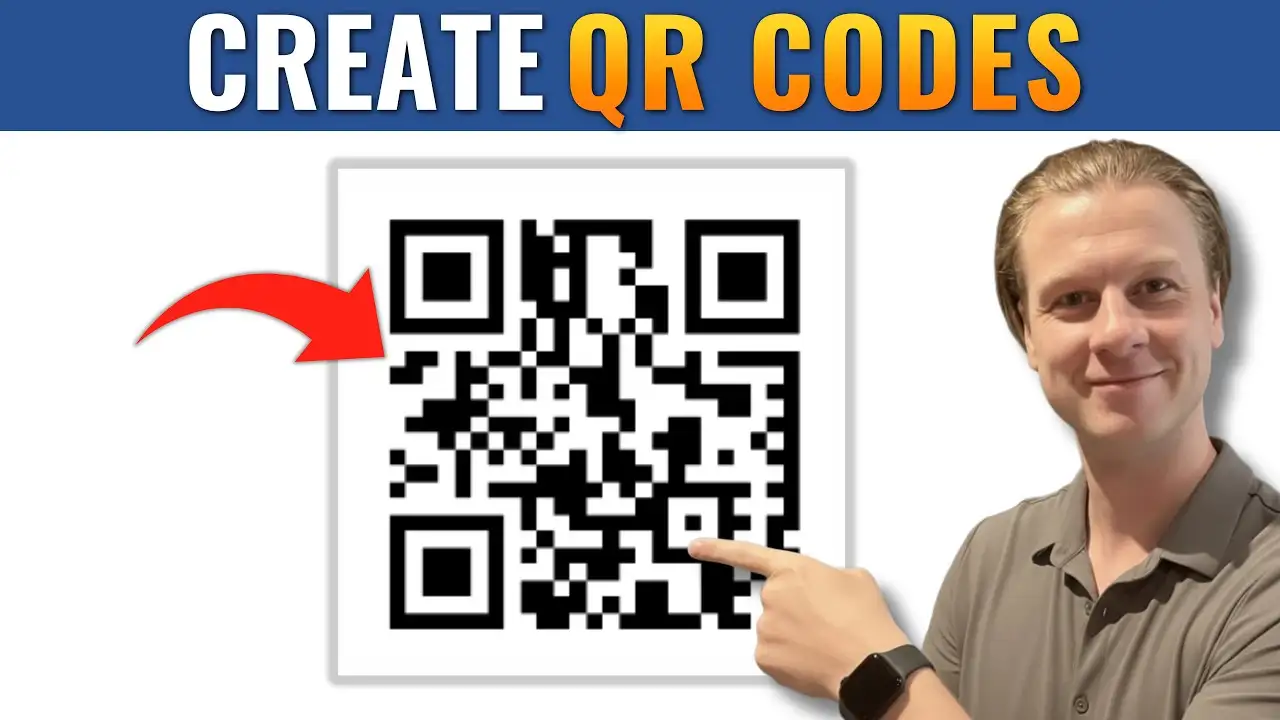
Your QR code will now appear instantly.
Understanding the QR Code Field Code
Here’s what each part of the code means:
- DISPLAYBARCODE → The function used to generate the code
- “URL” → The destination link (must be in quotes)
- QR → Specifies that you want a QR code
- \Q3 → Controls the quality of the QR code
QR Code Quality Levels
- \Q1 → Low quality
- \Q2 → Medium quality
- \Q3 → High quality (recommended)
Using \Q3 ensures your QR code scans easily across devices.
Test Your QR Code
After generating your QR code:
- Open your smartphone camera
- Scan the QR code
- Confirm it directs to the correct link
This ensures everything is working before sharing or printing your document.
Edit or Update Your QR Code
If you need to change the link:
Steps to Edit
- Right-click the QR code
- Select Toggle Field Codes
- Update the URL inside the code
- Press Alt + F9 again

Your QR code will refresh automatically.
Duplicate a QR Code
To reuse the same format:
- Copy and paste the QR code
- Toggle field codes
- Replace the URL
- Refresh with Alt + F9
This is perfect for creating multiple QR codes quickly.
Common Issues and Fixes
QR Code Not Showing
- Make sure you pressed Alt + F9
- Try pressing it twice
QR Code Not Scanning
- Check the URL is correct
- Use \Q3 for better quality
Code Appears Instead of QR Image
- You’re viewing field codes—toggle them off with Alt + F9
When to Use QR Codes in Word
QR codes are especially useful for:
- Business documents
- Flyers and posters
- Reports with external links
- Educational materials
- Event invitations — and if you’re building interactive documents, you may also want to learn how to create a fillable form in Microsoft Word.
They provide a quick bridge between printed content and digital resources.
Pro Tips for Better QR Codes
- Always use high-quality links (https)
- Test before printing
- Keep enough white space around the QR code
- Avoid resizing too small
FAQs
Do I need a plugin to create QR codes in Word?
No. Microsoft Word includes the DISPLAYBARCODE function built-in.
Can I customize the QR code design?
Word has limited customization. For advanced styling, you may need external tools.
Why is my QR code blurry?
You may be using a lower quality setting. Switch to \Q3 for better clarity.
Can I use this offline?
Yes. As long as you know the URL, QR codes can be generated without internet access.
Will QR codes print clearly?
Yes, as long as you use a high-quality setting and don’t resize them too small.
Related Tutorials
- How to Create Barcodes in Microsoft Word
- Microsoft Word Keyboard Shortcuts Cheat Sheet
- How to Create a Fillable Form in Microsoft Word
Conclusion
Generating QR codes in Microsoft Word is a simple yet powerful feature that many users overlook.
With just a short field code, you can create fully functional QR codes without any plugins. Whether you’re building professional documents, marketing materials, or educational content, this method saves time and keeps everything within Word.
Once you get used to using DISPLAYBARCODE, adding QR codes becomes second nature — and if you want to speed up your workflow further, the Microsoft Word keyboard shortcuts cheat sheet is worth bookmarking.

Recent Microsoft Word Tutorials

Looking for more help with Microsoft Word? Browse all step-by-step Word tutorials covering formatting, layout, pages, and document setup.
👉 View all Microsoft Word tutorials: https://wordmadeeasy.org/microsoft-word/
👉 Need more support – check out the official guidance: https://support.microsoft.com/en-au

Prefer watching instead of reading? Many Word tutorials are also available as short, step-by-step videos on the Word Made Easy YouTube channel.














Leave a Reply