
Knowing how to remove page numbers in Word matters as much as adding them — title pages, cover sheets, and short documents look cleaner without numbers, and getting them off without breaking the rest of the document’s numbering takes the right method. If you need to add numbering back first, see our guide on how to insert page numbers in Word.
In this guide, you’ll learn three ways to remove page numbers in Word — every page at once, the first page only, or specific sections — and how to fix the off-by-one numbering Word leaves behind.
Why Page Numbers Appear in Word
Before you remove page numbers in Word, it helps to know where they live — every page number sits inside the header or footer, which is why the removal happens from there rather than the document body. They’re typically added to:
- Keep documents organised across multiple pages
- Help readers navigate long files like reports and dissertations
- Meet formatting requirements for essays, theses, and printed work
- Sit alongside the document content via the header or footer — see how to insert page numbers in Word for the full add-back walkthrough
Because page numbers are header/footer content rather than body text, pressing Delete in the document does nothing — they have to be removed from the header/footer area or via the Insert tab.
Watch the Video Tutorial
If you prefer to see this in action, the full video walkthrough is below, showing each method step by step.
How to Remove Page Numbers in Word: Step-by-Step
There are three reliable ways to remove page numbers in Word. Method 1 strips every page number at once from the Insert tab, Method 2 keeps the rest of the numbering intact but removes the first page, and Method 3 uses section breaks for partial removal across longer documents.
Method 1: How to Remove Page Numbers in Word From the Whole Document
This is the fastest method when you want every page number gone — one click handles the entire document.
Steps:
- Go to the Insert tab on the ribbon
- Click Page Number in the Header & Footer group
- Select Remove Page Numbers
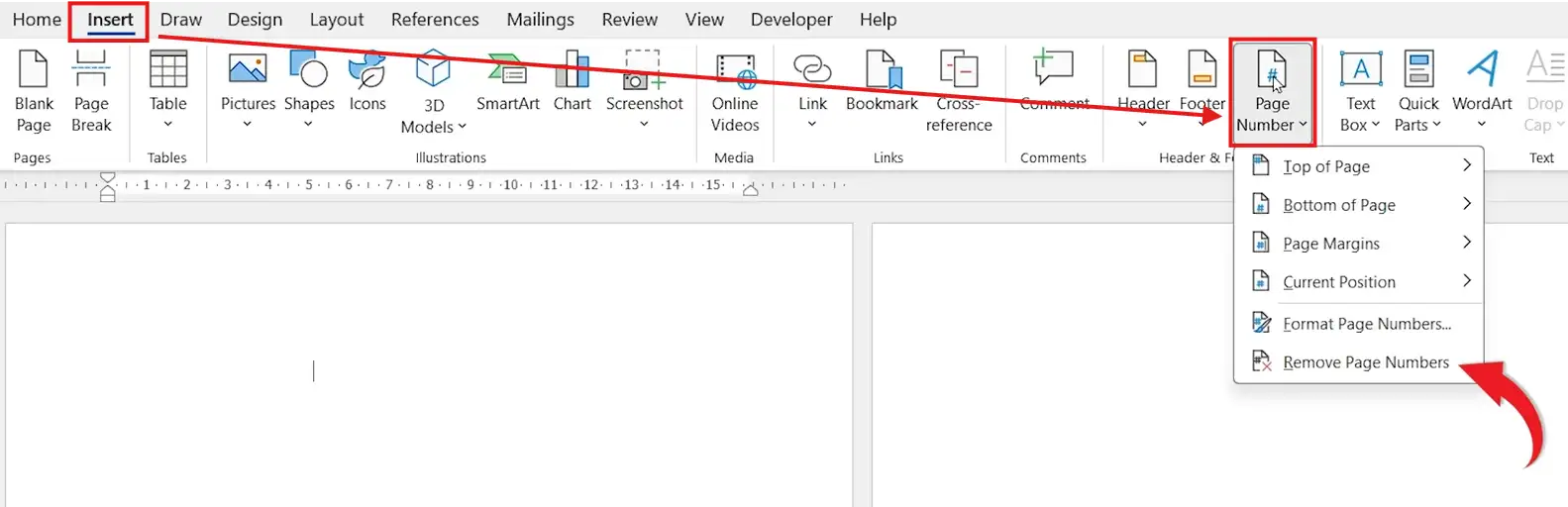
👉 Every page number disappears in a single click. The header and footer formatting stays intact, so anything else in there (document title, date, footer note) keeps working.
Method 2: How to Remove Page Numbers in Word From the First Page Only
When you have a cover page or title page, you usually want the page number gone from page 1 but everything else numbered normally. Word’s Different First Page setting handles this in two clicks.
Steps:
- Double-click the footer area on the first page
- Tick Different First Page in the Header & Footer tab
- Click Close Header and Footer
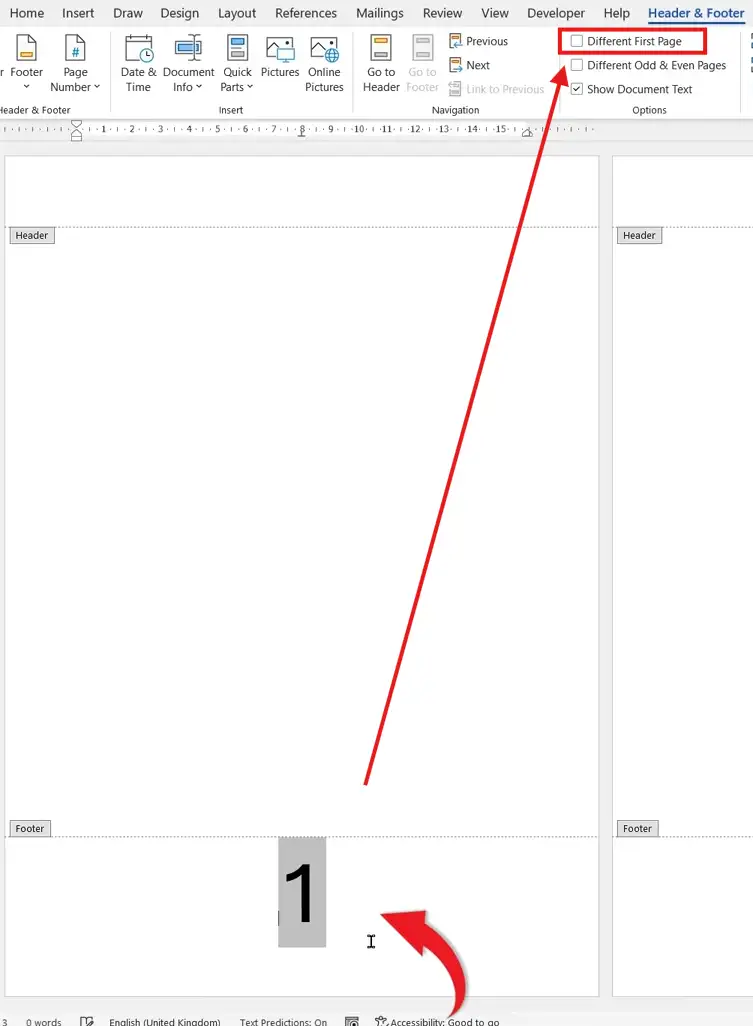
👉 The first page loses its number while pages 2 onwards keep theirs. Note that page 2 still shows “2” — to make it show “1” instead, use the fix in Method 3.
Method 3: How to Remove Page Numbers in Word and Fix Renumbering
After removing the first page number, Word still counts the first page internally — page 2 shows “2”, page 3 shows “3”. For a typical title-page setup you want page 2 to display as “1”. The fix is the Start at setting.
Steps:
- Double-click the footer on page 2
- Click Page Number → Format Page Numbers on the Header & Footer tab

- Under Page numbering, choose Start at and change the value to 0
- Click OK

👉 The numbering now reads: first page blank, second page “1”, third page “2”, and so on — the standard layout for any document with a title page in front.
Which Method Should You Use?
| Method | Best For | Speed | Affects |
|---|---|---|---|
| Method 1 — Remove All | Removing every page number | Fastest | Whole document |
| Method 2 — Different First Page | Title pages and cover sheets | Fast | First page only |
| Method 3 — Start at 0 | Fixing off-by-one numbering | Medium | Renumbers from page 2 |
For a typical title-page document, run Method 2 followed by Method 3 — first page blank, rest numbered from “1”. For total removal, Method 1 alone is enough.
Common Problems When Removing Page Numbers in Word
Page 2 still shows “2” after removing the first number
Word counts every page internally, even ones with no visible number. Use Method 3 above to set Start at to 0 on page 2’s footer — that pushes the visible numbering forward by one.
Different First Page doesn’t remove the number
The setting hides the existing header/footer, but if the number was inserted on a specific page rather than into the default header, it stays put. Click into the first page footer and delete the number manually after ticking the option.
Removing the page number also removed other footer content
Method 1 (Insert → Remove Page Numbers) only deletes the number itself, but if your footer contained text inside the same field, that’s likely gone too. Press Ctrl + Z to undo, then delete just the page number text inside the footer instead.
Page numbers keep coming back after removal
A template the document is based on has page numbers in its default header/footer. Open the template directly (File → Open → .dotx), remove the page numbers there, and save — new documents from that template will open clean.
Pro Tips
- For documents with multiple numbering styles — like Roman numerals on a contents page and Arabic on body chapters — use section breaks rather than removal. See our guide on how to use different page numbers in Word for the full walkthrough.
- Press Ctrl + Z immediately if a removal looks wrong — it’s faster than re-inserting everything manually and Word remembers multiple undo steps for header/footer changes.
- Combine headers and footers thoughtfully when you remove page numbers — a clean footer with just a document title often looks more polished than an empty one.
- Use Print Preview (Ctrl + P) as the final check — it shows exactly what prints, including any page numbers you might have missed in sub-sections.
FAQs
How do I remove page numbers in Word?
To remove page numbers in Word, go to the Insert tab, click Page Number, and select Remove Page Numbers. Every page number in the document disappears in a single click.
How do I remove page numbers from only one page?
For the first page, tick Different First Page in the Header & Footer tab. For other specific pages, use section breaks before and after the page, then untick Link to Previous and delete the number from that section.
Why is my page numbering incorrect after removing the first page number?
Word still counts the hidden first page internally. Fix it by clicking into the page 2 footer, opening Page Number → Format Page Numbers, and changing Start at to 0.
Can I restart page numbering in the middle of a document?
Yes. Insert a section break before the page where you want numbering to restart, then use Page Number → Format Page Numbers → Start at 1. Our full walkthrough on how to use different page numbers in Word covers this end-to-end.
Do page numbers affect printing?
Yes. Any page number visible in the header or footer prints with the document. Remove it before exporting if you don’t want it on the printed copy.
Can I customise page number styles?
Yes. Open Page Number → Format Page Numbers to switch between Arabic numerals, Roman numerals, and letters. The same dialog also controls where numbering restarts.
How do I remove page numbers in Word on Mac?
Same path on Mac. Go to Insert → Page Number → Remove Page Numbers, or double-click into the footer and use the Header & Footer tab. Different First Page is in the same place.
How do I remove page numbers from a specific section only?
Insert section breaks before and after the section you want unchanged, double-click the footer in that section, click Link to Previous to switch it off, then delete the page number. The numbering on other sections stays intact.
Conclusion
Once you know how to remove page numbers in Word, the choice of method comes down to scope — Method 1 for the whole document, Method 2 for the first page, and Method 3 when the numbering needs to recalibrate after the removal.
For documents with mixed numbering needs — front matter in Roman numerals, body content in Arabic — the natural next step is section-aware numbering. Start with our guide on how to use different page numbers in Word to combine selective removal with custom numbering across the same document.
Related Tutorials
- How to Insert Page Numbers in Word
- How to Use Different Page Numbers in Word
- How to Remove Formatting Marks in Word

Recent Microsoft Word Tutorials

Looking for more help with Microsoft Word? Browse all step-by-step Word tutorials covering formatting, layout, pages, and document setup.
👉 View all Microsoft Word tutorials: https://wordmadeeasy.org/microsoft-word/
👉 Need more support – check out the official guidance: https://support.microsoft.com/en-au

Prefer watching instead of reading? Many Word tutorials are also available as short, step-by-step videos on the Word Made Easy YouTube channel.













Leave a Reply