
If you need to know how to alphabetize text in Word — sorting a list of names, fruits, references, or any other content — Microsoft Word has a built-in sort tool that handles the job in under ten seconds. This guide pairs with our companion tutorial on how to create a table of contents in Word, so you can keep long documents organised from list to chapter.
In this guide, you’ll learn three sorting methods: a basic A–Z sort for plain lists, a header-row sort that keeps your title in place, and an advanced name sort that arranges entries by first or last name.
Why Alphabetize Text in Word
Sorting text alphabetically is one of those small jobs that takes seconds in Word but minutes by hand. Whether you’re ordering a reading list, organising a contact roster, or cleaning up a bibliography, the built-in Sort tool handles it without breaking your formatting.
Common uses:
- Organising reference lists, bibliographies, and indexes — particularly useful in long documents structured with a table of contents in Microsoft Word
- Sorting class rosters, contact lists, or staff directories by name
- Arranging glossary entries, product lists, or inventory items
- Tidying up bullet-point lists for professional reports
Watch the Video Tutorial
If you prefer to see this in action, the full video walkthrough is below, showing each method step by step.
How to Alphabetize Text in Word: 3 Methods at a Glance
All three methods use the same Sort tool on the Home tab. Which one you pick depends on what your list looks like:
- Method 1 — Sort a simple list (plain bullet points or paragraphs)
- Method 2 — Sort a list that has a header you want to keep at the top
- Method 3 — Sort names by first or last name using a separator
Method 1: How to Alphabetize Text in Word for a Simple List
This is the standard method. It works for any plain list — bullet points, numbered items, or one item per paragraph.
Steps:
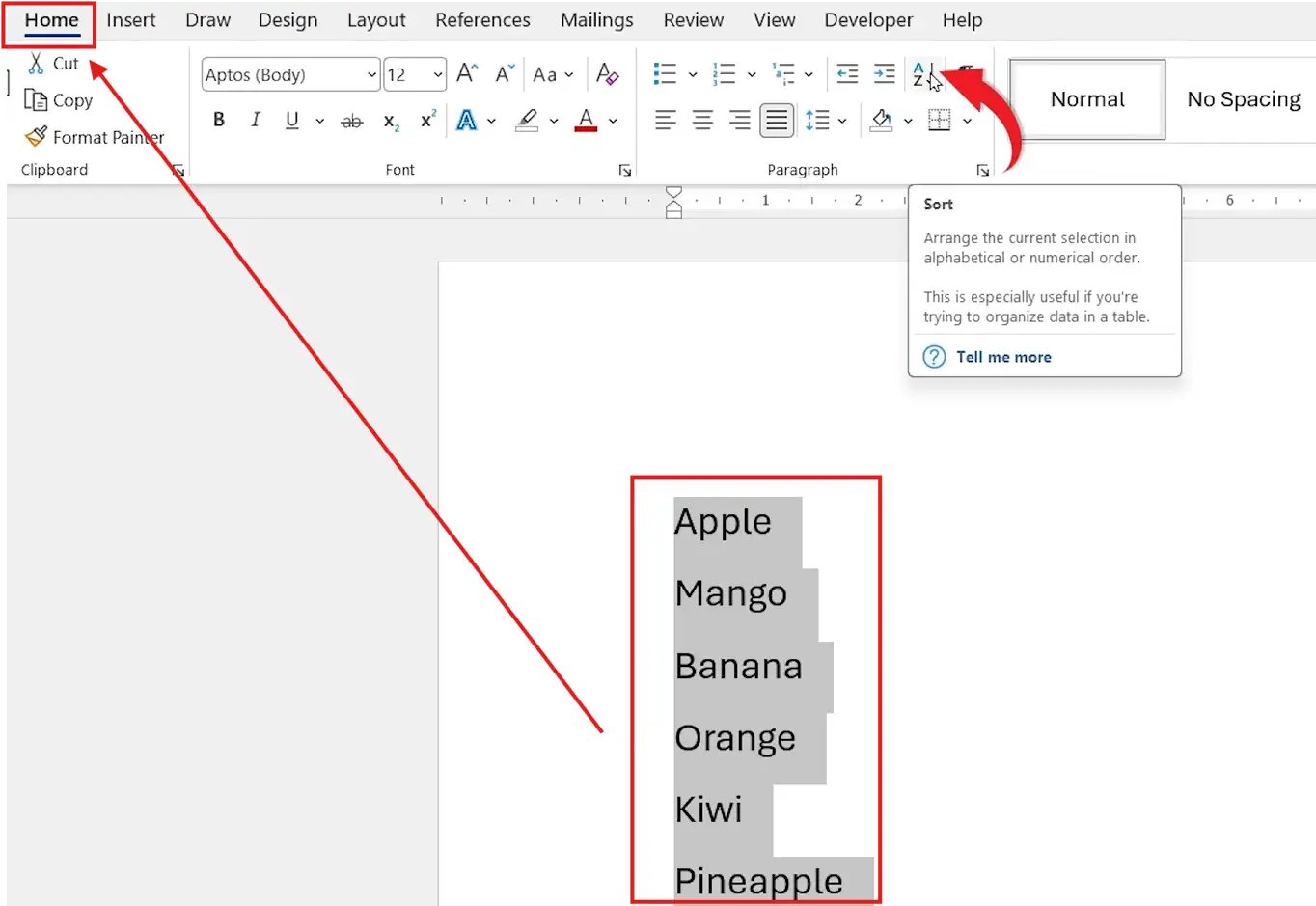
- Select all the text you want to sort
- Go to the Home tab
- Click the Sort (A–Z) icon in the Paragraph group
- In the Sort Text dialog box, configure the options:
- Sort by — Paragraphs
- Type — Text
- Order — Ascending (A–Z)
- Click OK

👉 Your list reorders from A to Z, with formatting and bullets preserved.
How to Sort Text in Reverse Order (Z–A)
To flip the order — useful for chronological lists, descending priority, or reverse rankings:
- Select your text and click the Sort (A–Z) button
- In the Sort Text dialog, choose Descending (Z–A)
- Click OK
👉 The list now runs from Z down to A.
Method 2: How to Alphabetize Text in Word with a Header Row
When your list has a title or category heading at the top, you don’t want it sorted into the middle of the list — this method keeps the header in place while everything below it gets alphabetised. Useful for structured documents that also use automatic chapters in Microsoft Word.
Steps:
- Select the entire list — including the header
- Click the Sort (A–Z) icon on the Home tab

- Choose your sort order (Ascending or Descending)
- Tick Header row at the bottom of the dialog box
- Click OK

👉 The header stays anchored at the top of the list. Everything below it sorts alphabetically.
Method 3: How to Alphabetize Text in Word by First or Last Name
Sorting names is trickier because Word reads each entry as a single block of text by default. Without telling Word how to split the name, an entry like John Smith sorts under J, not S. The fix is a separator — usually a comma — which lets you pick whether to sort by the first field (surname) or the second field (first name).
Step 1: Format your list with a comma separator
Write each name as Surname, First Name — for example:
- Smith, John
- Patel, Aisha
- Brown, Michael
The comma is what tells Word where one field ends and the next begins.
Step 2: Open the Sort Options dialog
- Select the full list of names
- Click the Sort (A–Z) icon on the Home tab
- In the Sort Text dialog, click Options… at the bottom
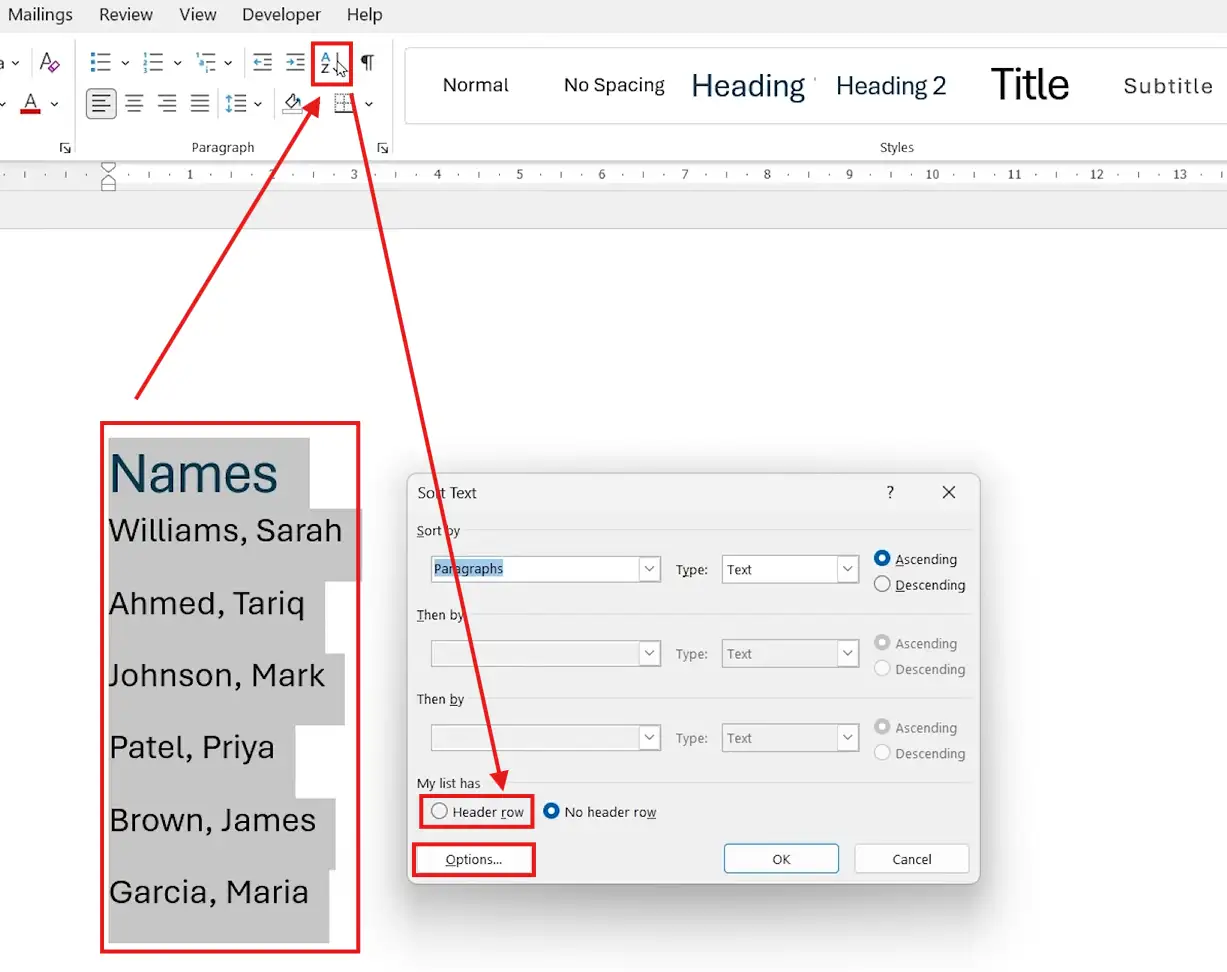
- Under Separate fields at, choose Commas
- Click OK to close the Options dialog

Step 3: Sort by last name
- Back in the Sort Text dialog, set Sort by to Field 1
- Set Type to Text and choose Ascending
- Click OK
👉 Names sort alphabetically by surname.
Step 4: Sort by first name instead
- Repeat the steps above
- In the Sort Text dialog, set Sort by to Field 2
- Click OK
👉 Names now sort alphabetically by first name instead.
Which Sort Method Should You Use?
| List Type | Best Method | Setup Time |
|---|---|---|
| Plain bullet list | Method 1: Simple sort | 5 seconds |
| List with a title at the top | Method 2: Header row sort | 10 seconds |
| Names in “Surname, First Name” format | Method 3: Field 1 sort | 20 seconds |
| Names in “First Surname” format | Method 3: Field 2 sort (with space separator) | 20 seconds |
| Table data | Method 2 — works the same inside tables, see three ways to insert a table in Word | 10 seconds |
Pro Tips for Alphabetizing in Word
- Press Ctrl + Z immediately if a sort goes wrong — Word’s sort tool can’t be undone any other way without re-sorting
- Sort tools also work inside tables — select the cells, then click the same Sort (A–Z) button
- If a list has multi-line entries, Word sorts by the first line of each paragraph — use line breaks (Shift + Enter) inside entries to keep them together
- Numbers sort numerically only if you set Type to Number in the Sort dialog — leave it on Text and “10” will sort before “2”
- For very long lists, switch Type to Date if your entries start with dates — Word handles chronological sorting automatically
FAQs
How do I alphabetize text in Word?
To alphabetize text in Word, select your list, go to the u003cstrongu003eHomeu003c/strongu003e tab, click the u003cstrongu003eSort (A–Z)u003c/strongu003e icon in the Paragraph group, choose Ascending order, and click u003cstrongu003eOKu003c/strongu003e. Word sorts the selected text alphabetically while keeping its formatting.
Where is the Sort button in Microsoft Word?
The Sort button sits in the Paragraph group on the u003cstrongu003eHomeu003c/strongu003e tab. The icon shows the letters A and Z with a small downward arrow next to them.
Can I alphabetize only part of my document?
Yes. Highlight only the text you want sorted before clicking the Sort button — Word leaves the rest of the document untouched and only reorders your selection.
How do I keep a title from being sorted with the list?
Tick the u003cstrongu003eHeader rowu003c/strongu003e option at the bottom of the Sort Text dialog. The first row of your selection stays in place while everything below it sorts alphabetically.
Can I sort names by last name in Word?
Yes. Format names as u003cemu003eSurname, First Nameu003c/emu003e, open u003cstrongu003eSort → Optionsu003c/strongu003e, choose u003cstrongu003eCommasu003c/strongu003e as the separator, then set u003cstrongu003eSort byu003c/strongu003e to u003cstrongu003eField 1u003c/strongu003e.
How do I sort numbers instead of letters in Word?
In the Sort Text dialog, change u003cstrongu003eTypeu003c/strongu003e from Text to u003cstrongu003eNumberu003c/strongu003e. This stops Word treating u002210u0022 as smaller than u00222u0022 and sorts the values numerically.
Does sorting affect text formatting?
No. Sorting only reorders text — bullet styles, fonts, colours, and indentation stay attached to each entry as it moves.
Conclusion
Knowing how to alphabetize text in Word turns a tedious manual job into a five-second click. Simple lists sort with one button, headers stay anchored with a checkbox, and names sort by surname or first name once you’ve told Word where the comma sits.
Once your lists are organised, the same logic carries through to longer documents — see the guide on how to create a table of contents in Microsoft Word to build the structure that ties your sorted content together.
Related Tutorials
- How to Create a Table of Contents in Microsoft Word
- How to Create Automatic Chapters in Microsoft Word
- Three Ways to Insert a Table in Word
Word Tutorials
Recent Microsoft Word Tutorials
Browse the complete collection for help with formatting, layout, pages, tables, images, and document setup.
For Microsoft support documentation, visit the official Microsoft guidance.
Leave a Reply