
Google Docs cannot display a PDF page inside a document, but you can still add a PDF to a Google Doc in three useful ways. The quickest is a clickable file chip: type @, start typing the file name and pick the PDF. New to Docs? First see how to make a Google Doc.
In this guide, you’ll learn how to add a PDF to a Google Doc as a file chip, how to convert a PDF into an editable Google Doc, and how to add a picture of a PDF page.
Can You Add a PDF to a Google Doc?
Yes, but not as a live page. You can add a PDF to a Google Doc as a link that opens the file, as editable text, or as a picture. Choose the method that matches what your reader needs to do.
Each method suits a different job:
- File chip: readers click to open the full PDF
- Convert: you need to edit or copy the PDF text
- Picture: readers only need to see one page
Method 1: Add a PDF to a Google Doc as a File Chip
This is the best way to add a PDF to a Google Doc when readers need the whole file.
- If the PDF is not in Google Drive yet, go to drive.google.com, select New > File upload, choose the PDF on your computer and select Open. Wait for the upload to finish.

- Open your Google Doc and click exactly where you want the PDF to appear. A flashing line (the cursor) shows the spot.
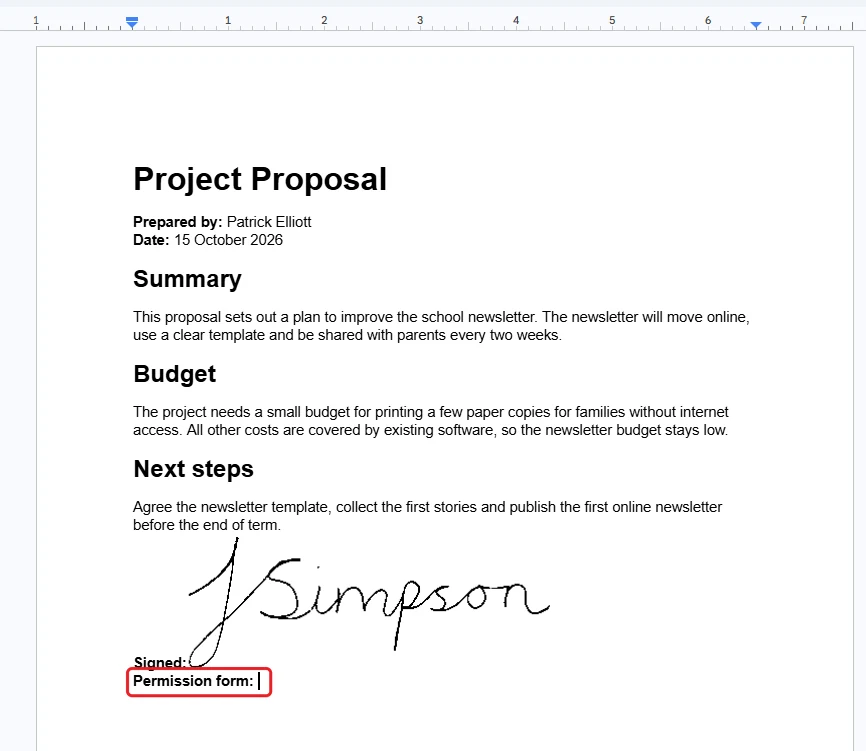
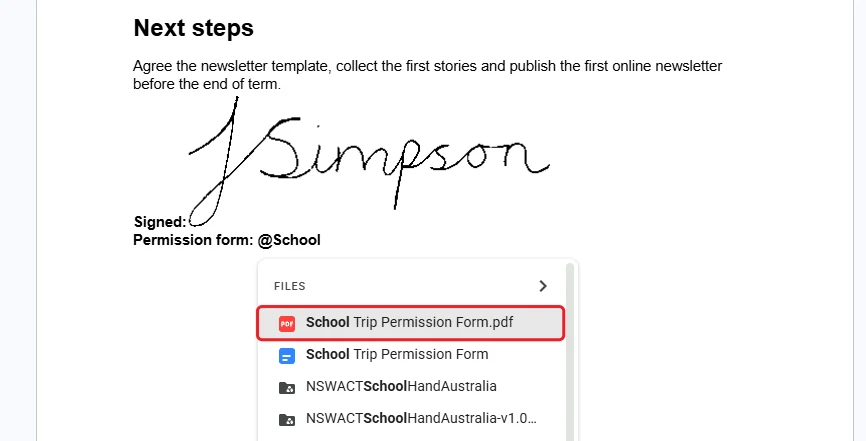
- Type @ (Shift + 2 on most keyboards) followed by the first words of the file name.
- In the Files list that appears, select the file with the red PDF icon. A blue icon is a Google Doc, not the PDF.
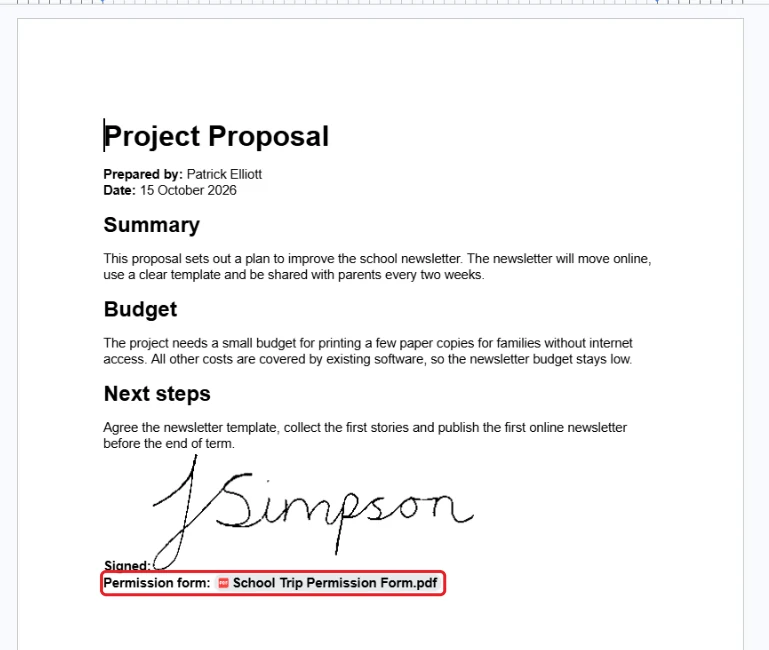
👉 The PDF appears as a clickable file chip. Readers point at it to preview the file, or click to open it.
Method 2: Convert a PDF Into a Google Doc
Use this when you need to edit the text in the PDF.
- Go to drive.google.com and double-click the PDF to open its preview.
- Select Open with at the top right of the preview.
- Choose Google Docs.

👉 Drive makes an editable Google Doc copy and opens it in a new tab. The text is there, but check the layout: lines and columns can move.
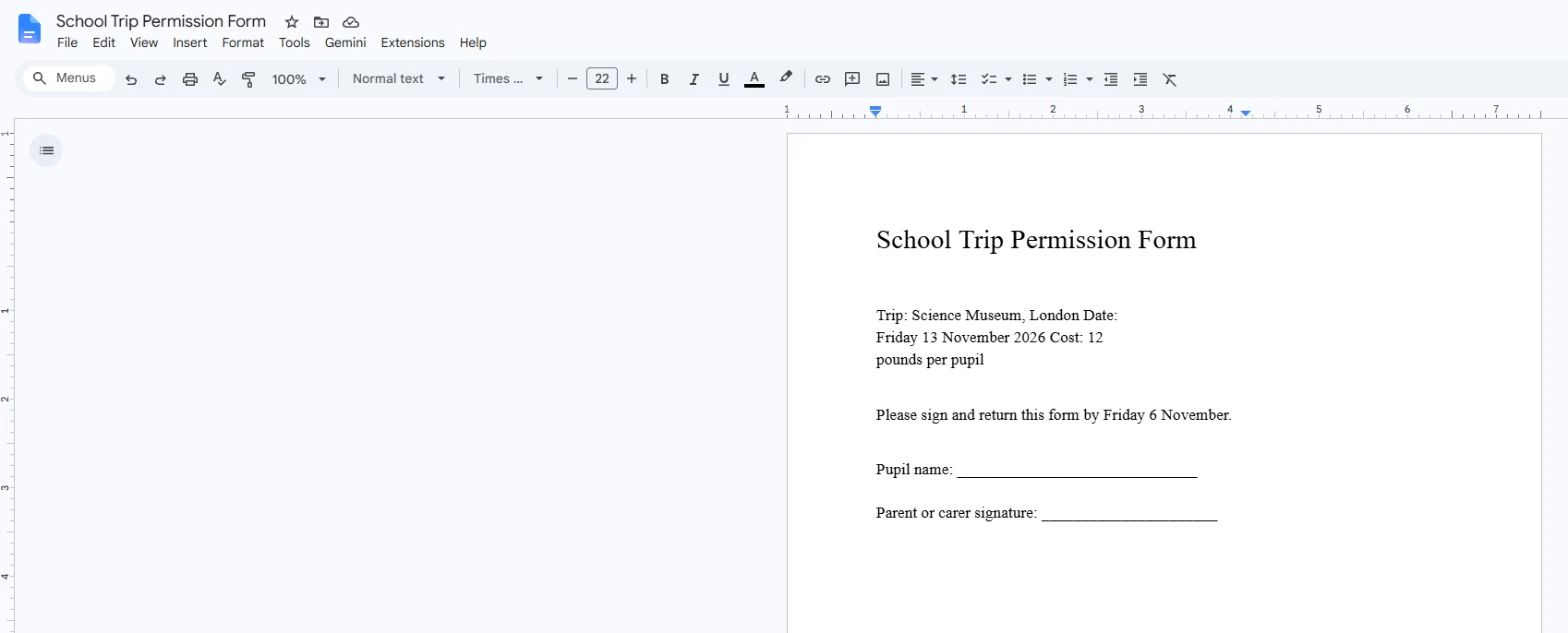
Copy the text you need and paste it into your own document. This is how to add a PDF to a Google Doc as editable text.
Method 3: Add a PDF Page as a Picture
Use this when readers only need to see one page, such as a poster or a form.
- Open the PDF and go to the page you want.
- Take a screenshot. On Windows, press Win + Shift + S and drag a box around the page. On a Mac, press Cmd + Shift + 4.
- Save the screenshot to your computer.
- In Google Docs, click where the picture should go, then select Insert > Image > Upload from computer.
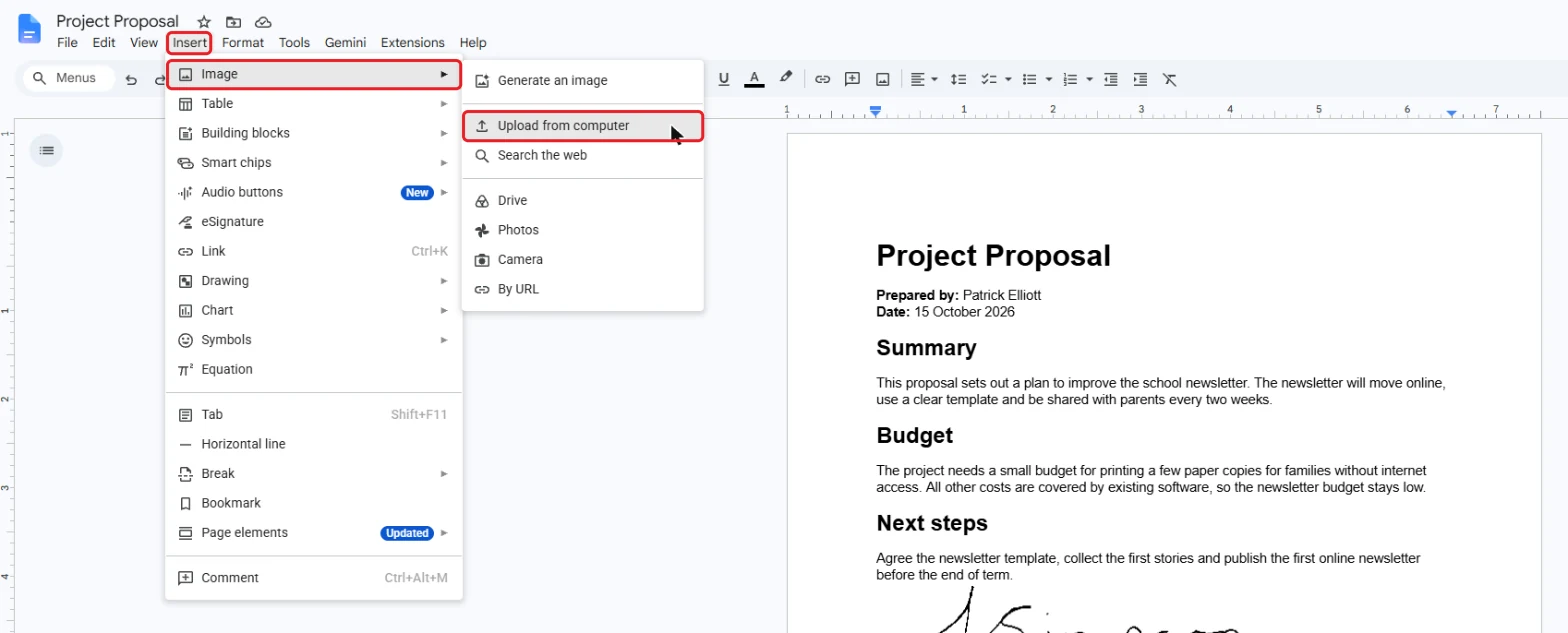
- Choose the screenshot and select Open.
👉 The page appears as a picture you can resize, but readers cannot edit or search its text.
Quick Tips
Share the PDF Too
Readers can only open a file chip if they have access to the PDF, so share it with them.
Keep the Original
Converting never changes your PDF. Drive saves the Google Doc as a separate file.
Clear Scans
Scan pages straight and in good light so text recognition reads them correctly.
Back to PDF
When you finish, select File > Download > PDF document.
Common Problems
The PDF Does Not Appear in the List
The file must be in your Google Drive or shared with you. Upload it to Drive, then type @ and its name again.
Open With Google Docs Is Missing
Make sure you opened the PDF from Google Drive, not from an email attachment, then look for Open with at the top of the preview.
FAQs
How do I add a PDF to a Google Doc?
To add a PDF to a Google Doc, upload the PDF to Google Drive, type @ in the document followed by the file name, and pick the PDF. It appears as a clickable file chip.
Can I put a PDF page inside a Google Doc?
Not as a live page. Take a screenshot of the page, then use Insert > Image > Upload from computer to add it as a picture.
How do I convert a PDF to a Google Doc?
Open the PDF in Google Drive, select Open with > Google Docs, and Drive creates an editable copy. The original PDF is not changed.
Why does my converted PDF look different?
Conversion keeps the text but not always the layout. Columns, tables and fonts may move, so check the document and fix the formatting.
Can Google Docs convert a scanned PDF?
Yes. Drive uses text recognition (OCR) on scanned PDFs and images, but clear, straight scans give the best results.
How do I save a Google Doc as a PDF?
Select File > Download > PDF document (.pdf). The PDF downloads to your computer.
Can I add a PDF to a Word document instead?
Yes. Word can insert a PDF as an object or convert it. See how to insert a PDF into Word.
Conclusion
To add a PDF to a Google Doc, insert it as a file chip with @, convert it with Open with > Google Docs, or add a picture of a page. Google explains conversion in its help page on converting PDFs and images to text.
If someone needs to sign the form, see how to sign a Google Doc, or browse all our Google Docs tutorials.
Related Tutorials
- How to Insert a PDF into Word: 2 Easy Methods
- How to Open a Word Document in Google Docs
- How to Convert a PDF to Word Document: 6 Steps
Google Docs Tutorials
Recently Added Google Docs Tutorials
Browse the complete collection for help with formatting, spacing, page setup and opening Word files in Google Docs.
For Google support documentation, visit the official Google Docs Editors Help.
Leave a Reply