
Customizing your document’s appearance in Microsoft Word can make it more visually appealing and easier to read — much like when you add a page border in Microsoft Word to frame your content. One simple way to do this is by changing the background color of your page.
In this guide, you’ll learn how to change the background color in Word, ensure it prints correctly, and explore additional customization options.
What Is Page Background Color in Word?
By default, Word documents use a white background. However, you can change the page color to:
- Improve readability
- Create visually engaging documents
- Match branding or design themes
- Highlight specific sections
Watch the Video Tutorial
If you prefer to see this in action, the full video walkthrough is below, showing each method step by step.
How to Change Background Color in Word
Changing the background color is quick and easy.
Step-by-Step Instructions
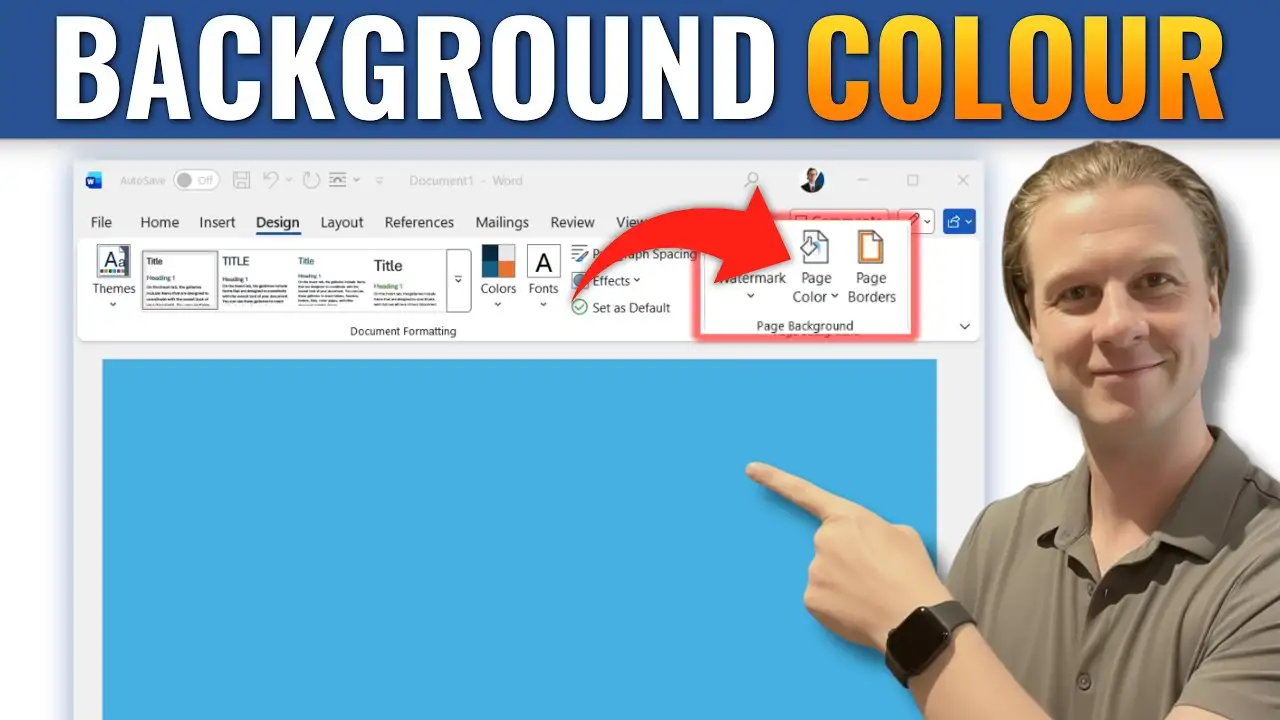
- Go to the Design tab
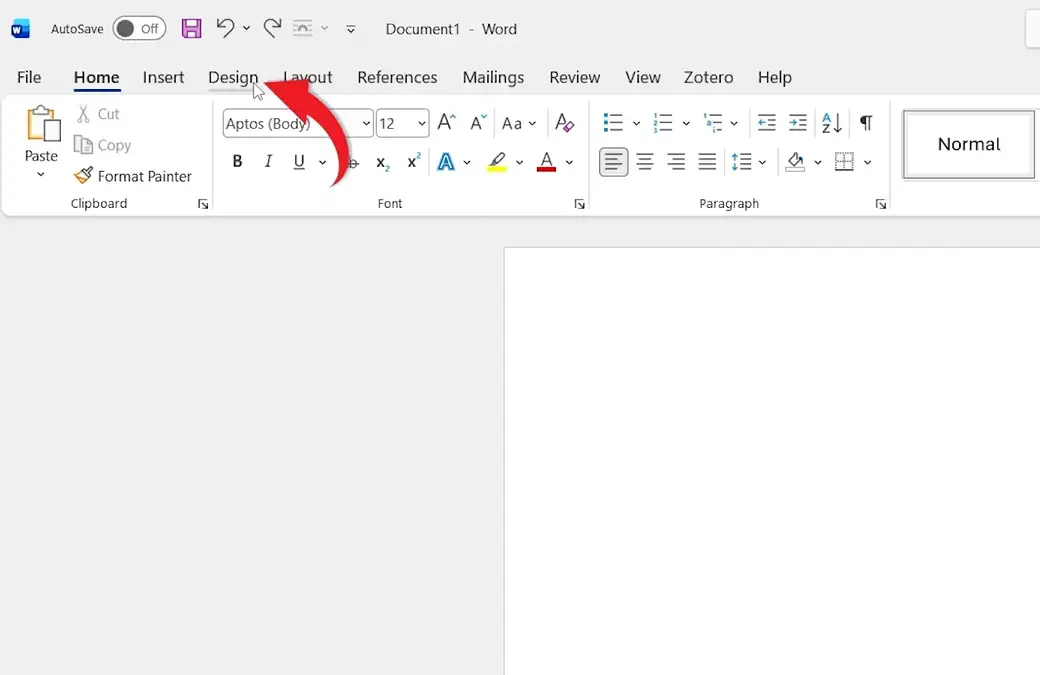
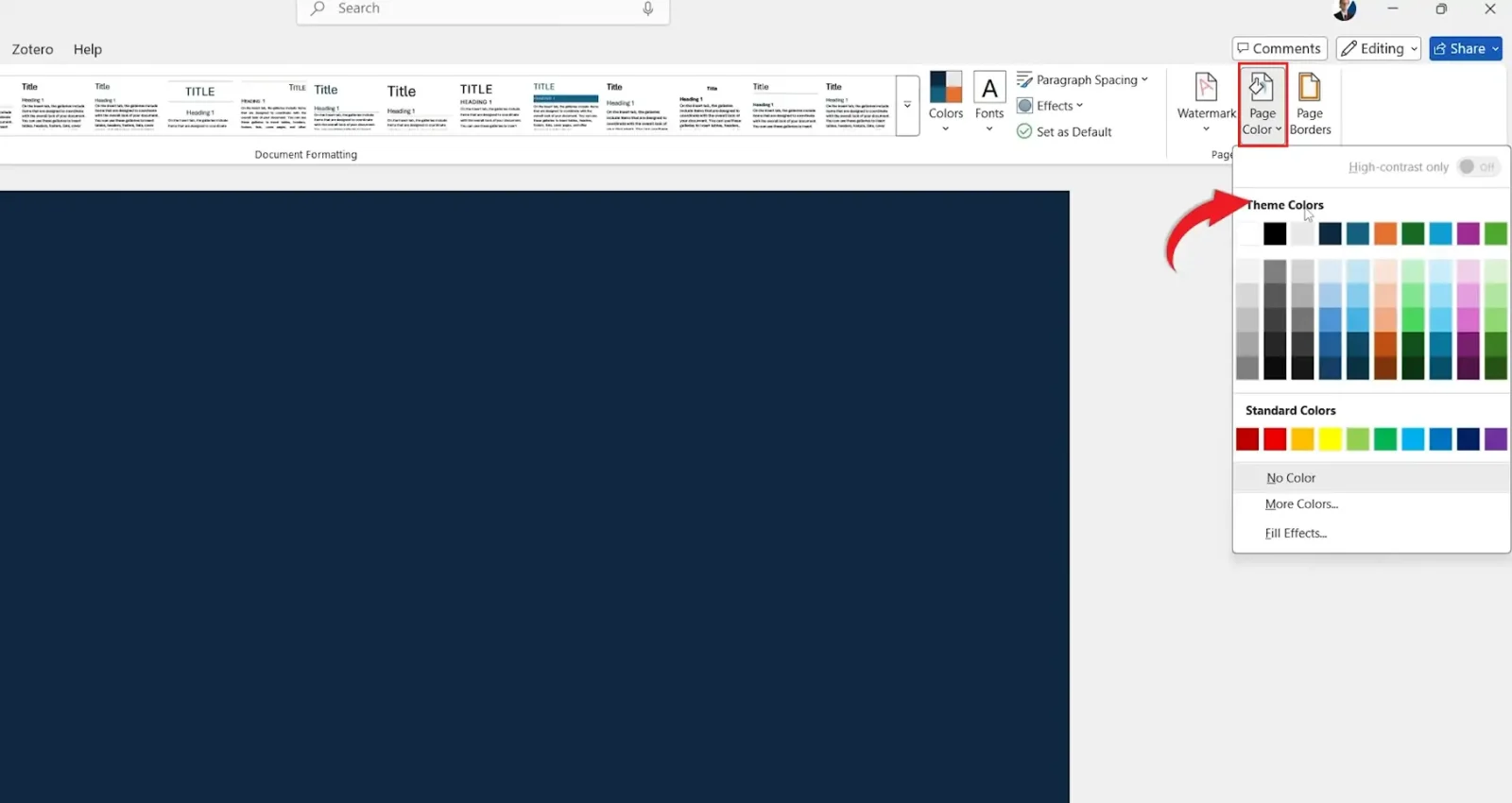
- Click Page Color
- Choose from:
- Theme Colors
- Standard Colors
- More Colors (for custom shades)
- Fill Effects (gradients, textures, patterns)
- Select your preferred color
👉 Result:
Your document background will update instantly.
How to Print Background Colors in Word
By default, Word does not print background colors. You’ll need to enable this setting.
Steps:
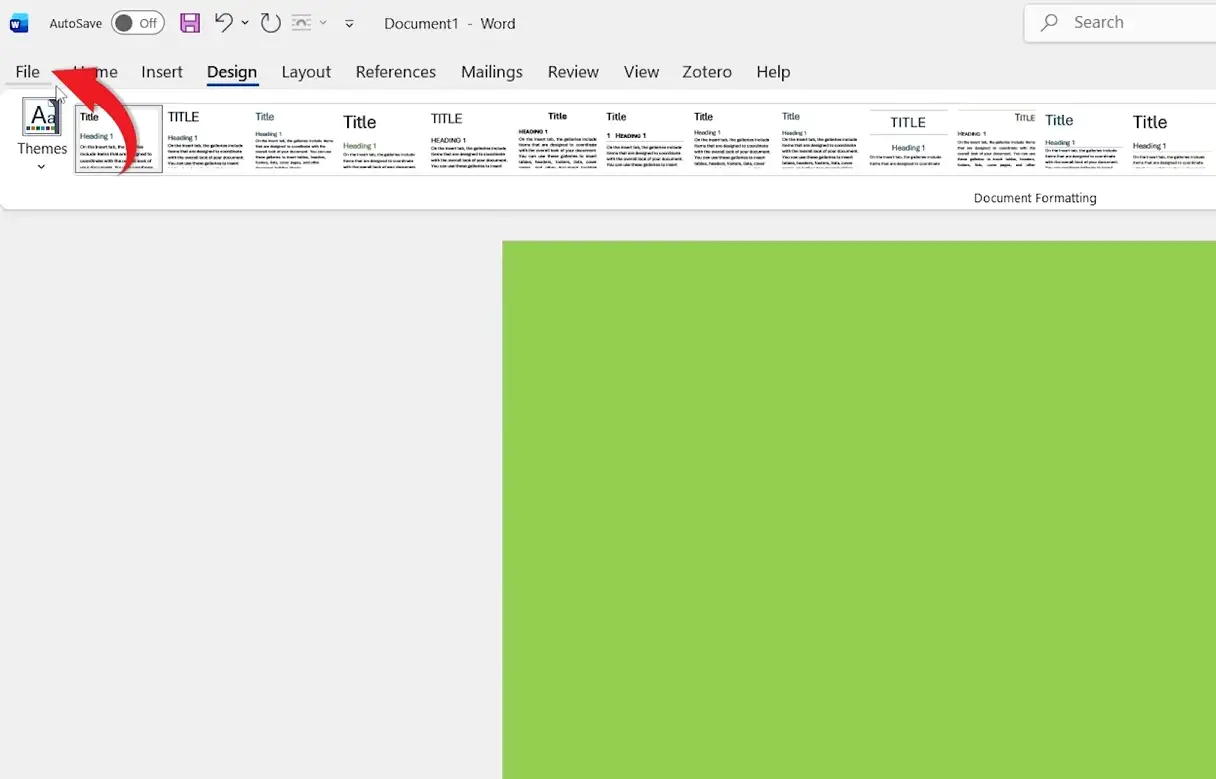
- Click File
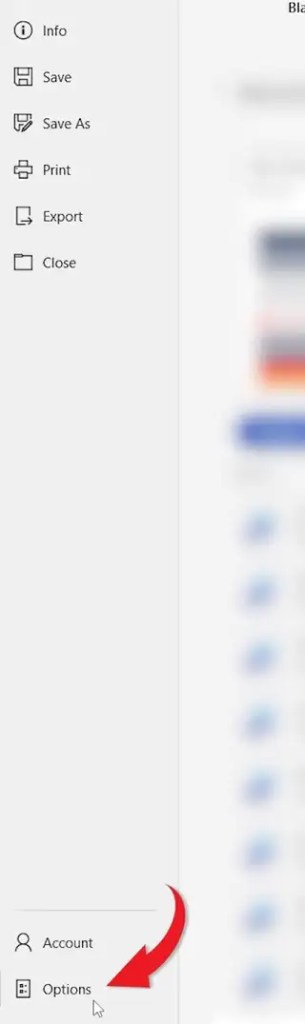
- Select Options
- Click Display
- Check Print background colors and images
- Click OK

👉 Result:
Your background color will now appear when printing or exporting to PDF.
Use Fill Effects for Advanced Backgrounds
If you want something more creative than a solid color, Word offers additional options.
Fill Effects Include:
- Gradients → Smooth color transitions
- Textures → Paper, fabric, or artistic backgrounds
- Patterns → Decorative designs
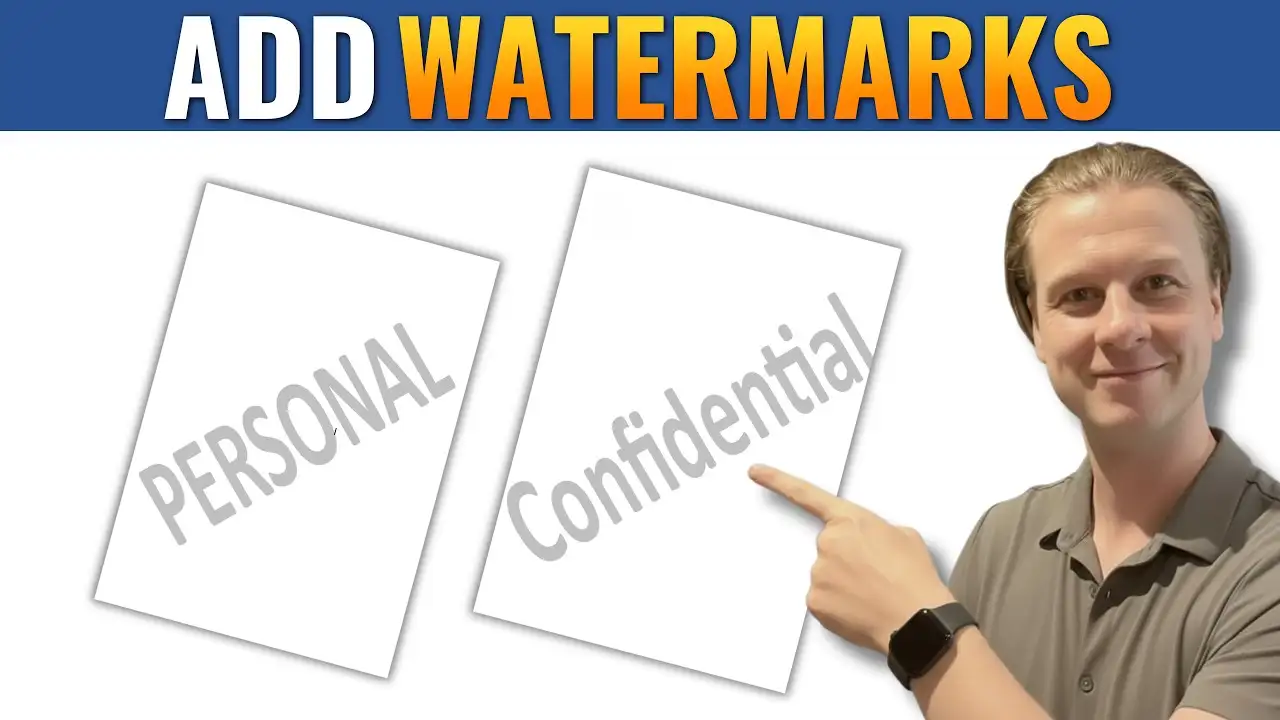
- Pictures → Custom image backgrounds — and if you want a faded image effect behind your text instead, see the guide on how to add a watermark in Microsoft Word.
These options allow you to create unique and professional-looking documents — and for the best layout pairing, make sure you also adjust your margins in Word so your background frames the content evenly.
Common Issues and Fixes
Background Color Not Printing
- Enable “Print background colors and images” in Word Options
Color Looks Different When Printed
- Check printer settings
- Use high-quality print mode
Background Too Dark
- Choose lighter colors for better readability
When to Use Background Colors
Background colors are ideal for:
- Presentations and handouts
- Marketing materials
- Invitations and flyers
- Digital documents and PDFs
- Branded content
Pro Tips for Better Design
- Use subtle colors to maintain readability
- Avoid dark backgrounds with dark text
- Test print before finalizing
- Use consistent color themes across documents
FAQs
Can I change the background color of only one page?
Word applies background color to the entire document by default. For single-page effects, use shapes or design elements.
Will background colors show in PDF exports?
Yes, if you enable the print background option.
Can I use images as a background in Word?
Yes, using Fill Effects or watermark features.
Why is my background not visible when printing?
The print background option may not be enabled.
Does background color affect file size?
Solid colors have minimal impact, but image backgrounds may increase file size.
Conclusion
Changing the background color in Microsoft Word is a simple way to enhance the look and feel of your documents.
With options for solid colors, gradients, and images, Word gives you flexibility to design documents that stand out. By enabling background printing and choosing the right colors, you can create professional and visually engaging content with ease.
Related Tutorials
- How to Add a Page Border in Microsoft Word
- How to Add a Watermark in Microsoft Word
- How to Adjust Margins in Word

Recent Microsoft Word Tutorials

Looking for more help with Microsoft Word? Browse all step-by-step Word tutorials covering formatting, layout, pages, and document setup.
👉 View all Microsoft Word tutorials: https://wordmadeeasy.org/microsoft-word/
👉 Need more support – check out the official guidance: https://support.microsoft.com/en-au

Prefer watching instead of reading? Many Word tutorials are also available as short, step-by-step videos on the Word Made Easy YouTube channel.













Leave a Reply