
Creating barcodes in Microsoft Word is easier than most people think. You don’t need to install any fonts or external tools Word already has built-in functionality to generate different barcode types.
In this guide, you’ll learn how to create barcodes step-by-step, edit them, and use multiple barcode systems like Code 128, Code 39, EAN-13, and UPC-A.
What You Need Before Creating a Barcode
Before getting started, make sure you have:
- A product ID or number
- The correct number of digits (varies by barcode type)
- A basic understanding of which barcode system you want to use
Each barcode format has specific requirements, which we’ll cover later.
Watch the Video Tutorial
If you prefer to see this in action, the full video walkthrough is below, showing each method step by step.
How to Insert a Barcode in Word
You can generate a barcode using field codes in Word.
Steps to create a barcode:
- Click where you want the barcode to appear
- Press Ctrl + F9 -this inserts special field brackets:
{ }— if you want a full reference of useful shortcuts like this one, the Microsoft Word keyboard shortcuts cheat sheet is worth bookmarking. - Inside the brackets, type:
DISPLAYBARCODE "12345678" CODE128
- Replace 12345678 with your product ID
- Highlight the entire code
- Press F9

Your barcode will instantly appear.
Understanding the Barcode Code
The structure looks like this:
DISPLAYBARCODE "ProductID" BarcodeType
- ProductID → Your unique number
- BarcodeType → The format (e.g., CODE128, CODE39)
This flexibility allows you to generate multiple barcode types using the same method — field codes are also used elsewhere in Word, for example to insert a word counter directly in your document that updates automatically.
How to Edit an Existing Barcode
If you need to change the barcode:
- Right-click the barcode
- Select Toggle Field Codes
- Edit the text (e.g., change the barcode type or number)
- Press F9 to update

This lets you quickly reuse and modify barcodes without starting from scratch.
Different Barcode Types You Can Use
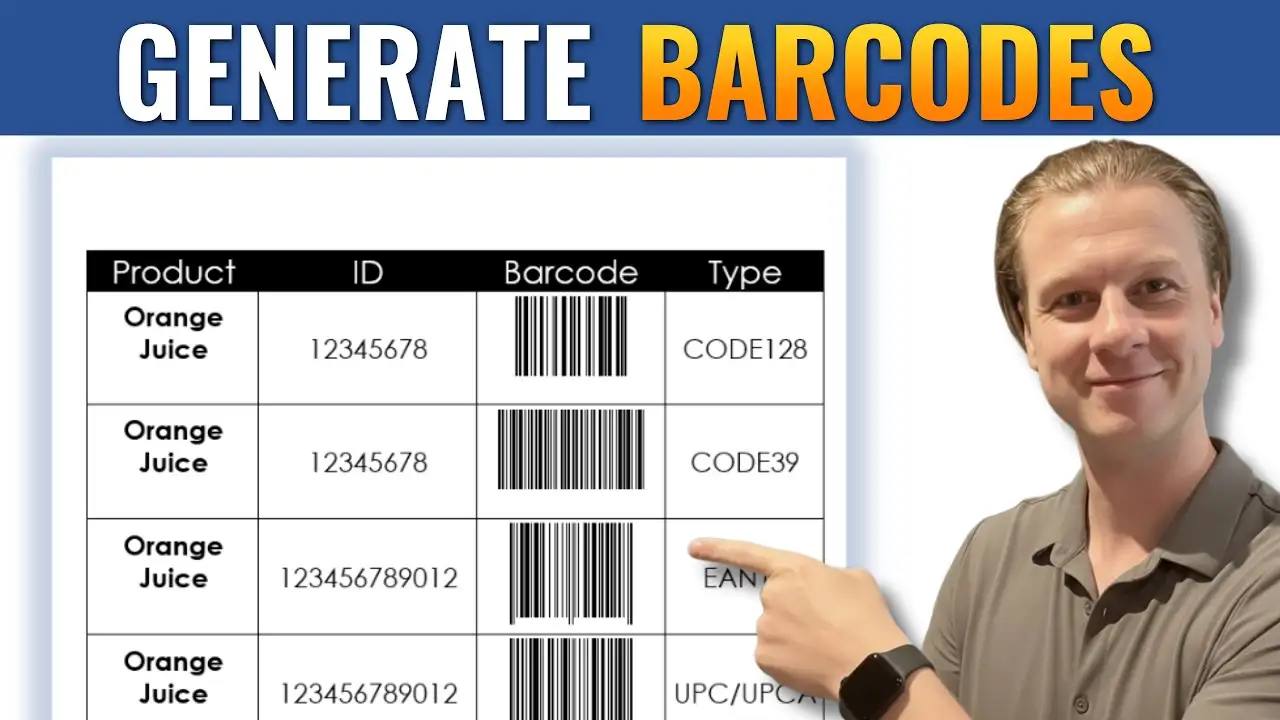
Microsoft Word supports several barcode systems. Here are the most common:
1. CODE128 (Most Flexible)
- Supports letters, numbers, and symbols
- No strict length requirement
- Ideal for general-purpose use
Example:
DISPLAYBARCODE "12345678" CODE128
2. CODE39
- Supports uppercase letters and numbers
- Common in inventory systems
To use it, simply change:
CODE128 → CODE39
3. EAN-13 (Retail Products)
- Requires 13 digits total
- Often used in retail and global trade
⚠️ Important:
- If your number is shorter, you must pad it correctly
- The last digit is typically a check digit
Example:
DISPLAYBARCODE "1234567890123" EAN13
4. UPC-A
- Requires 12 digits
- Common in North America
Example:
DISPLAYBARCODE "123456789012" UPCA
Important Barcode Rules to Remember
- EAN-13 must be exactly 13 digits
- UPC-A must be exactly 12 digits
- Incorrect lengths will cause errors
- Some systems convert numbers:
- 10 → 0
- 11 → 1
- 12 → 2

Getting the format right is essential for scannable barcodes.
Tips for Faster Barcode Creation
- Create one barcode, then copy and paste it
- Edit using Toggle Field Codes
- Keep a list of product IDs ready
- Use consistent barcode types across your document
This can save you a lot of time when working with multiple products.
When to Use Barcodes in Word
Creating barcodes in Word is useful for:
- Inventory tracking
- Product labeling
- Internal business systems
- Simple retail setups
- Document organization
It’s a great solution when you don’t want to rely on external software — and if you are building a full product or inventory document, you may also want to learn how to create a fillable form in Microsoft Word so users can enter data directly into the document.
FAQs
Do I need a barcode font in Word?
No. Word has built-in support using field codes.
Why isn’t my barcode working?
Most likely:
- Incorrect number of digits
- Wrong barcode type
- Field not updated (press F9)
Can I create multiple barcodes quickly?
Yes. Copy and paste an existing one, then edit the code.
Which barcode type should I use?
- Use CODE128 for flexibility
- Use EAN-13 or UPC-A for retail products
Will these barcodes scan properly?
Yes, as long as:
- The format is correct
- The number of digits is valid
- The barcode is printed clearly
Conclusion
Using Microsoft Word to create barcodes is a powerful and often overlooked feature.
With just a simple field code, you can generate multiple barcode types without installing anything extra. Once you understand the structure and requirements, you’ll be able to create, edit, and reuse barcodes quickly and efficiently.
Related Tutorials
- Microsoft Word Keyboard Shortcuts Cheat Sheet
- How to Insert a Word Counter Directly in Your Word Document
- How to Create a Fillable Form in Microsoft Word

Recent Microsoft Word Tutorials

Looking for more help with Microsoft Word? Browse all step-by-step Word tutorials covering formatting, layout, pages, and document setup.
👉 View all Microsoft Word tutorials: https://wordmadeeasy.org/microsoft-word/
👉 Need more support – check out the official guidance: https://support.microsoft.com/en-au

Prefer watching instead of reading? Many Word tutorials are also available as short, step-by-step videos on the Word Made Easy YouTube channel.




















Leave a Reply