
When working in Microsoft Word, most users rely on the word count displayed at the bottom of the screen. While this is useful, it isn’t always enough. This is particularly important for academic essays, reports, or formal documents. These types of documents require a visible word count inside the document.
In this guide, you’ll learn how to insert a word counter directly in your Word document. You will use Word’s built-in field tools. The word count will update automatically, saving time and preventing errors.
Why Add a Word Counter Inside a Word Document?
Embedding a word counter inside your document is useful when:
- Submitting university or college assignments
- Writing academic essays with strict word limits
- Preparing professional reports
- Creating documents that must display word totals clearly
Instead of manually typing the word count, you can use a live, automatic word counter. It can be placed directly where it’s needed. This is better than constantly checking the status bar. Live, automatic word counters can help streamline your workflow.
Does Word Already Have a Word Counter?
Yes, Word does show a word count at the bottom of the screen. However:
- It is not part of the document
- It does not print
- It cannot be submitted as proof of word count
That’s why inserting an automatic word counter into the document itself is often required.
Watch the Video Tutorial
If you prefer to see this in action, the full video walkthrough is below, showing each method step by step.
How to Insert a Word Counter Directly in Your Word Document
Follow these simple steps carefully. You only need to do this once.
Step 1: Choose Where the Word Counter Will Appear
- Click inside the document where you want the word counter to be displayed
- This could be at the top, near the title, or at the bottom of the document
Step 2: Open the Field Menu
- Click Insert in the top menu
- Select Quick Parts
- Click Field

This opens Word’s built-in field options.
Step 3: Insert the Word Count Field
- Scroll through the list of field names
- Select NumWords (short for “Number of Words”)
- Click OK
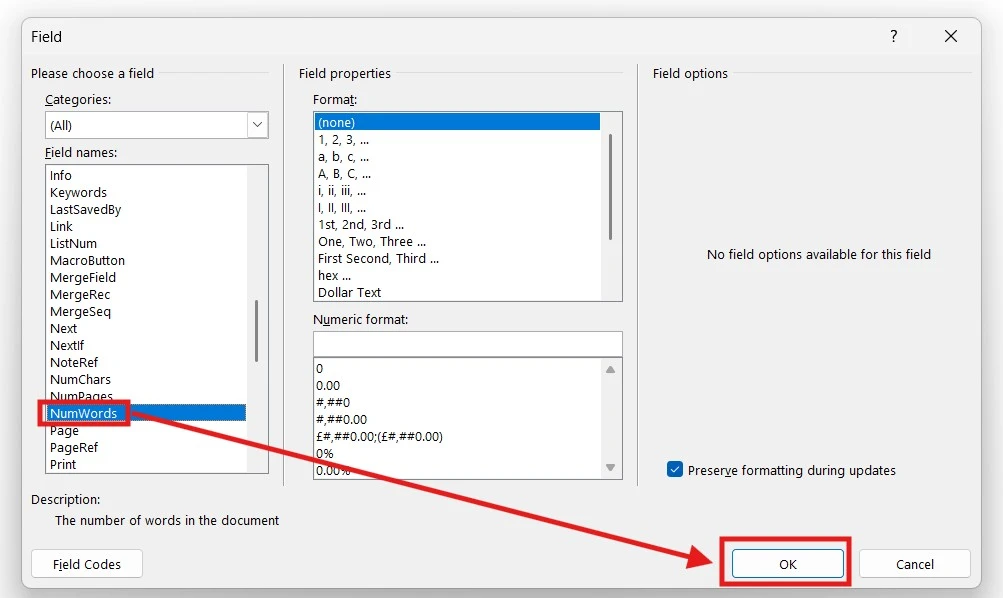
A number will appear in your document showing the current word count.
Why the Word Count May Look Incorrect at First
You may notice that the number in the document is slightly lower. This is compared to the word count shown at the bottom of Word.
This happens because:
- The field does not count itself automatically
How to Fix It
- Right-click the word count number
- Select Update Field
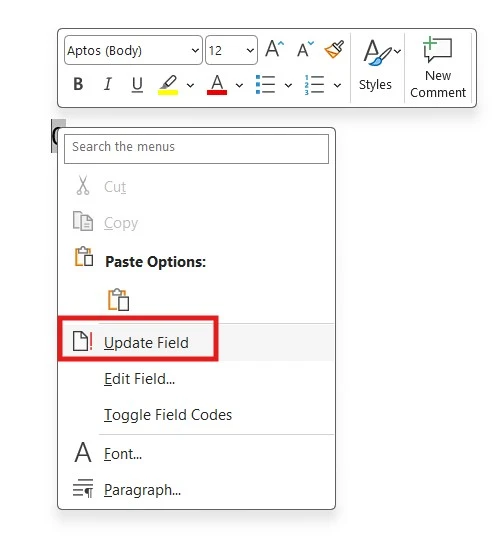
The number will now match the actual word count.
When you save and reopen the document, Word updates the field automatically.
Add a Label to the Word Counter (Recommended)
To make the number clear and professional, add a label.
Example:
Word Count: 1,243
How to do it:
- Click next to the number
- Type your label
- Format it if needed (bold, font size, alignment) — and if your document has specific formatting requirements, you may also want to check the guide on how to use double line spacing in Microsoft Word.

Updating the Word Count Manually
Although Word updates the count automatically when reopening the file, you can refresh it anytime:
- Right-click the word count
- Select Update Field
This is useful when you want to confirm the total before submitting your document.
How to Move the Word Counter to the Bottom of the Document
Many academic institutions require the word count at the bottom of the page.
Here’s how to move it without redoing the process:
- Select the word count and label
- Press Ctrl + X (Cut)
- Scroll to the bottom of the document
- Press Ctrl + V (Paste)
The word counter remains fully functional in its new position.
If you want a full list of shortcuts like these, the Microsoft Word keyboard shortcuts cheat sheet is worth bookmarking.
Will the Word Counter Update Automatically?
Yes. The embedded word counter:
- Updates when the document is reopened
- Can be manually refreshed anytime
- Reflects changes made to the document text
This makes it far more reliable than manually typing the word count.
Best Practices When Using an Embedded Word Counter
- Place it where it’s clearly visible
- Use a clear label such as Word Count:
- Update it before final submission — and if you are submitting a sensitive document, it is also worth learning how to password protect a Word document before sending it.
- Avoid manually typing word totals
These small steps help ensure accuracy and professionalism.
Common Use Cases
This method is especially useful for:
- University essays
- Research papers
- Professional reports
- Grant proposals
- School assignments
Any document with strict word-count requirements benefits from this feature.
FAQs
Can I insert a word counter anywhere in Word?
Yes. You can place the word counter anywhere in the document—top, middle, or bottom.
Does the word counter update automatically?
Yes. It updates automatically when the document is reopened and can be updated manually at any time.
Does the word counter count itself?
No. The field does not count itself automatically, but you can right-click and update it to include itself.
Can I format the word counter text?
Yes. You can bold it, change the font, adjust the size, or add a label just like normal text.
Will the word counter print with the document?
Yes. Because it is embedded in the document, it will appear when printed or exported as a PDF.
Is this feature available in all versions of Word?
Most modern versions of Word support the NumWords field, including recent desktop versions.
Conclusion
Learning how to insert a word counter directly in your Word document is a simple but powerful skill. It eliminates guesswork, ensures accuracy, and meets academic and professional requirements with ease.
Once inserted, the word counter works automatically—saving you time and preventing mistakes. Whether you’re writing an essay, report, or formal document, this feature is well worth using.
Related Tutorials
- Microsoft Word Keyboard Shortcuts Cheat Sheet
- How to Use Double Line Spacing in Microsoft Word
- How to Password Protect a Word Document

Recent Microsoft Word Tutorials

Looking for more help with Microsoft Word? Browse all step-by-step Word tutorials covering formatting, layout, pages, and document setup.
👉 View all Microsoft Word tutorials: https://wordmadeeasy.org/microsoft-word/
👉 Need more support – check out the official guidance: https://support.microsoft.com/en-au

Prefer watching instead of reading? Many Word tutorials are also available as short, step-by-step videos on the Word Made Easy YouTube channel.












Leave a Reply