
The fastest way to create a QR code in Word is with the built-in DISPLAYBARCODE field — no add-ins, no plugins, and no external generator. Three keystrokes and a single line of code produce a scannable QR image you can resize, duplicate, and update at any time.
In this guide, you’ll learn how to generate a QR code from any URL, control the scan quality, edit the destination link without rebuilding the code, and avoid the common errors that stop QR codes printing cleanly.
What Is a QR Code in Word?
A QR code (Quick Response code) is a scannable square image that opens a destination instantly when a smartphone camera reads it. Microsoft Word generates QR codes natively using the DISPLAYBARCODE field — the same family of field codes that drives Word’s traditional barcode generator. Typical destinations include:
- Websites, landing pages, and product pages
- Contact cards (vCards) and email addresses
- Online forms, surveys, and registration links
- PDFs, document downloads, and shared drives
The same field approach is used to create traditional barcodes in Microsoft Word — once you know one, you know both.
Watch the Video Tutorial
If you prefer to see this in action, the full video walkthrough is below, showing each method step by step.
How to Create a QR Code in Word: Step-by-Step
The process is always the same: insert a blank field, type the DISPLAYBARCODE syntax, then toggle the field to render the QR image. The three methods below cover insertion, customising the quality, and editing the destination link.
Method 1: How to Create a QR Code in Word Using DISPLAYBARCODE
This is the core method — three steps to a working QR code anywhere on the page.
- Click where you want the QR code to appear
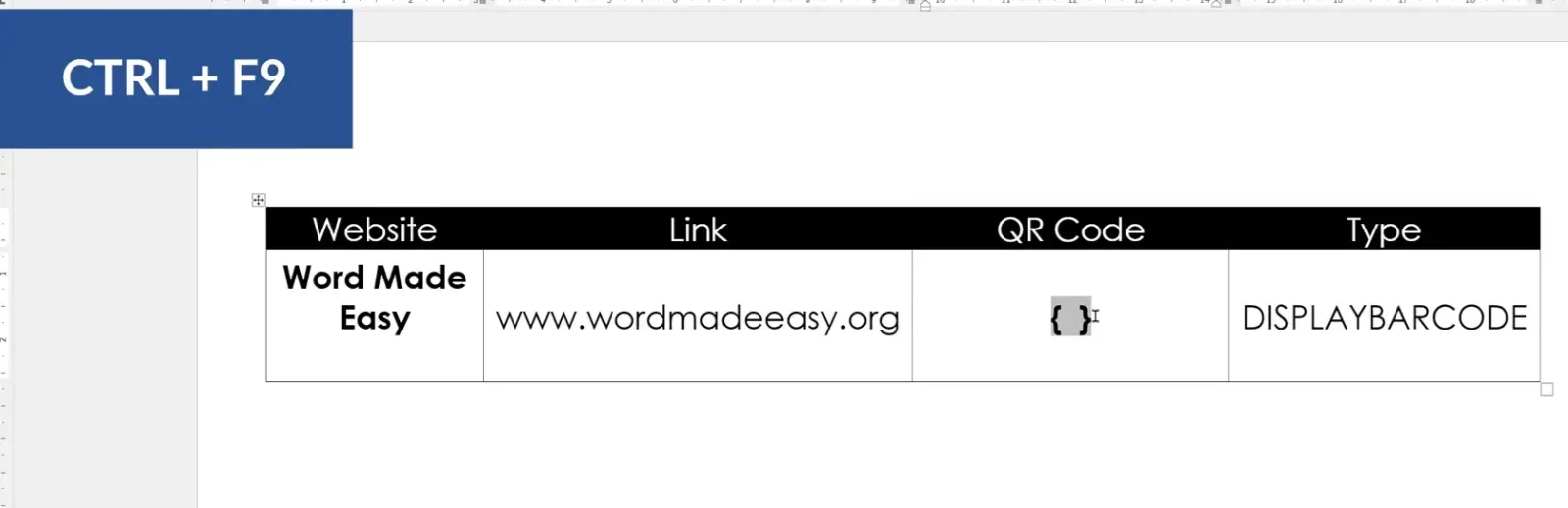
- Press Ctrl + F9 to insert a pair of empty field brackets
{ } - Inside the brackets, type the field code shown below
DISPLAYBARCODE "https://yourwebsite.com" QR \Q3
- Replace the example URL with your own link (keep the double quotes)
- Click anywhere inside the field code
- Press Alt + F9 to render the field — press it twice if the code is still showing

👉 A scannable QR code appears at your cursor position. Open your phone camera over it to confirm the destination loads correctly.
Method 2: How to Create a QR Code in Word with the Right Quality Level
The \Q switch at the end of the field code controls error correction — the higher the level, the more reliably the QR code scans, especially when printed or partially obscured.
- \Q1 — Low error correction (recovers ~7% of the code)
- \Q2 — Medium error correction (recovers ~15%)
- \Q3 — High error correction (recovers ~25%) — recommended for print
- \Q4 — Highest error correction (recovers ~30%) — use only when the code may be damaged or stamped over
Breakdown of the full field code:
- DISPLAYBARCODE — the field function that generates the image
- “URL” — the destination link, wrapped in double quotes
- QR — tells Word to render a QR code rather than a 1D barcode
- \Q3 — the quality (error correction) switch
👉 For most documents — flyers, posters, business cards, event invites — \Q3 is the right balance of scan reliability and code size.
Method 3: How to Edit or Update a QR Code in Word
Because the QR code is a live field, you never have to rebuild it from scratch — change the URL inside the field and the image regenerates instantly.
- Right-click the QR code and choose Toggle Field Codes
- Edit the URL between the quotation marks
- Press Alt + F9 to render the updated code, or F9 with the cursor on the field to refresh that single QR code

👉 The QR code refreshes with the new destination. Test the updated code with your phone camera before printing or sharing — a typo in the URL is the most common cause of a dead QR code.
Which Method Should You Use?
| Method | Best For | Effort |
|---|---|---|
| DISPLAYBARCODE with \Q3 | The default approach — works for 95% of QR codes | Low |
| DISPLAYBARCODE with \Q4 | Codes that will be printed small, damaged, or partially covered | Low |
| Toggle Field Codes → Edit URL | Updating a destination without rebuilding the QR code | Low |
For most users, stick with Method 1 plus \Q3. Switch to \Q4 only when the code will be very small or could be partly obscured in print.
Common Problems When Creating QR Codes in Word
The field code shows instead of the QR image
Field codes are being displayed instead of field results. Click anywhere inside the field, then press Alt + F9 to toggle to results view. If that doesn’t work, select the entire field and press F9 to force a refresh.
The QR code will not scan
Three likely causes: the URL inside the quotes contains a typo, the code is sized too small (keep it at least 2 cm wide), or the quality switch is too low. Re-check the URL, increase the size, and switch to \Q3 or \Q4.
The QR code prints blurry
You’ve resized the rendered QR image larger than the field originally generated. Don’t drag-resize the QR code — instead, toggle field codes back on, change the URL or quality switch if needed, then re-render with Alt + F9 so Word redraws the image at full resolution.
Ctrl + F9 is typing nothing
On most laptops the function keys need the Fn modifier — try Fn + Ctrl + F9. Alternatively, go to Insert → Quick Parts → Field, scroll to DisplayBarcode, and use the dialog to insert the field manually.
Pro Tips for Better QR Codes in Word
- Always use https:// URLs — most modern scanners block plain http links as a security precaution
- Leave a clear “quiet zone” of white space around every QR code — at least the width of four black modules — or scanners struggle to lock on
- Test every QR code with two different phones before printing — iOS and Android cameras read codes slightly differently
- To create multiple QR codes fast, copy the rendered field, paste it where needed, toggle the new field on, and swap the URL — and if you want to speed up your workflow with more shortcut tricks like these, the Microsoft Word keyboard shortcuts cheat sheet is worth bookmarking
FAQs
How do I create a QR code in Word?
Place your cursor where you want the QR code, press Ctrl + F9 to insert field brackets, type DISPLAYBARCODE "https://yourwebsite.com" QR \Q3 inside them, then press Alt + F9 to render the scannable image.
Do I need a plugin to create QR codes in Word?
No. The DISPLAYBARCODE field is built into every modern version of Word, including Word 2013 onwards and Microsoft 365. No add-in, no download, no external generator is required.
Can I customise the QR code design in Word?
Word renders standard black-and-white QR codes only — there is no native option for coloured codes, embedded logos, or rounded modules. For branded QR designs you’ll need an external generator, but for plain functional codes Word is enough.
Why is my QR code blurry?
Either the quality switch is set too low (use \Q3 or \Q4) or the image has been manually stretched after rendering. Don’t drag-resize the QR field — re-render it at the size you need by changing the field and pressing Alt + F9.
Can I create QR codes in Word offline?
Yes. The DISPLAYBARCODE field works entirely offline — no internet connection is needed to generate the image. An internet connection is only required by the person scanning the code, if the destination is a website.
Will QR codes print clearly from Word?
Yes, provided the field is rendered at \Q3 or higher and printed at 100% scale (not “Fit to Page”). Keep the printed code at least 2 cm wide and leave white space around it for reliable scanning.
Can I link a QR code to a document instead of a website?
Yes — upload the document to a cloud service (OneDrive, Google Drive, Dropbox), copy the public shareable link, and paste that URL into the DISPLAYBARCODE field. Scanning the code will then open the document directly.
Conclusion
Once you know how to create a QR code in Word, you have a free QR generator built into every document you write. The DISPLAYBARCODE field handles URLs, contact details, form links, and document downloads — all from one line of code and two keyboard shortcuts.
Use \Q3 as your default, leave clear quiet space around every code, and test on a second phone before printing. If you’re building interactive documents that pair QR codes with on-page data capture, the guide on how to create a fillable form in Microsoft Word is the natural next step.
Related Tutorials
- How to Create Barcodes in Microsoft Word
- How to Insert a Word Counter Directly in Your Word Document
- How to Create a Fillable Form in Microsoft Word
Word Tutorials
Recently Added on Word Made Easy
Browse the complete collection for help with formatting, layout, pages, tables, images, and document setup.
For Microsoft support documentation, visit the official Microsoft guidance.
Leave a Reply